
Appearance
Printers and peripherals
Open Printer, or Settings → Printer, to view receipt printers, label printers and Pending prints. Use the existing settings for a printer configured by your provider. To make changes, open Details on its record.
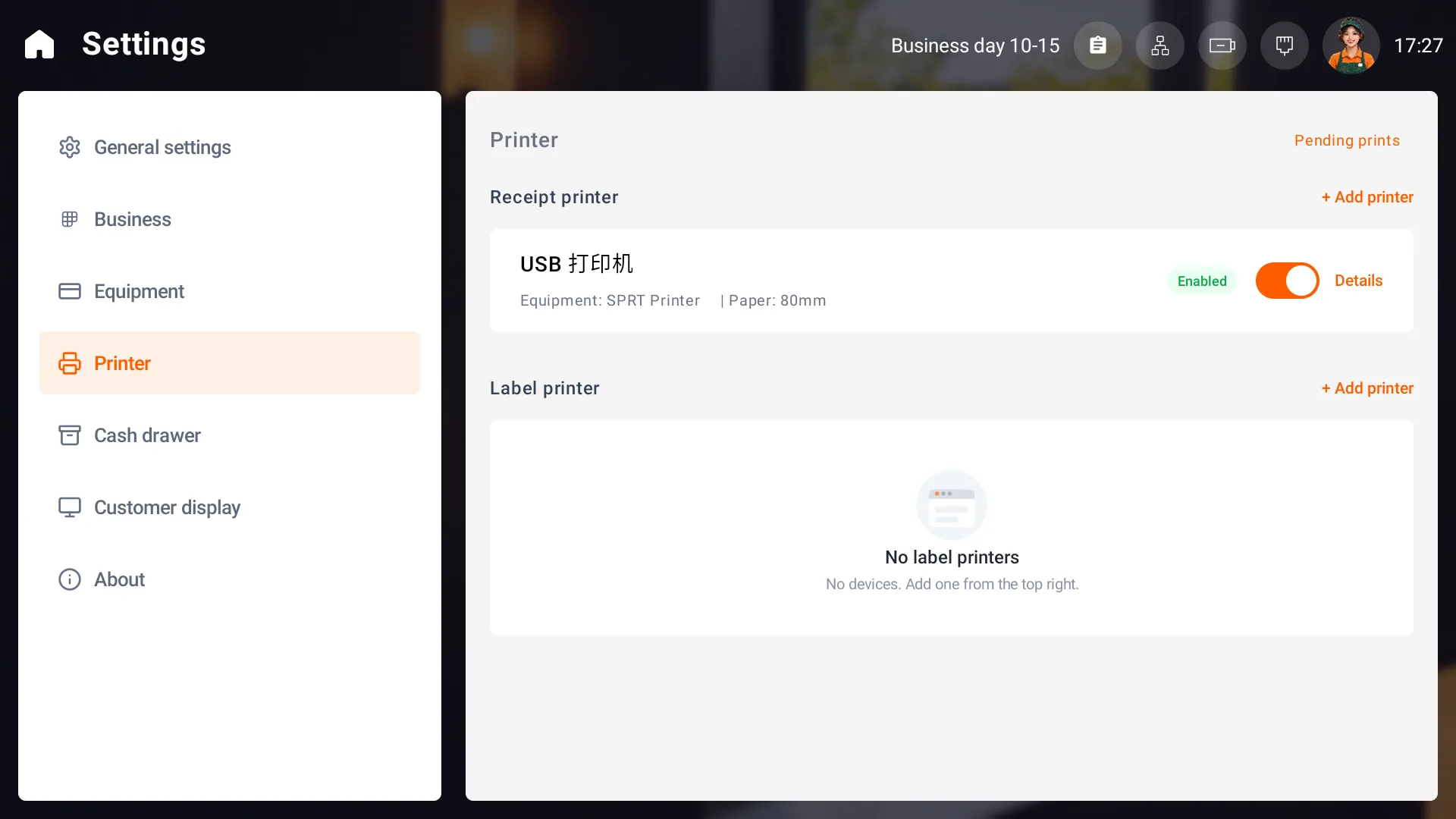
Connect a USB receipt printer
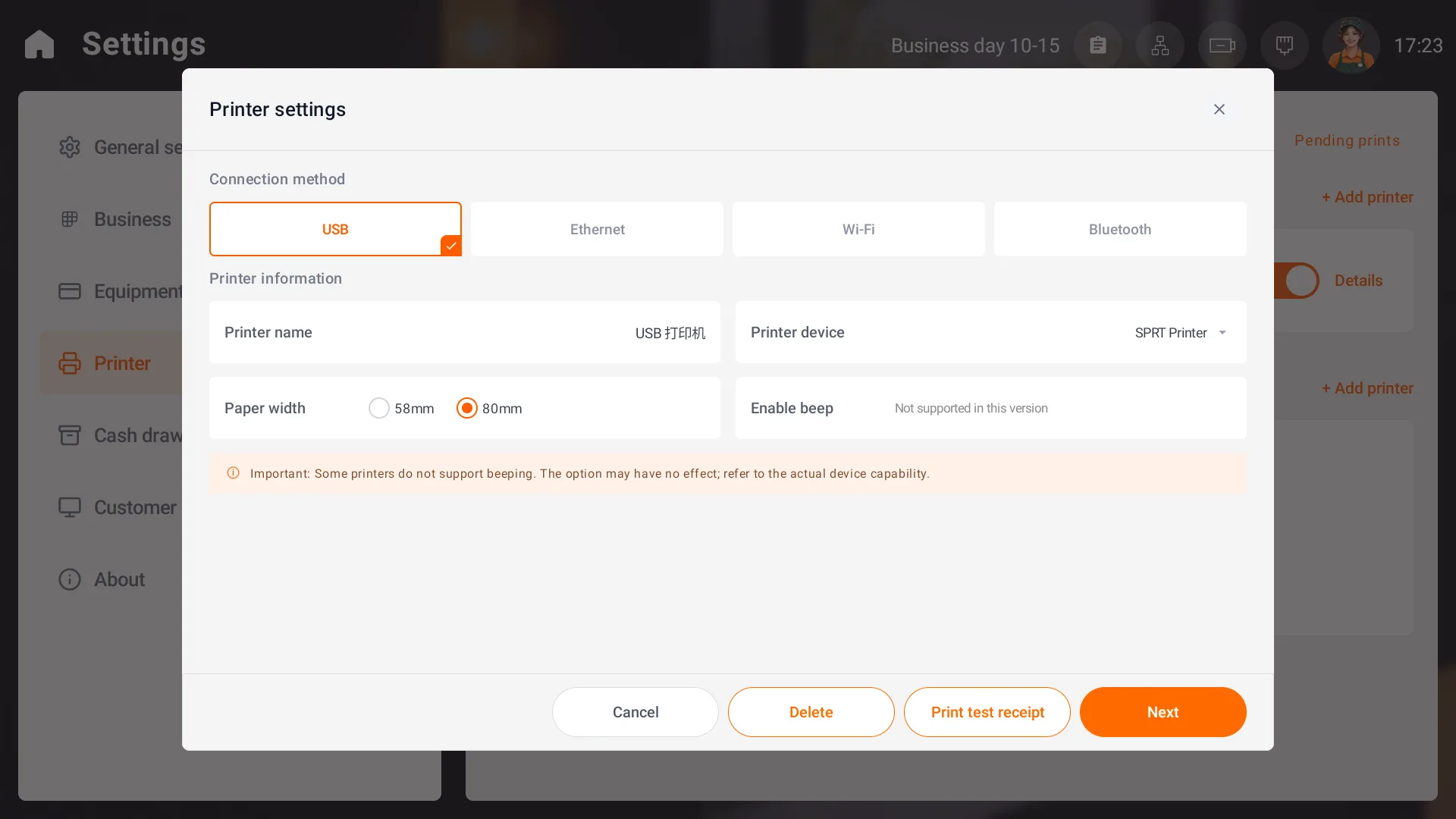
- Connect power and the USB data cable, and load paper. Select Add printer beside Receipt printer and obtain supervisor approval if requested.
- In Printer settings, select USB. Open Printer device and choose the connected printer. If the list is empty, check power and the connection.
- Enter a recognizable Printer name and choose 58mm or 80mm Paper width to match the roll.
- To check the connection and paper width, use Print test receipt and check that the paper feeds and the text is clear and complete.
- Select Next, configure purpose and copies, then select Complete. Check that the printer is enabled in the list.
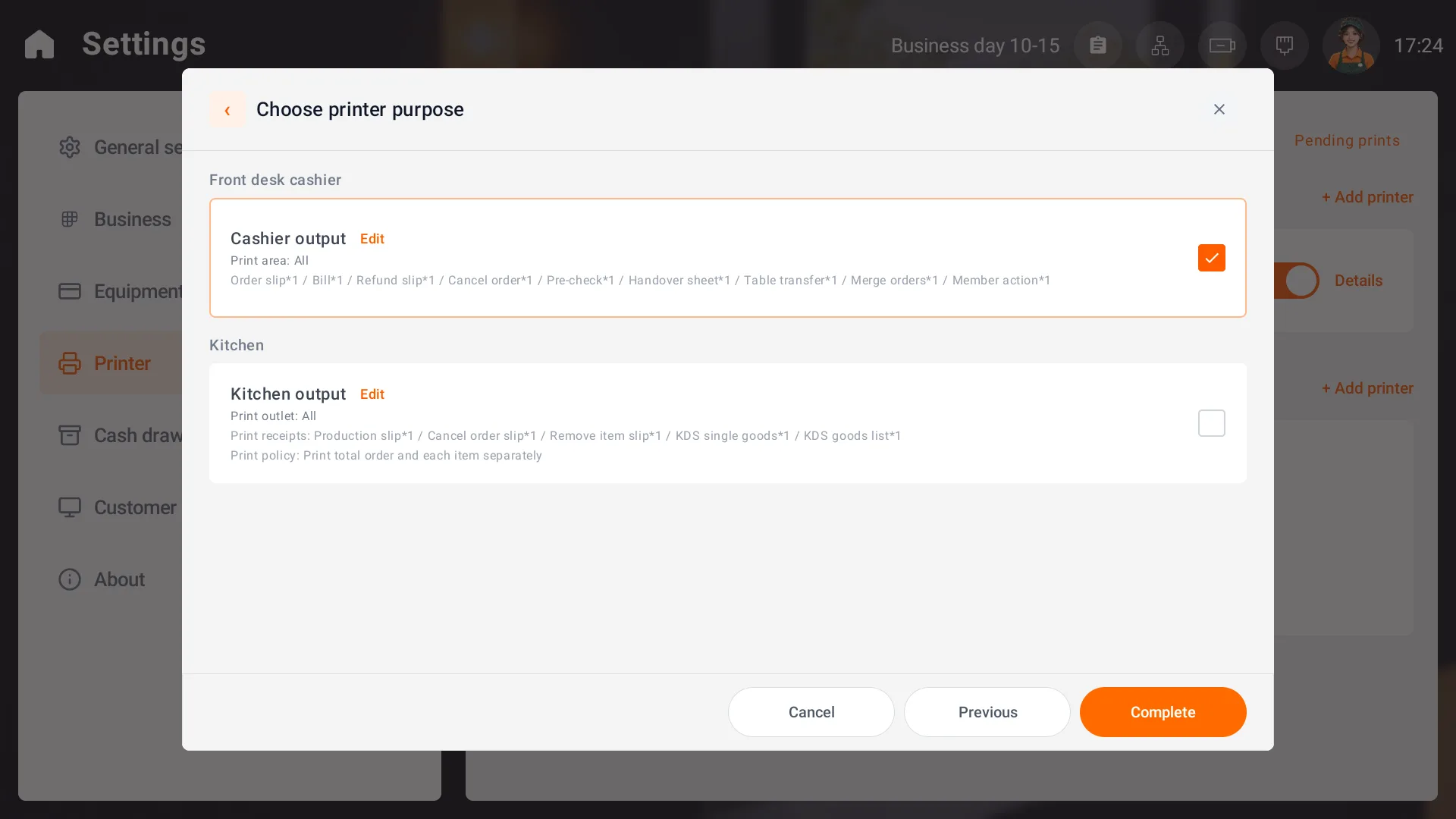
Set cashier output and copies
On Choose printer purpose, select Cashier output under Front desk cashier. Select Edit beside it. In Receipts & copies, set the required copies for each ticket type and select Confirm. Obtain supervisor approval if requested, check the purpose and select Complete.
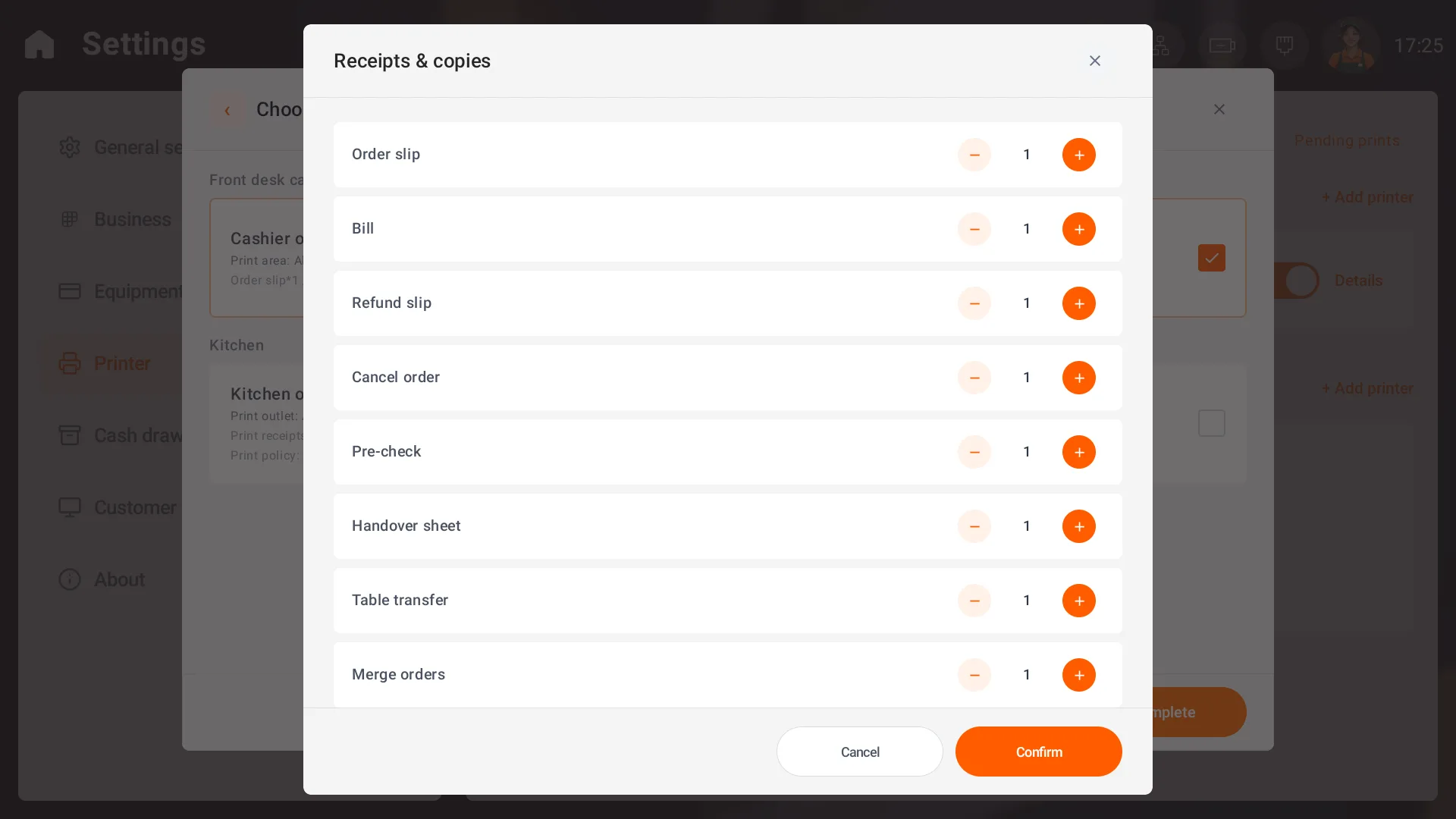
Ticket types include Order slip, Bill, Refund slip, Cancel order, Pre-check, Handover sheet, Table transfer, Merge orders and Member action. Scroll to see further types. Order slip and Bill are separate types; set their copy counts individually.
Set kitchen output and print policy
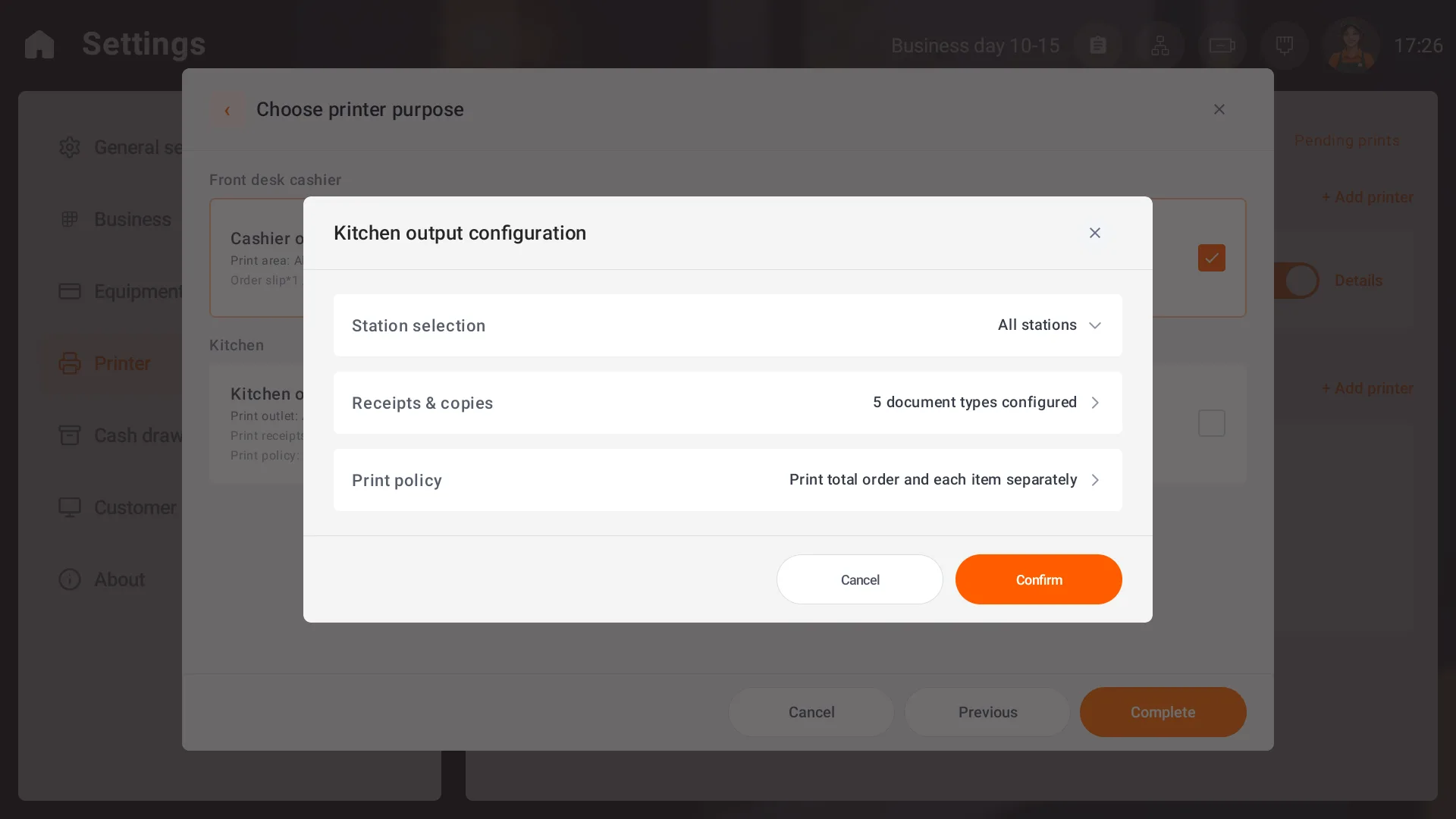
For kitchen printing, select Kitchen output and Edit to open Kitchen output configuration. Set stations, tickets, copies and policy to match kitchen assignments, then confirm and complete the purpose settings.
| Setting | Use |
|---|---|
| Station selection | Receive items from all stations or selected stations |
| Receipts & copies | Configure Production slip, Cancel order slip, Remove item slip, KDS single goods and KDS goods list |
| Print policy | Print the total order, each item separately, or both |
Reprint and handle failed jobs
Use the order search steps to find the original order. Check its number, items and amount, then use the receipt reprint action in its details.
If an order was saved but printing failed, check the saved order, printer connection and Pending prints. Pending jobs show failure reasons and offer retry. Check whether paper has already printed before retrying to avoid duplicates.
Deleting a pending job removes that pending record. It does not cancel printing already in progress or change the order.
Edit or delete a printer configuration
Select Details in the printer list, obtain approval if requested, make changes and save. Check the target device before disabling or removing it; deletion may require approval. Use the existing record for routine changes.