
Appearance
Reports and reconciliation
Choose the report for the question you need to answer, then align its date basis with any other report you are comparing.
| Question | Report |
|---|---|
| How is the store trading? | Business Home |
| Which items or categories sold? | Report Centre → Business overview |
| What did settled orders earn and incur? | Report Centre → Revenue Report |
| Which channels received money? | Report Centre → In-Store Payment Method Report |
| What tax was charged to customers? | Report Centre → Customer-Paid Tax and Fee Report |
Business Home opens the Business Overview dashboard. The separate Business overview page under Report Centre shows item and category summaries.
Date basis
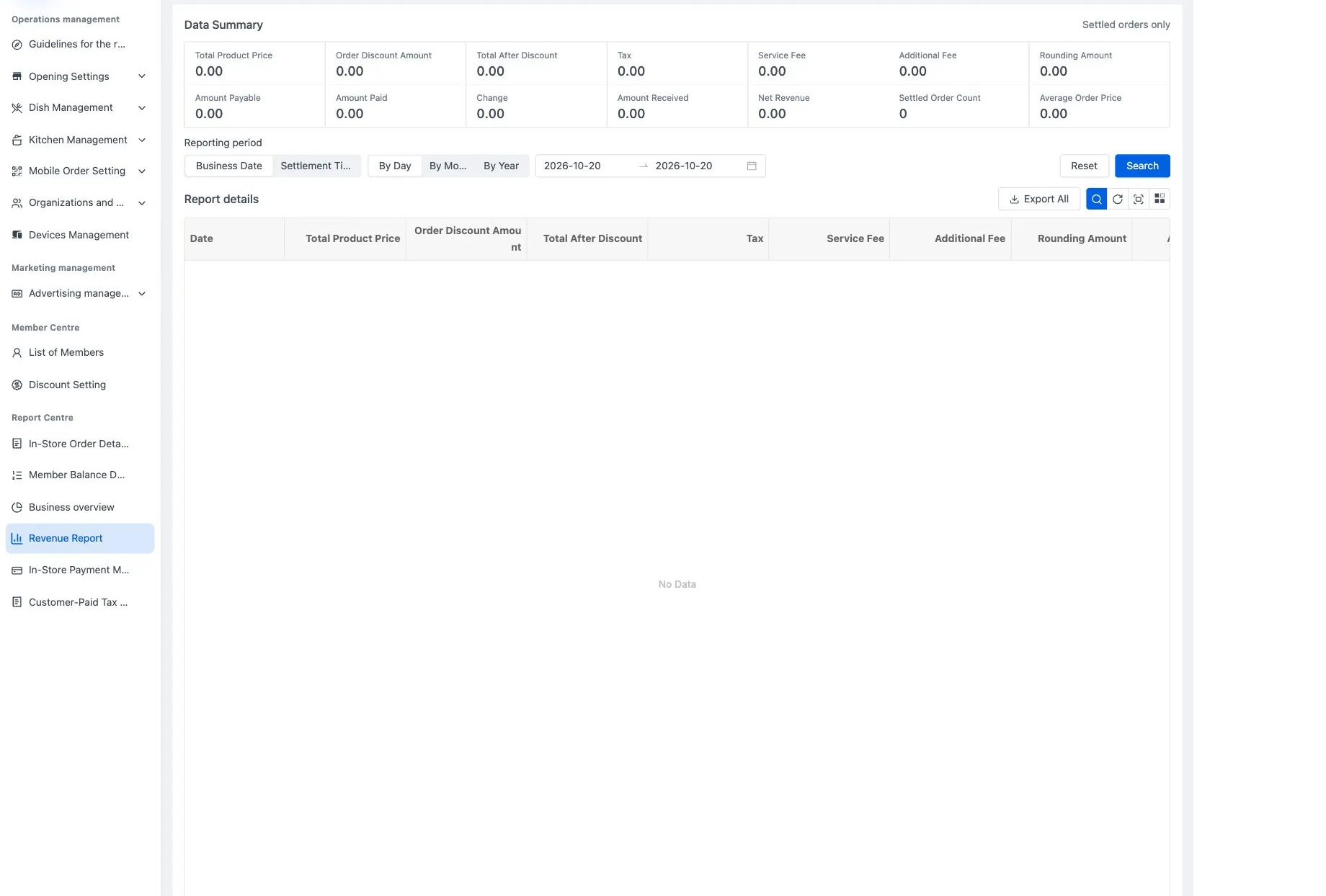
Business Date is assigned when an order is placed. Settlement Time uses the calendar date on which it is settled. A late settlement can therefore fall into a different reporting period.
Choose daily, monthly or yearly grouping where offered, set the range and select Search. Match date basis, range, order status and source before comparing totals.
Home and item sales
The home page offers yesterday, today, this week and this month, with further filters for other periods and date bases. Settled-order amounts and counts are separate from cancellations, returns and refunds. Use each metric's information control to read its scope.
The item and package rankings show the top 20 by completed sales quantity. The sales-overview report provides item and category tabs with quantities and income. Sort by quantity or income and use the item tab's export-all action where required. Do not add category totals to their item detail again.
In item sales quantities, set meals are broken down into their component items. Each weighted item counts as one portion.
Revenue from settled orders
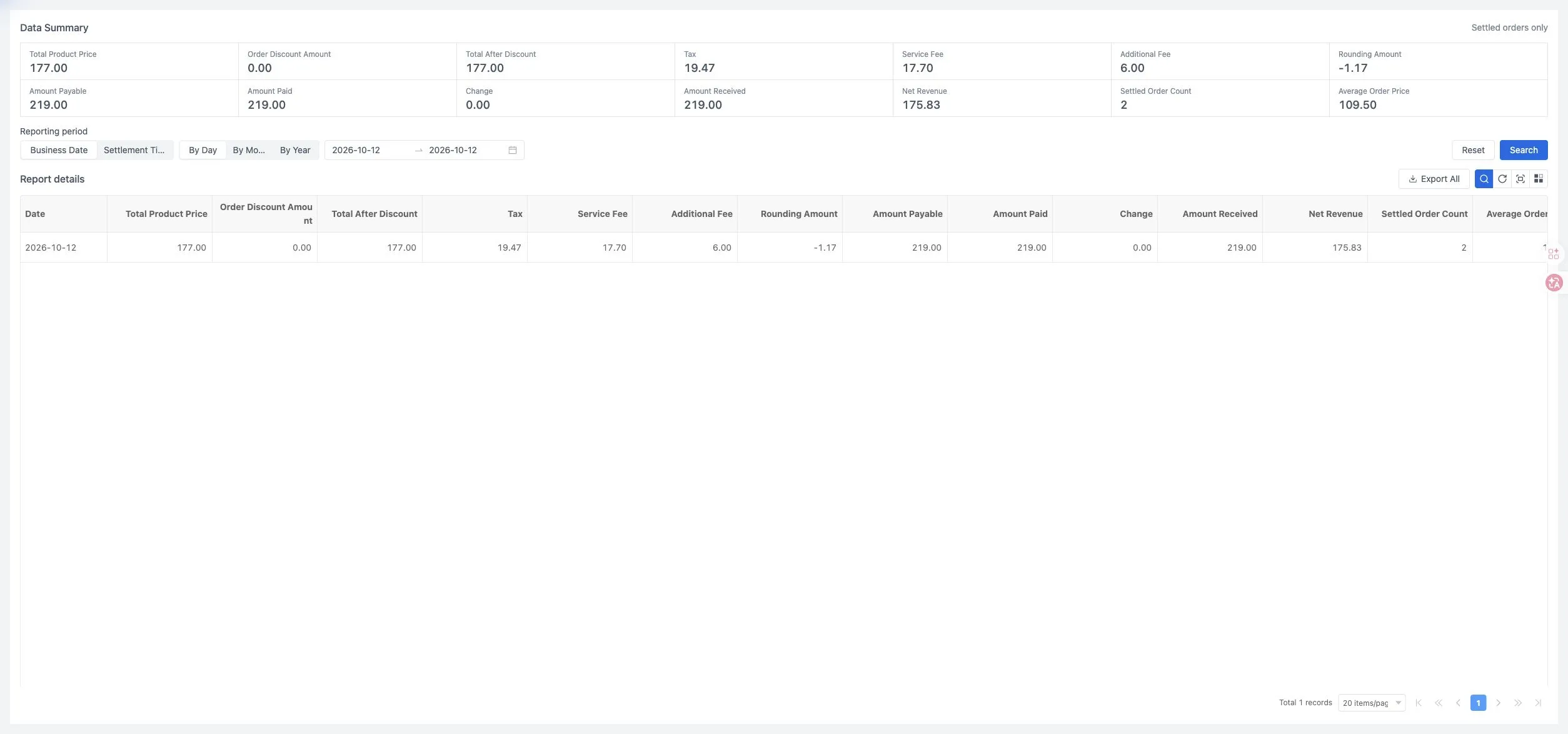
The revenue report includes settled orders only. Check these groups separately:
- Total Product Price, Order Discount Amount and Total After Discount.
- Tax, Service Fee and Additional Fee.
- Signed Rounding Amount, already included in Amount Payable.
- Amount Paid, Change and Amount Received.
- Net Revenue, Settled Order Count and Average Order Price.
Order net revenue is the amount received less tax, service fees and extra charges. Item net revenue also reflects the proportional allocation of whole-order discounts, including rounding, to individual items. Total discounts include all discounts and rounding. The settlement total already includes its rounding adjustment; do not deduct it a second time.
The sample day has two settled orders, 219.00 received and an average order price of 109.50. Subtracting tax of 19.47, service fees of 17.70 and extras of 6.00 gives net revenue of 175.83. The product total is 177.00; the difference includes rounding already applied at checkout.
Collections by channel
Choose Source: Order for item-order receipts or Recharge for member top-ups. Member payments are already included in Receipts and must not be added again. Electronic-payment fees follow the fixed channel rules supplied through your service provider’s integration. Read Fee difference and After fees separately from receipts before fees.
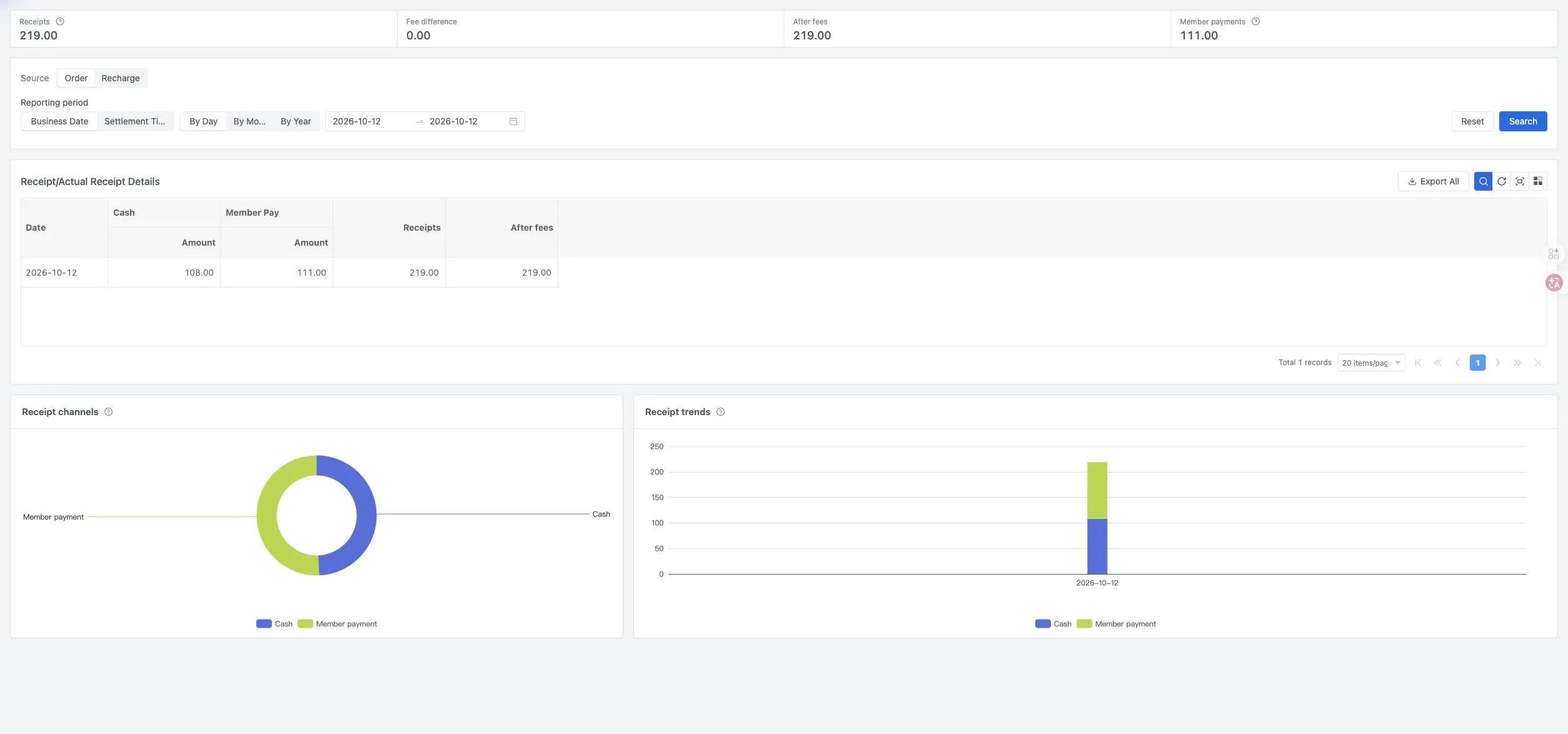
The sample combines 108.00 cash and 111.00 member payment into 219.00. The member-payment card shows part of that total.
Receipt channels covers the entire query range. Bank-card routes are not added again to their parent channel. Receipt trends covers dates on the current detail-table page and changes when you paginate.
Refunded or reversed payment records are removed from the collections report. Check the individual order and payment status when reconciling a difference. Returns and refunds do not reassign the order’s recorded order date, checkout date or business date.
Customer tax
Select date basis, grouping, range and optionally tax name. The report summarizes historical names and amounts from valid tax records on settled orders. It does not recalculate historical tax using today's rate or separately calculate tax refunds.
Renaming a tax rule or changing its rate does not rewrite these historical records.
Exports and discrepancies
Check the date basis, range and business source, run Search, and wait for the results to update before Export All.
| File | What to check |
|---|---|
| Revenue | Reporting date, product and discount amounts, charges, rounding, amounts due, paid and received, item income, order count and average order price |
| Collections | Order or recharge source, total collected before fees, total received after fees, then the channels present in that query |
| Customer tax | Reporting date, tax name and tax amount; the file headings may differ from the on-screen labels |
All three files include a total row. Collection-channel columns vary with the results; some electronic channels have separate before-fee and after-fee amounts. Check the headings when combining files.
Sum the date-detail rows or use the total row, without adding both together. Use the appropriate aggregate average order price instead of summing daily averages. Customer-tax export includes every matching result and its total, with three fixed fields, regardless of pagination or hidden columns.
Other lists have their own exports. Inspect the downloaded range and headers rather than assuming that screen column visibility controls the file.
For a mismatch, check date basis, range, status and source first. Then check member-payment double counting, whether a chart follows the current page, and the individual order's charges and payment states.