
Appearance
Order lookup
Open Report Centre → In-Store Order Details to find an order and review its recorded amounts.
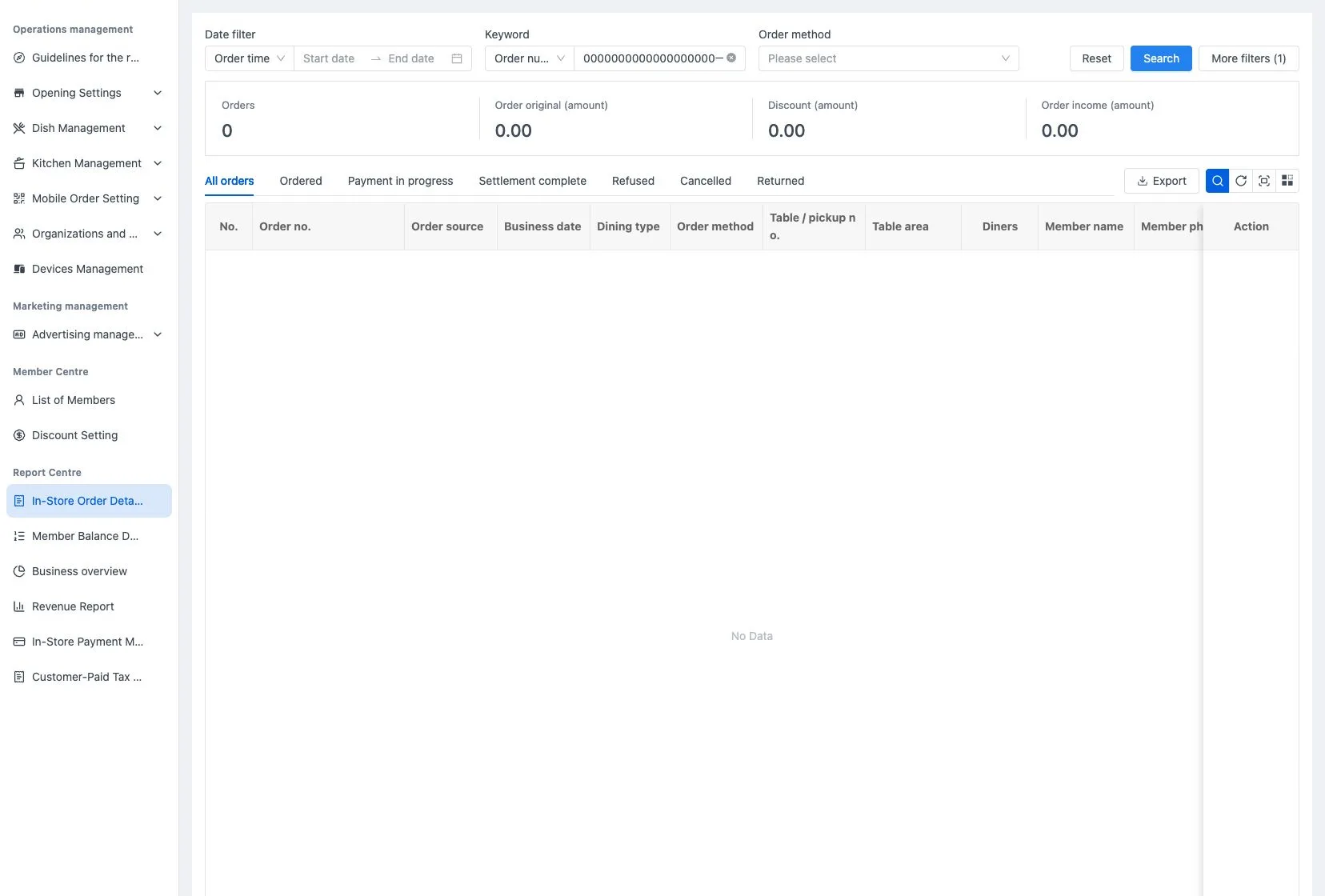
Narrow the list
Choose order time, settlement time or business date and set the date range. Search by order number or member, then optionally choose the order method. More filters include area, dining type, cashier, service staff, source, payment method and an amount range.
Select Search, then use the status tabs for placed, paying, settled, rejected, cancelled or returned orders. The summary above the list reflects the current filters. An order marked as paying has not necessarily completed settlement.
For a meal that crosses midnight, check the date basis before widening the search. Its business date was assigned when it was placed; settlement-time filtering uses the actual checkout date. Returns and refunds do not change the recorded order time, checkout time or business date. Changing the store’s settlement time also leaves existing assignments intact.
Read the details
Select the row's Order details action.
| Section | What to check |
|---|---|
| Basic information | Source, order and settlement times, dining type, table or pickup number, guests, staff, member and business date |
| Settlement | Item and order originals, discounts, charges, rounding, amount due, payment total, change and income |
| Associated payments | Method, payment number, status, amount and time |
| Items | The separate original-order and added-item batches, approval status, sizes, preparation choices, add-ons and quantities |
| Pricing details | Select an item row to review its recorded unit price, add-ons, preparation, quantity and total |
Use the Amount directory to select a charge or amount and view its detail panel. Missing detail rows do not by themselves mean the aggregate amount is zero.
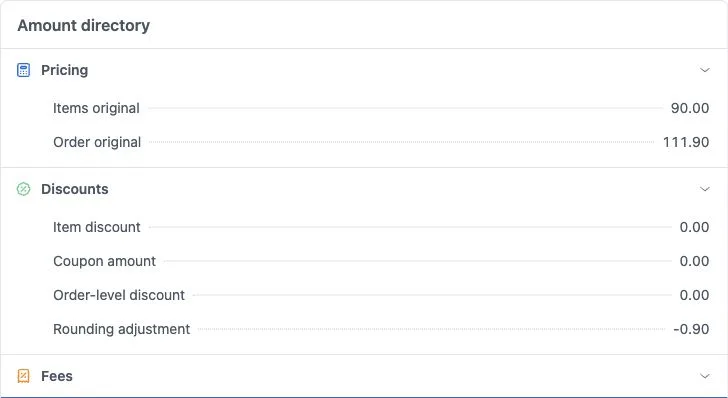
The sample records items of 90.00, tax of 9.90, service fee of 9.00 and extras of 3.00. The original total is 111.90; a rounding adjustment of -0.90 leaves 111.00 due. These figures demonstrate this order's records, not a universal tax formula.
Check payment status before adding amounts
An order can show several payment attempts, including cancelled ones. Check each status rather than adding every displayed amount. The sample includes a cancelled device-payment attempt and a final paid member transaction of 111.00.
Use View all in the list when several payment methods are present. Historical item amounts retain the prices recorded when the order was placed.
Review order activity
In Activity, review Action time, Operator, Action type, Action details and Action source. Match the sequence of placement, added items or cancellation with the item batches and payment states when checking an issue. The example below is from another order and shows placement, added items and cancellation.
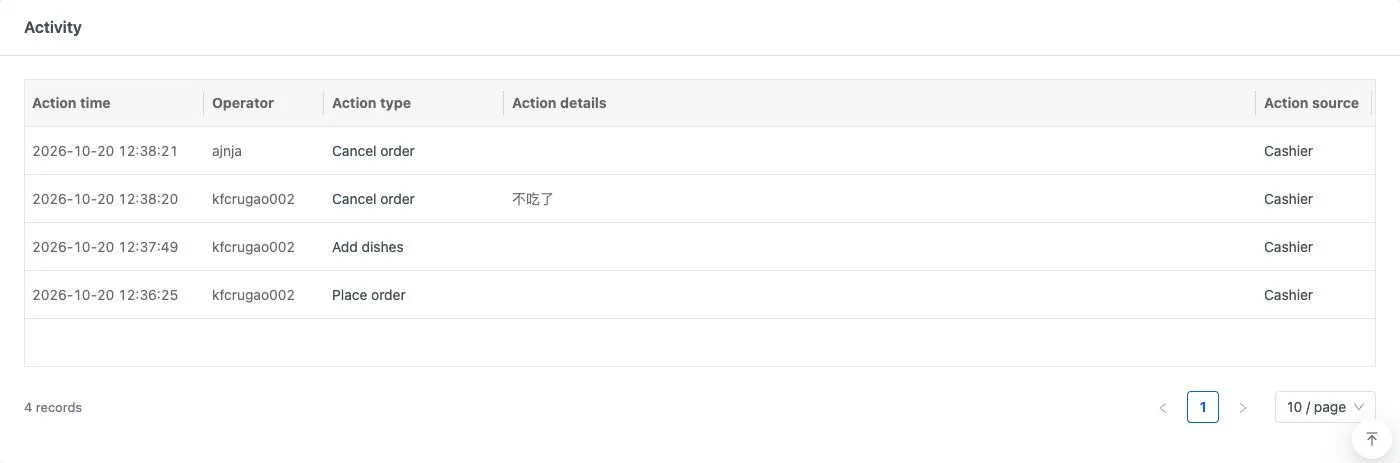
If no activity is listed for an order, check the available order, charge, payment and item records.
Export
- Return to the list, confirm the date basis, range, status and other filters, then run Search.
- Review the results and select Export.
- Open the file and check the record count, order numbers, statuses and amounts.
The file includes order and member details, order and settlement times, payments, charges and item amounts. It has no total row. Some status labels are shorter than their on-screen equivalents: settled and submitted records correspond to completed checkout and placed orders. Select the appropriate statuses before calculating sales income; rejected, returned and unsettled orders must be checked separately.
If export reports that the results exceed 500 records, narrow the date range or add filters, search again and retry. If the downloaded file will not open, check that the export succeeded and download a usable file before reconciling it.
If file timestamps differ from the page, match records by order number and ask your service provider to confirm the time basis before using those timestamps to divide reporting days. Cashier operations such as refunds and reopening checkout are handled at the POS according to permissions.