Appearance
Read, filter and find orders
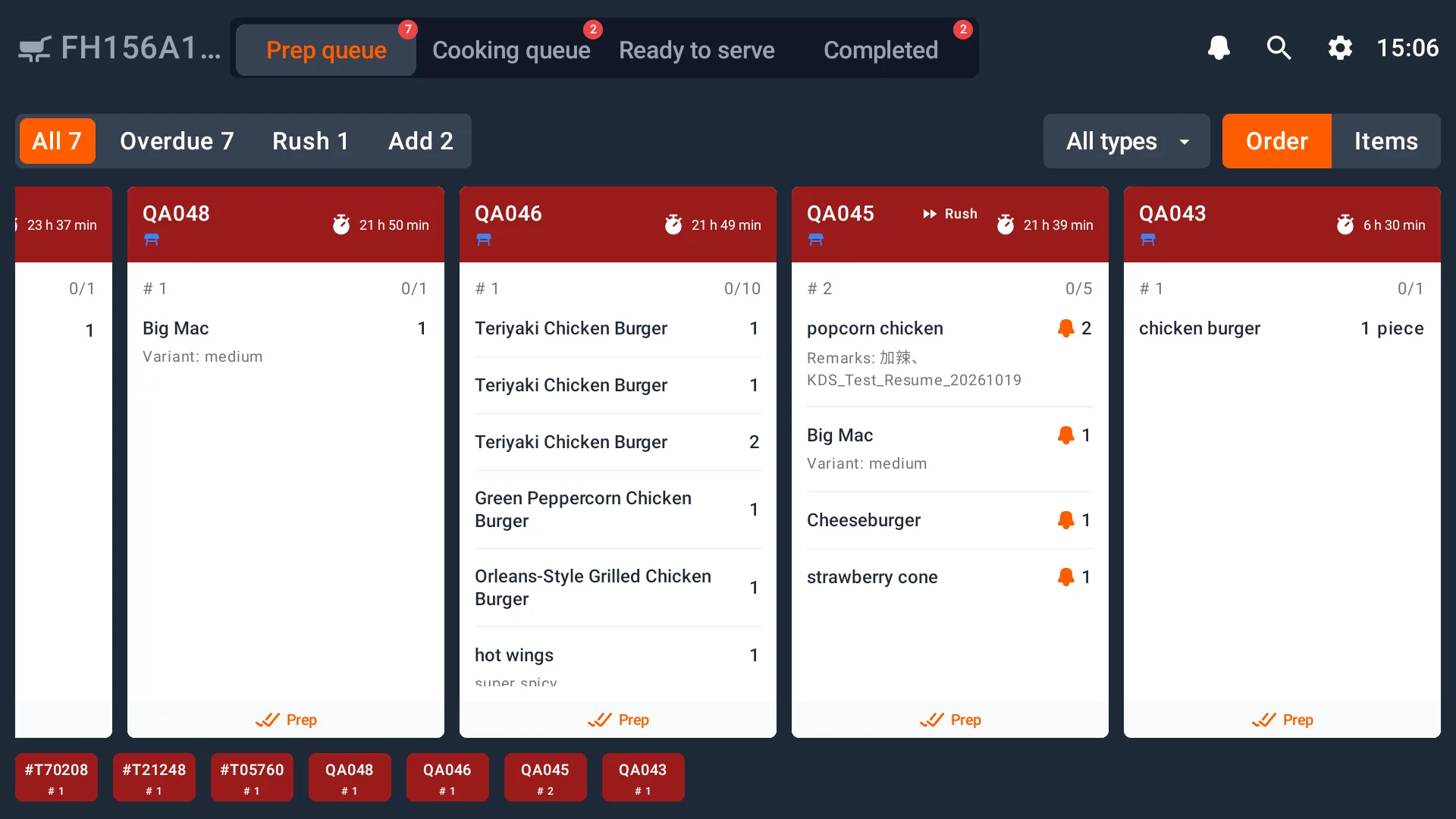
The board has Prep queue, Cooking queue, Ready to serve and Completed tabs. The selected work roles determine which stages appear.
Read an order card
Check the order number, batch, item name, quantity, variant and remarks before processing an item. Cards show waiting time and indicators such as rush status. Added items may appear in a separate batch of the same order, so check both the batch and the item details.
Filter and search
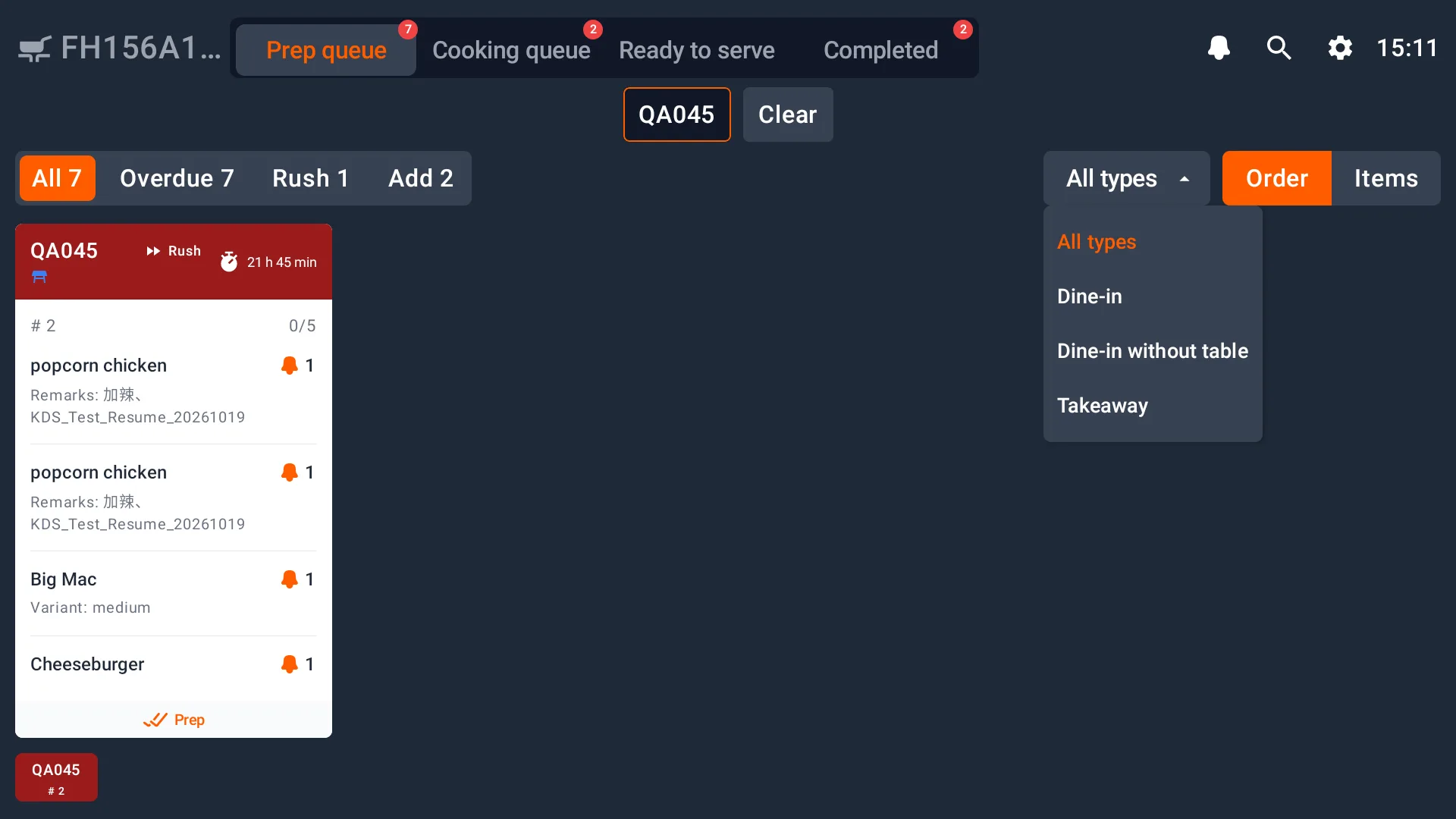
Use All, Overdue, Rush or Add within the current stage. Open All types to choose all order types, Dine-in, Dine-in without table or Takeaway.
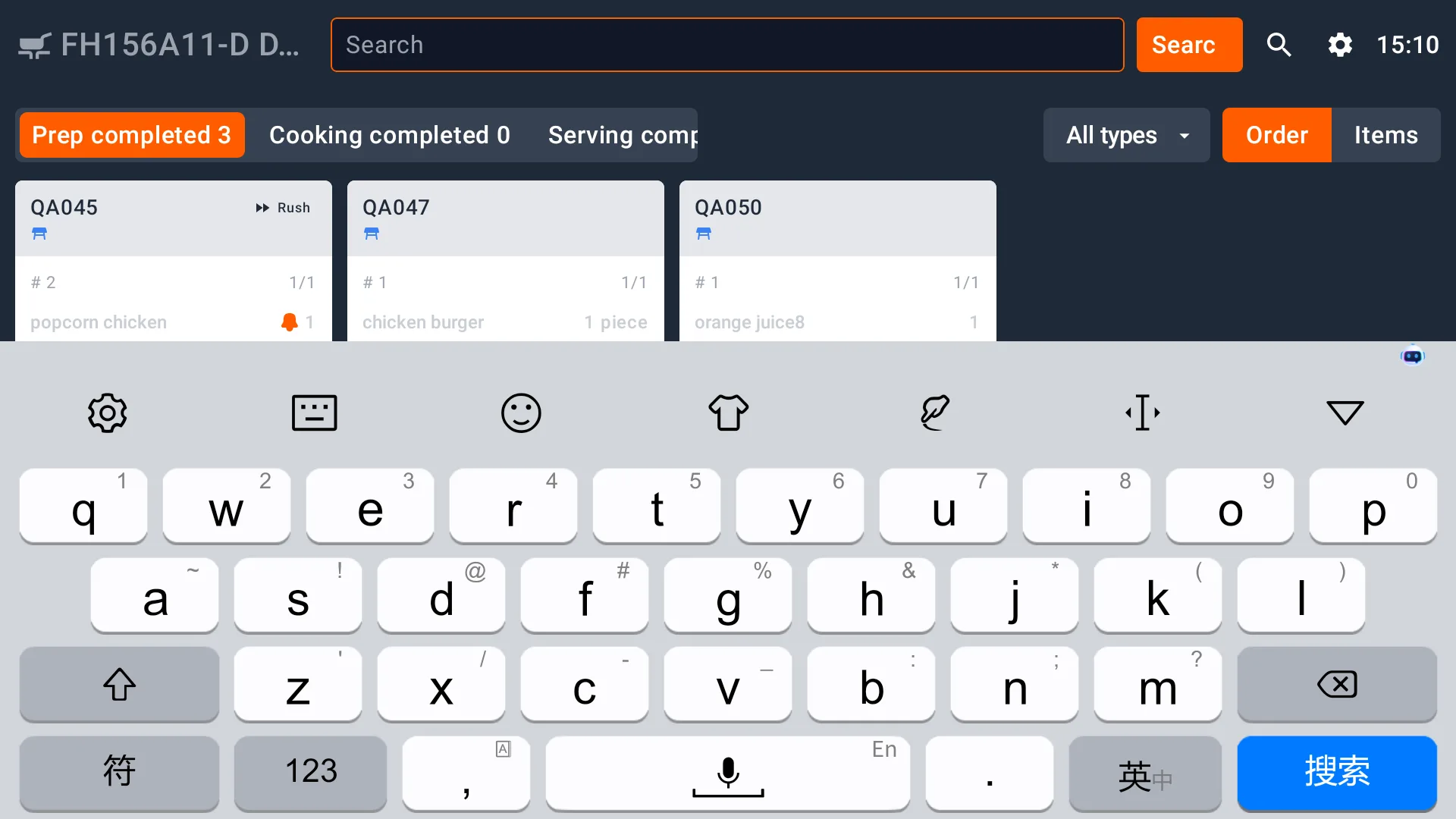
Select the search icon at the top right, enter an order number and select Search. The active keyword appears above the list. Use Clear to remove it. If an order is missing, check the stage, order type, station binding and display time range.
Order and item views
Use Order to read orders and their batches. Use Items to work with one dish across matching order lines.
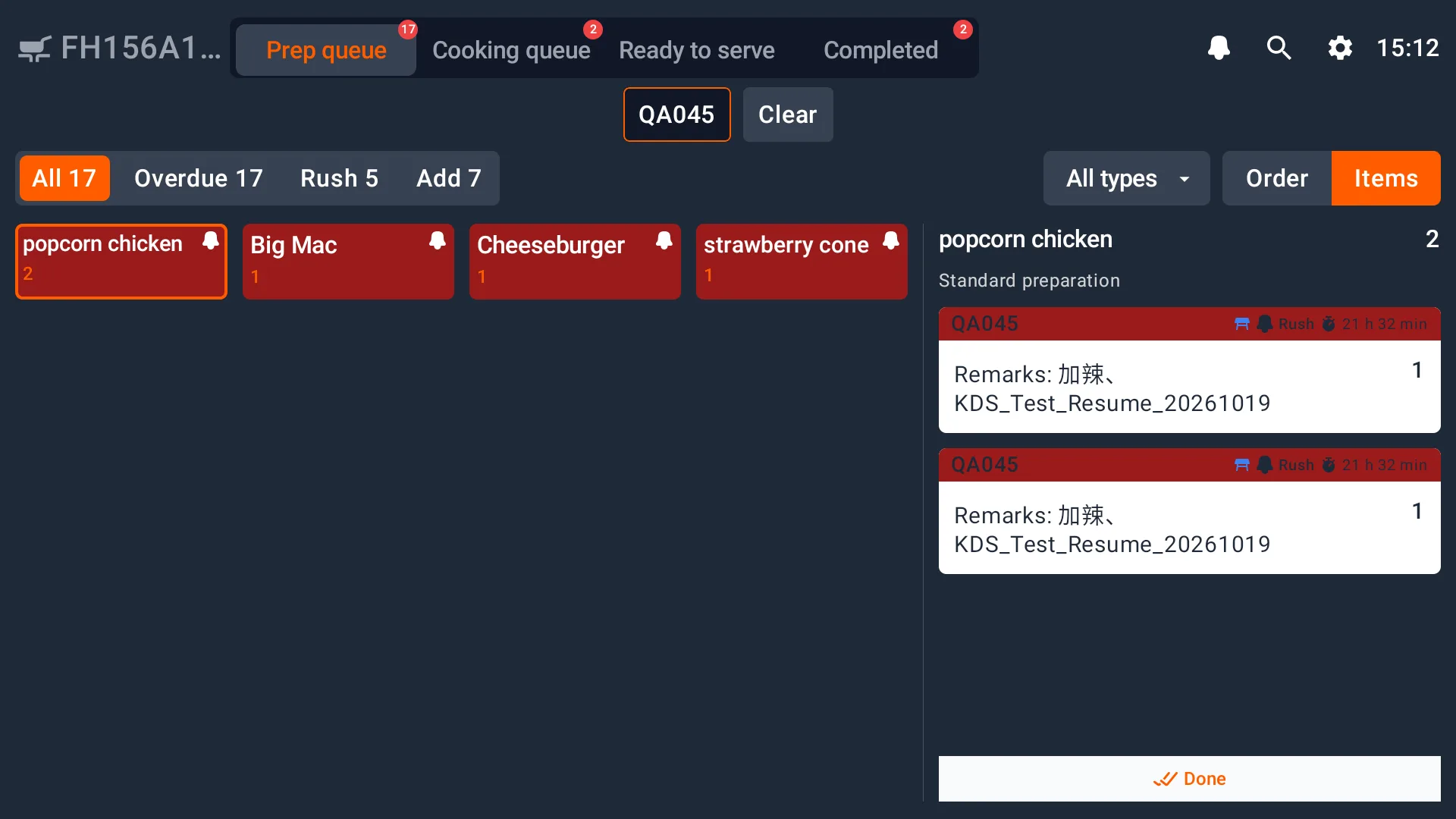
With Merge same dishes on, the left side groups dishes and the right side lists the selected dish's order lines. With it off, items appear separately by order. Check the orders, quantities and remarks on the right before processing them.
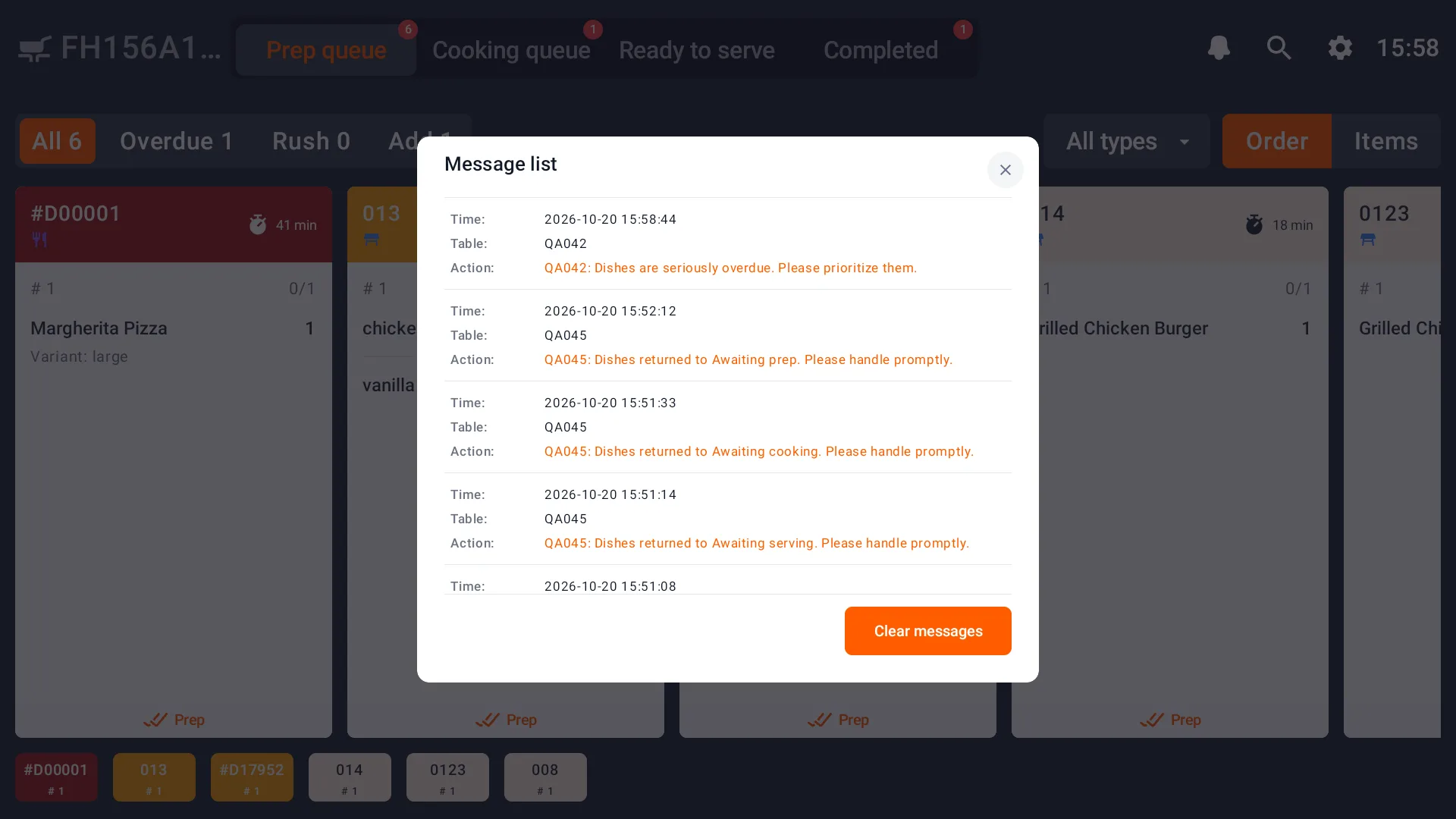
The message icon at the top right opens the message list. Notices such as returned items can also appear in a popup. Check the order, items and quantities before dismissing the notice, then follow the store's kitchen assignments. Use the message list to review actions and alerts.