
Appearance
Find orders and check refunds
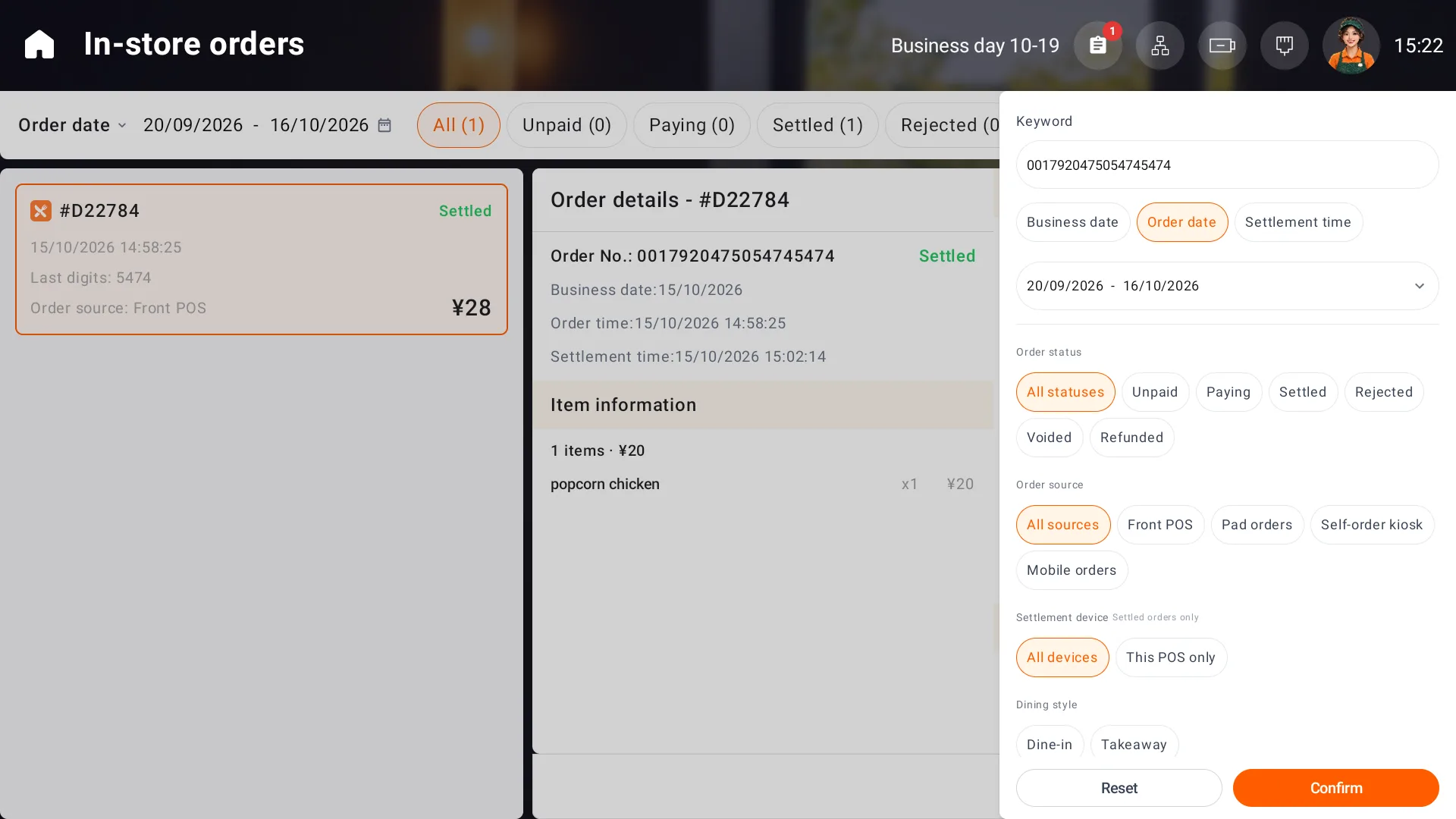
Open Order and search by date and status. The filter drawer also supports order number, table, pickup number, member, source, settlement device and dining mode. Before a refund, use the full order number to find the original order and check its table, items, amount and member.
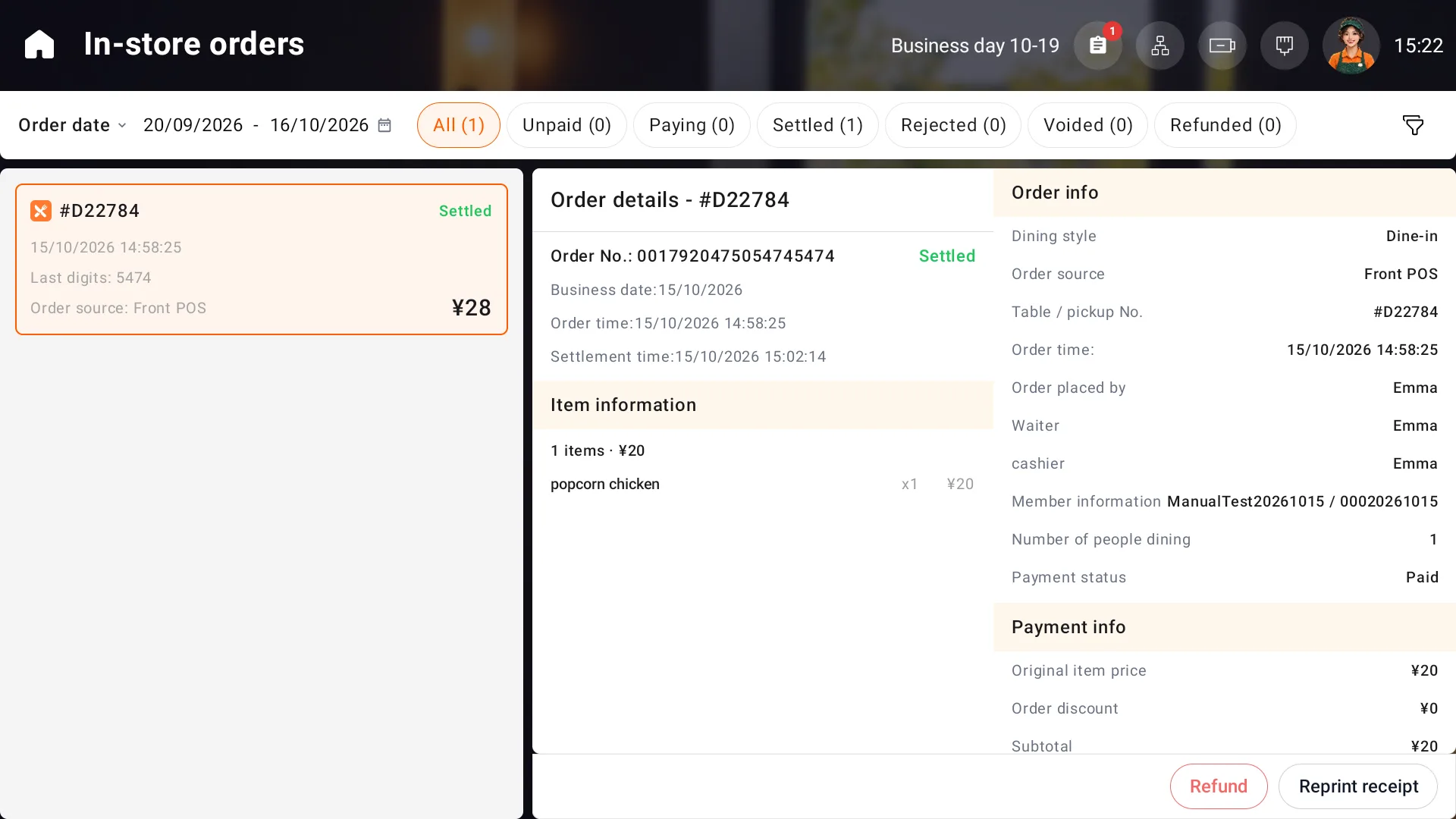
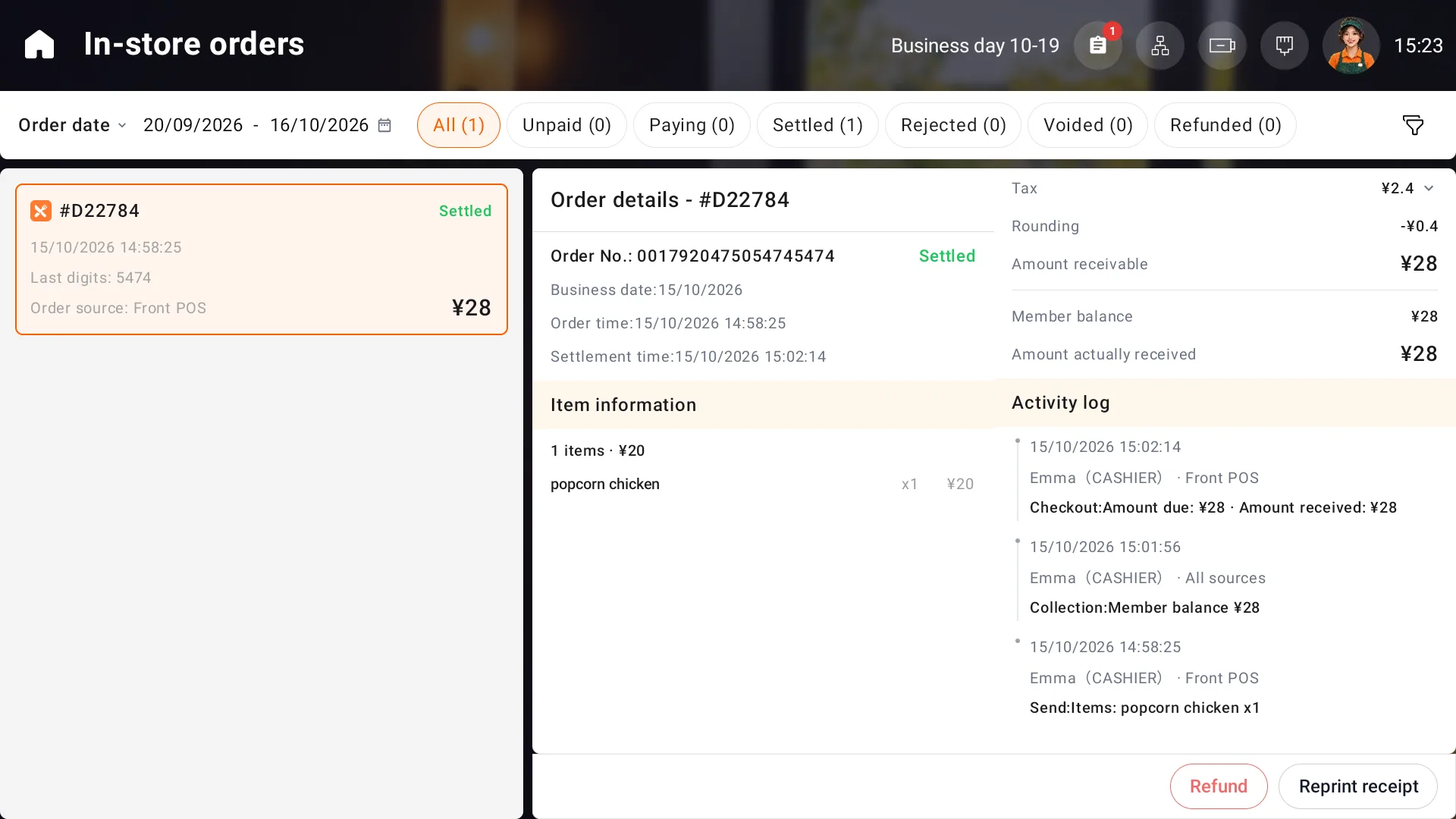
Scroll through the details to view payments, refunds and activity. Business date, order time and settlement time serve different purposes. Do not infer business date allocation solely from a displayed time after a later settlement or refund.
Refund a settled order
Open the full-order refund action on a settled order. Obtain supervisor approval if requested. Check the original payments, refund method, amount, reason and print options before confirming. Confirmation may request approval again.
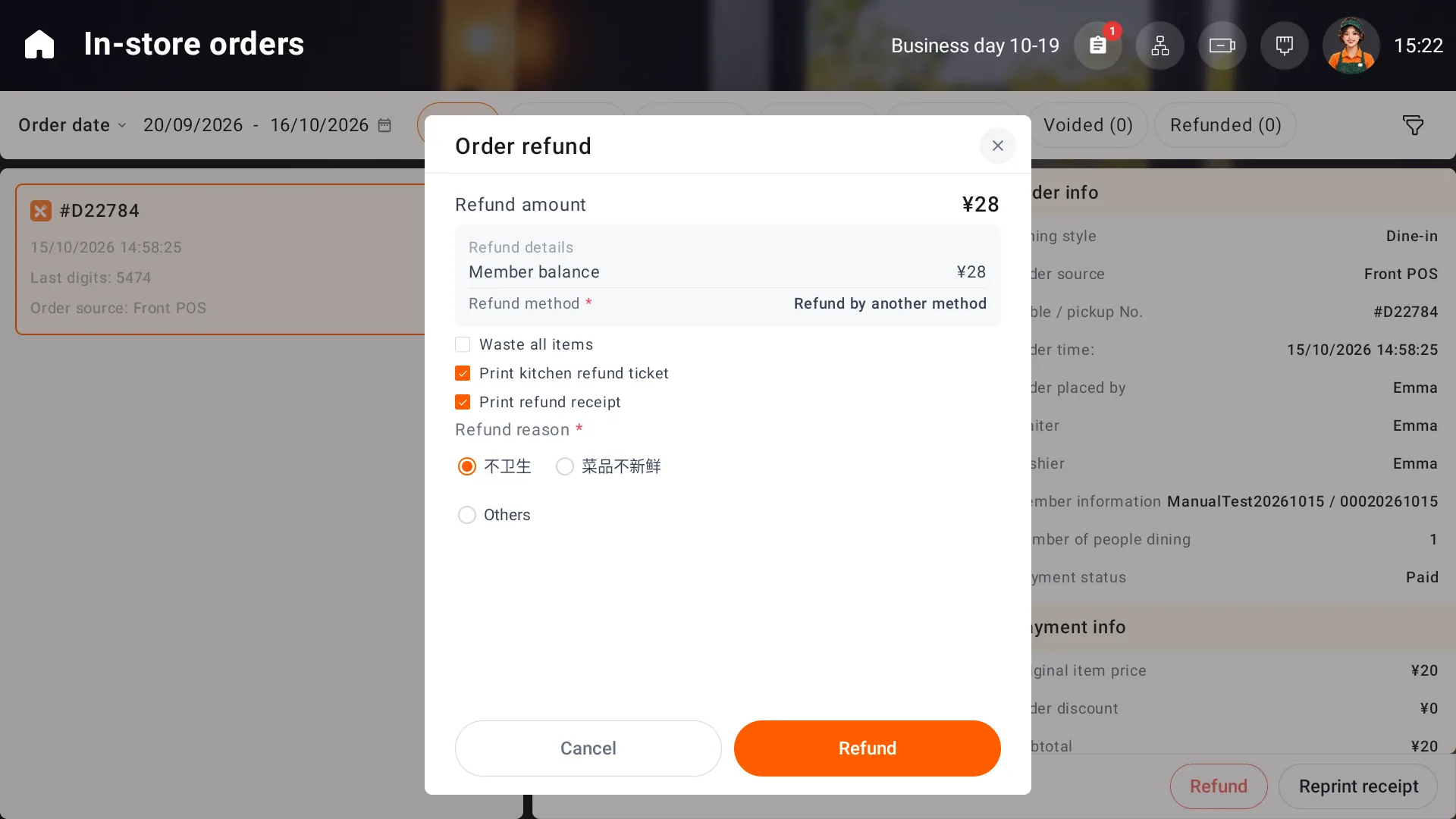
For a cash refund, check the original net cash retained after change against the amount to refund. If the amounts disagree, stop submission and have a supervisor reconcile the amount that should be returned.
After submitting a member-balance refund, check both the refund transaction and member balance to confirm the returned amount. If the result is unclear, review the records with the responsible person before submitting again.
Verify the result
Check the order status, refund transaction and actual repayment or member balance together. Keep the order number and payment records for the responsible person if they disagree. Use the refund process for paid orders.
Reprint the original order
Check the original order and use the receipt reprint action as needed. Order slip and Bill are separate ticket types. See Printers and peripherals for connections, copies and failed jobs.