Pickup calling
Set up pickup calling, then find orders, call numbers and confirm pickup on the POS. See how to configure the CDS pickup screen and call numbers from KDS.
Watch on YouTube
Place the CDS where guests in the waiting area can see it. The store can call numbers from the front counter POS or the kitchen KDS, depending on where food is handed out. Guests use the display to check their number before coming to the counter.
Set up pickup calling, then find orders, call numbers and confirm pickup on the POS. See how to configure the CDS pickup screen and call numbers from KDS.
Watch on YouTube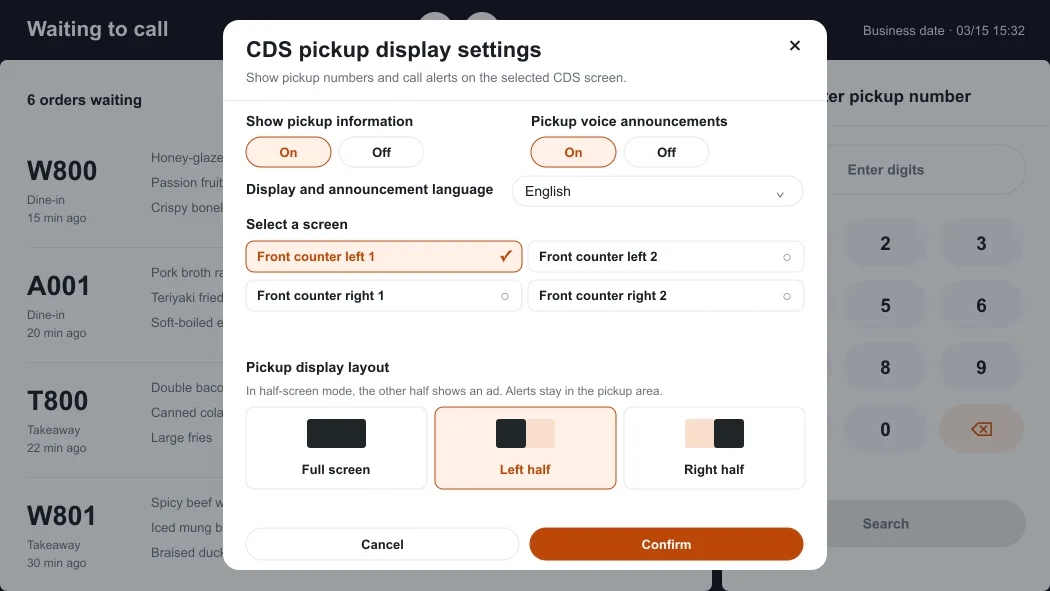
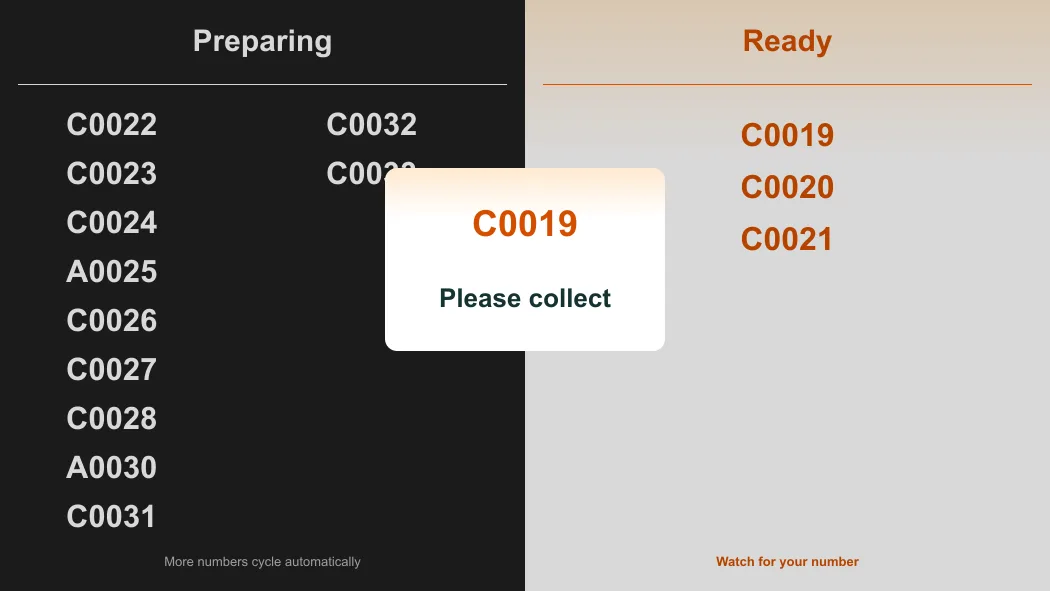
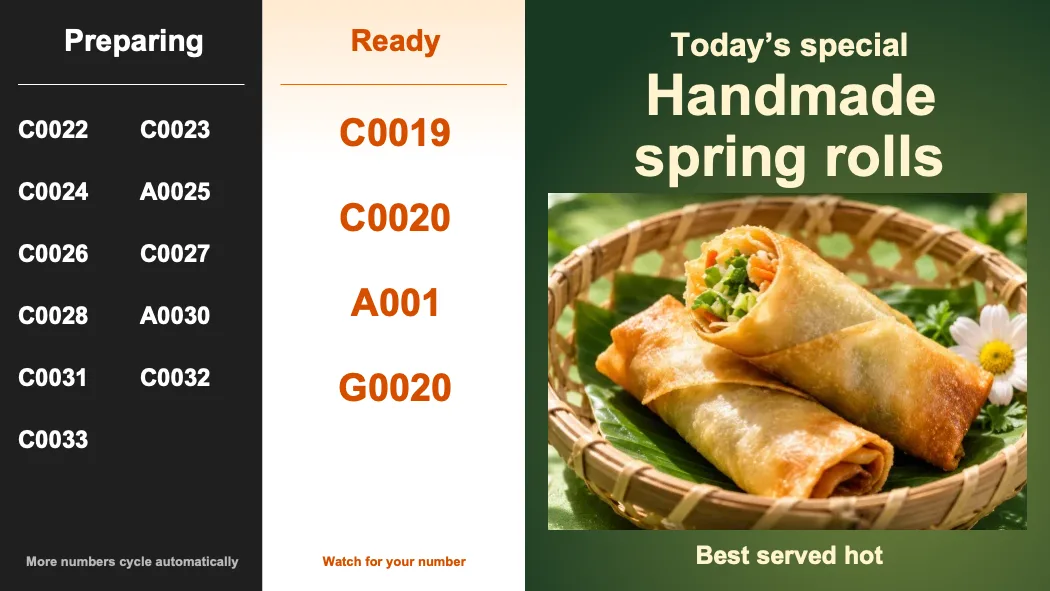
The pickup area shows Preparing and Ready in separate columns. The number being called appears larger with a prompt to collect the order. Guests can also hear the announcement if voice is on. Staff check the number, hand over the food and confirm pickup on the POS or KDS used to call it.
If pickup information is missing, check that the CDS is on, the correct screen is selected and pickup information is enabled. Check the order status on the calling device. If numbers are visible but silent, check pickup voice settings on the POS or CDS that should play announcements.
For seating and queue tickets, see Manage the waitlist and seat guests.