
Appearance
Advertising
Open Marketing management → Advertising management. Screen ads and customer-mobile ads have separate destinations and controls. Start by choosing where the ad should appear.
Publish to a device screen
- Open Screen Advertising and find the device by name, serial number, type or online status.
- Select View to open its plans. Create a plan with a name, optional cover and all-day or scheduled playback time.
- Open the plan's details. Upload images or videos and check the material names, types, image display duration and order.
- Push the completed screen plan, review its push status and check playback on the device.
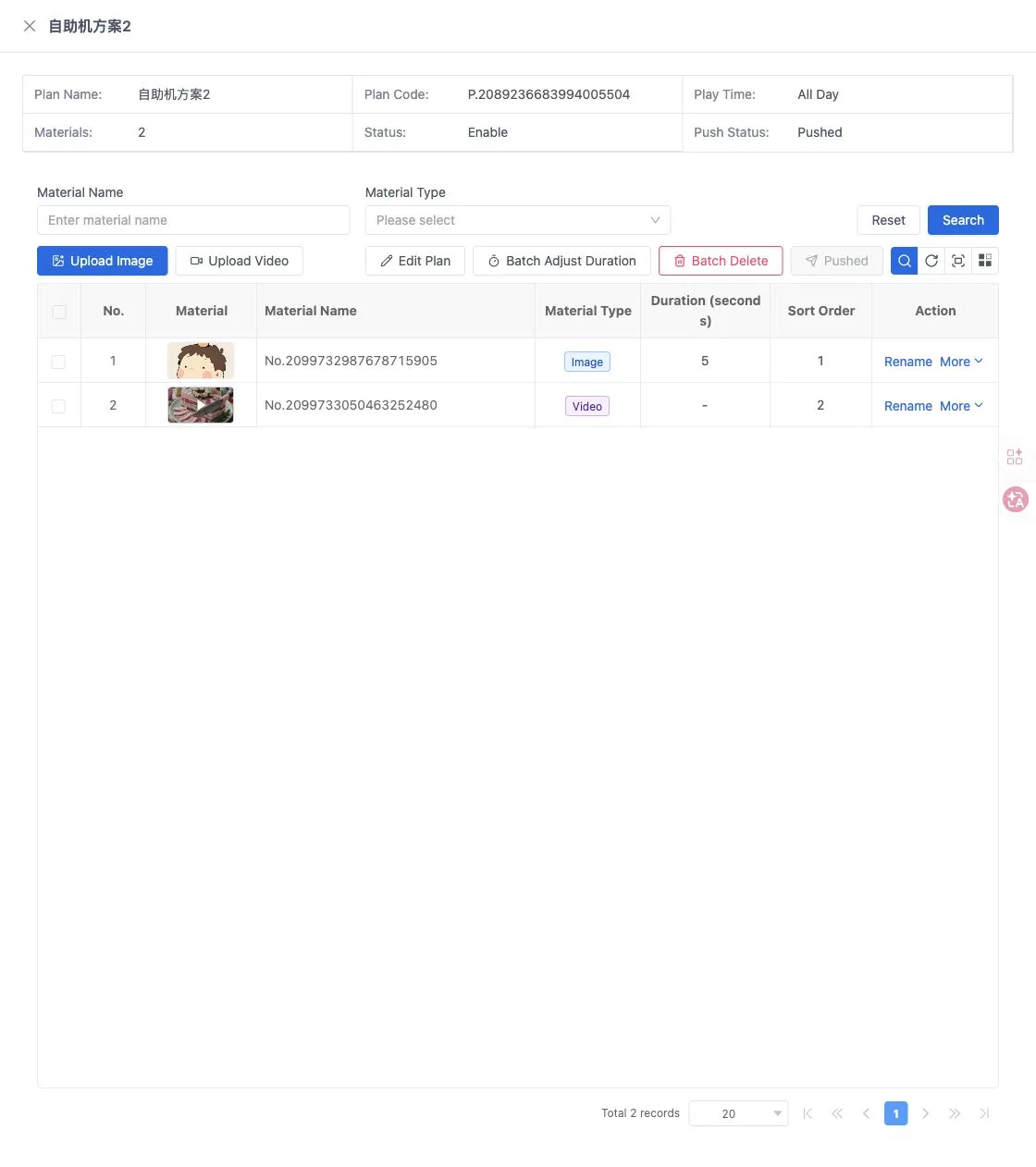
Existing plans can be edited or enabled/disabled from their More menu. Material tools include renaming, editing the plan, changing selected image durations together and deleting selected materials. Review the selected rows before a batch action.
The advertising display and main POS need internet access to fetch new ads. The advertising display fetches them directly; other devices receive them from the main POS over the local network. Downloaded ads are stored on the device and can continue playing offline.
Prepare assets for the actual screen dimensions. Other dimensions are scaled automatically, so check text and image framing on the device. Follow the upload control for accepted formats and size limits.
Add ads to customer mobile pages
Open User Mobile Advertisement.
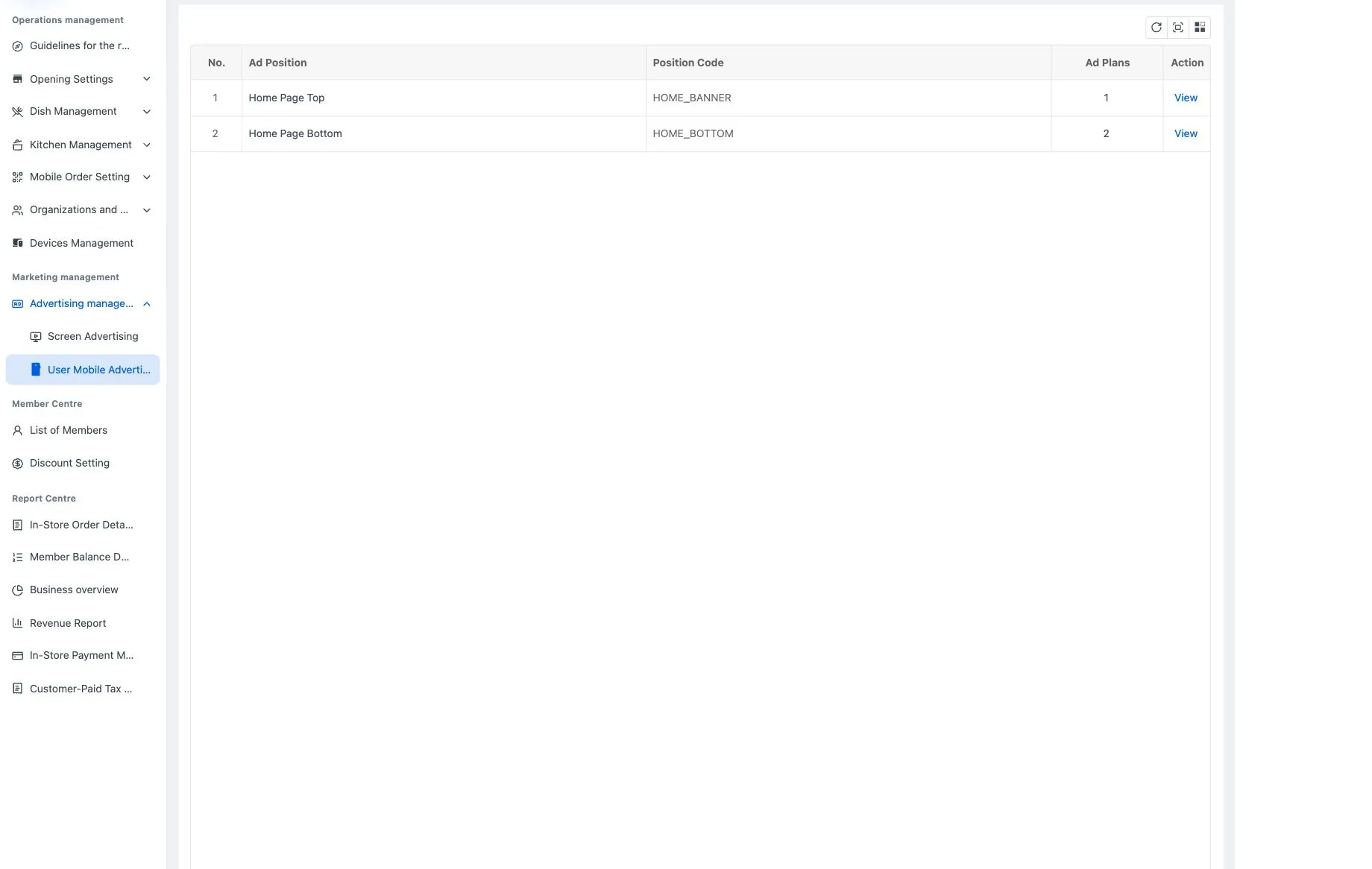
Choose the top home-page placement (HOME_BANNER) or bottom placement (HOME_BOTTOM) and select View. Create a plan, choose its playback schedule, save and open its details. Upload images, check their order and display duration, and review the plan's status.
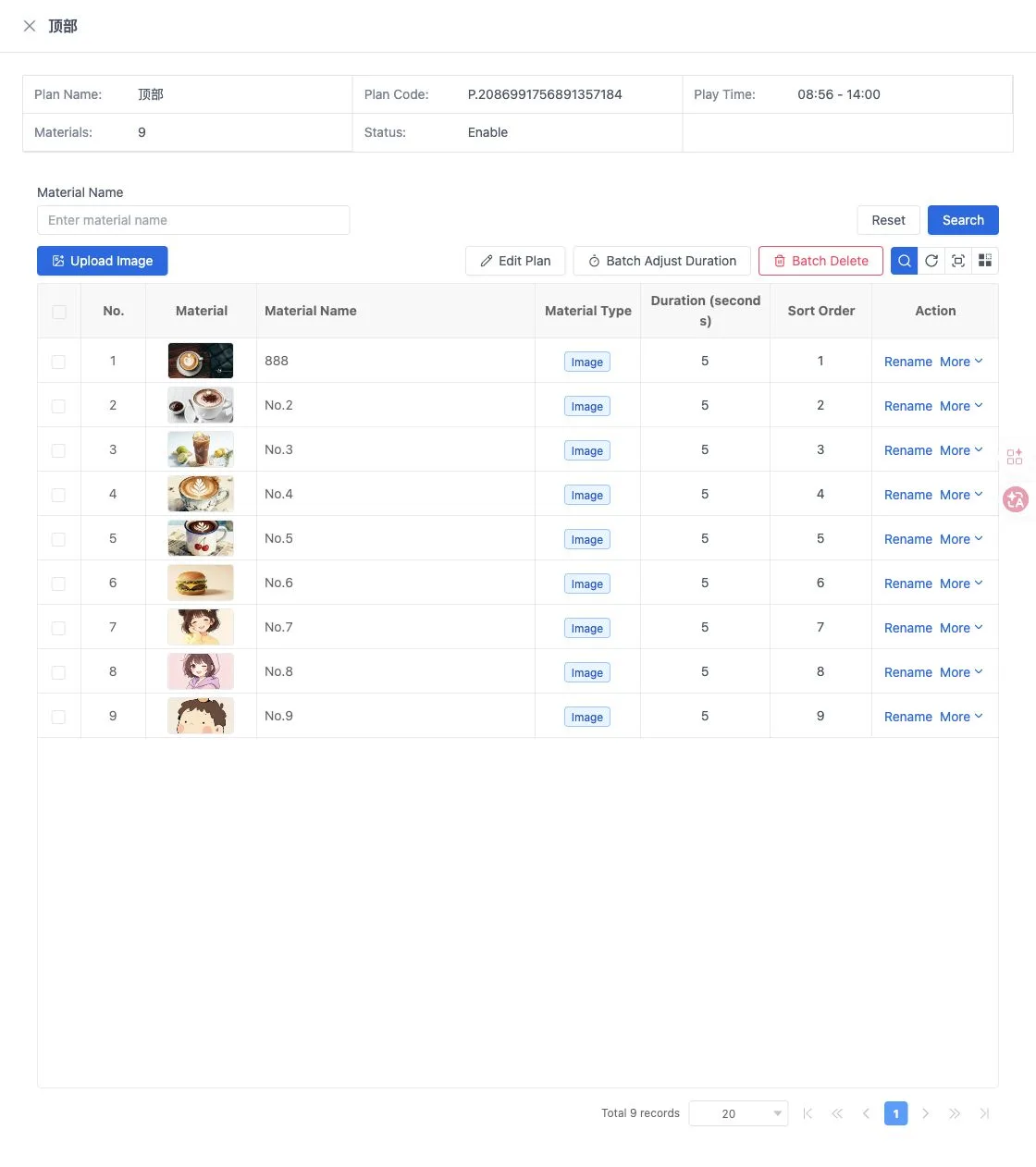
The two placements are independent. Mobile assets have no fixed dimension requirement, but should remain legible on a phone. Check the intended placement on the customer page after configuration.
For subsequent changes, search by material name, rename the entry or adjust selected image durations in seconds. Screen plans also require checking push status and actual device playback.
For an individual image, use its More menu to adjust duration. To reorder, open the sort-setting action, select the material to exchange positions with and confirm. Check the resulting order in the list.