
Appearance
Customer ordering
The primary POS, secondary terminals, KDS and self-service kiosks work together over the store's local network. Keep the primary POS powered on, running LuckyPOS and connected locally. Local operations using downloaded data can continue during an internet outage. Customer QR ordering still requires the primary POS to be online. Check opening hours, the menu, payment methods and order acceptance before enabling ordering.
Choose a QR-ordering mode
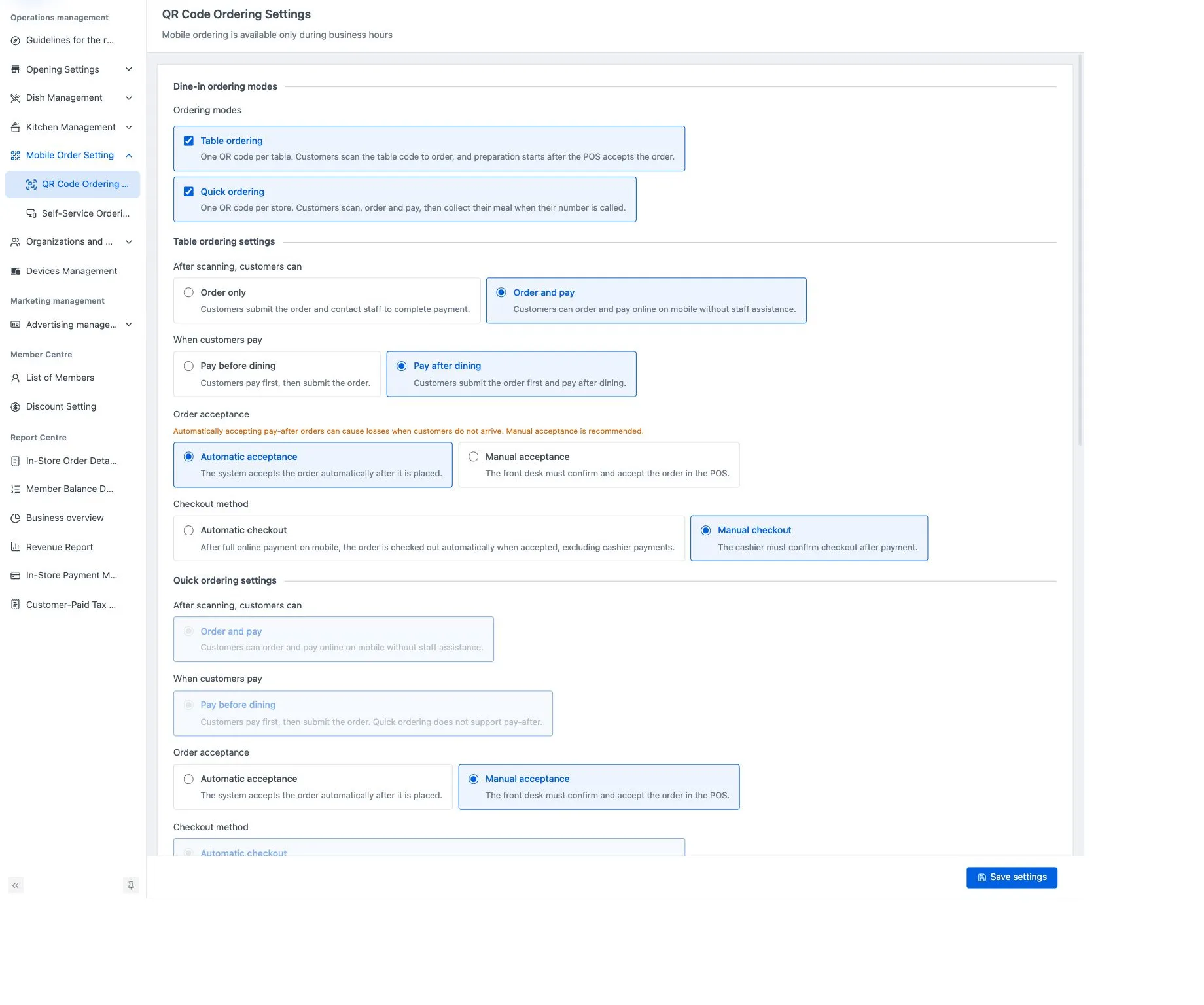
Open Operations management → Mobile Order Setting → QR Code Ordering Settings.
| Mode | Customer entry point | Payment arrangement |
|---|---|---|
| Table ordering | A separate QR code at each table | Order only, or order and pay; online payment can be before or after dining |
| Quick ordering | One store-wide QR code | Pay first and collect when the number is called |
| Takeaway ordering | The takeaway QR code | Pay first and collect to go |
Enable Table ordering, then choose Order only or Order and pay. If online payment is offered, select when customers pay, how orders are accepted and the available checkout method. Select Save settings and check the flow using the table's code.
With Order only, customers ask staff to settle the bill. Manual acceptance requires the front desk to accept the order in the POS. Automatic checkout occurs after full online payment and acceptance; it excludes payment taken at the cashier.
Quick ordering and takeaway
Enable the required modes and choose automatic or manual acceptance. These modes use Order and pay, Pay before dining and Automatic checkout. Pay-after is not available.
After saving, use View QR code in the quick-order or takeaway section. Table codes are accessed in Dining Table Management. If both dine-in modes are enabled, choose the default mode for the member center.
Enable Payment timeout if needed and enter its duration in minutes. An order is cancelled when payment has not completed before the timeout. No payment is taken when an offline main POS prevents ordering or an unpaid order times out, so neither case needs a refund.
Configure a kiosk
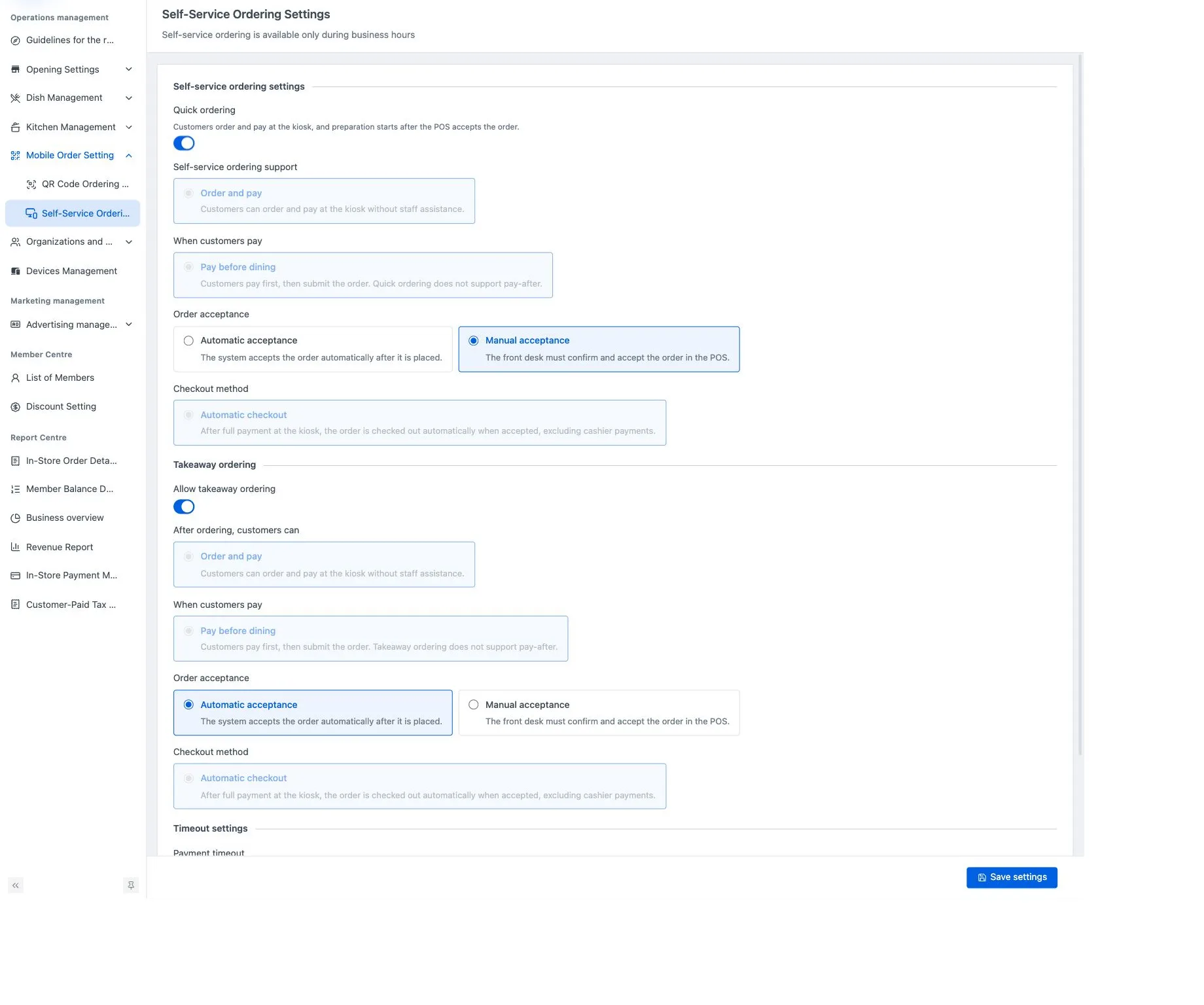
Open Operations management → Mobile Order Setting → Self-Service Ordering Kiosk. The page heading is Self-Service Ordering Settings.
Enable Quick ordering and optionally Allow takeaway ordering. Set acceptance for each and configure the payment timeout. Save, then check a kiosk authorized for this store.
Kiosks use online payment before dining and automatic checkout. Their settings are separate from QR ordering.
A paid order is rejected
Staff handle rejection refunds at the POS. If the electronic channel does not support an online refund, the POS offers a cash refund or an offline refund through the original payment method.
If customers cannot order, check the main POS connection, the relevant mode and opening hours. Mobile QR ordering is also affected by the store's suspended-business status. An unavailable QR-code action can indicate that the mode has not yet been saved as enabled.
For calls handled at the front counter, Configure pickup calling for POS.