
Appearance
Configure pickup calling for POS
Open Operations management → Opening Settings → Callup Settings. On the Pickup call settings page, configure which orders are included and when calls happen in the front counter POS module. For calls made directly at the kitchen counter, enable calling in the KDS serving module.
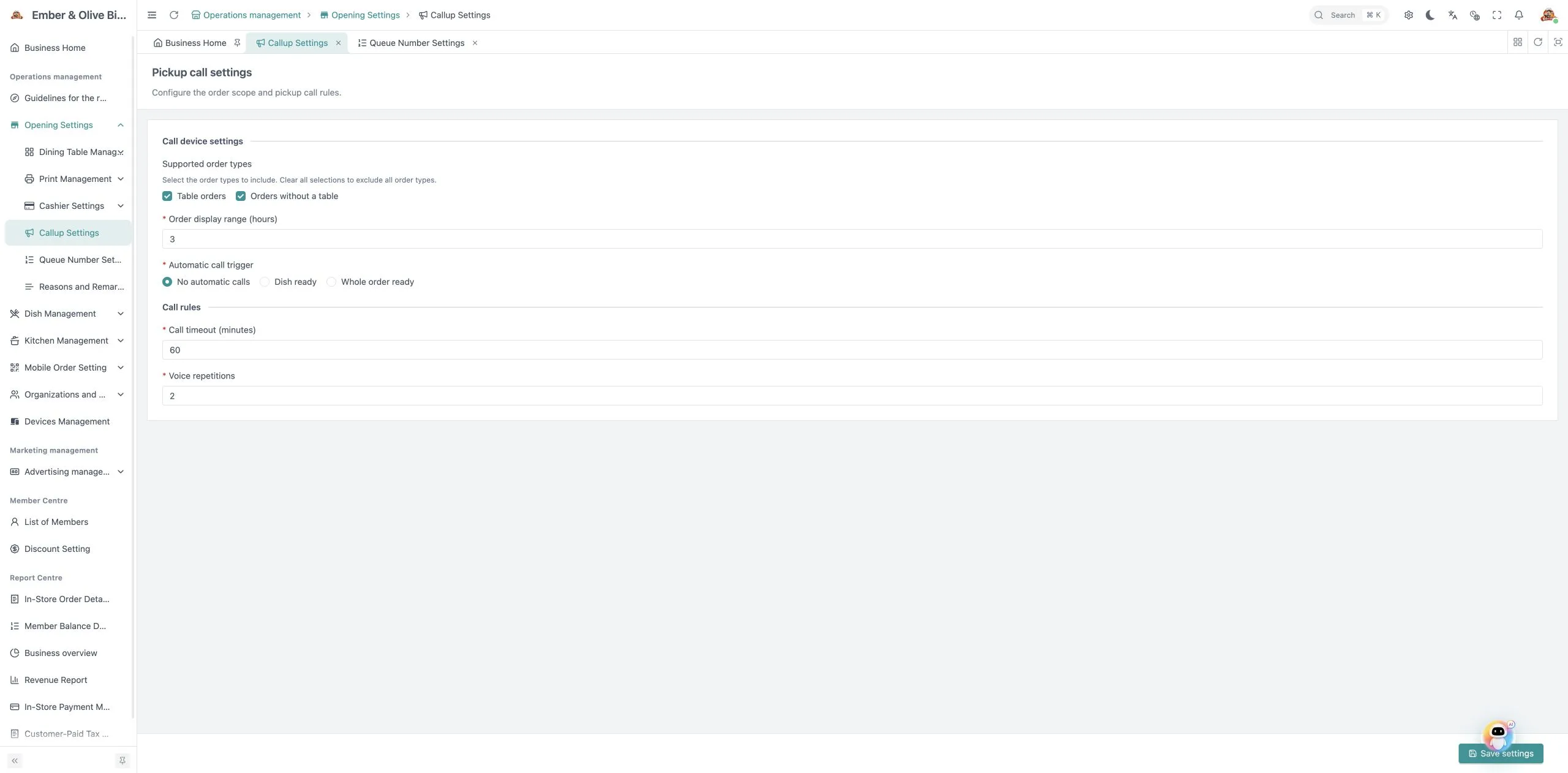
Choose which orders to include
- Under Supported order types, select Table orders, Orders without a table, or both. Clear both to exclude all order types from POS pickup calling.
- Use Order display range (hours) to set how far back the pickup module displays orders.
Choose when calls happen
| Automatic call trigger | When to use it |
|---|---|
| No automatic calls | Staff call manually from POS when the food for pickup is ready |
| Dish ready | Call automatically at the front counter as dishes are marked ready, for orders handed out in parts |
| Whole order ready | Call automatically at the front counter when the whole order is ready, for a single handoff |
Set one option under Automatic call trigger. For automatic calls, update the corresponding serving status on KDS as the food is ready. The system uses that status to trigger the front counter call.
Set Call timeout (minutes) to allow enough time for guests to reach the counter. When the timeout expires, the system marks the order as collected. Set Voice repetitions to control how many times each call is announced. Staff still check the pickup number when handing over food.
Select Save settings. Keep the primary POS connected to the internet so the front counter receives the update. Use the POS pickup calling page to set whether voice is on, the announcement language and which CDS screen displays pickup information.