
Appearance
Settings and problem checks
Adjust these settings when the store needs a change. Open Settings at the top right of the board to make changes. During normal service, use the store's existing configuration.
Timeout alerts
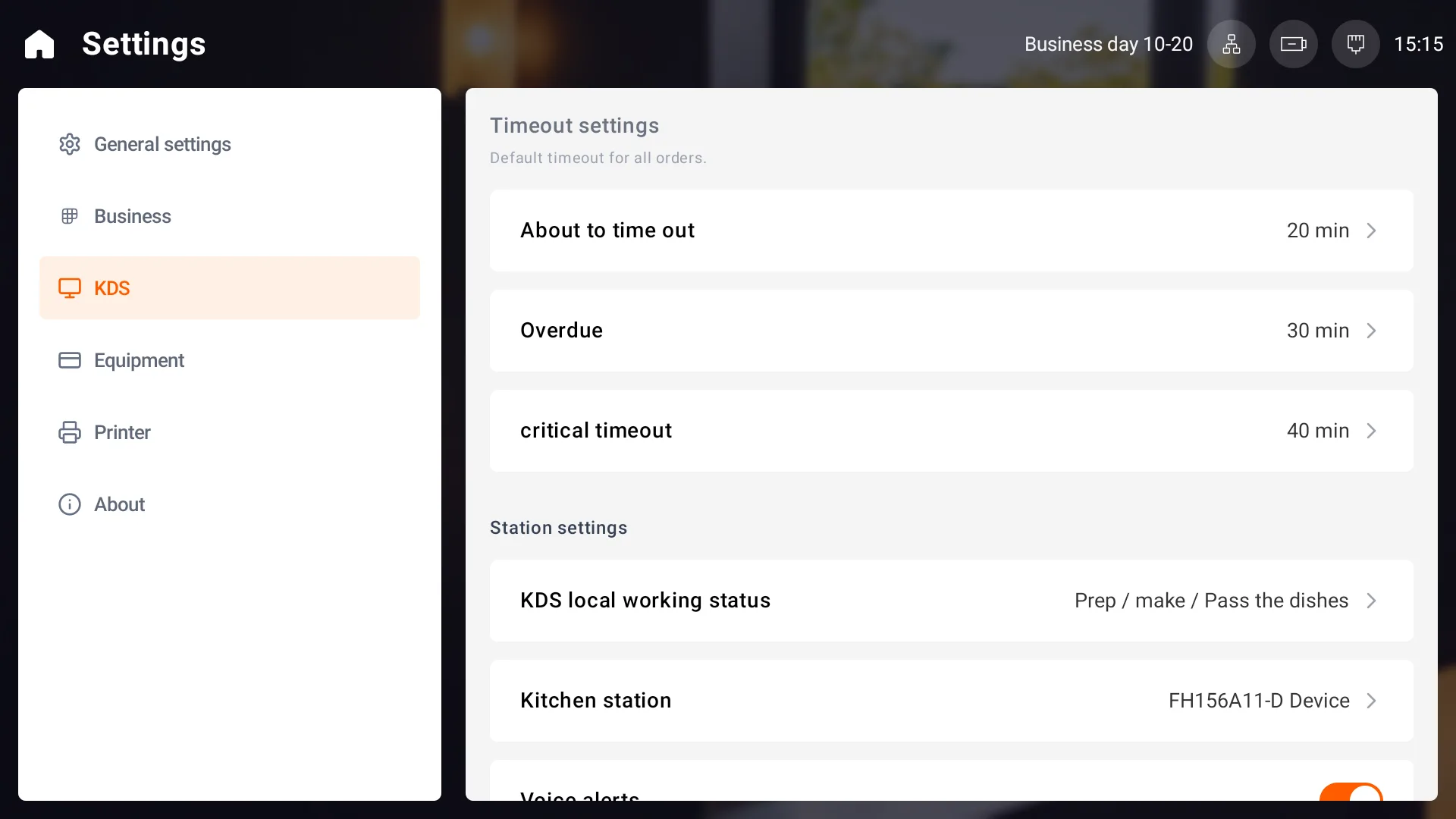
Under KDS, set About to time out, Overdue and critical timeout according to the store's service standards. Save as prompted.
Item display and alerts
Further down the page are Voice alerts, Merge same dishes, Order display time range and KDS station binding. Turn on voice alerts to hear kitchen reminders.
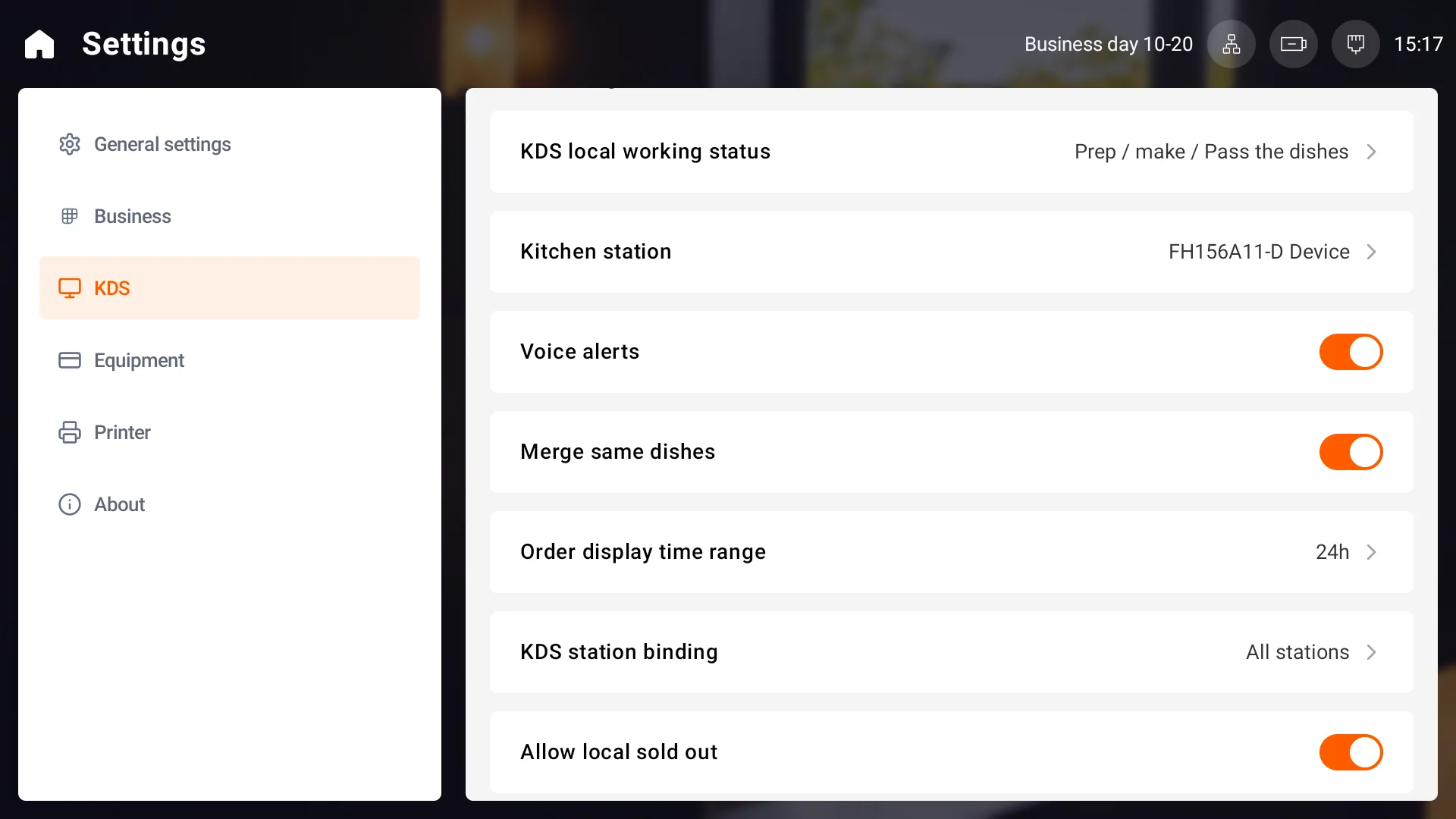
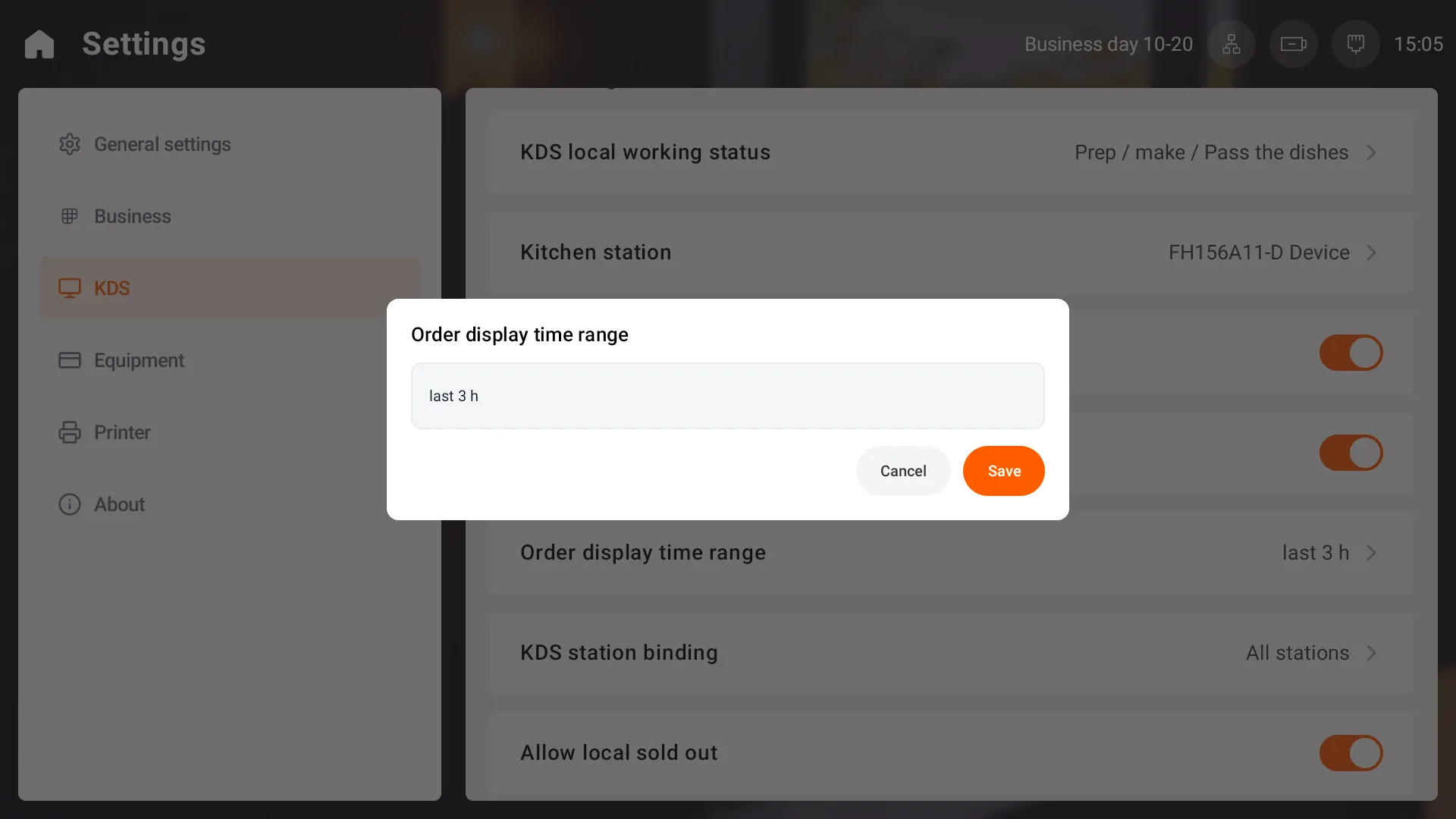
The display time range determines how far back the board shows orders. Choose and save a range that suits the store's order lookup needs. Older orders may fall outside the selected range. The times shown in the screenshots are examples.
Language and display
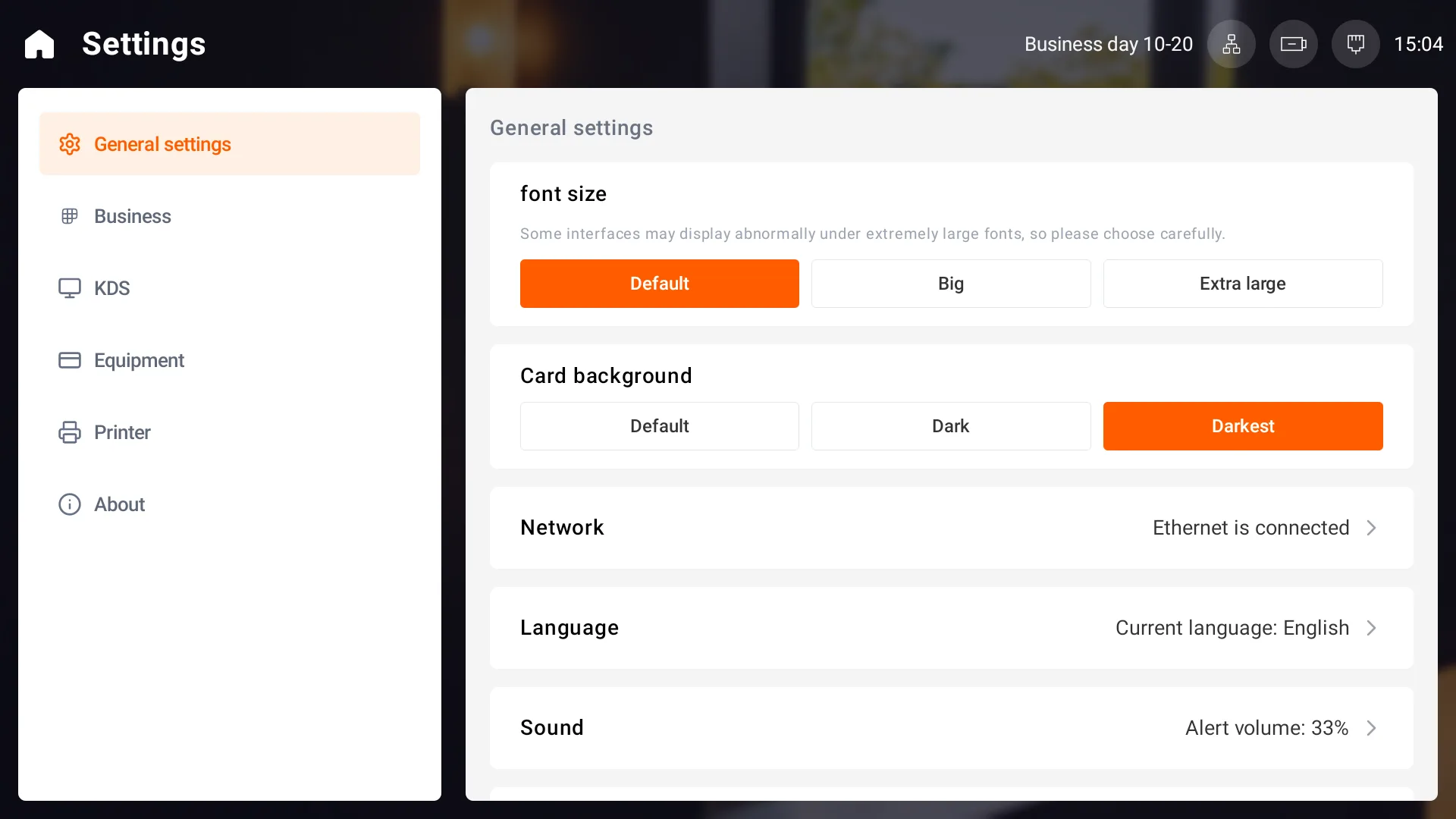
To change the interface language, open General settings → Language, choose the required language and continue as prompted. An authorized supervisor may need to approve the change. Item names, variants, preparation instructions and remarks are store data and are not automatically translated when the interface language changes.
General settings also provides font size and card background options. Choose them to suit the kitchen's viewing distance and lighting.
Missing orders or a lost connection
- At the cashier POS, confirm that the order was sent successfully and check its order number.
- Check the primary POS power connection and make sure the device is on and signed in to the POS system. Then check that KDS and the primary POS are connected to the same store network.
- Check which roles and stations this KDS is set to handle, then review the selected stage, filters and display time range.
- After reconnecting, check each item's stage and remaining quantity before continuing.
When reporting a problem, include the time, order number, work stage, message and screenshot, plus the primary POS and local network connection status.