
Appearance
Store device and language settings
Open Settings and choose General settings, Business, Equipment, Printer, Cash drawer, Customer display or About.
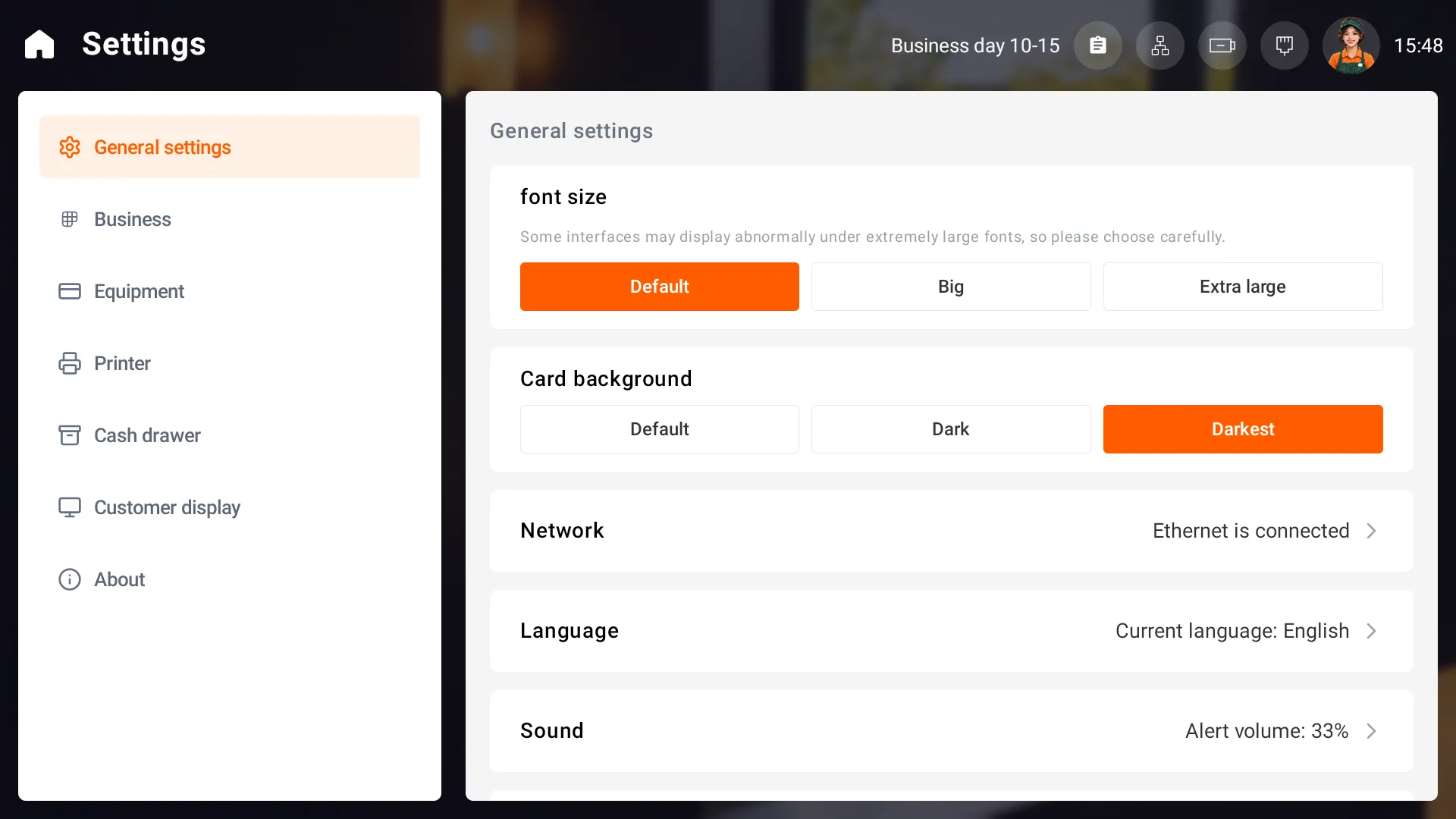
Language and display
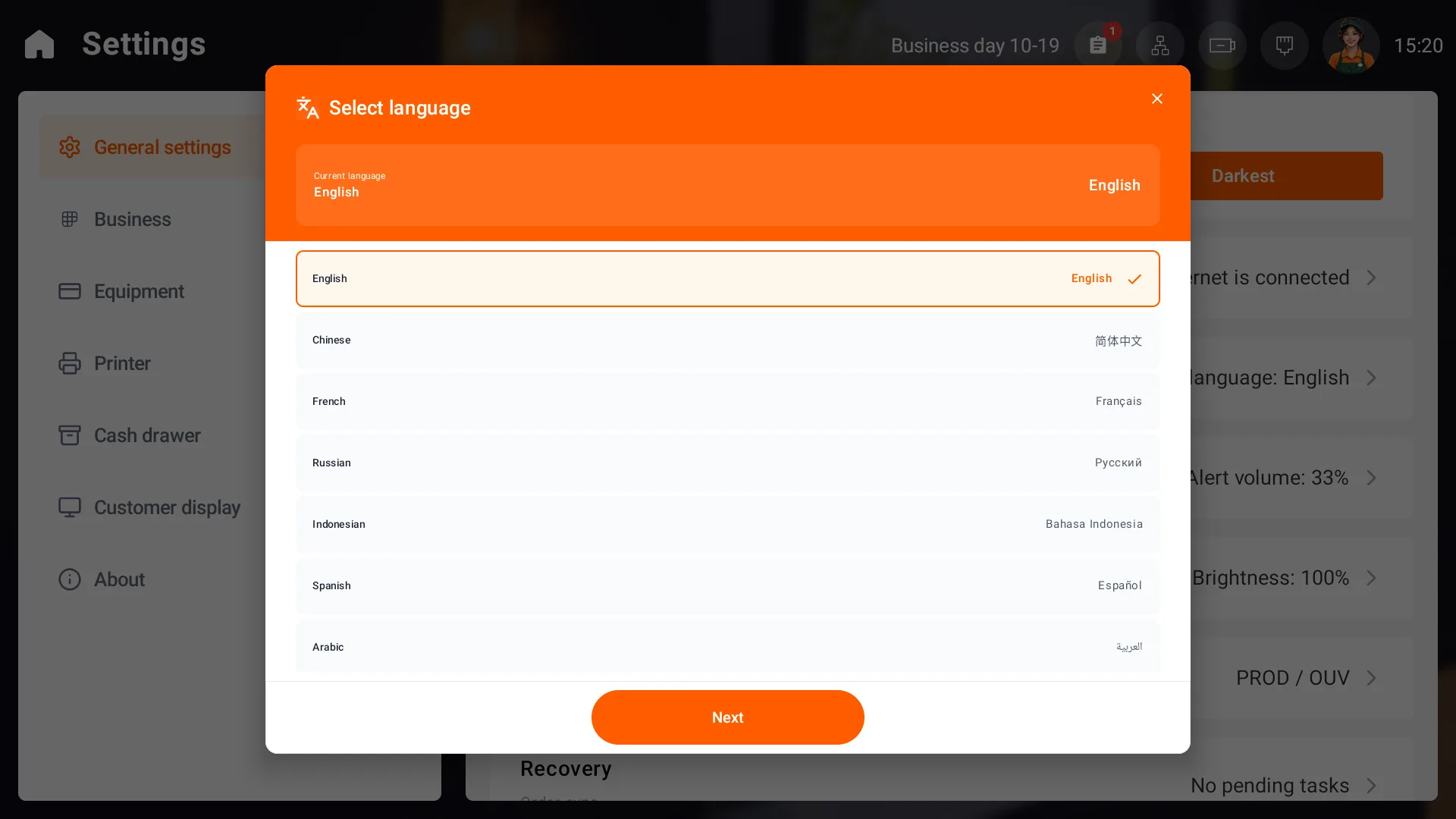
To change the interface language, open General settings → Language, choose a language and select Next. Item names, areas and operation reasons are store content and keep their existing text.
Adjust font size, card background, network, sound and display in General settings as needed.
Business settings and device roles
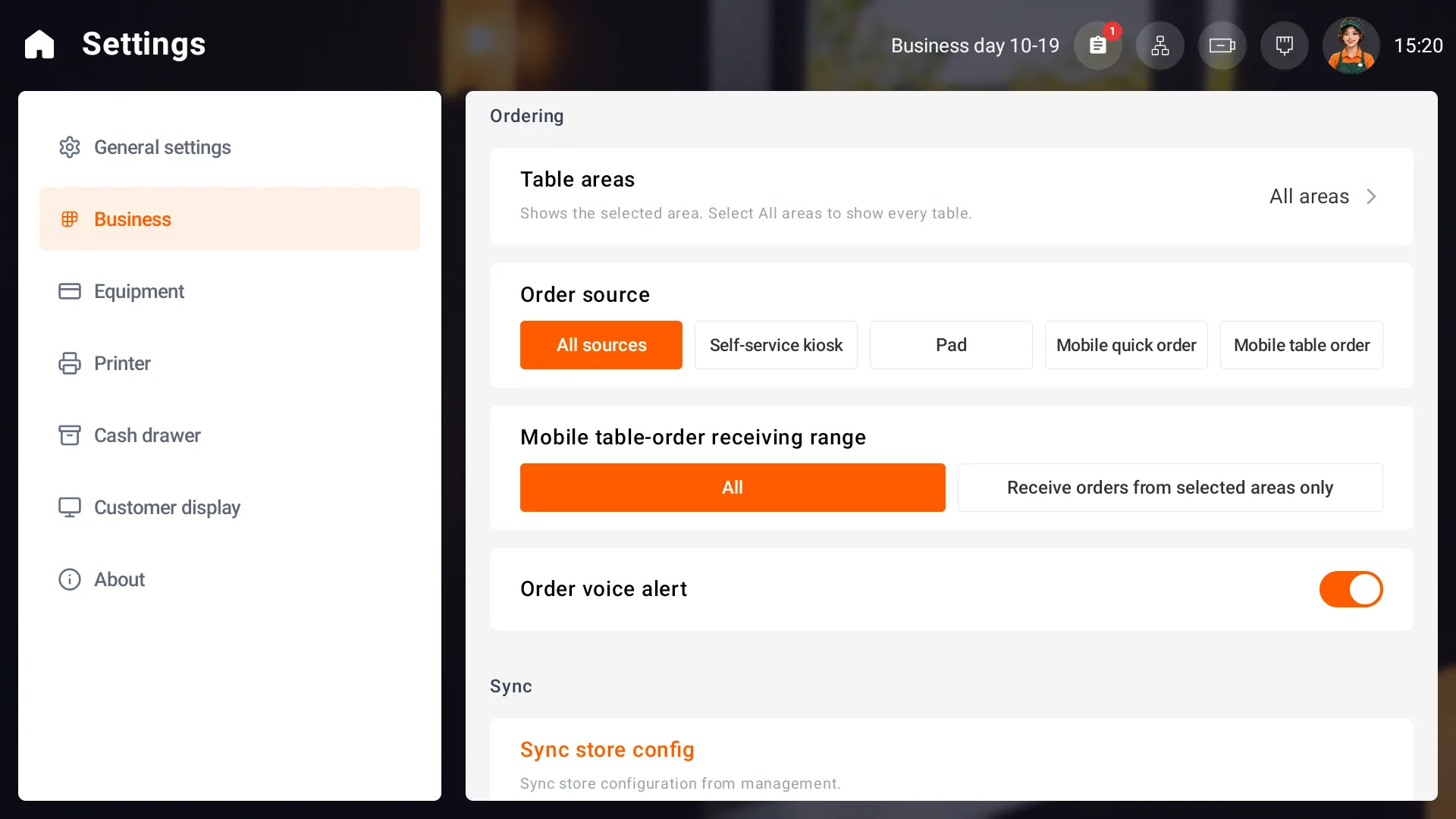
Business settings show device name, system service, table areas, order sources, mobile ordering areas and store configuration synchronization.
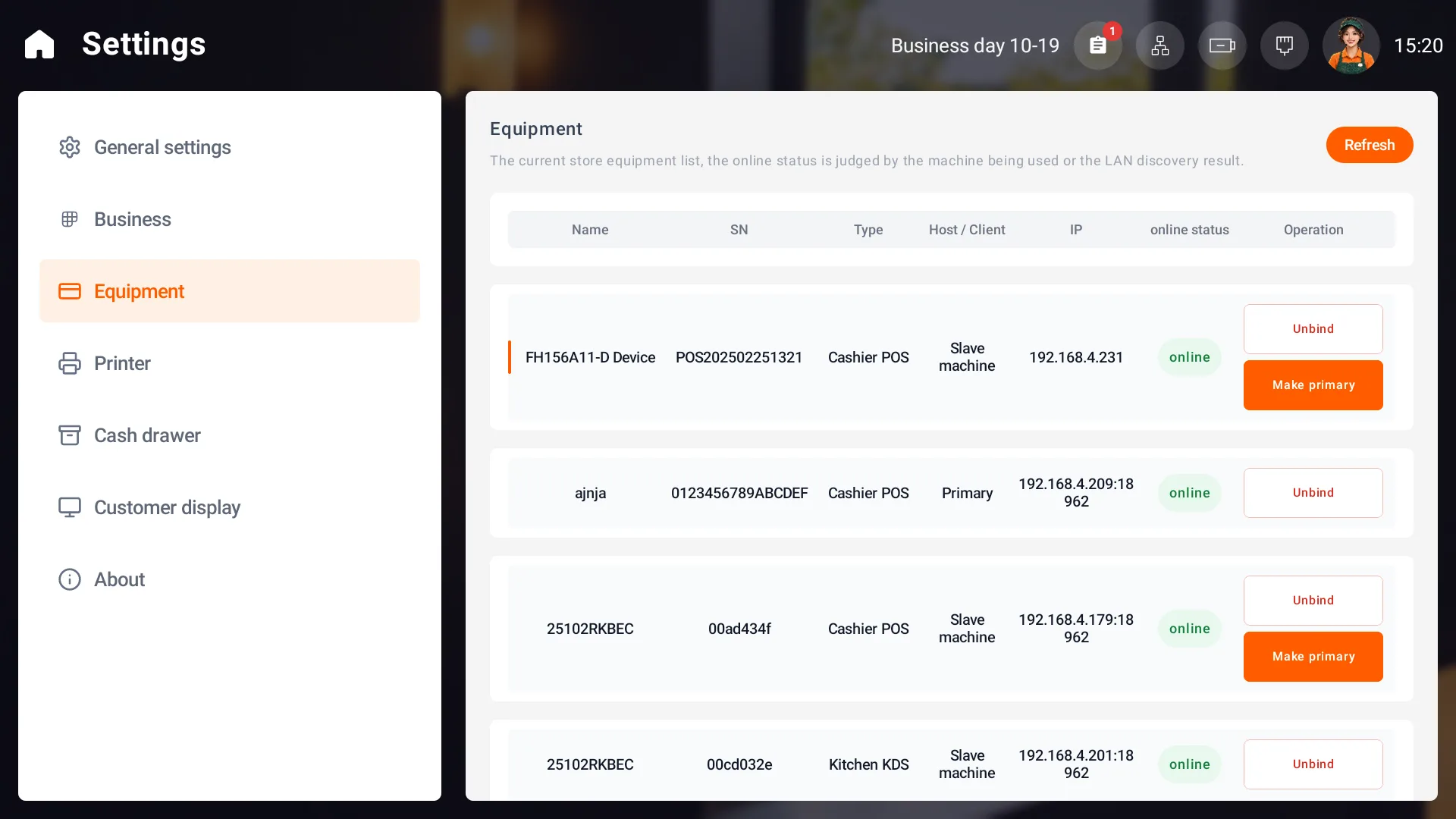
Equipment lists devices, their online status and their primary or secondary roles. Use it to check this POS's relationship with the primary POS. See Sign in and use the home screen for initial setup and the local network.
Primary POS connectivity and automatic synchronization
The first POS activated for the store becomes the primary POS by default. Connect it to power, turn it on and sign in to the POS system. During service, keep it on, keep the POS system running and keep it connected to the store local network. Connect other POS devices to that same network. Wired and wireless connections are supported; wired connections are recommended for fixed devices.
Configure and save information in the back office first, then connect the primary POS to the internet to download it automatically. Once downloaded, local use of the saved information can continue when internet access is poor or unavailable. Keep the local network connected. QR-code ordering requires the primary POS to stay connected to the internet so it can receive those orders.
Connect the primary POS to the internet regularly so data can synchronize automatically to the management platform. After menu items, charges, employees or other configuration change in the platform, the primary POS also needs internet access to download those updates automatically. If new content has not arrived for a long time, check that the primary POS is connected to the internet, restart it and check the update again.
Replace an unusable primary POS
- If a secondary POS cannot connect, check power to the original primary POS, make sure it is on and signed in to the POS system, and confirm both devices are on the same store local network.
- Only when the original primary POS cannot be used, open the device page in the management platform. Find the replacement device and change it from secondary to primary POS.
- The system will prompt you to delete invalid devices. Check the identified devices and follow the prompt. Turn on the replacement, enter the POS system and connect it to the store local network, then confirm that the other devices have connected to it.
Version and problem reports
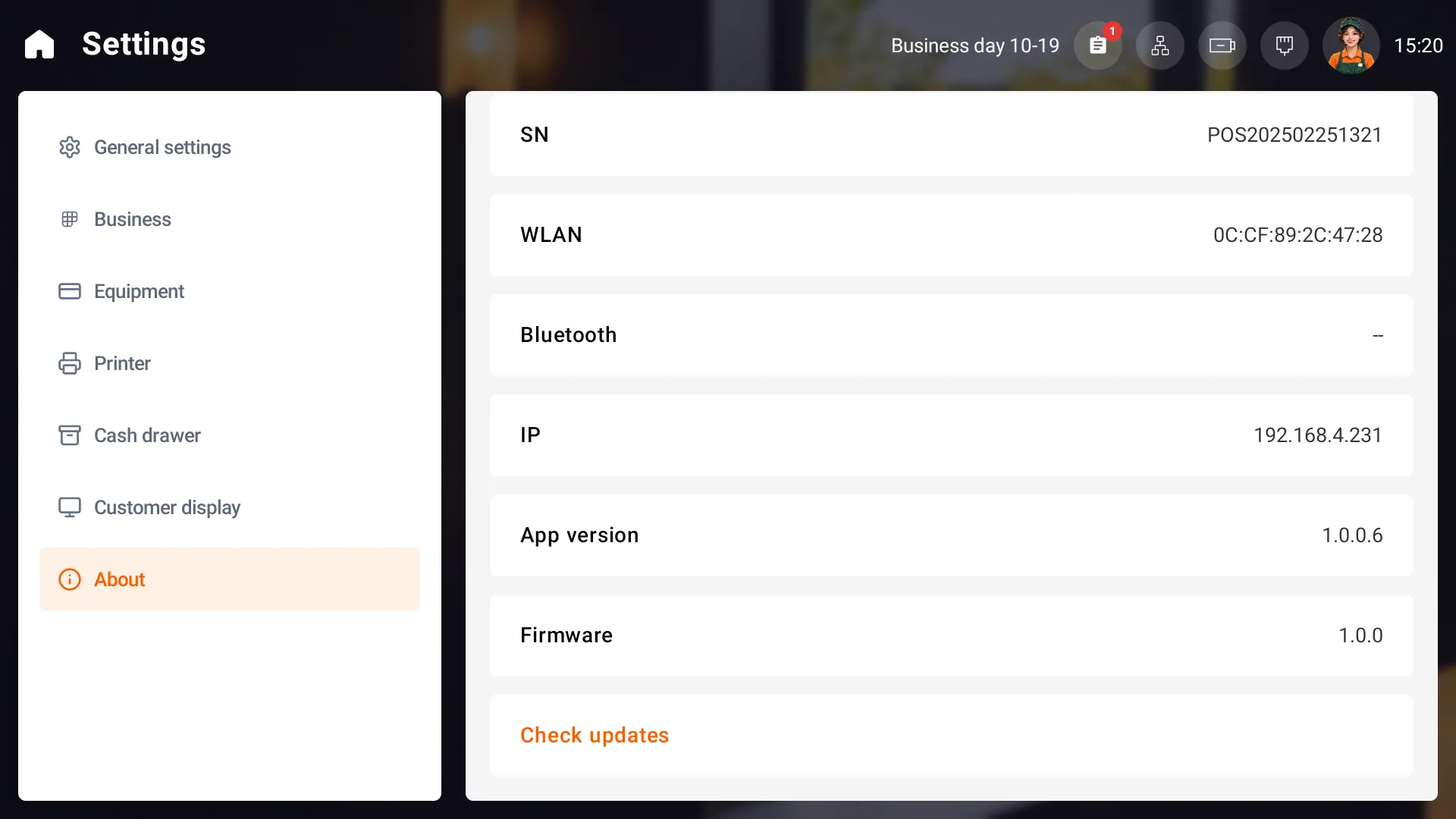
Use About to check model, app/firmware versions and network information. When reporting a problem, record the version, time, order number and message.
Store on the home screen opens the management assistant QR code; follow it in a browser and sign in with the store platform account.