Meet your AI store assistant
See how the AI store assistant answers questions about sales, orders and best-selling items using store data.
Watch on YouTube
Open the floating AI Assistant control. Once connected, choose a shortcut for sales, settled orders, dish rankings or package rankings, or type a question.
State the date range, subject and reporting basis. For example: Show today's sales received and settled order count, using settlement time. Send the message or press Enter.
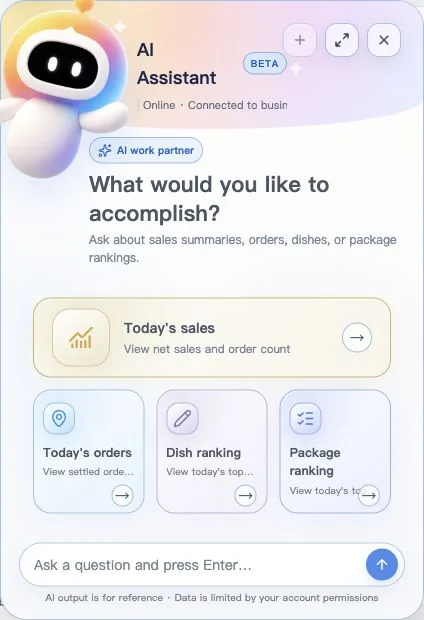
Check the store, period and basis in the answer. For reconciliation, verify the result in the relevant report or order detail. The assistant can only access data allowed by your account and has a daily question limit. Follow any limit message shown by the product.
Use Start a new conversation for a fresh topic, expand the panel with Fullscreen or close it to return to your page.
See how the AI store assistant answers questions about sales, orders and best-selling items using store data.
Watch on YouTubeOpen Language at the top and choose a language. The list includes 简体中文, English, Bahasa Indonesia, ไทย, Русский, Français, Español, العربية and Tiếng Việt. Follow browser uses the browser language. Wait until switching finishes before continuing.
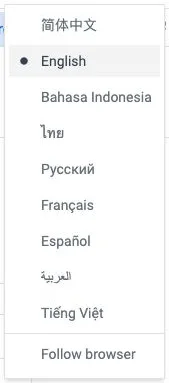
This changes interface labels. Store-entered item names, ad names and other content keep their existing text.
Open your avatar menu, select Profile, then Personal Profile. The username is read-only; update phone, email, nickname, name or avatar as needed and save. Avatars support JPG, PNG and WebP up to 5 MB.
In Account Security, enter the existing password, the new password and its confirmation. The form specifies 6 to 20 characters. A successful change signs you out; sign in again with the new password.
If the password is forgotten, contact your upstream service provider for help resetting it. The avatar menu also offers screen locking and sign-out. Sign out when you finish on a shared computer.