
Appearance
Membership and top-ups
Members are shared across the chain. Member numbers and mobile numbers must be unique, so search before creating a new record.
Add or update a member
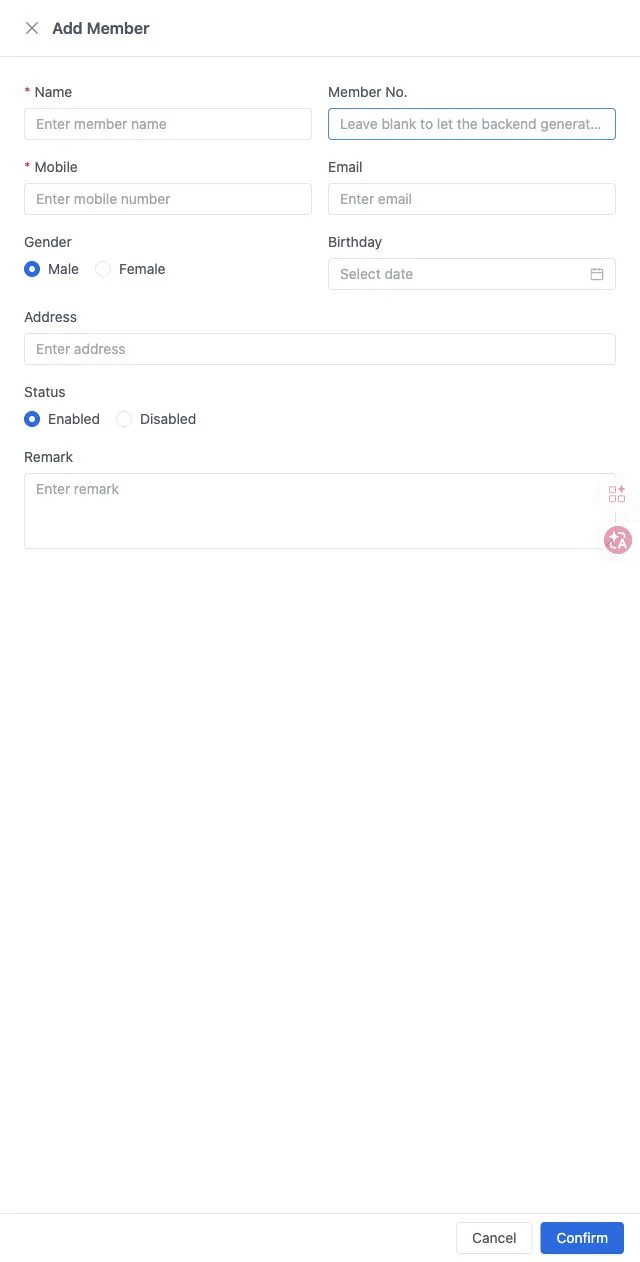
Open Member Centre → List of Members and search by member number, mobile or name. Select Add Member, enter Name and Mobile, and optionally enter a Member No. Leave that number blank for automatic allocation.
Complete optional email, gender, birthday, address and remarks, set status and select Confirm. Check the resulting record. Use Edit for an existing member.
A disabled member cannot use their member functions or balance. Enable the record again when appropriate. Available balance can be spent at the POS, on mobile QR ordering and at a kiosk.
Spending uses the gift balance first, then the principal balance. Neither currently expires. Refunds of member payments return through the original payment route.
Deleting a member has the same effect as cancelling the membership. Check the member’s identity before doing so; use disabled status for a temporary suspension.
Correct a balance in the back office
Use this after checking a missing top-up or another balance discrepancy.
- Find the member and select the row's Recharge action.
- Check the read-only member identity and current available balance.
- Choose increase or deduction, enter the change amount and record the reason.
- Confirm, review the new balance and check the corresponding balance-history entry.
An increase adds to principal. A deduction uses gift balance first and then principal if needed. This changes the member balance. It does not itself collect or refund an electronic payment. Routine POS top-ups can use the offers configured below.
Configure a top-up offer
Open Member Centre → Discount Setting, headed Recharge Rule Settings. This page configures member top-up offers. Add a row with the plus control. Choose Fixed and enter the recharge and gift amounts, or choose Percentage and enter the gift percentage.
Add further rules as needed, enter the explanation, set On/Off and select Save. Review the available offers at the POS.
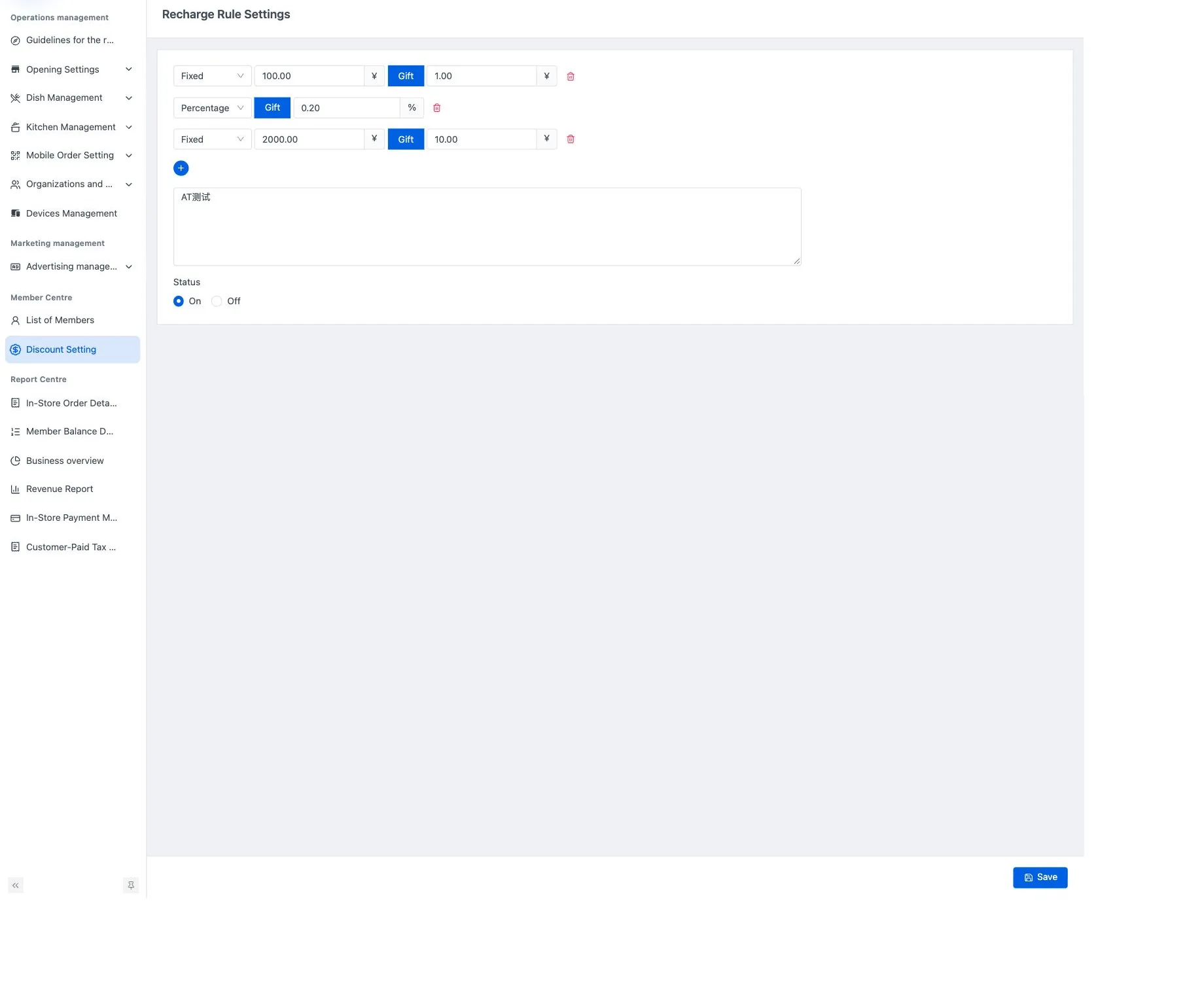
There is no default rule-count limit. The cashier chooses the rule to apply; the system does not automatically pick a rule from the recharge amount. A row's remove control deletes that rule from the form, so check the remaining rows before saving.
Review balance movements
Open Report Centre → Member Balance Details. Search by member number or mobile and optionally select incoming or outgoing movements. Review type, source, amount, payment number, remarks and time.
Balance decreases are recorded as spending and increases as top-ups. Refunds made at the POS or self-service terminal are recorded as refunds.
Export member records
Check the filters in the member list or balance report, then select Export. The file can include records beyond the displayed page. Check its record count and range after downloading.
| File | Current contents |
|---|---|
| Member list | Member number, store, name, mobile, total balance, email, identity-document number, creation time and status |
| Balance report | Member number, store, name, mobile, total balance, creation time and remarks |
Neither file includes a total row. The balance export currently omits the on-screen direction, movement type, source and payment number. Its amount column is labelled as total balance. Check individual top-ups, spending and refunds on the report page; the file is not a complete movement ledger, and that balance column should not be treated as the amount of each movement.