
Appearance
Prepare, cook and serve items
Mark a stage complete after finishing the kitchen work assigned to your role. Items normally move through preparation, cooking and serving, with each team handling its assigned stage.
Process an item by quantity
- Preparation staff: Once preparation is complete, find the order in Prep queue and select the item. Check the order, variant, remarks and quantity completed, then select Prep.
- Cooking staff: Once cooking is complete, select the item in Cooking queue, check the quantity completed and select Cook.
- Serving staff: Once the items have been passed for serving, select the item in Ready to serve, check the quantity completed and select Serve.
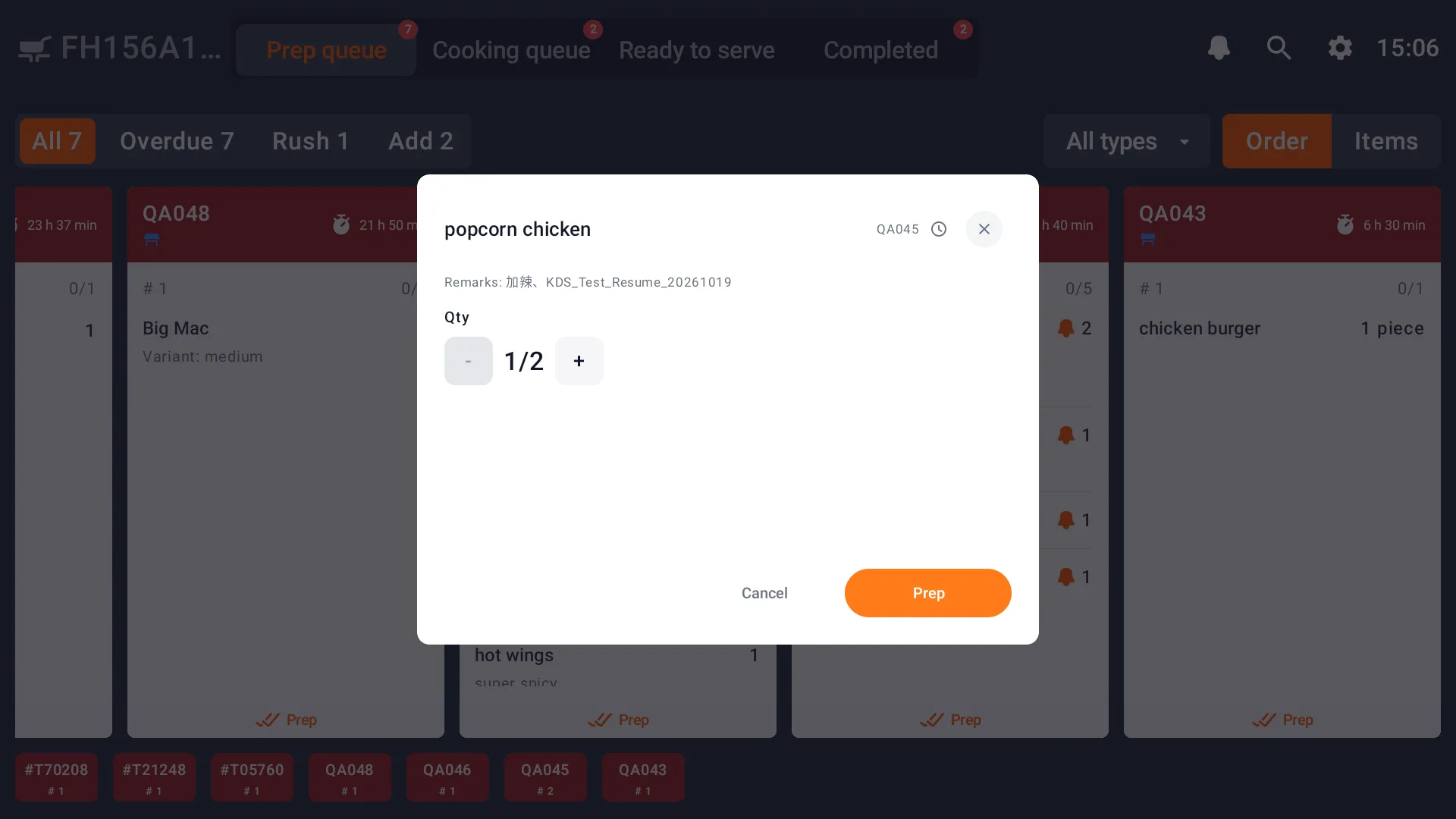
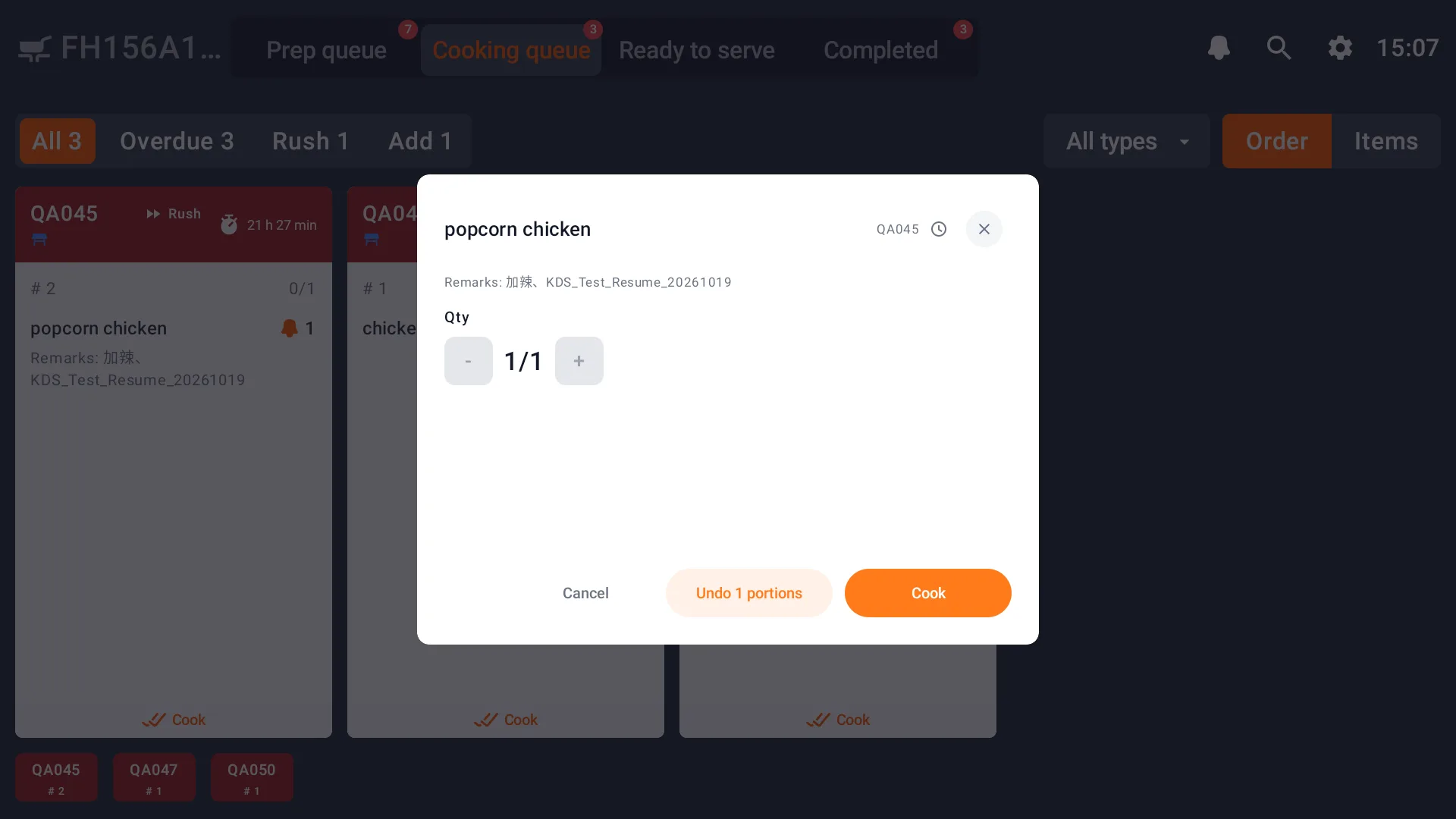
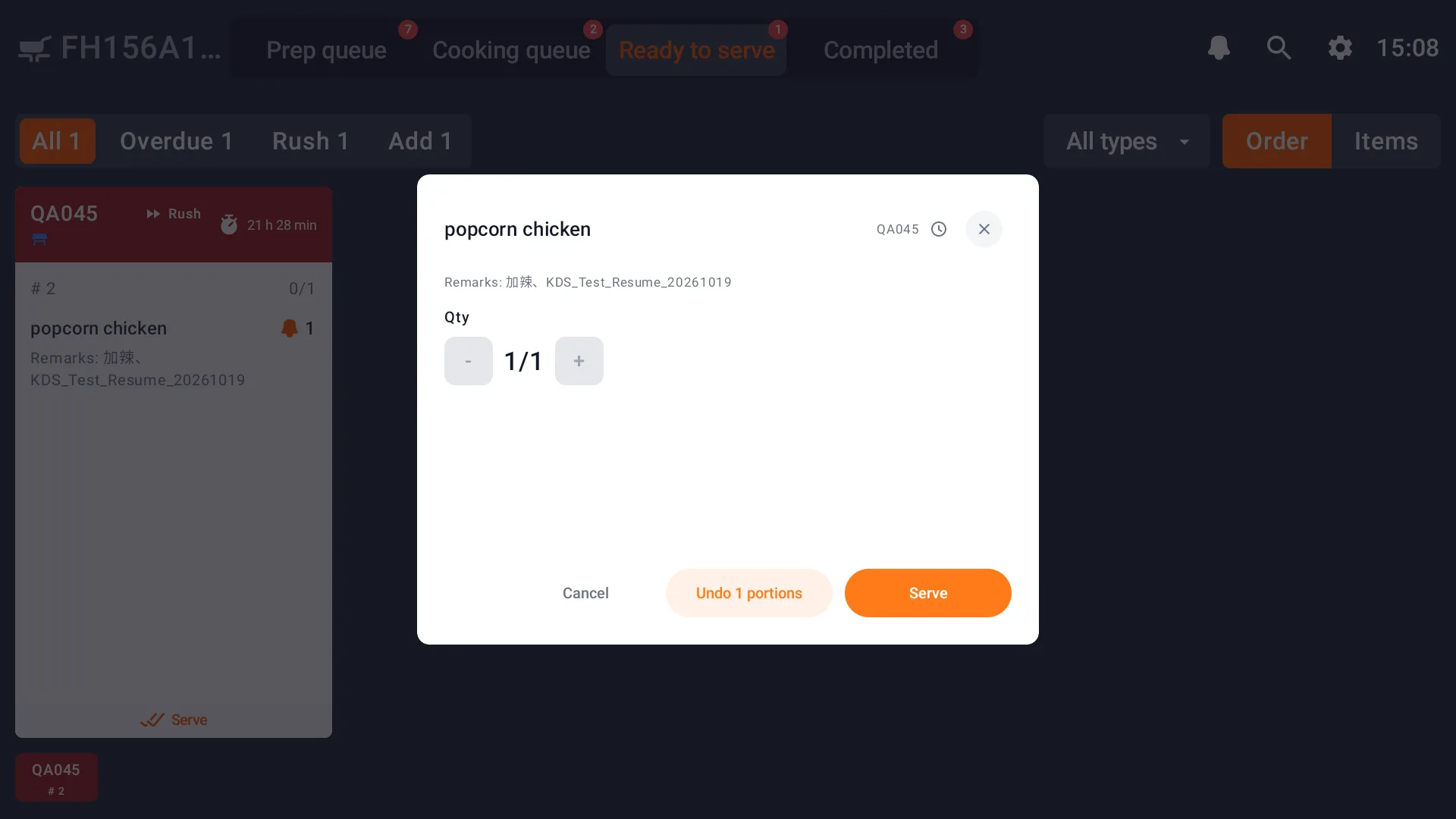
The number on the left is the quantity to process; the number on the right is the quantity available on that line. Adjust it with the minus and plus buttons. If only some portions are complete, submit that quantity. The rest stays in the current stage until the work is finished. Cancel closes the dialog.
Process grouped items
With dish merging enabled, choose a dish on the left in Items view. Check the order numbers, quantities and special requirements on the right, then select Done at the bottom to complete the current stage for all the displayed items.
The right side may include several orders. Filter to the orders you want to process and check their details before selecting Done.
For an incorrect action, see Completed records and undo.