
Appearance
Change an order and return items
Open the existing order and check its table, order time and items. Selecting an item exposes item actions such as Return and Note. Order actions include Remark, Move, Split, MakeUp, Rush and Void. MakeUp is the current label for reprinting.
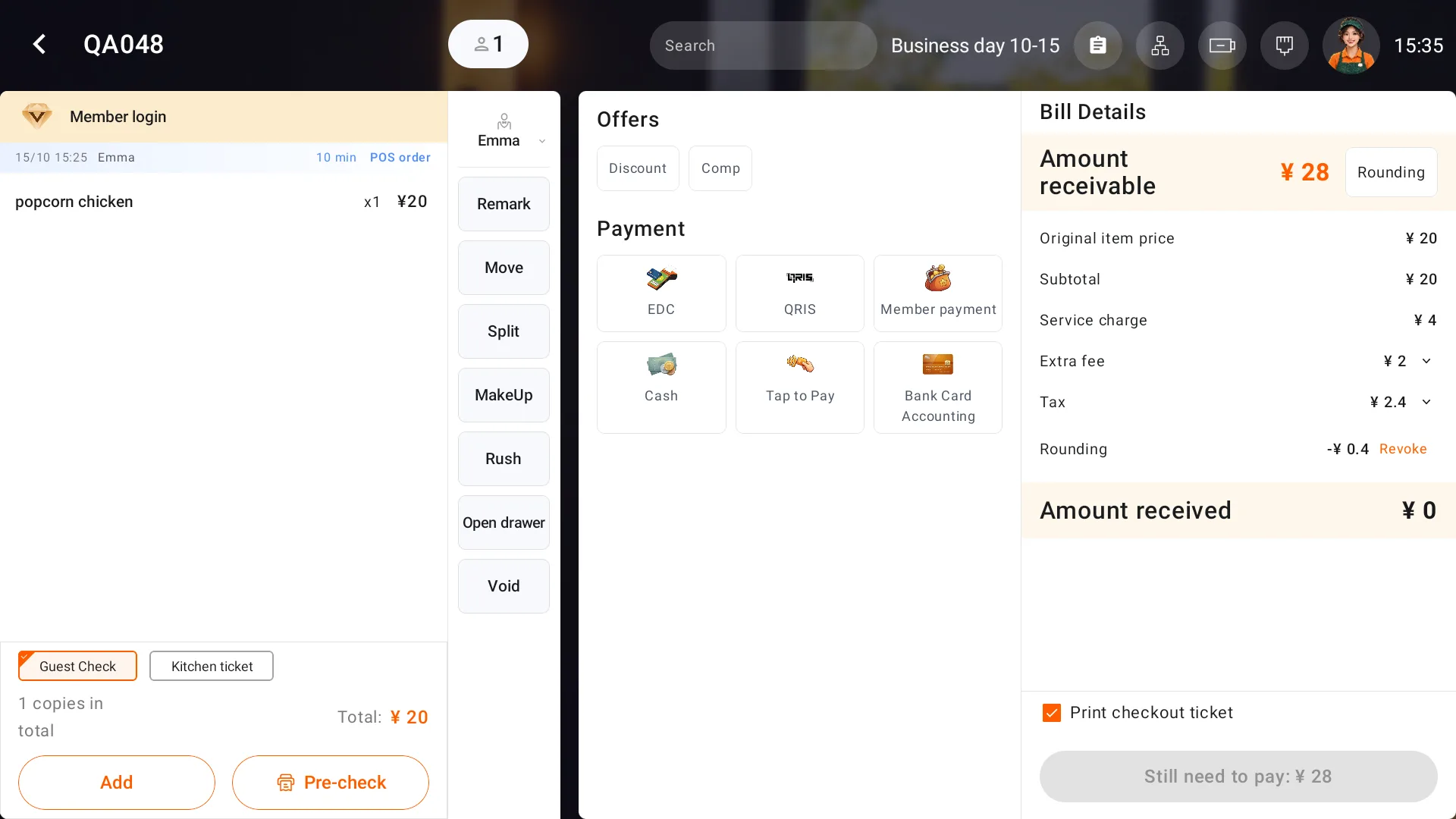
Move a submitted order
When customers move tables, open the submitted order, select Move, choose an available destination and confirm. Check the new table number, items and amount. Submit any unsent items before moving the order.
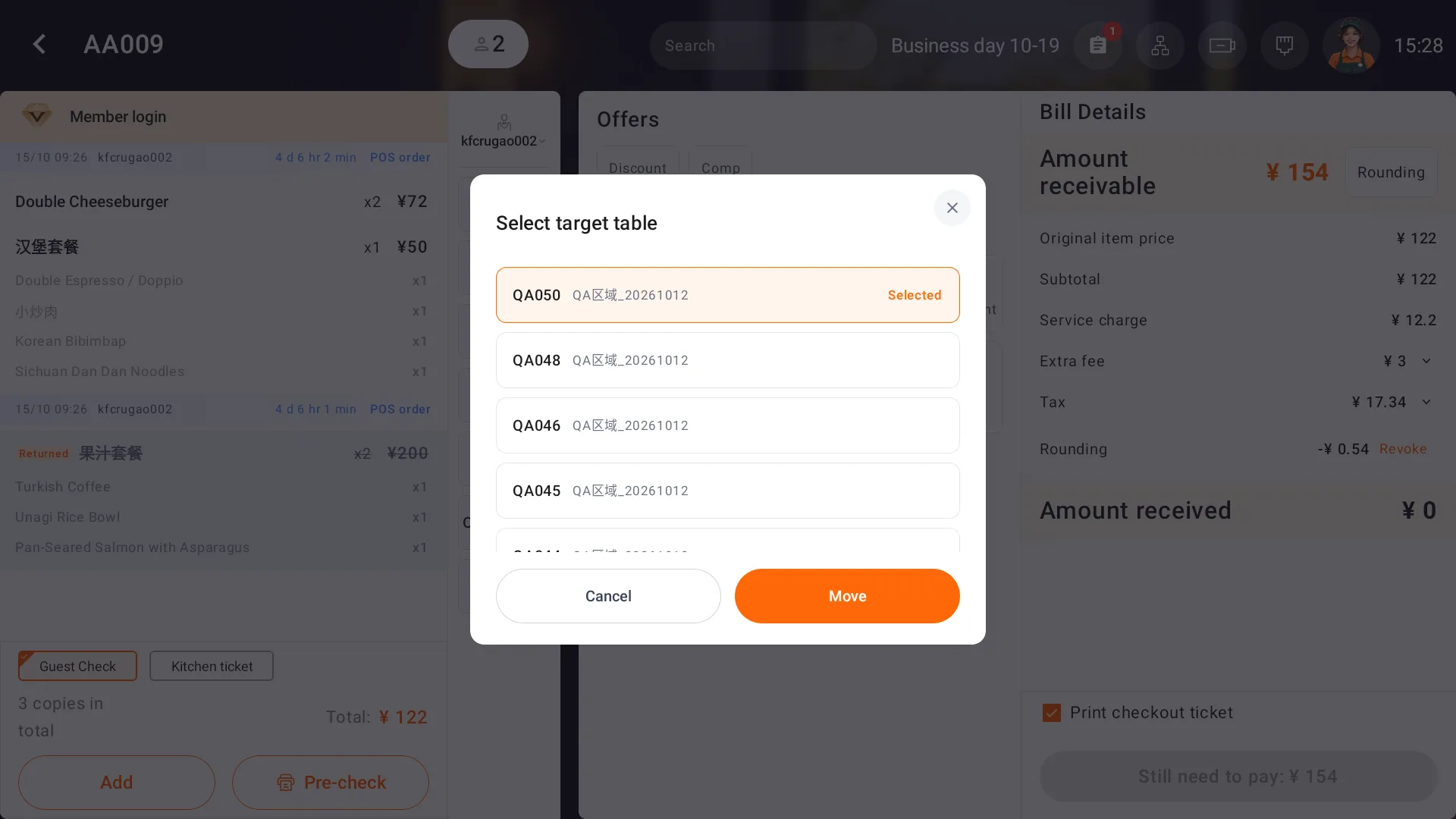
Return an item
- Select a submitted item and choose Return.
- Set Return qty and Damaged quantity, then select a reason and add a remark.
- Choose whether to print a kitchen ticket and confirm.
- Check the remaining quantity and revised amount due.
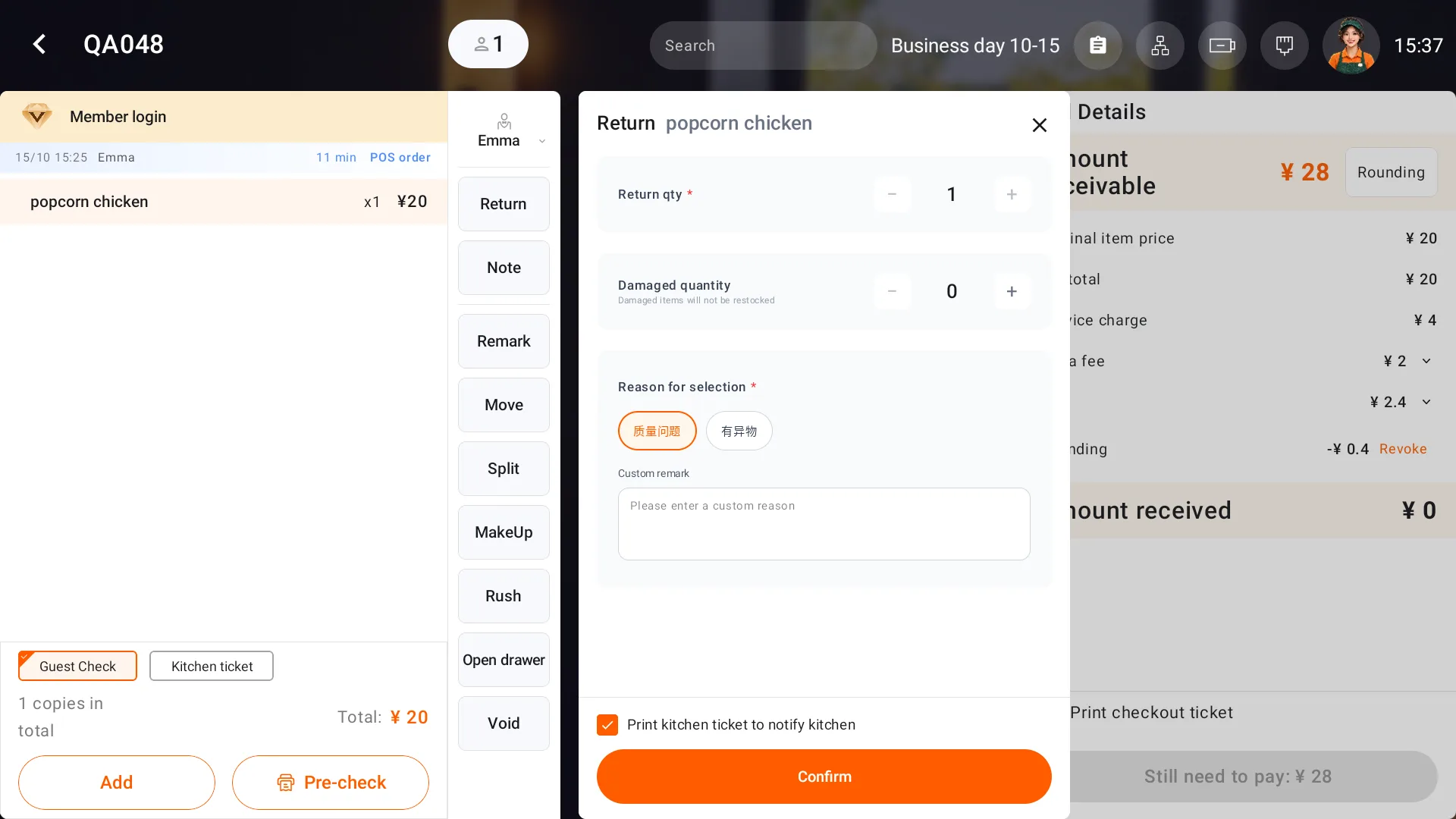
Enter the damaged quantity according to actual waste. Damaged items are not restocked. After a return, check the remaining items and revised amount due.
Void an unpaid order
For an entire order that is no longer needed and has not been paid, choose Void. Select a reason, check the damage and printing options, and confirm. Verify its voided status in Order and that the table is available. For paid orders, check the refund.
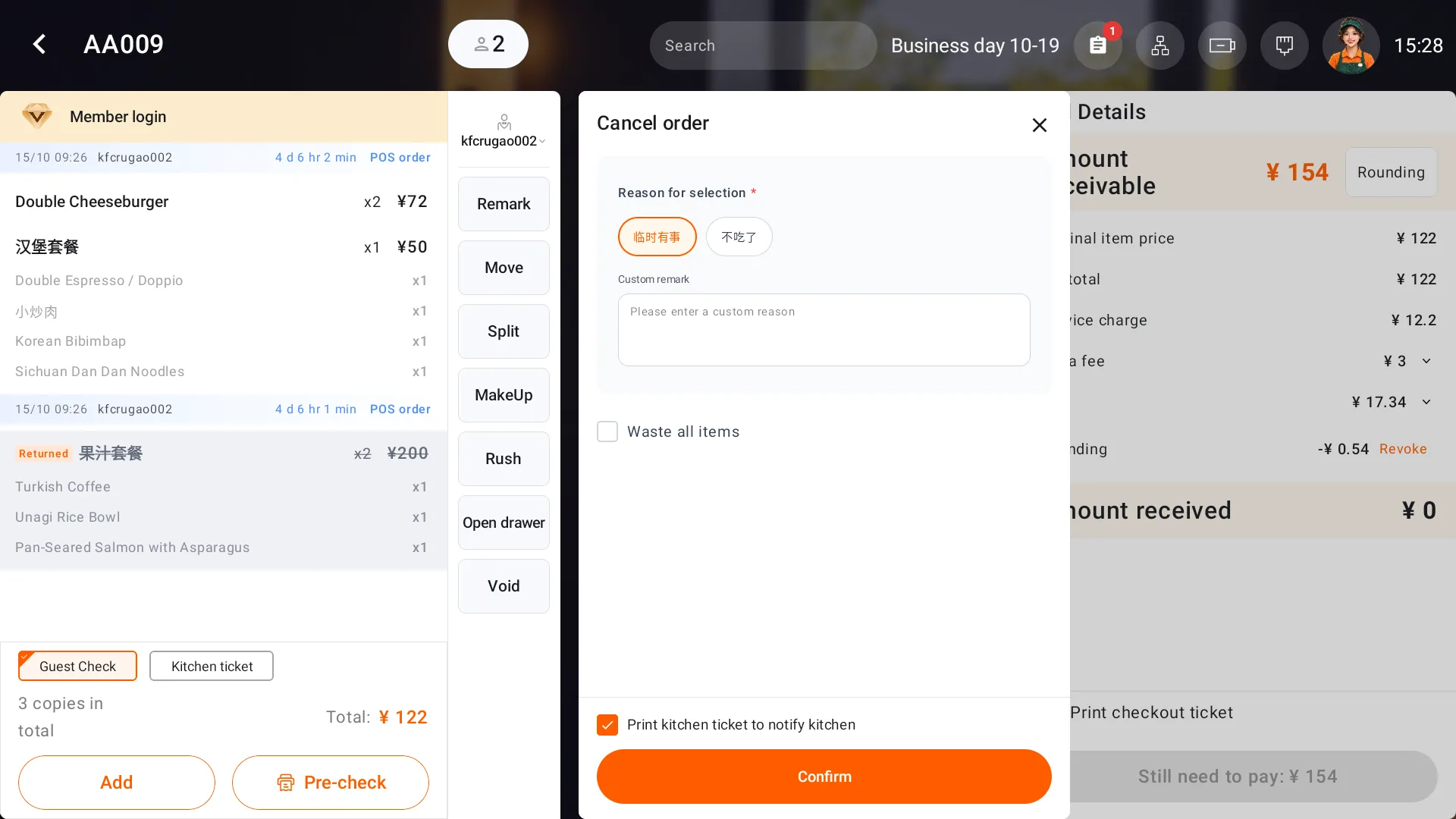
If the order was saved but printing failed, check the saved order, printer connection and pending print jobs, then reprint the original order.