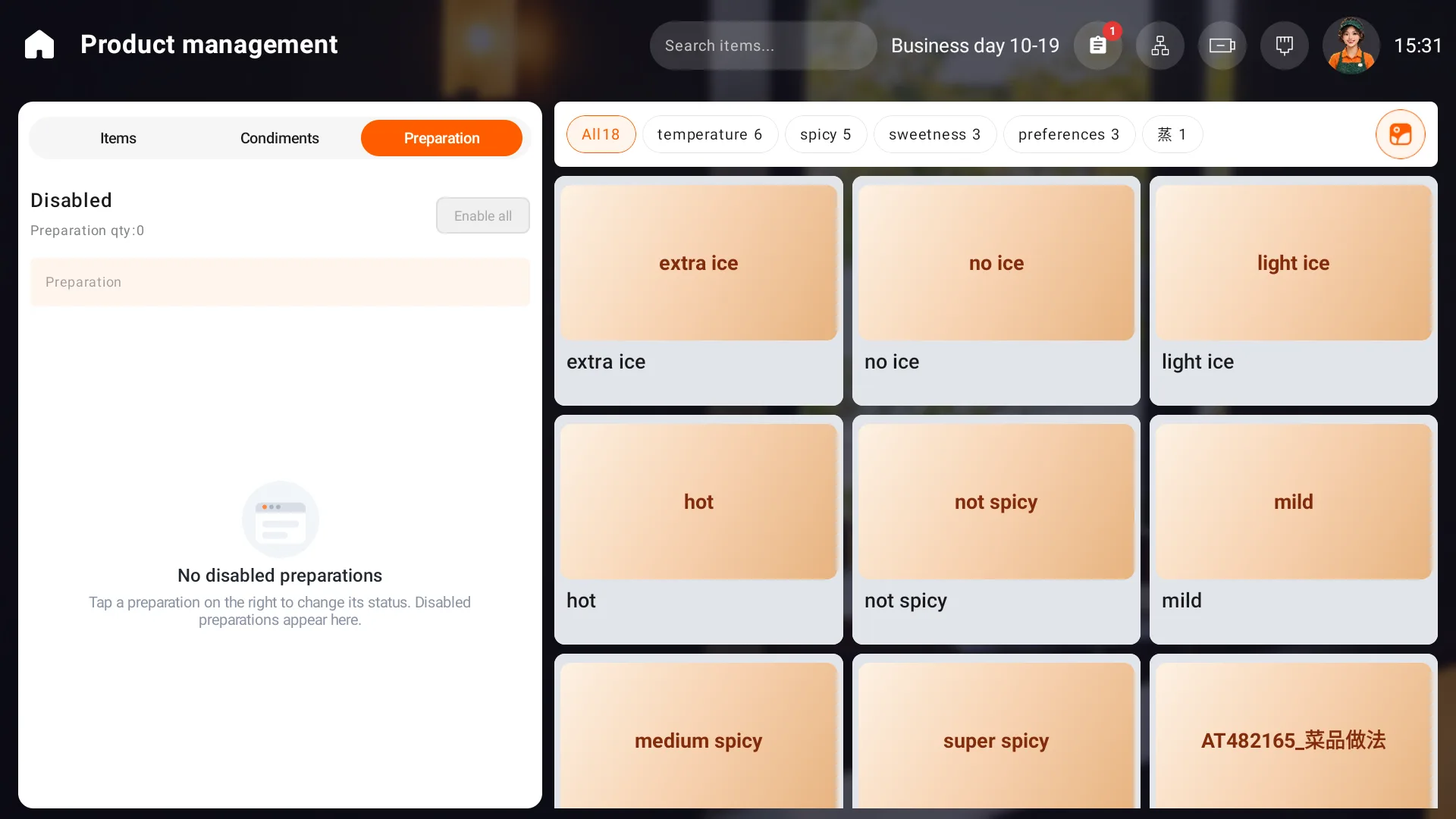
Appearance
Manage item availability
Open Items. Product management has Items, Condiments and Preparation tabs. Existing quantity limits appear on the left; find products by category on the right.
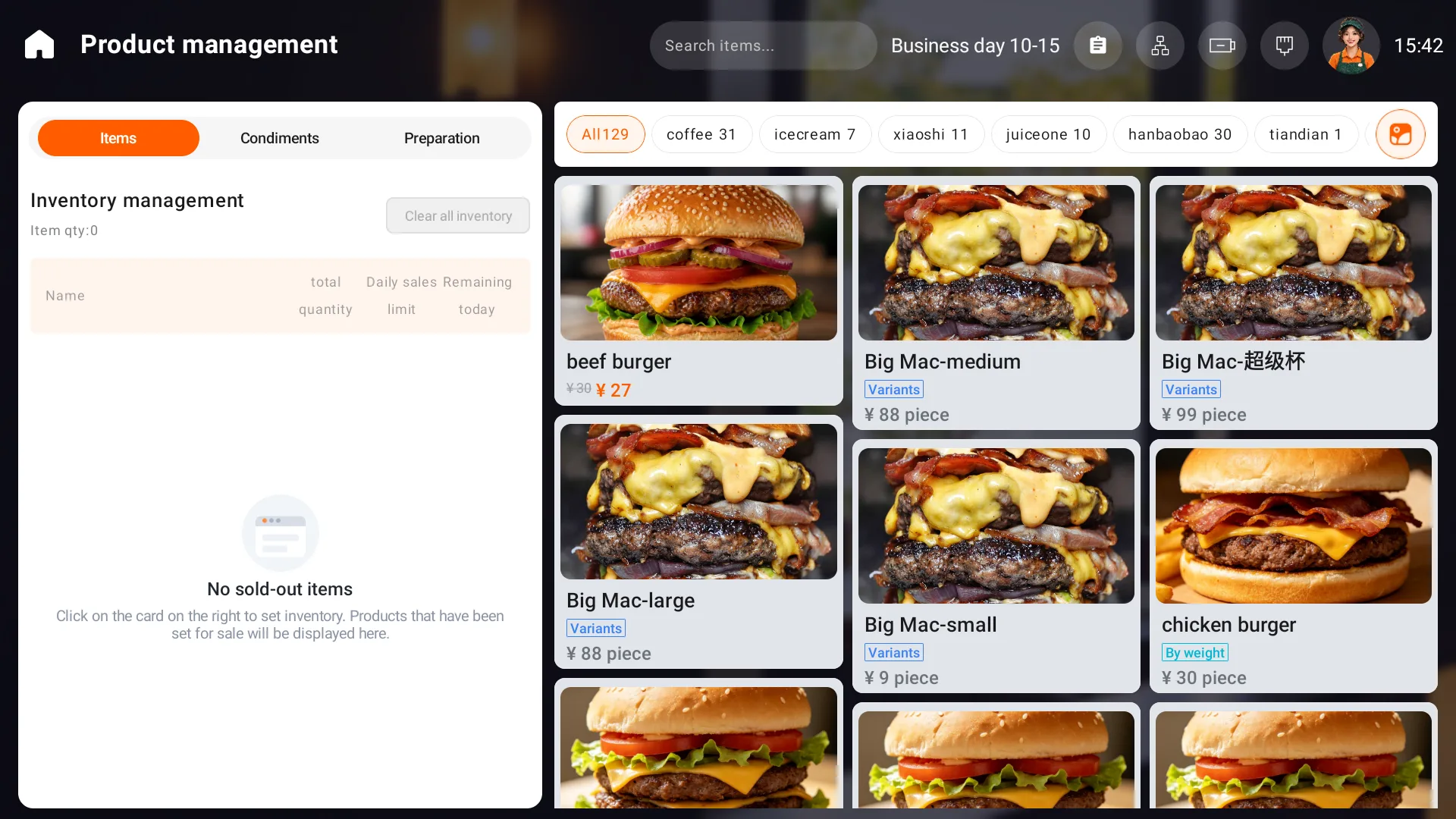
Set a quantity or mark sold out
- Tap the item card and check the exact variant and unit.
- Choose Set by total, enter the available quantity and select Apply.
- Check the new limit on the left and the item's availability on the right. A total of zero marks the item sold out.
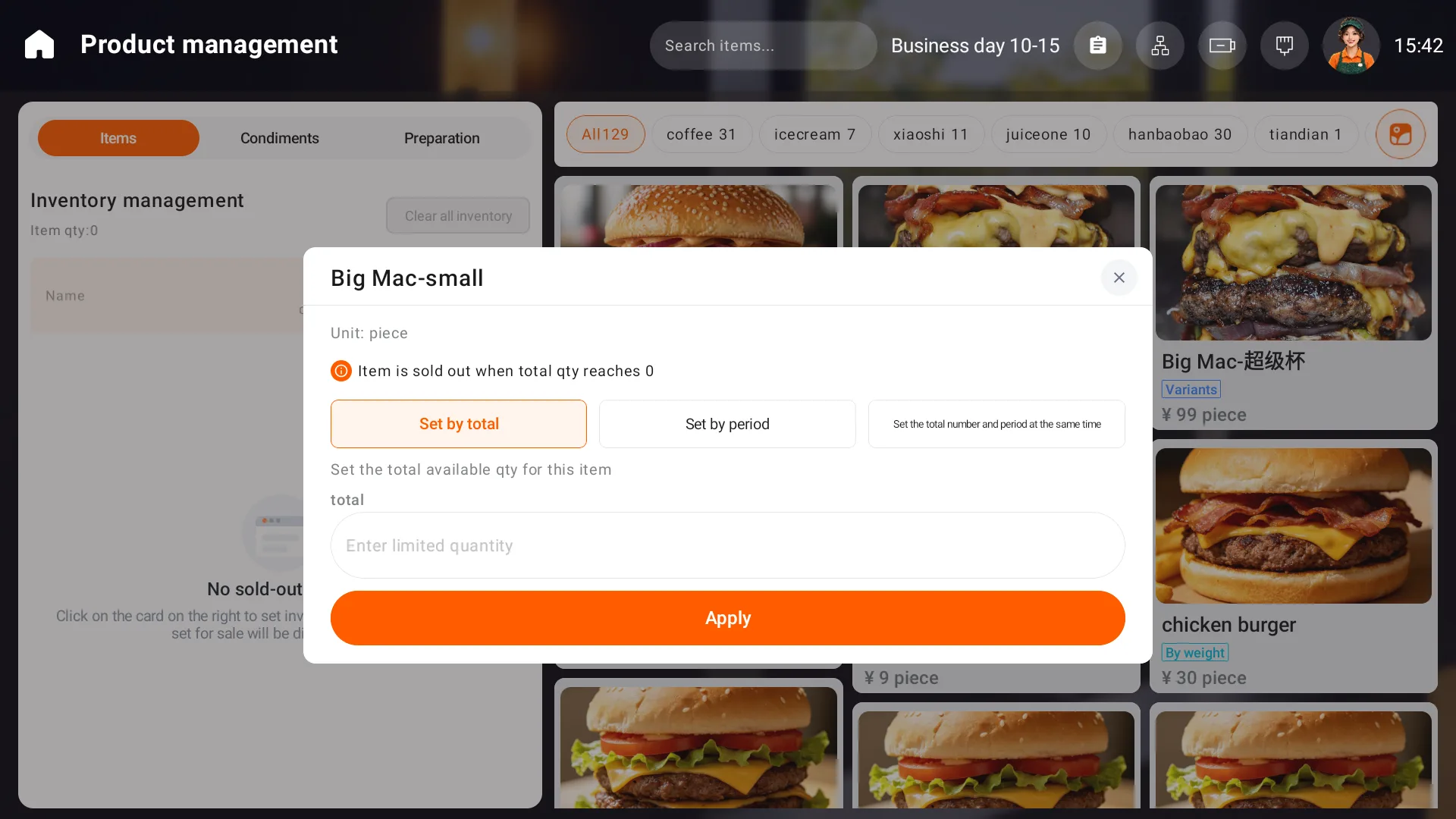
Use the period setting for business-day or meal-period limits. If using both total and period limits, enter the quantities according to the store's available supply.
Restore availability
Open the relevant limit record on the left to modify its quantity. To remove that limit, delete the record and check that the record and sold-out indicator disappear. This removes the quantity rule, not the back office menu item. Do not use Clear all inventory to change just one product.
When a preparation is temporarily unavailable, disable it in Preparation. Enable it again when the kitchen can offer it.