
Appearance
Sign in and use the home screen
Sign in with your store employee account. The six-digit POS PIN is maintained separately from the back office password. Ask an authorized administrator if you need a PIN reset.
At first startup, follow the prompts to choose a language and the POS device type. If your service provider has already configured the device, use that setup to enter the POS system.
Prepare the primary POS and local network
- Configure and save store details, menu items, tables, charges and employees in the back office first.
- The first POS activated for the store becomes the primary POS by default. Connect it to the internet so it can automatically download the saved back office configuration.
- Connect every additional POS to the same store local network as the primary POS. Wired and wireless connections are supported. A wired connection is recommended for devices kept in a fixed location for better stability.
- Connect the primary POS to power, turn it on and sign in to the POS system. During service, keep it on, keep the POS system running and keep it connected to the store local network.
Once configuration has been downloaded, local use of the saved information can continue with a poor or unavailable internet connection. The primary POS and other devices still need their local network connection. QR-code ordering requires the primary POS to remain connected to the internet so it can receive those orders.
See Primary POS connectivity and device settings for automatic synchronization, configuration updates and replacing an unusable primary POS.
Sign in and enter the cash float
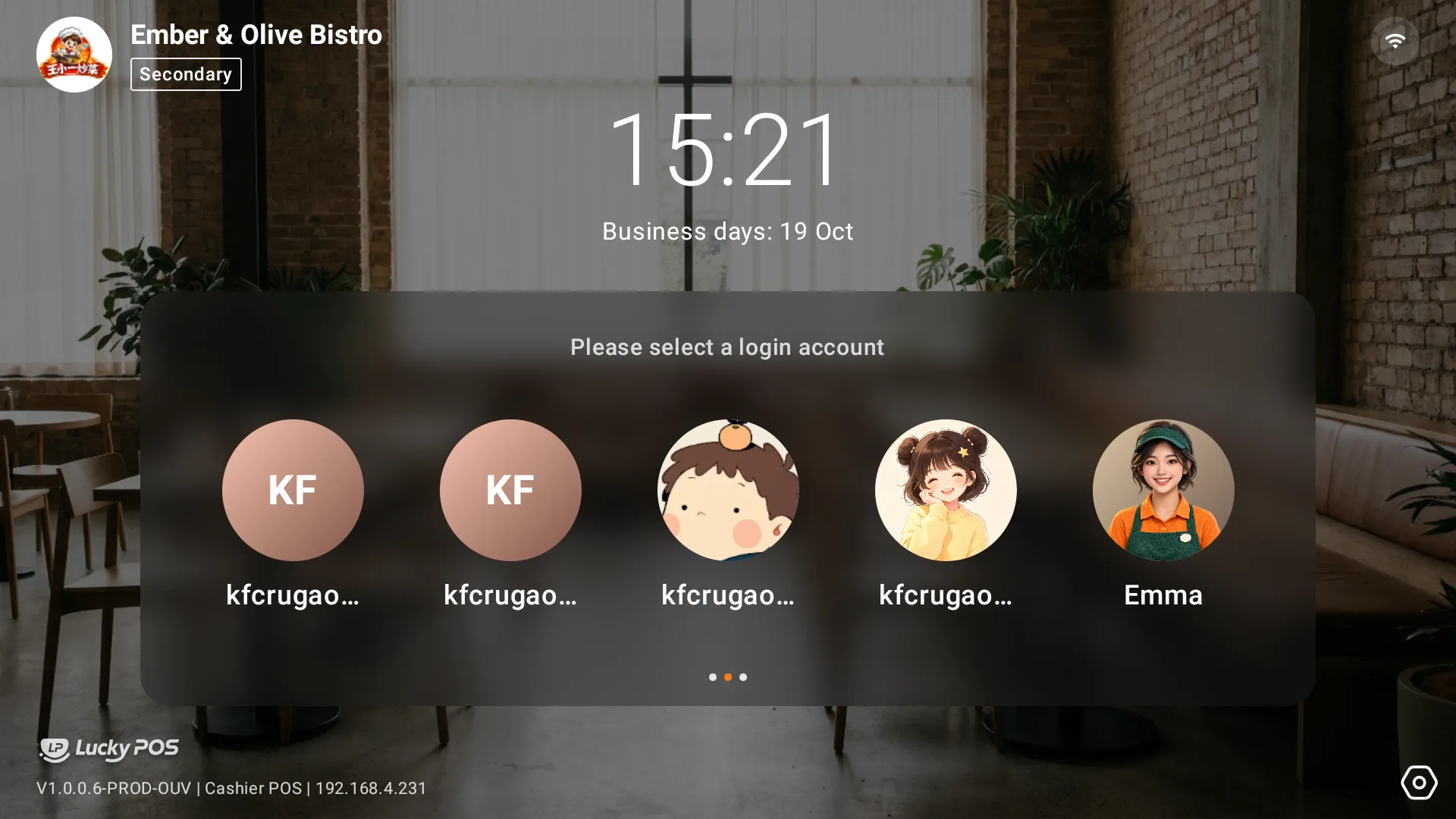
Select your own employee account. Swipe horizontally to find more employees.
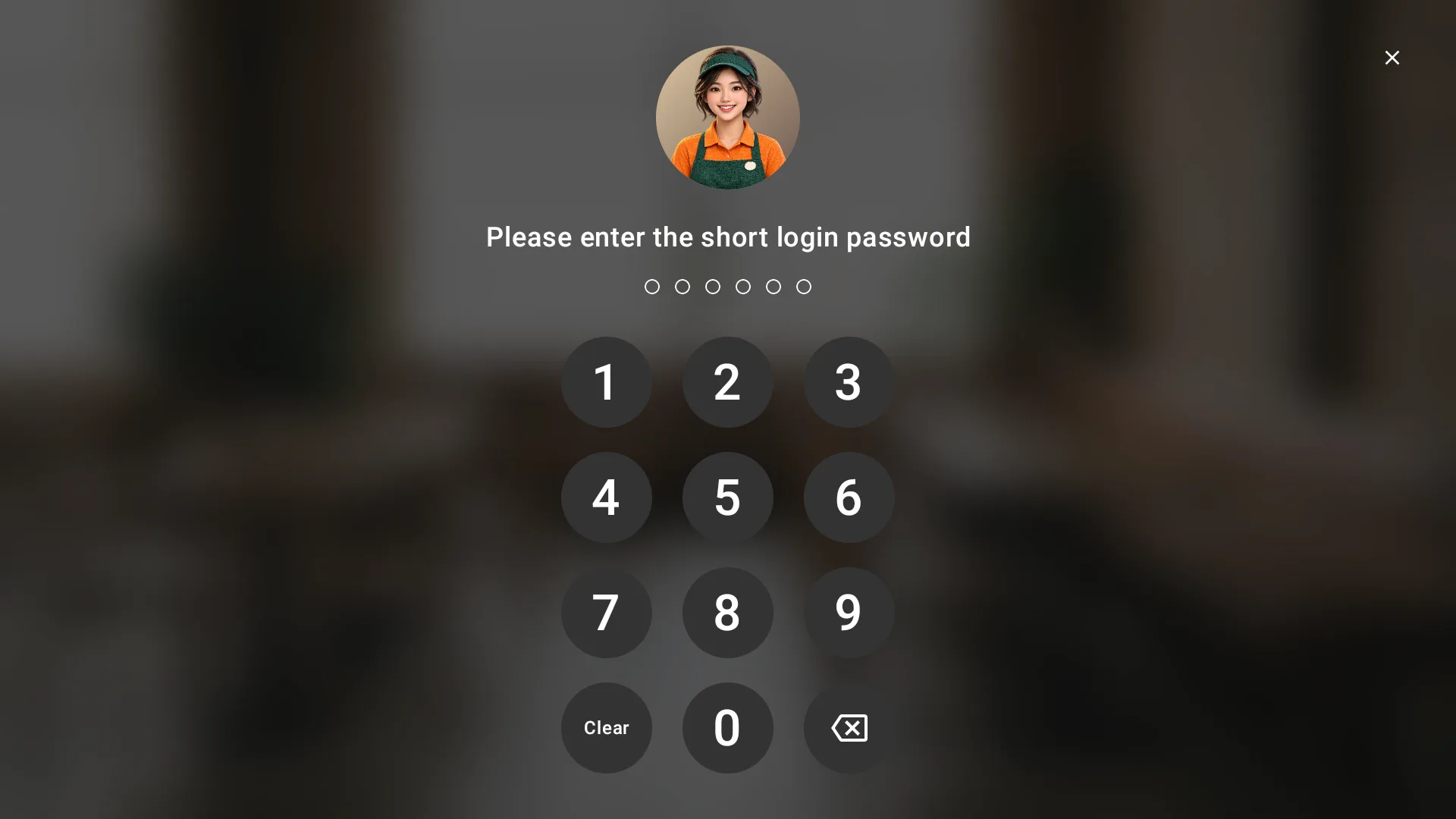
Enter the account's six-digit POS PIN.
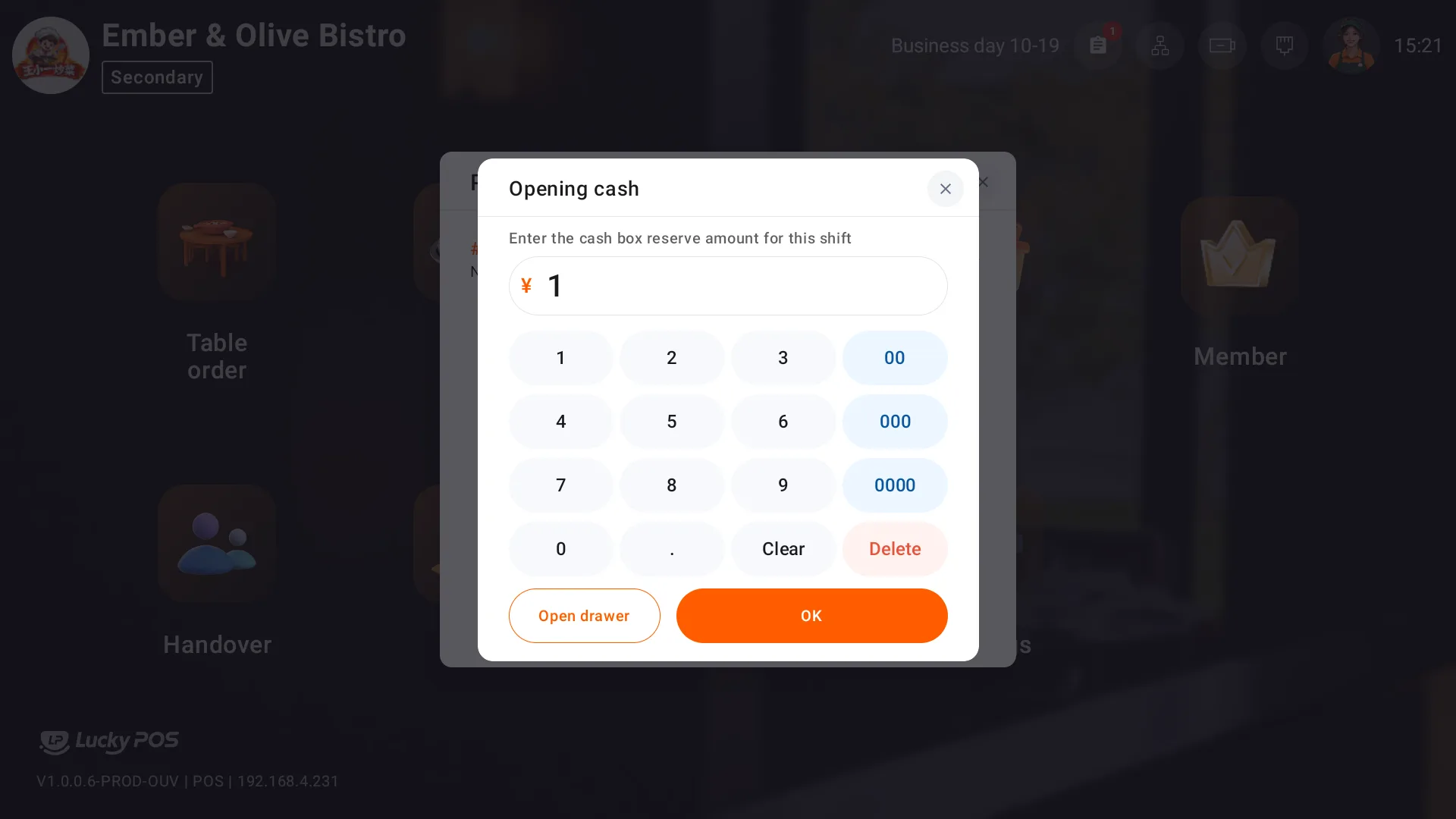
If the opening cash form appears after sign-in, check the cash available for the shift and confirm the amount.
When an action requires supervisor approval, select the supervisor and have that person enter their own PIN. Later steps may request approval again, including refund confirmation.
On the home screen, check your account, business day, primary POS connection and network status. A secondary POS should show that it is connected to the primary POS.
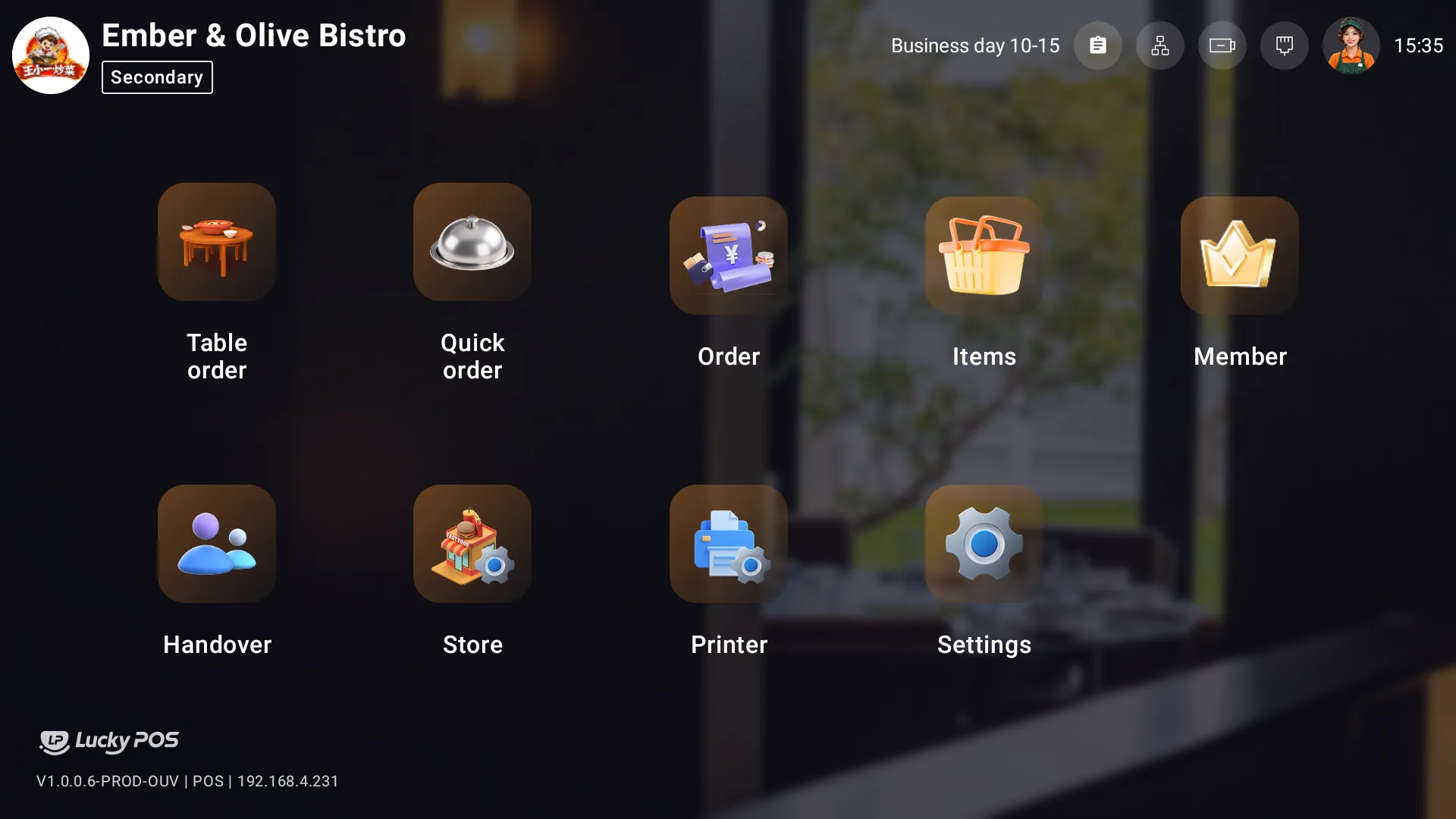
Home screen shortcuts
| Shortcut | Task |
|---|---|
| Table order | Open a table, take an order and check out |
| Quick order | Take a dine-in or takeaway order without assigning a table |
| Order | Find orders and check charges, payments and activity |
| Items | Manage availability, quantity limits and preparations |
| Member | Find members, create profiles, top up and review transactions |
| Handover | Reconcile shifts, hand over cash and view daily settlement |
| Store | Open the store management assistant QR code |
| Printer | View and add printers |
| Settings | Manage language, network, business and device settings |
Before serving customers, check that you are using your own account and that the store's printers and payment methods are ready.