
Appearance
Take a table order
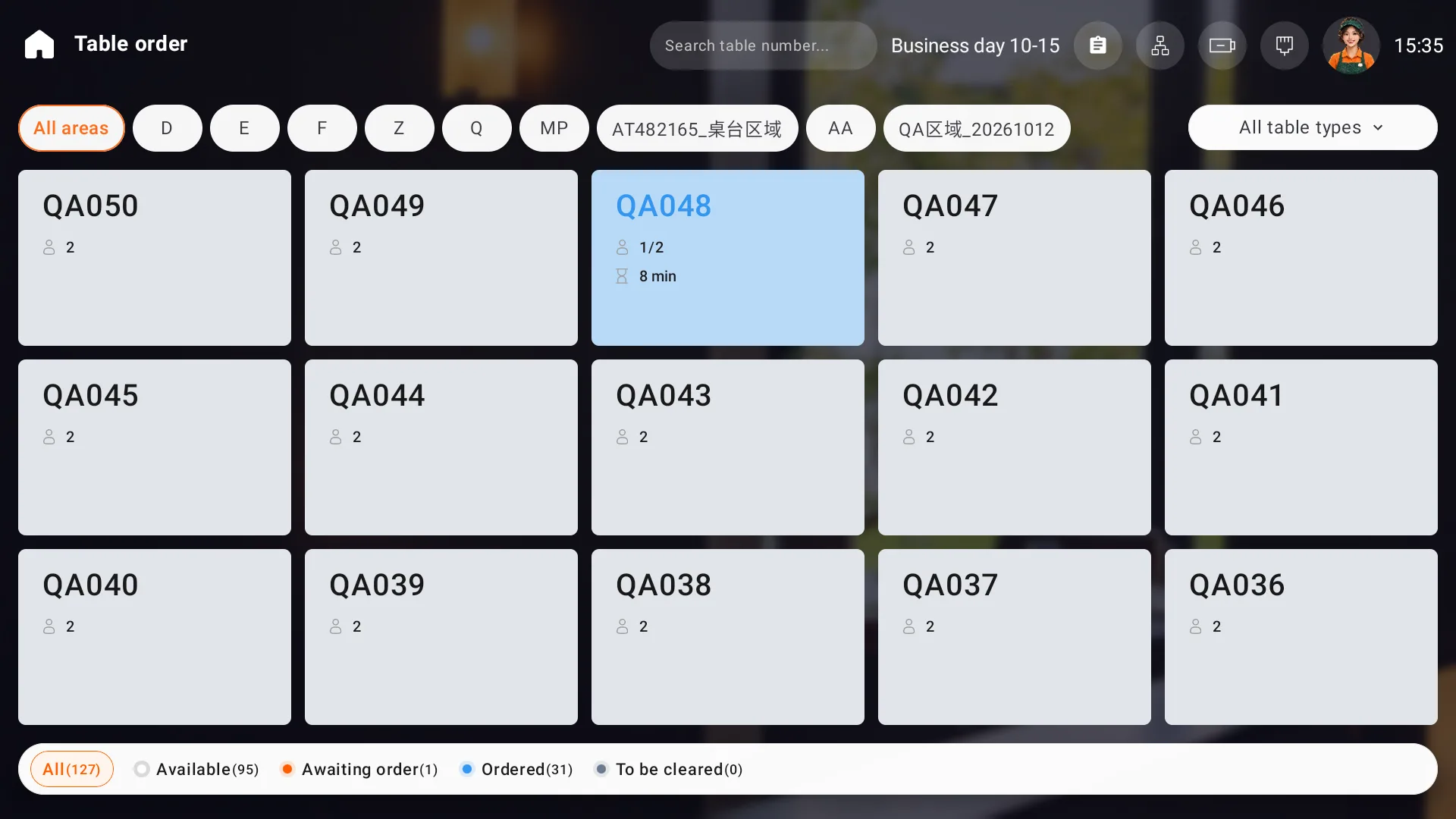
Open Table order from the home screen. Filter by area or table type at the top, and use the status filters below for available tables, tables awaiting an order, ordered tables or tables to be cleared. You can also search for a table number.
Open the table and add items
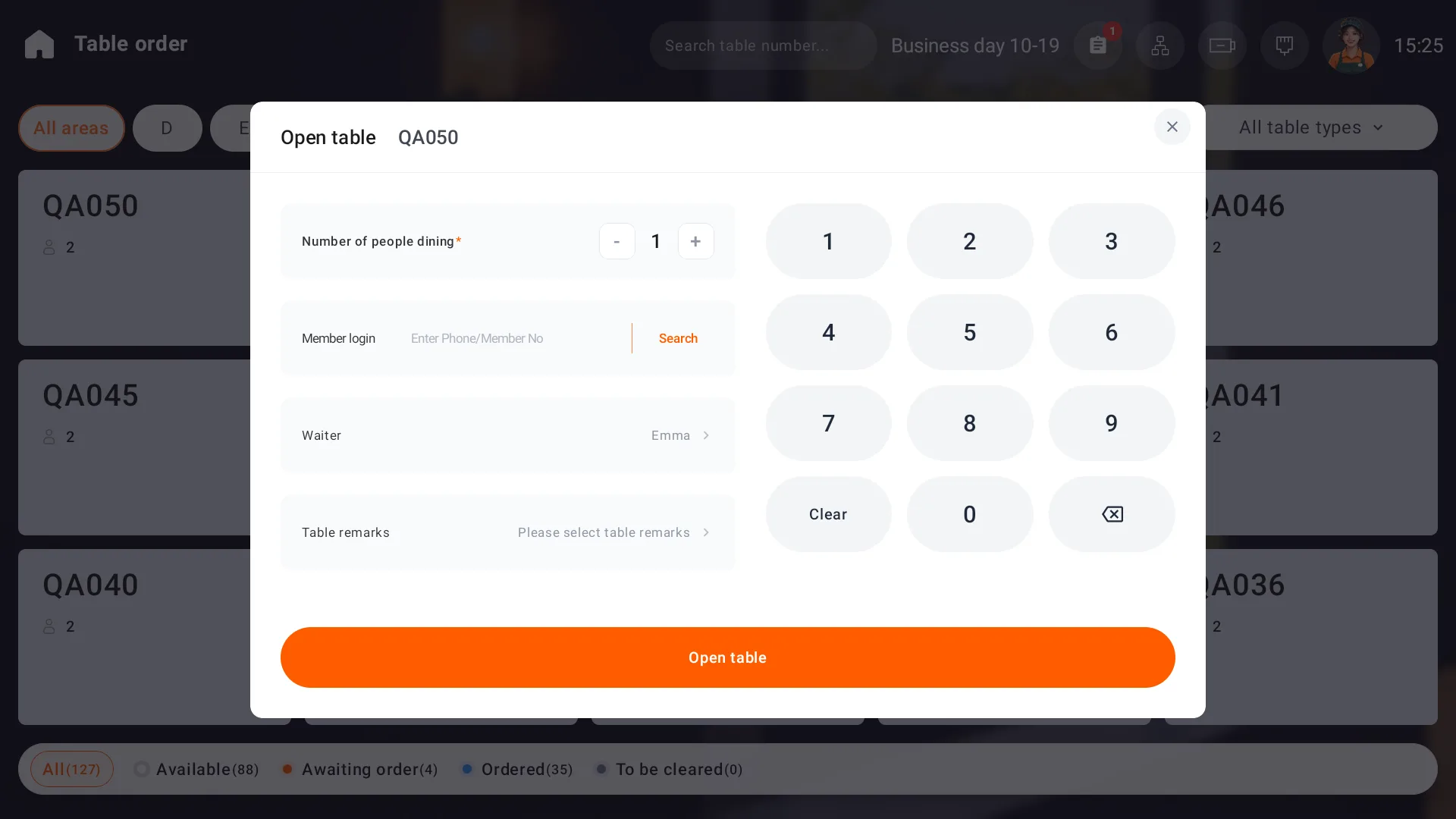
- Select an available table. Check its number, enter the guest count and server, and add any table remark. You can also sign in a member from the opening form.
- Confirm, then select a category and tap an item. Check quantities and the total in the order panel.
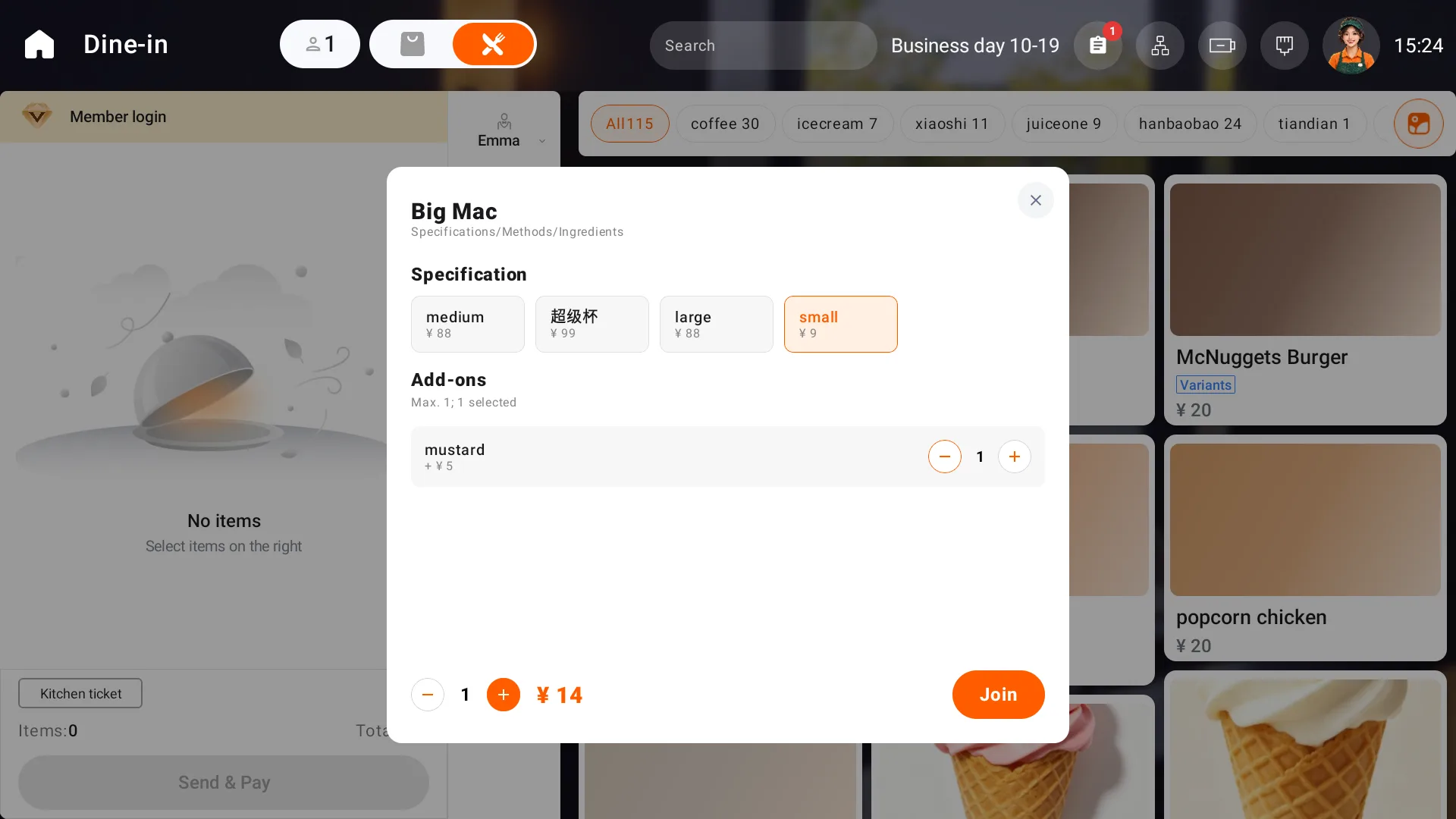
- For an item with variants, choose its required variant, preparation and add-ons. Check any add-on quantity limit before adding it.
- Adjust quantities and remarks before submitting. After submission, check the batch time, operator, source and bill.
In the example shown, the small variant costs 9 and mustard adds 5, giving a total of 14. Mustard is limited to one portion. Choose the options, prices and limits configured for your store.
Items sold by weight
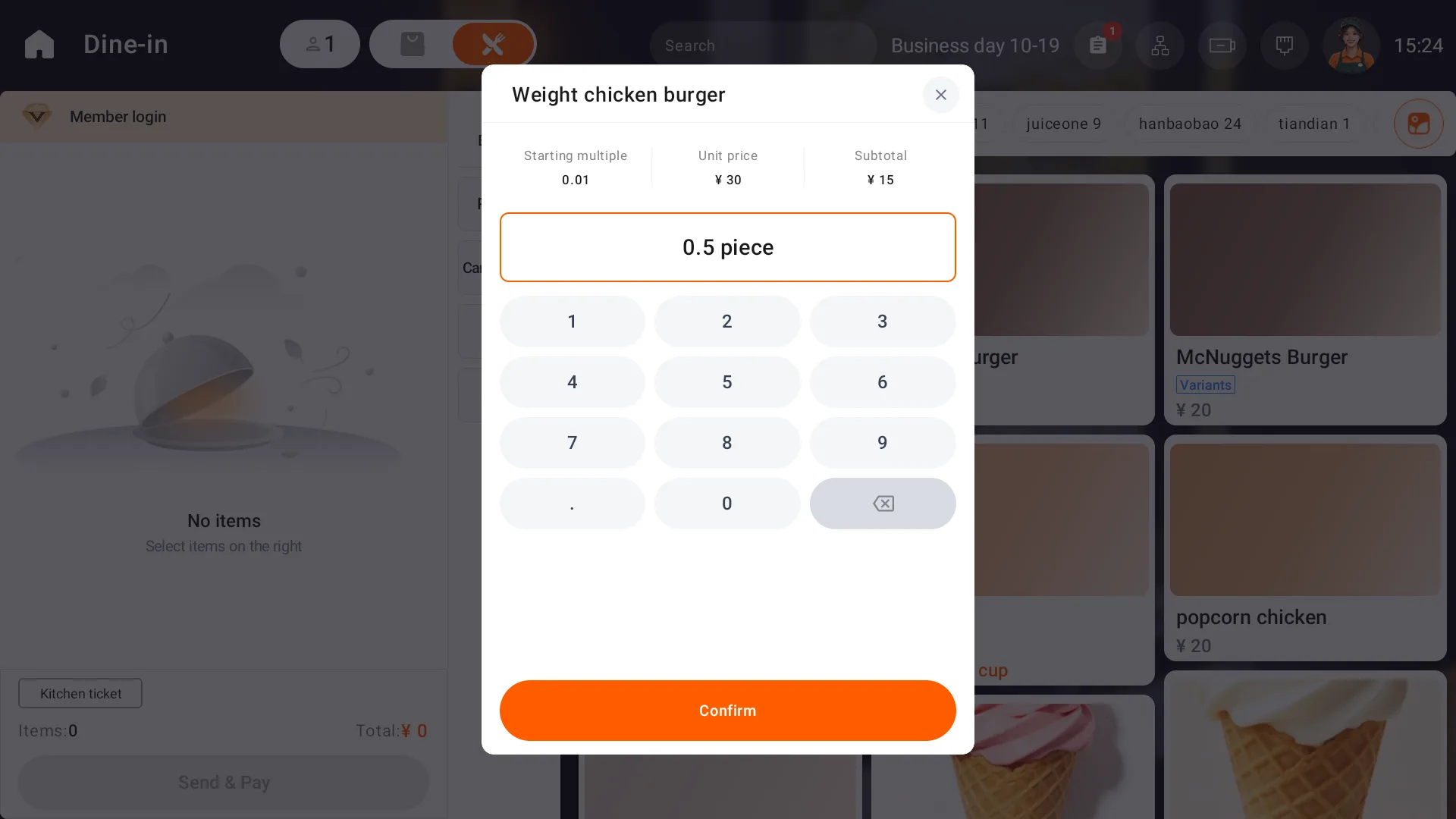
Use the unit and unit price shown in the weight form. Enter the measured quantity manually, check the calculated amount and add the item. The example shows a unit price of 30 and a quantity of 0.5 piece, giving 15. Use the unit configured for your store.
The item total can differ from the final amount due. Check service charges, extra fees, tax and rounding before taking payment.