
Appearance
Completed records and undo
Use Completed to review records for each work stage and check item progress. Preparation or cooking completion does not mean an item has been served. If an item was marked complete by mistake, undo the relevant record after confirming its actual kitchen progress.
| Category | Recorded action | Undo returns items to |
|---|---|---|
| Prep completed | Preparation completed | Prep queue |
| Cooking completed | Cooking completed | Cooking queue |
| Serving completed | Serving completed | Ready to serve |
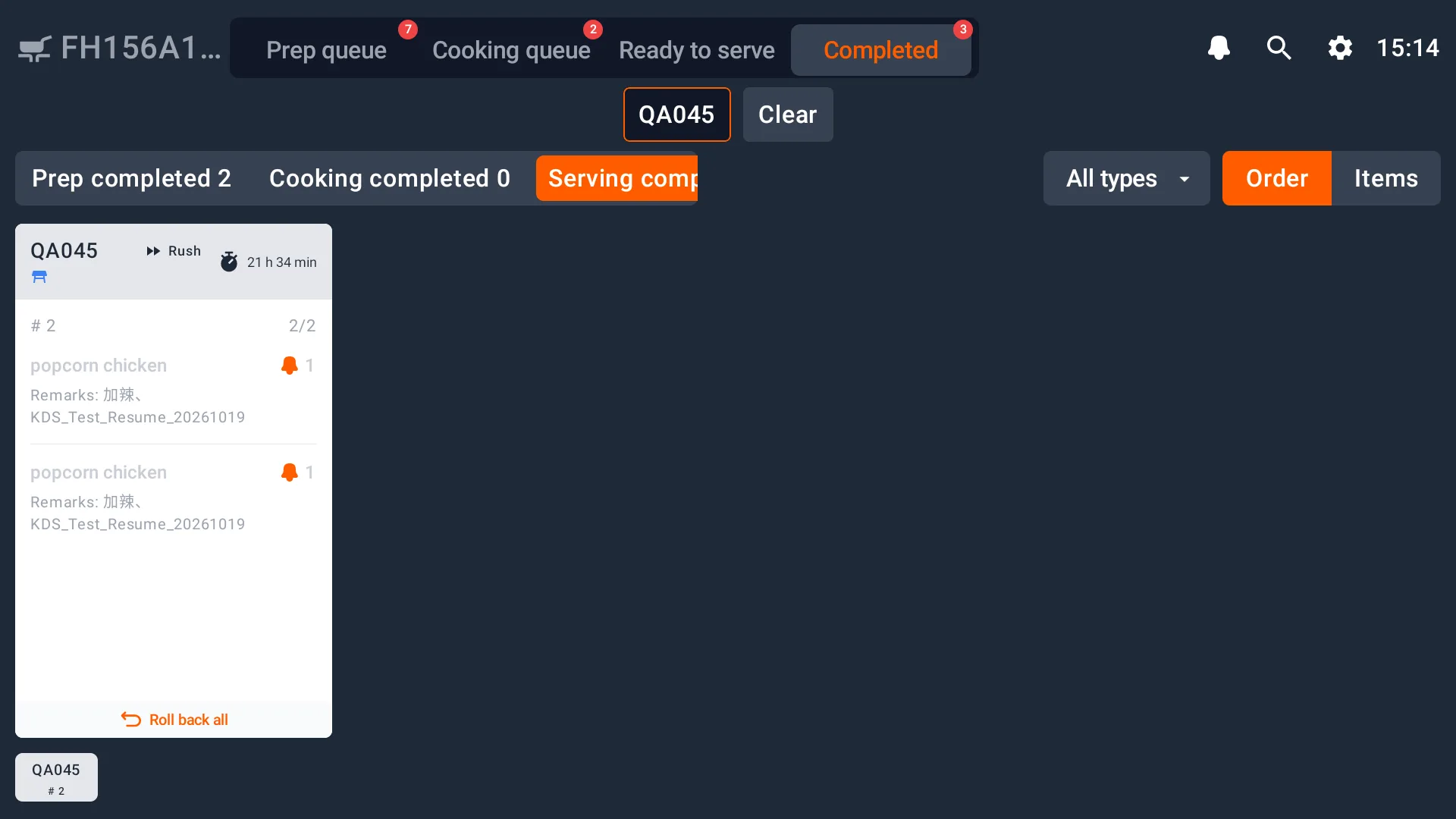
Undo a quantity
Open the relevant completed category, find the order and select the item. Check its quantity, then select Undo with the displayed number of portions. Select Cancel to close the dialog without applying the undo.
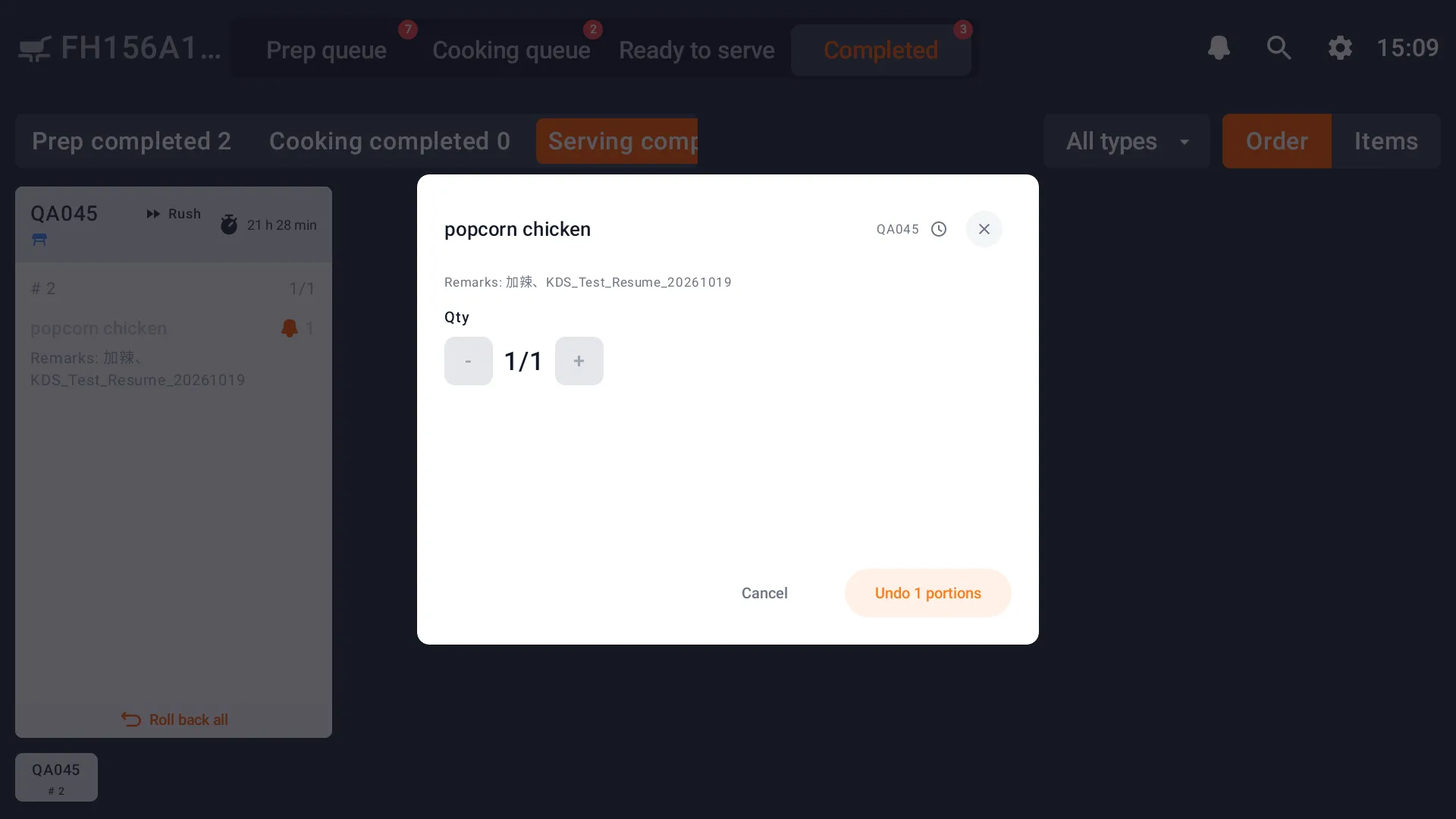
Undo returns the selected quantity to the waiting list for that stage. It does not delete the order or issue a refund.
Roll back a card
Use Roll back all when the completion status of every item on the card is incorrect. Check the order number, batch, items and quantities before selecting it. The items on that card return to the waiting list for the selected stage.
An item may appear on separate lines after quantity processing or undo. Check the total quantity across those lines.