Skip to content

Detailed Guide

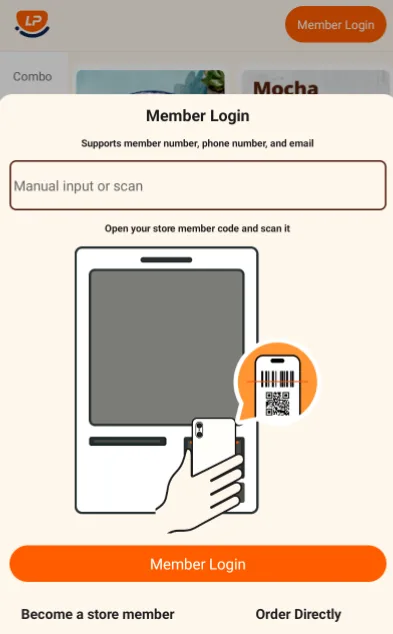
Member Login

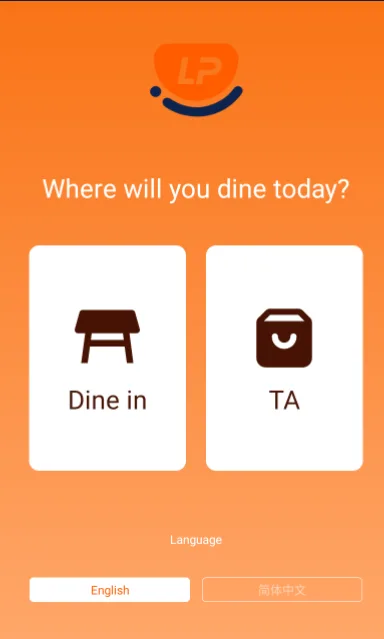
On the dine-in or takeaway screen, tap the member login button in the upper-right corner. Customers can sign in with a mobile number, member code, email address, or by scanning a member QR code.
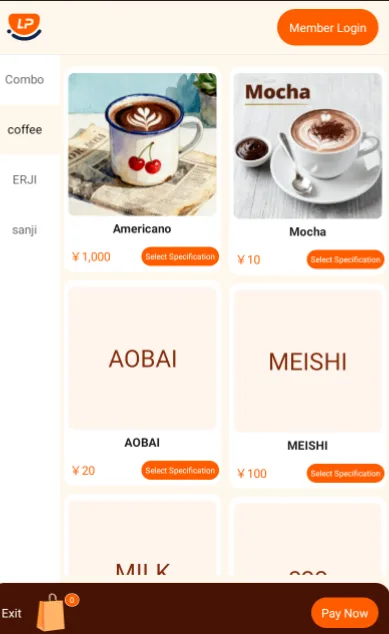
Instructions for Using the Self-Service Ordering Machine Function screenshot 3

Instructions for Using the Self-Service Ordering Machine Function screenshot 4

Instructions for Using the Self-Service Ordering Machine Function screenshot 5

Member Registration

If the customer is not yet a member of the store, tap Become a Member at the bottom-left of the page, scan the QR code, and complete registration by following the on-screen prompts.
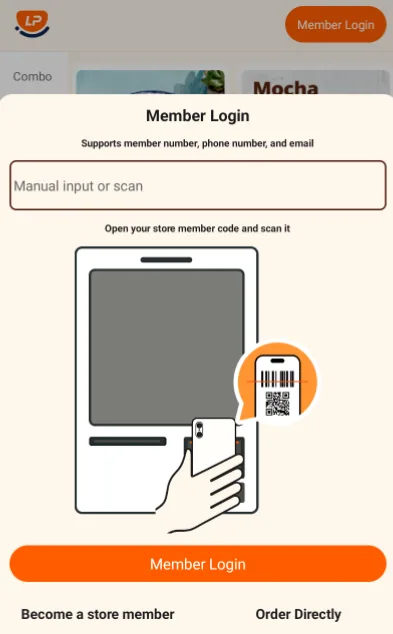
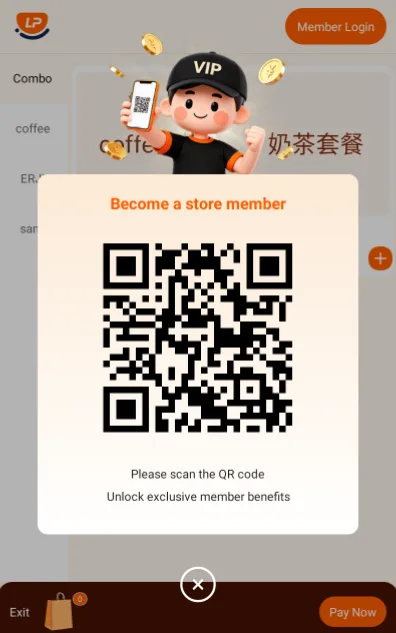
Instructions for Using the Self-Service Ordering Machine Function screenshot 6

Instructions for Using the Self-Service Ordering Machine Function screenshot 7

Ordering

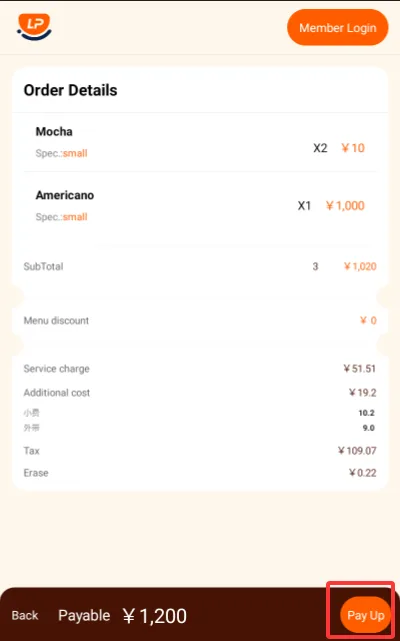
  • Select dine-in to open the ordering page, choose the items, and tap checkout.
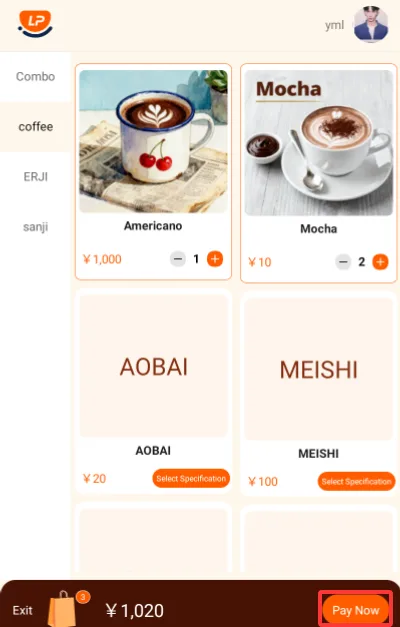
Instructions for Using the Self-Service Ordering Machine Function screenshot 8

Instructions for Using the Self-Service Ordering Machine Function screenshot 9

Instructions for Using the Self-Service Ordering Machine Function screenshot 10

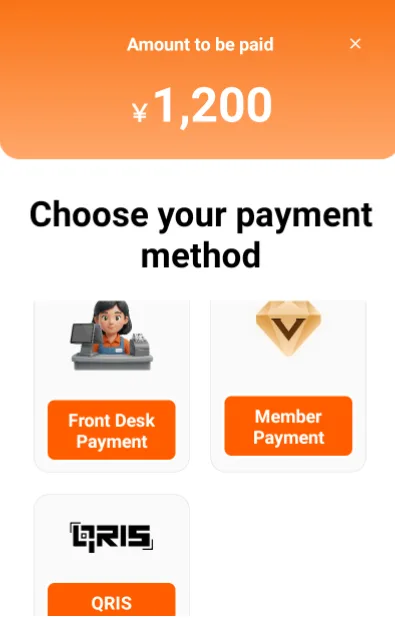
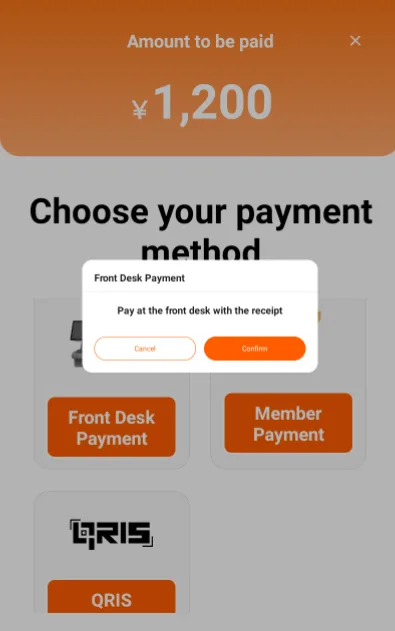
  • Select cashier payment. Instructions for Using the Self-Service Ordering Machine Function screenshot 11

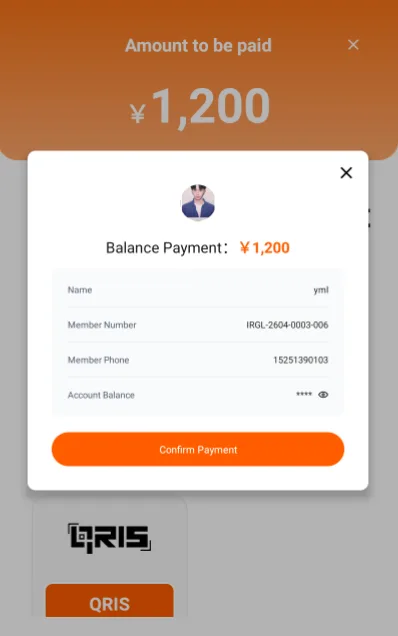
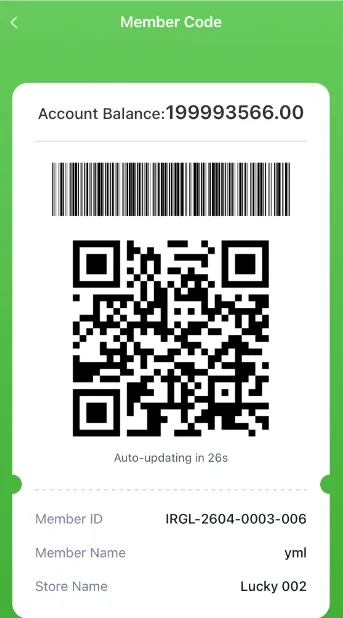
  • Select member payment. If the customer is not signed in, the system will ask them to log in first. Supported methods include mobile number + password, email + verification code, and showing the member QR code from the customer's phone.
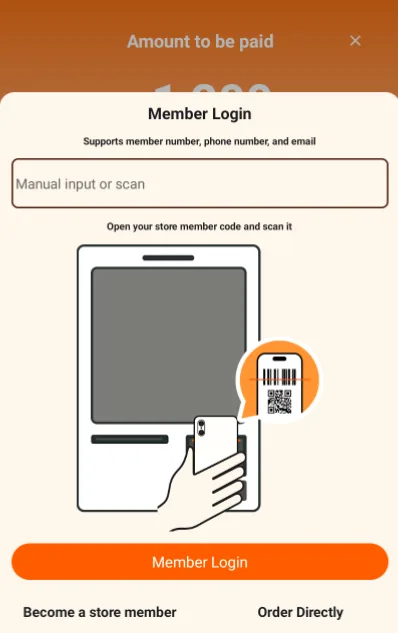
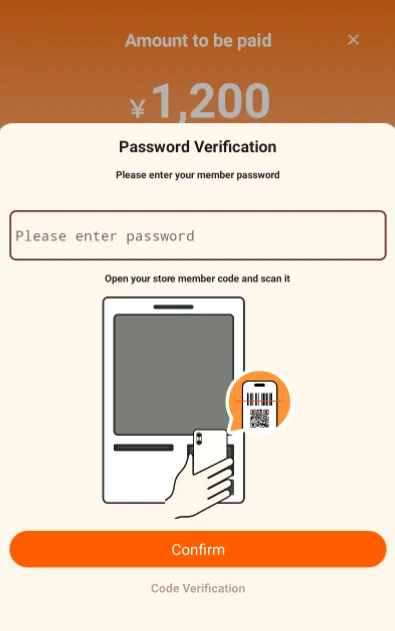
Instructions for Using the Self-Service Ordering Machine Function screenshot 12

Instructions for Using the Self-Service Ordering Machine Function screenshot 13

Instructions for Using the Self-Service Ordering Machine Function screenshot 14

Instructions for Using the Self-Service Ordering Machine Function screenshot 15

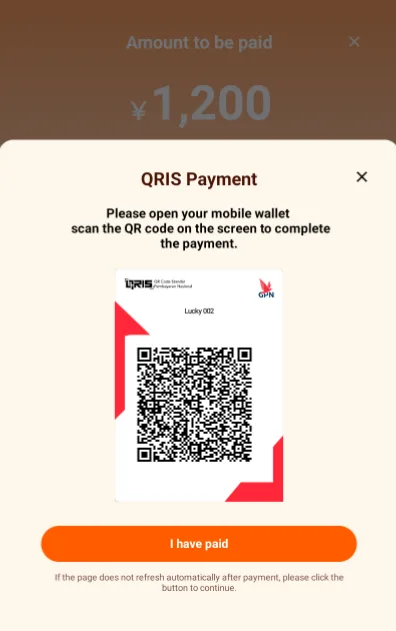
  • Select QRIS payment. Instructions for Using the Self-Service Ordering Machine Function screenshot 16

  • After payment succeeds, the kiosk prints the checkout receipt. Instructions for Using the Self-Service Ordering Machine Function screenshot 17
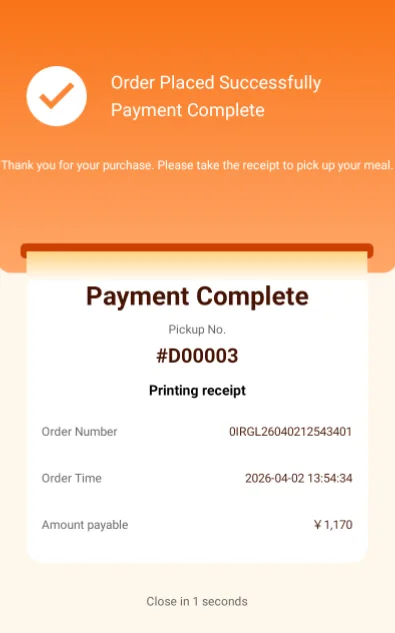
LuckyPOS documentation center