Appearance
Detailed Guide
Member Registration
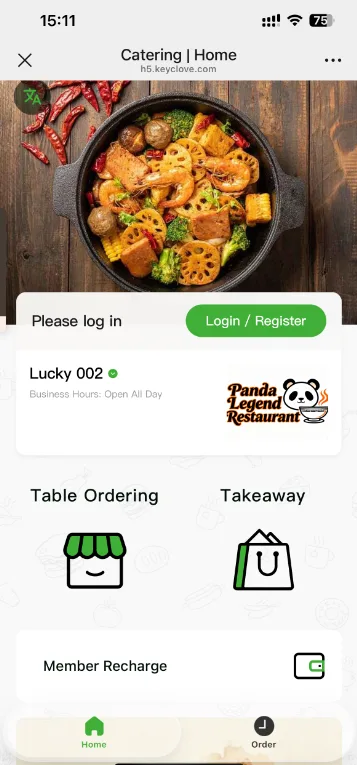
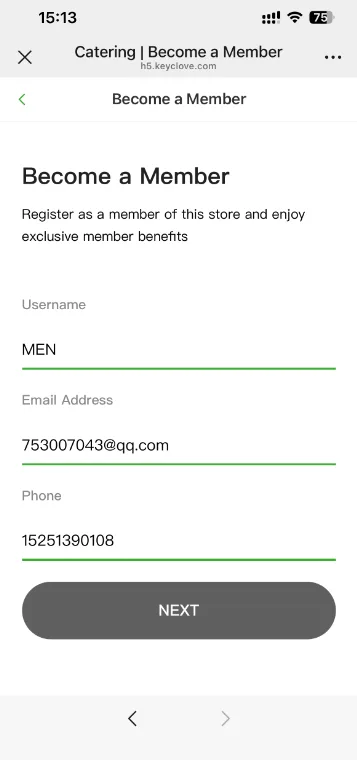
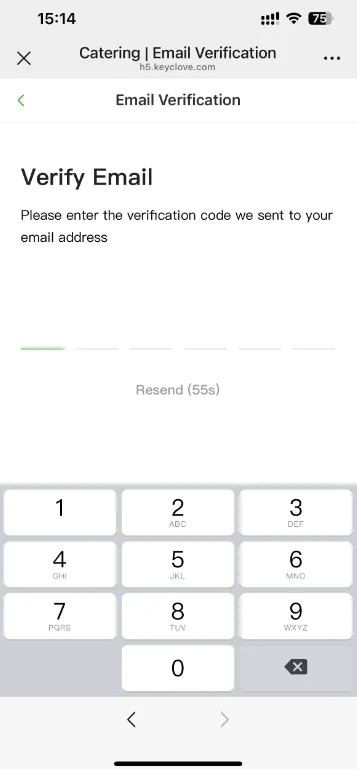
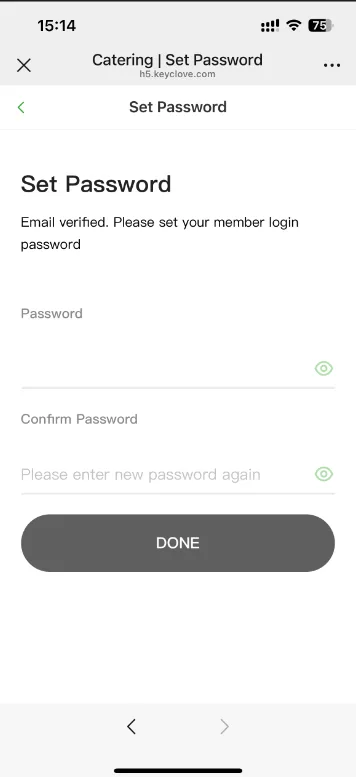
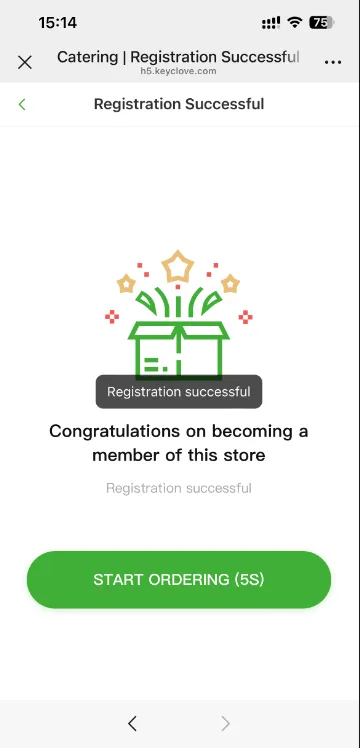
- Scan the store's registration QR code, open the home page, and tap the registration button.
Member Login
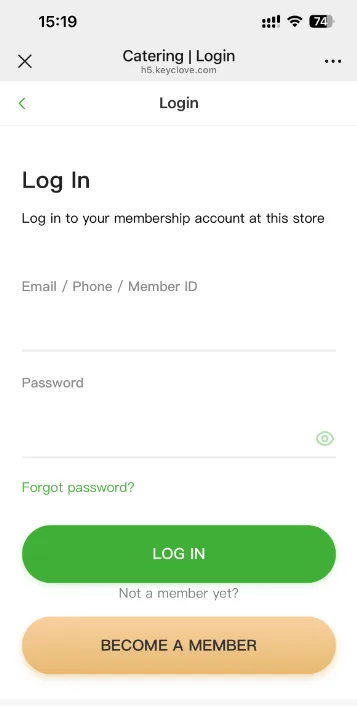
- Existing members can tap Log In, enter the account and password, and sign in. New users can register first; after registration, they are signed in automatically.
Home Page
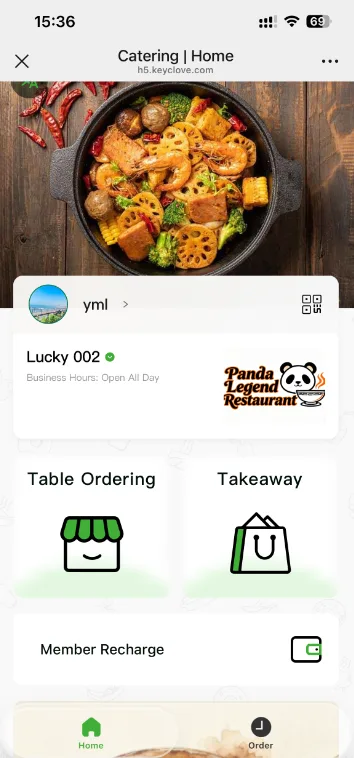
- The top and bottom areas show the advertising images configured in the management backend.
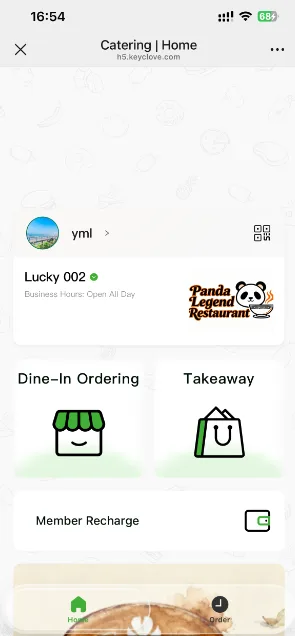
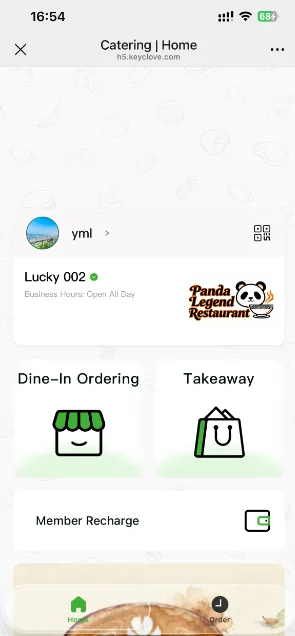
- Available ordering modes depend on backend configuration: table ordering, quick ordering, takeout, or a combination of these.
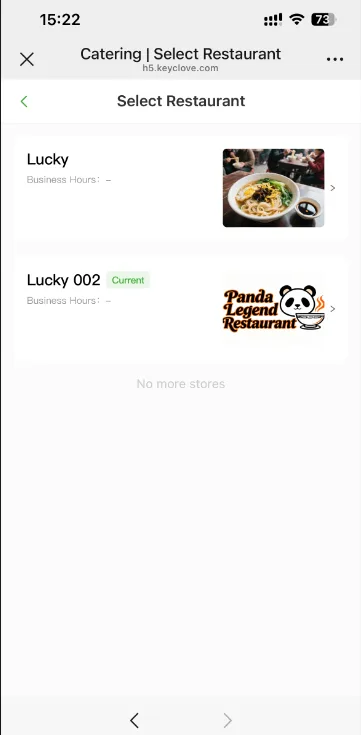
- For chain stores, guests can switch stores before placing an order.
Profile Center
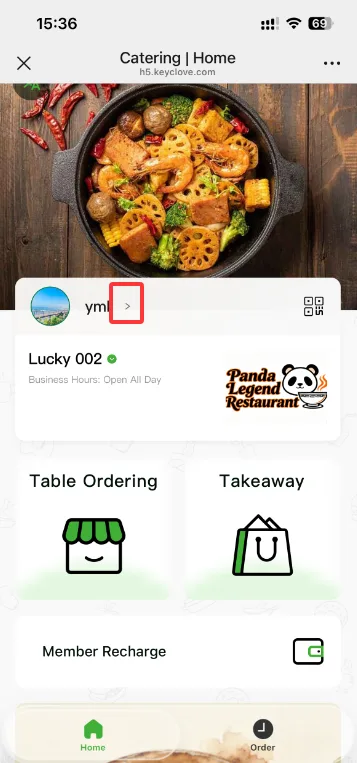
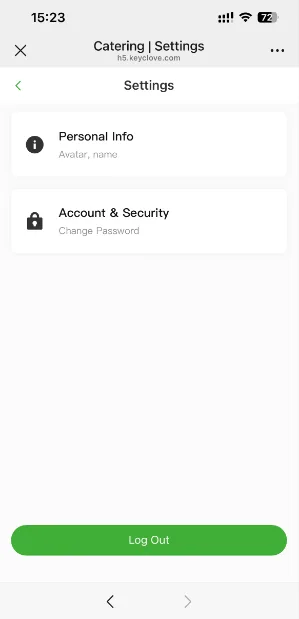
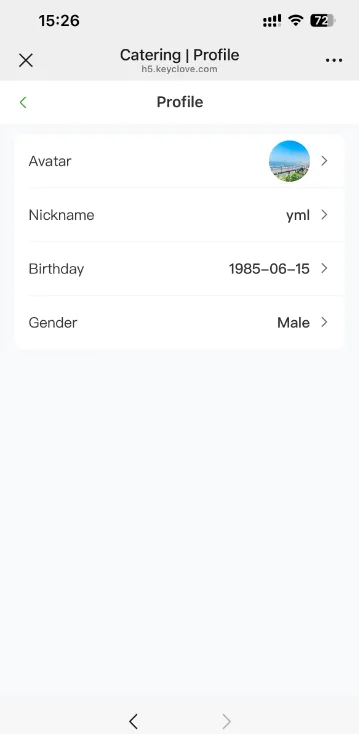
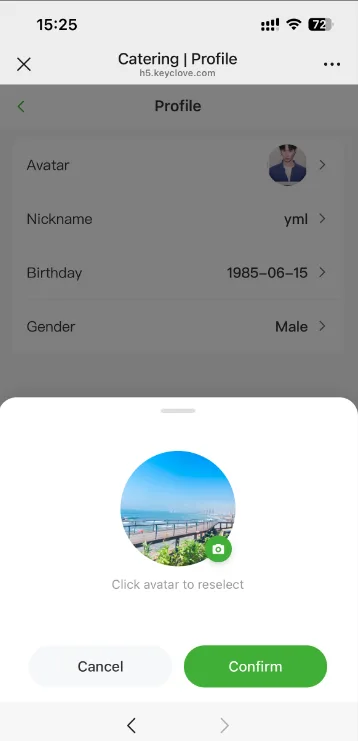
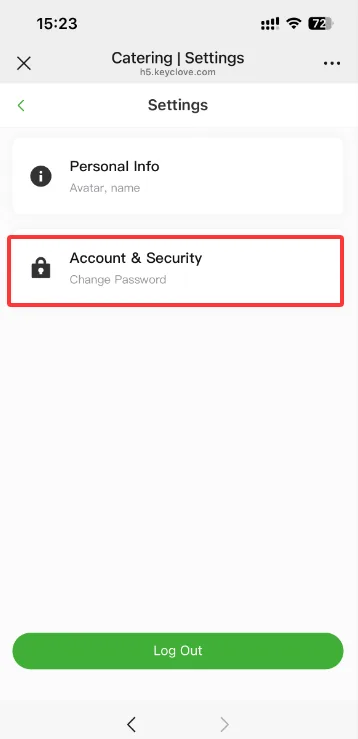
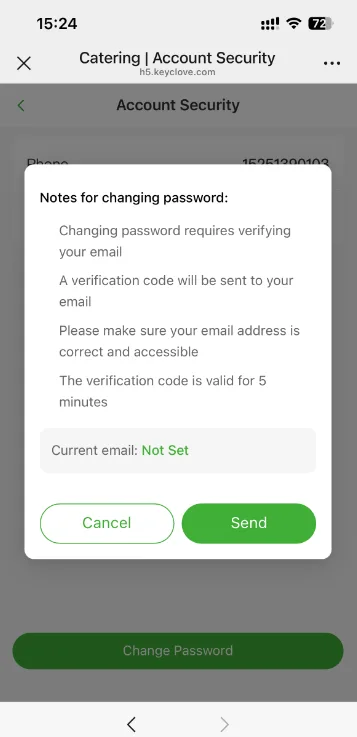
- Guests can update their avatar, birthday, nickname, gender, and password from the profile center.
Member Balance
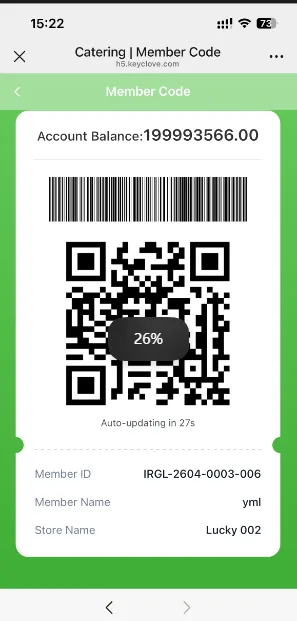
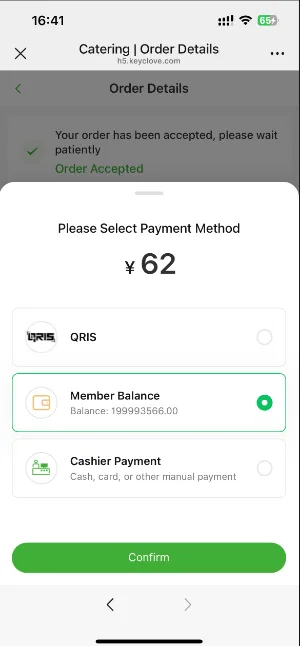
- Guests can view their member balance and spending records. Balance top-up is handled at the cashier counter.
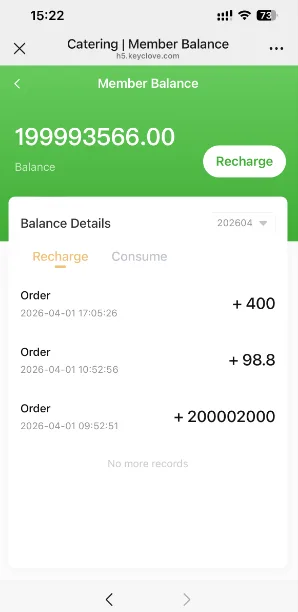
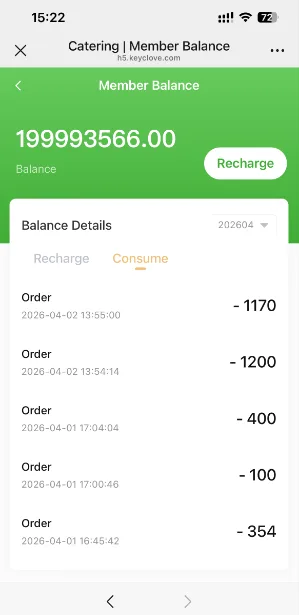
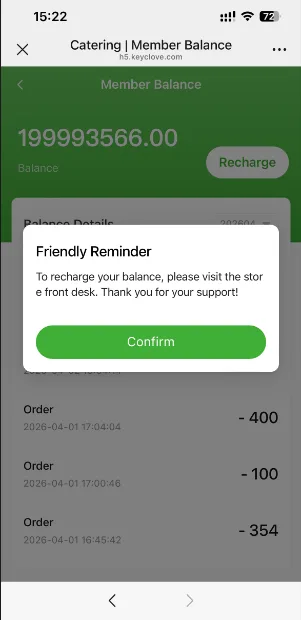
Table Ordering
QRIS Payment
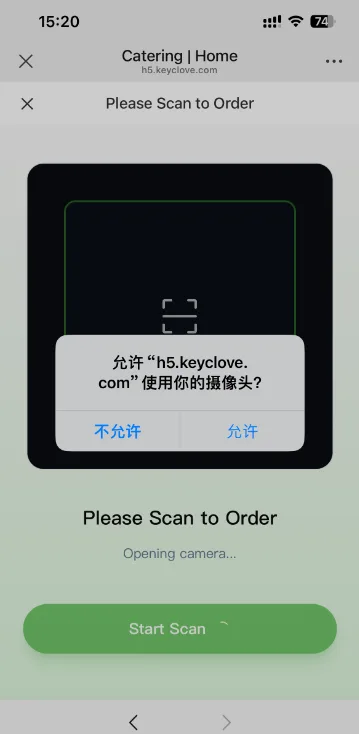
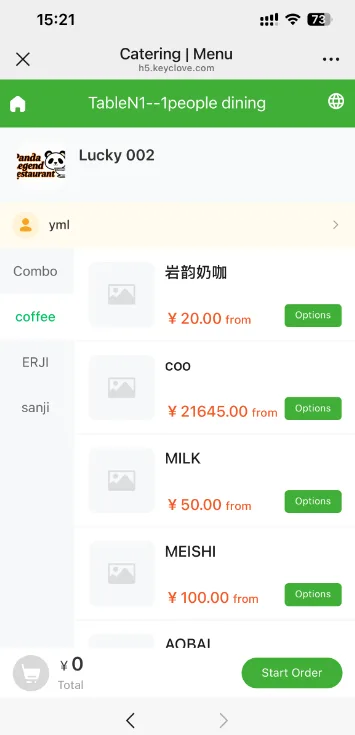
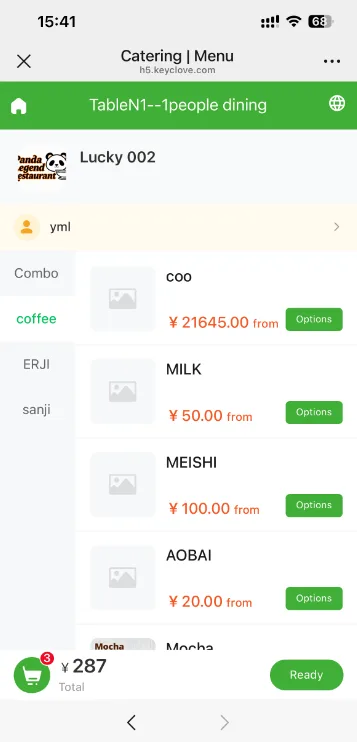
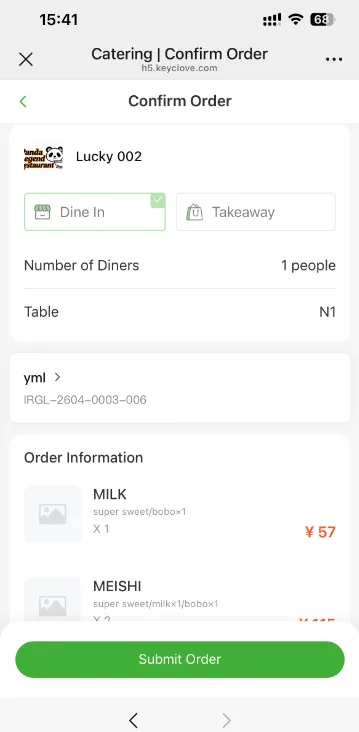
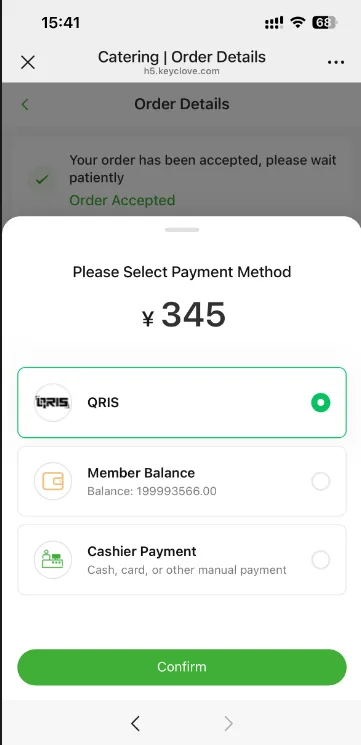
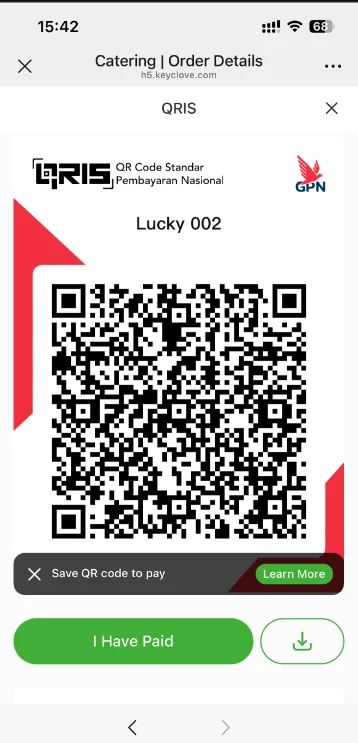
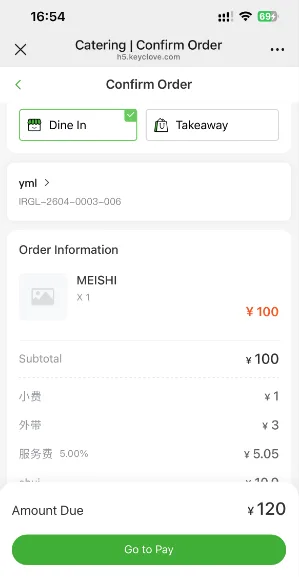
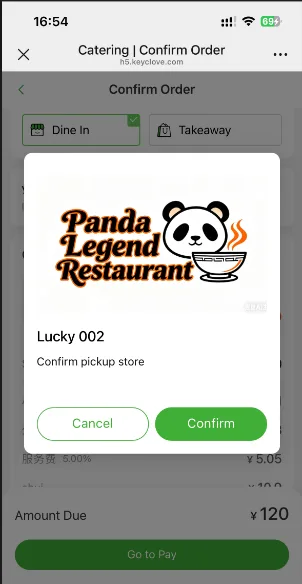
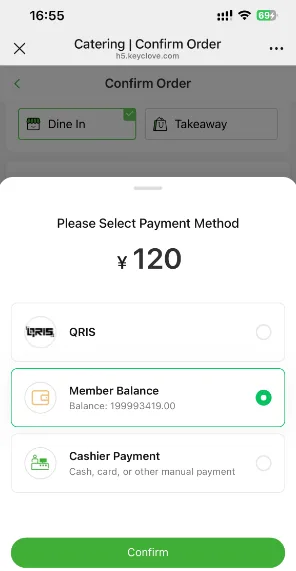
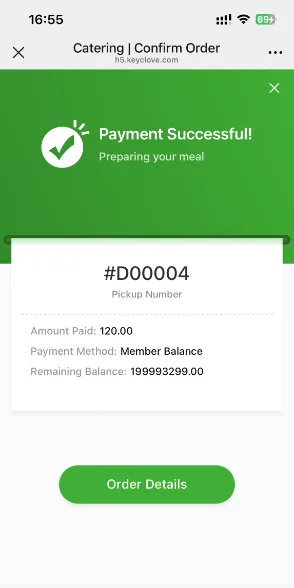
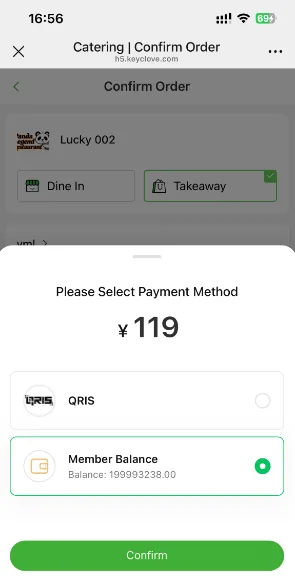
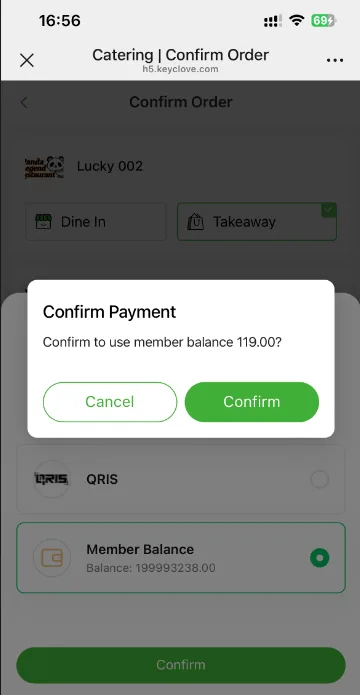
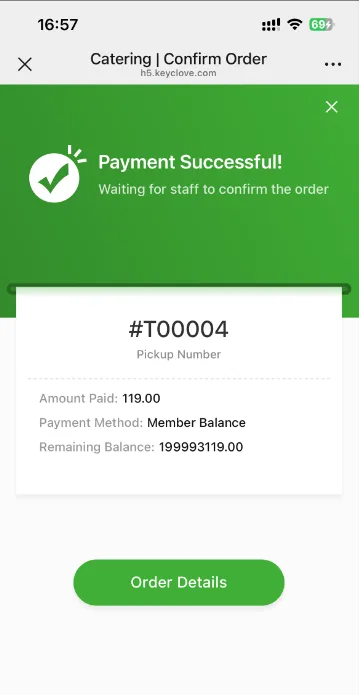
- Guests place orders and pay according to the store's scan-to-order configuration in the management backend.
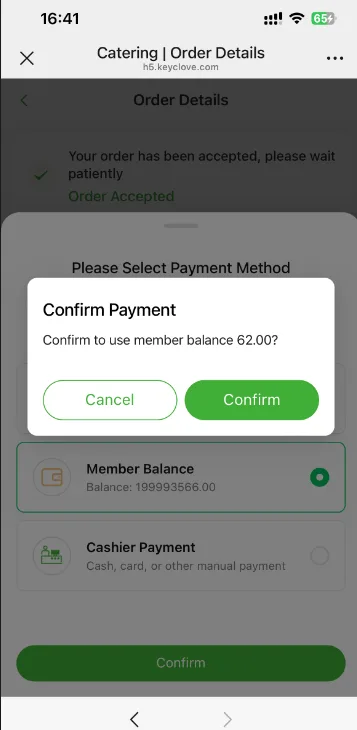
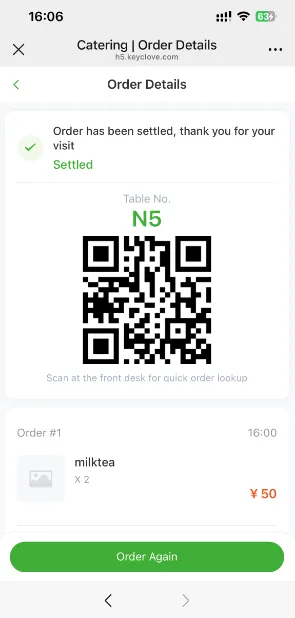
Member Balance Payment
Cashier Payment
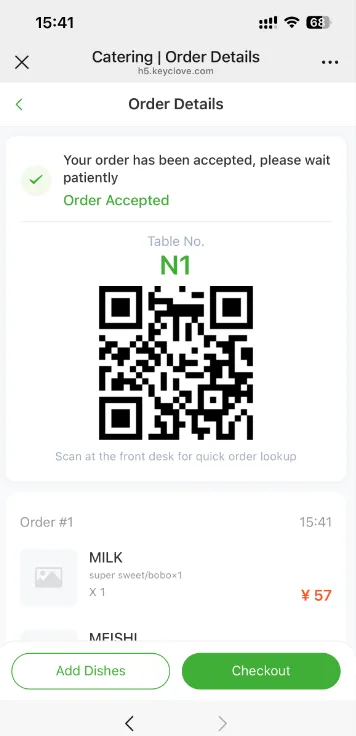
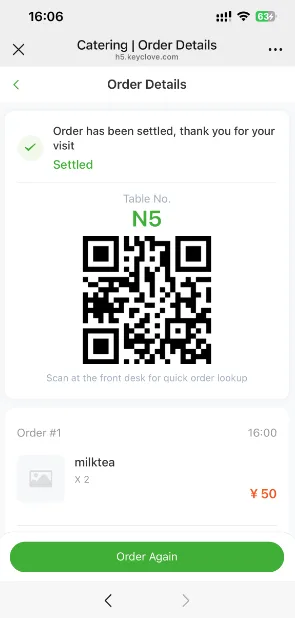
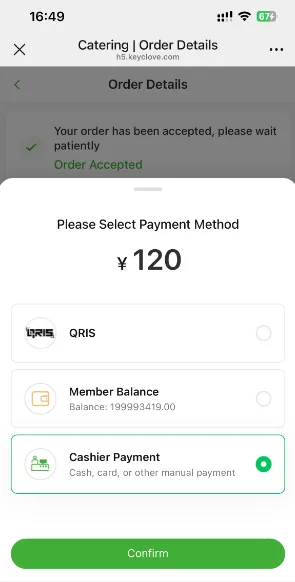
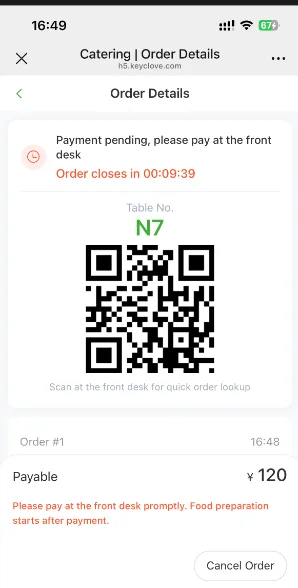
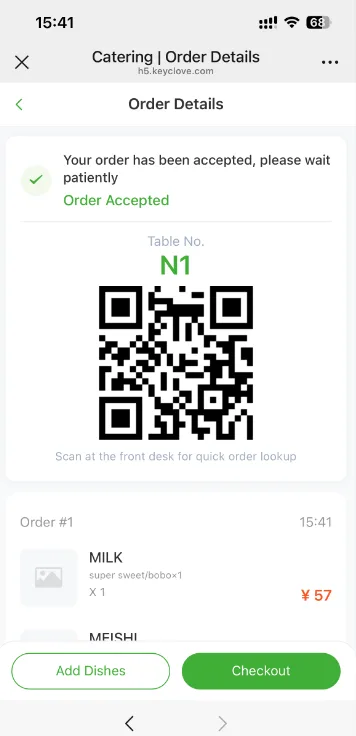
- If the guest selects cashier payment, the cashier can scan the QR code on the order page and open the checkout page directly.
Add Items
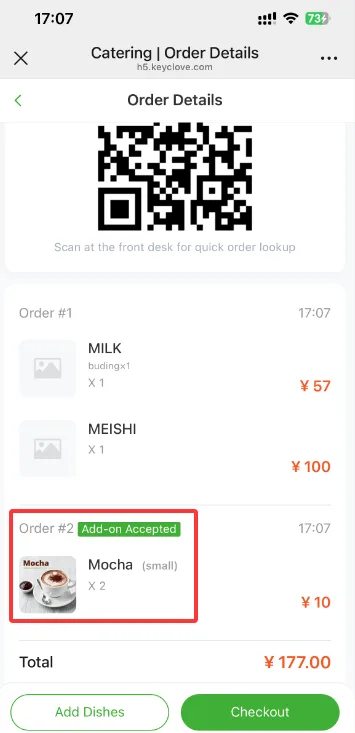
- Tap Add Items to return to the menu, select more items, and submit the order again.
Cancel an Order
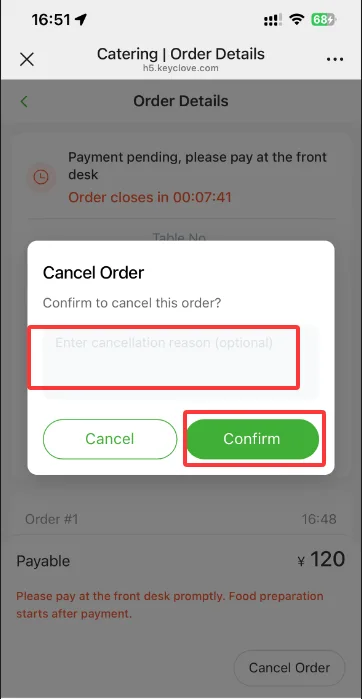
- For cashier payment orders, guests can use the button in the lower-right corner of the order page to cancel the order.
- If order acceptance is set to manual, an order can be cancelled while it is still waiting to be accepted.
Quick Ordering
- Quick ordering does not require selecting a table number. Guests enter the menu page and place an order directly.
Takeout
My Orders
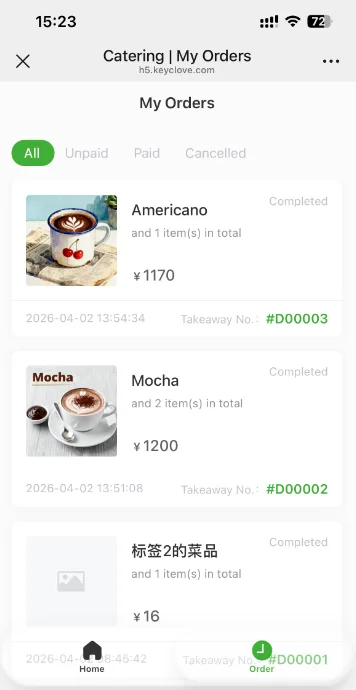
- Guests can view orders from the last 6 months.