
Appearance
2026-04-01 Version Upgrade Instructions
POS
1.1 Member Registration Function Enhancement
- Member registration adds email information filling and verification mechanism, which needs to be verified through email verification code to effectively avoid email filling errors.
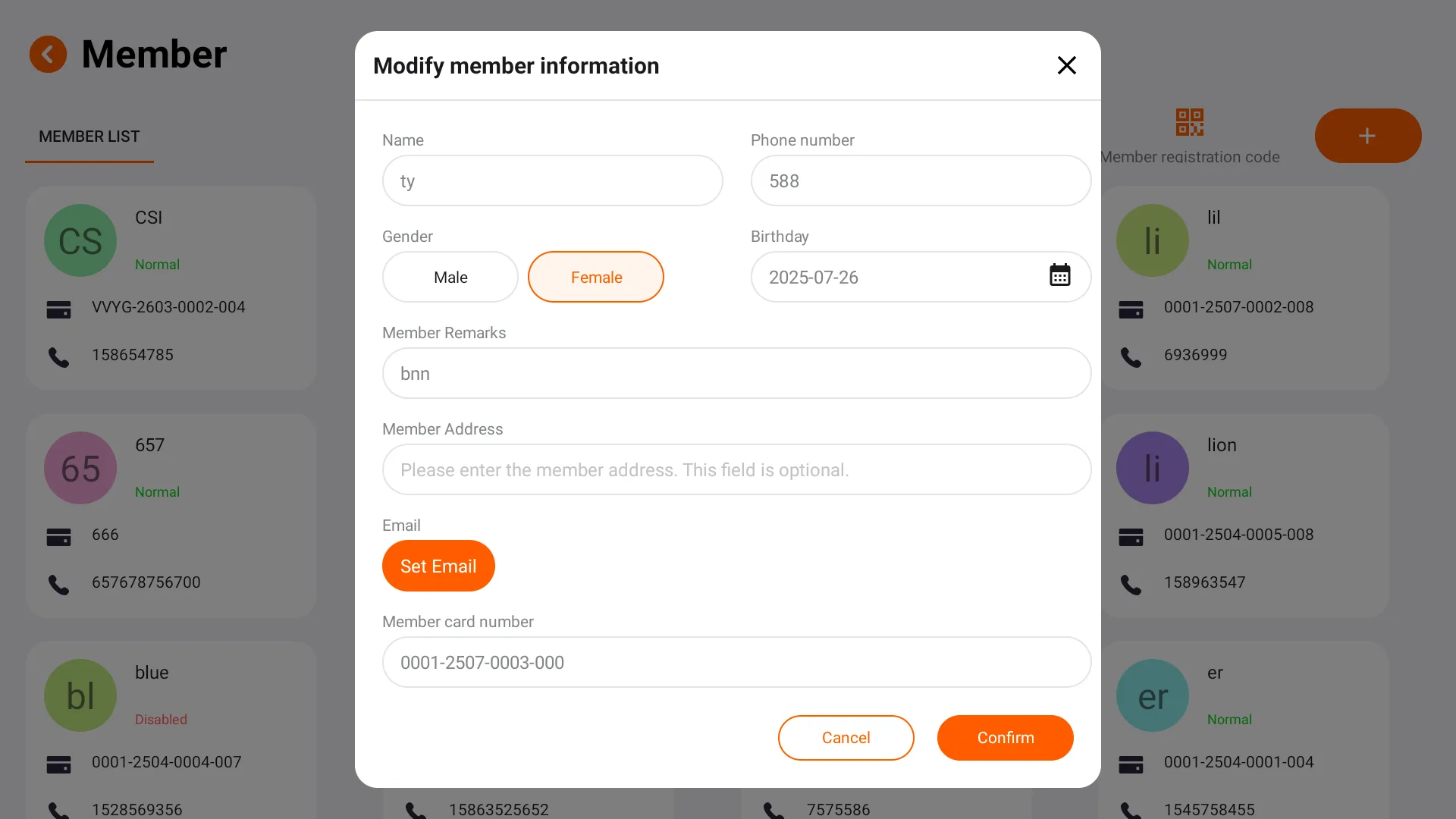
- After old members supplement their email information, they can use it to log in to the mobile member center: When logging in for the first time, click "Forgot Password" and set the login password through email verification.
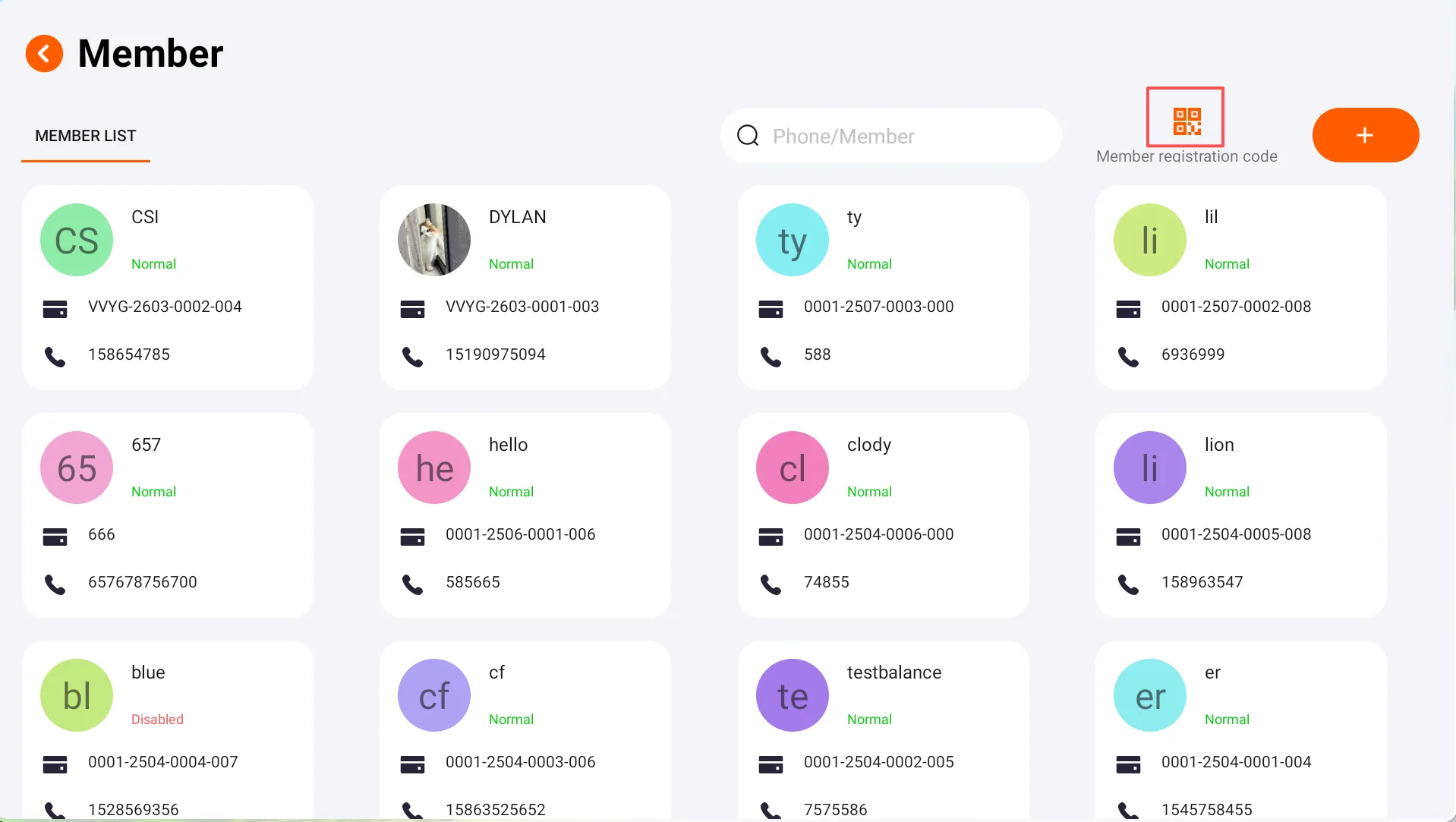
- Member Center adds " Member Registration Code" function: After clicking, the main screen and the secondary screen display the store member registration QR code synchronously. New members can scan the code for self-registration, reducing the front desk manual registration cost.
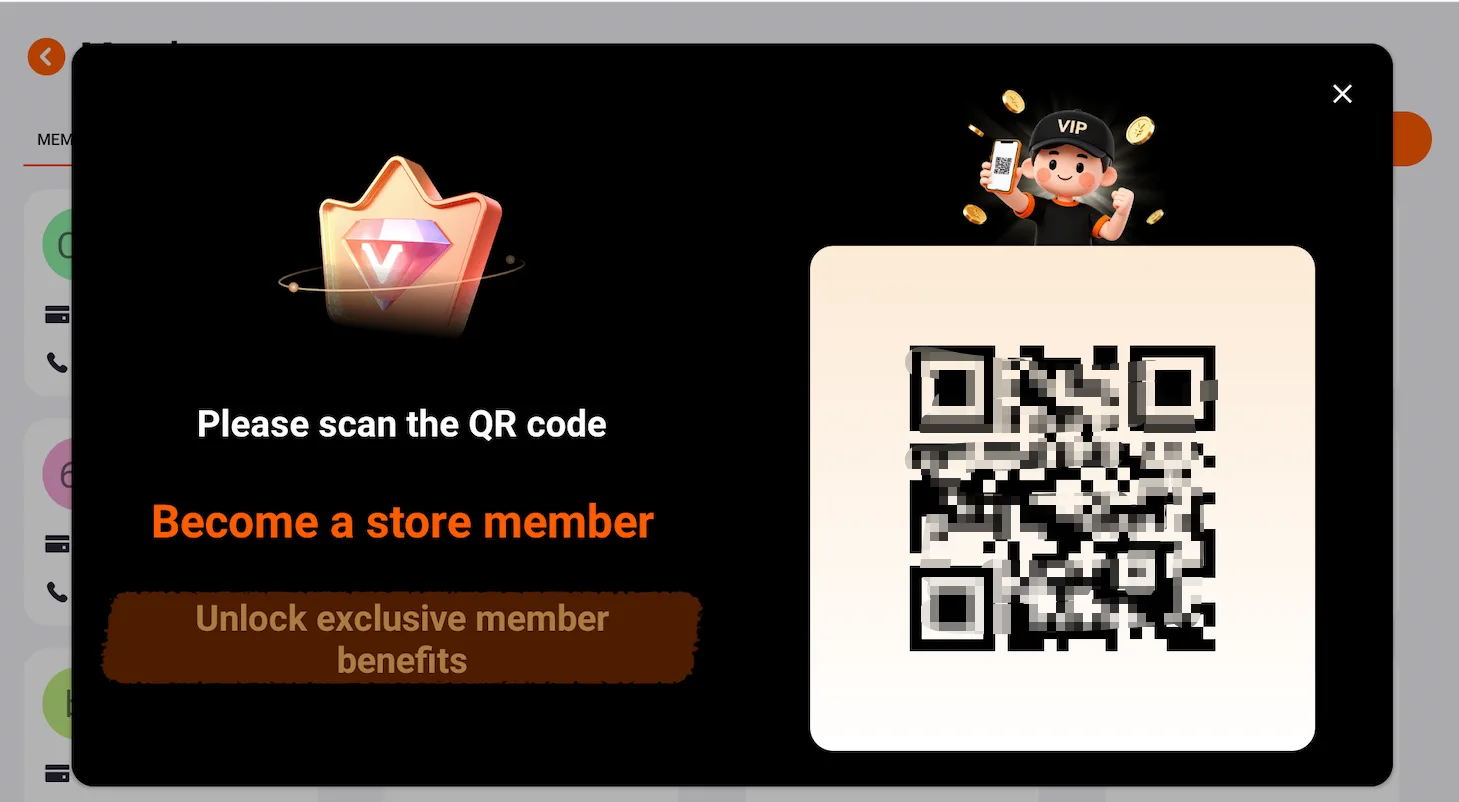
- After customers scan the code to enter the Member Center, it is recommended to bookmark or add the page to the home screen of their mobile phonesfor easy and quick access in the future.
1.2 Optimization of Member Association on the Table Opening and Order Page
- New member login and information display functions have been added to the table opening page and the order page.
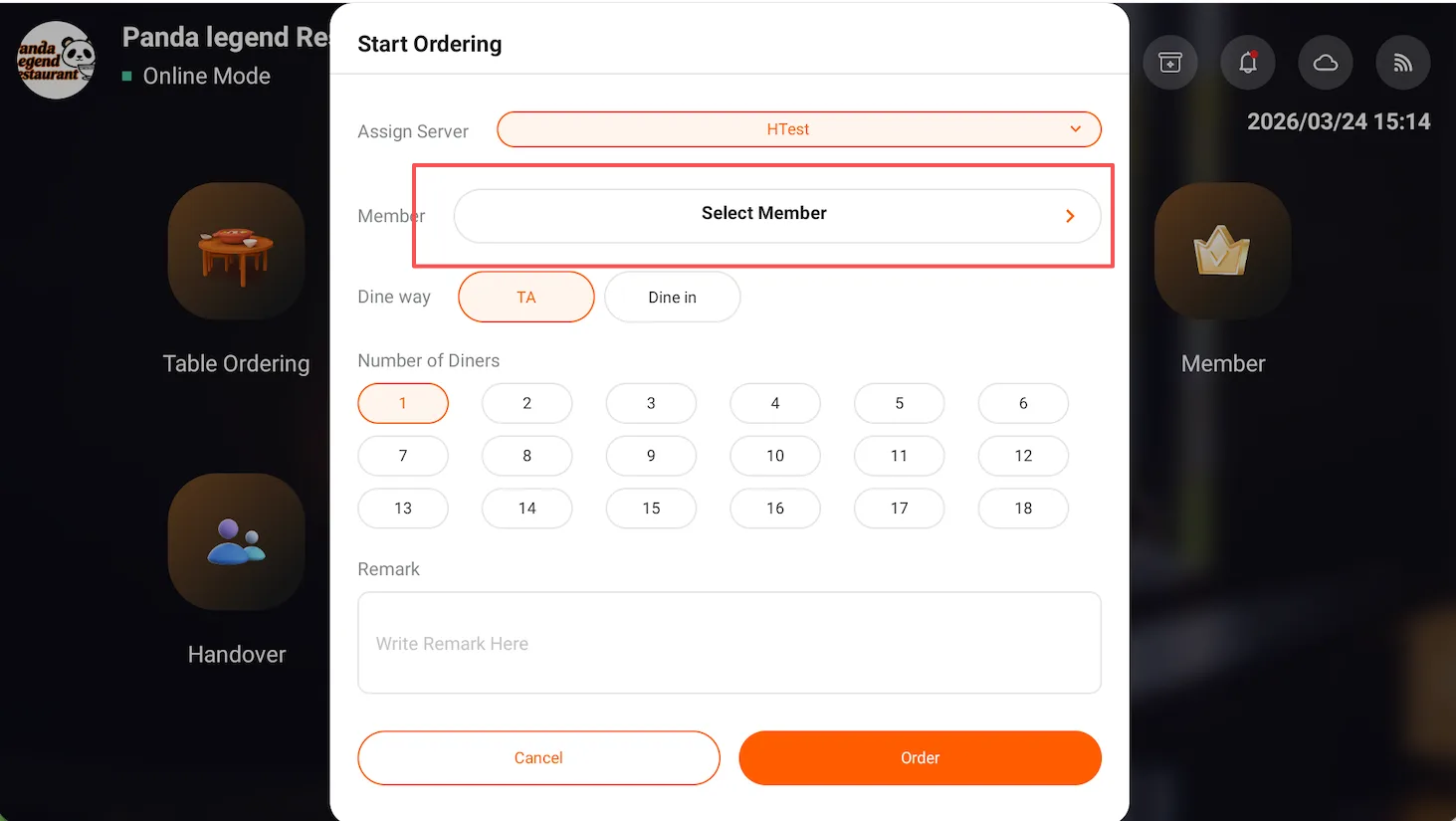
Customers can view orders associated with members in the Member Centerhistorical orders from the past few months.
When paying with the member balance at checkout, the member information will be automatically associated (if already logged in, there is no need to log in again).
Supports multiple member login methods:
- Manually enter membership number / mobile phone number, etc.
- Scan the member QR code to log in quickly (members can view the QR code in the Member Center)
- Supports the device's built-in barcode scanning function or an external barcode scanner
Member Center
2.1 Login and Registration
Customers can enter the Member Center through the following methods:
- Scan the POS Member Registration QR Code
- Click the top-left corner on the QR code ordering page to return to the home page
- The address of the member center bookmarked by the customer can be opened in a browser or directly on the mobile desktop
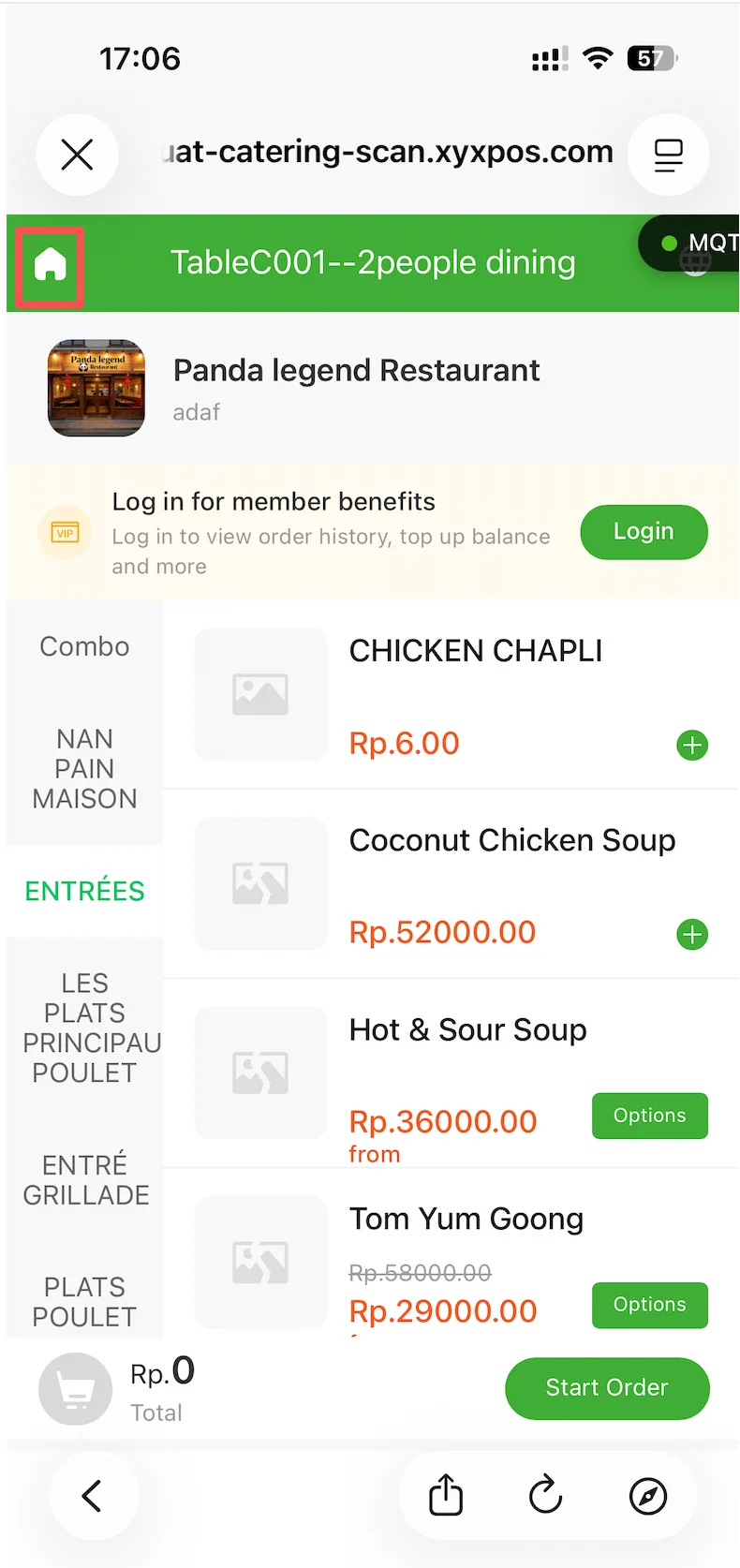
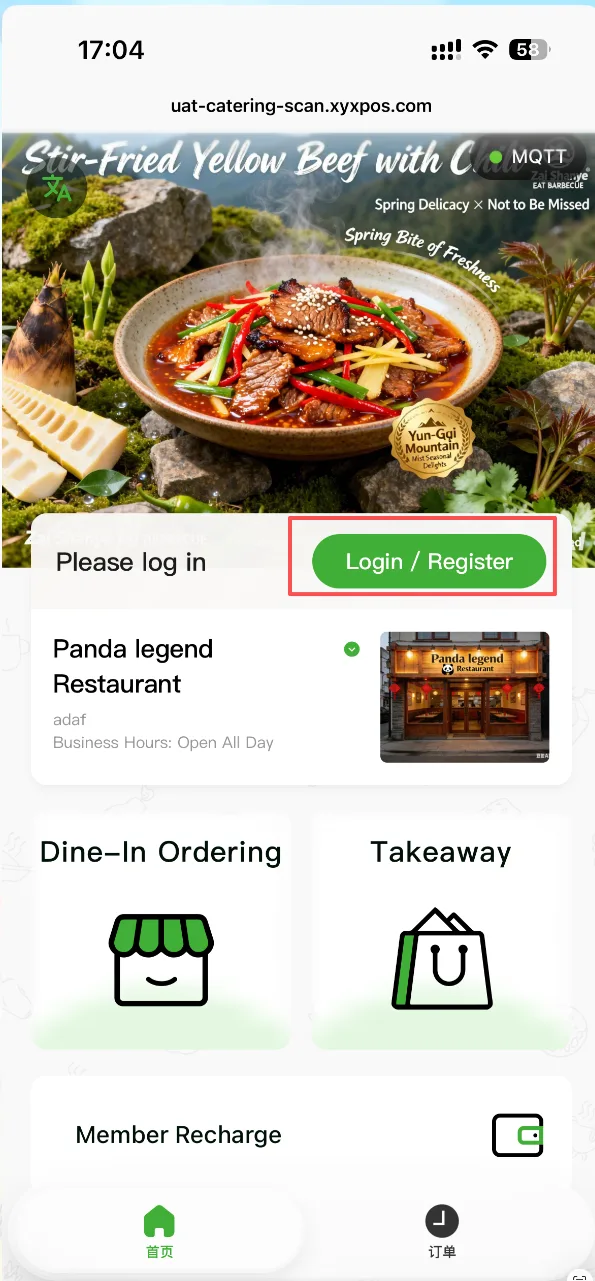
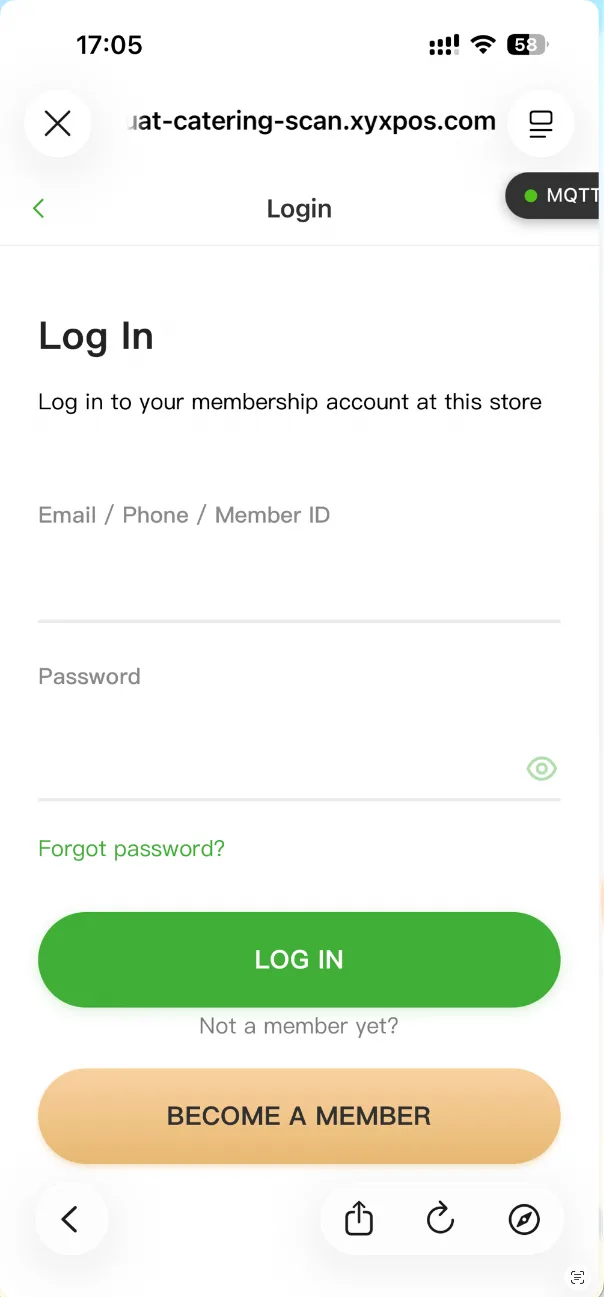
- Supports member registration and login
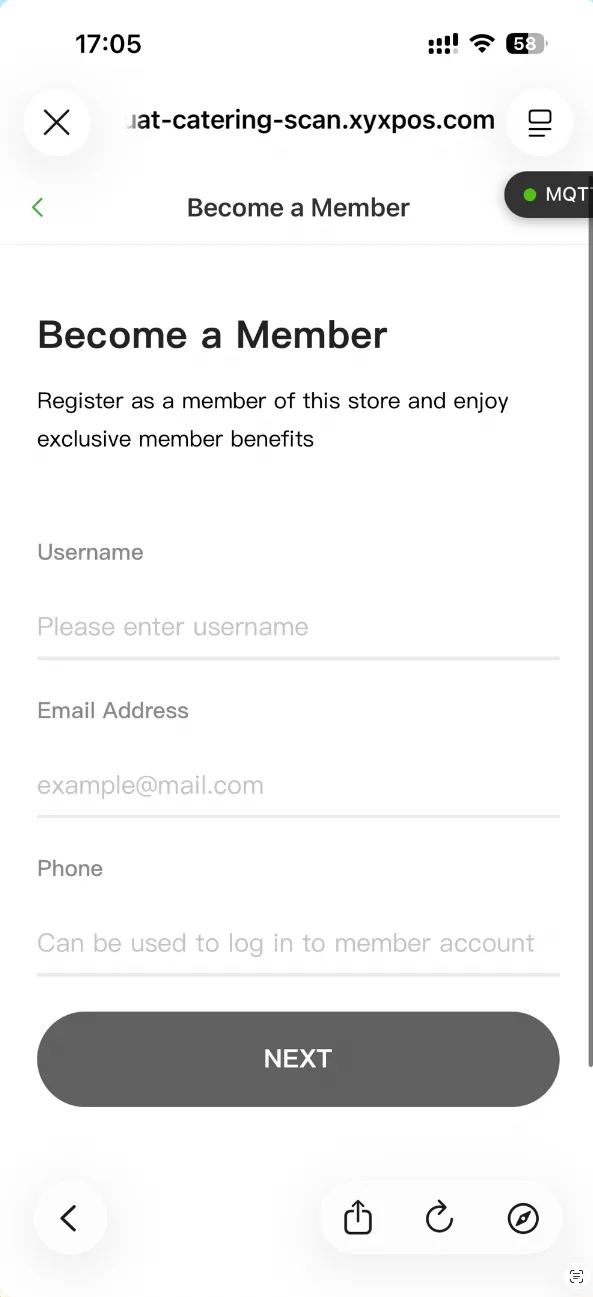
Login / Registration Rules:
- Registration: Must use email + verification code, and set a login password
- Login: Support Member ID / Mobile Number / Email + Password
2.2 Member Center Homepage
Top Area:
- Prioritize displaying the advertisement images configured in the background
- If there are no ads, display the store logo
Store Information:
- Store name is associated with the storefront photo, supporting click to view
Chain Stores:
- Supports multi-store switching under the membership system
Bottom Advertisement:
- Display background configuration content
Advertisements are uniformly configured by the backend and support dynamic updates
2.2.1 Dine-in / Takeaway Ordering
The dine-in ordering logic is automatically determined based on the "QR code ordering rules" in the backend:
- One Table, One QR Code (Tabletop Ordering): Scan the table QR code to enter the ordering process
- One Store, One Code (Quick Ordering): Directly enter the ordering interface (also supports entering by scanning the store code (the scanning ordering page can be downloaded))
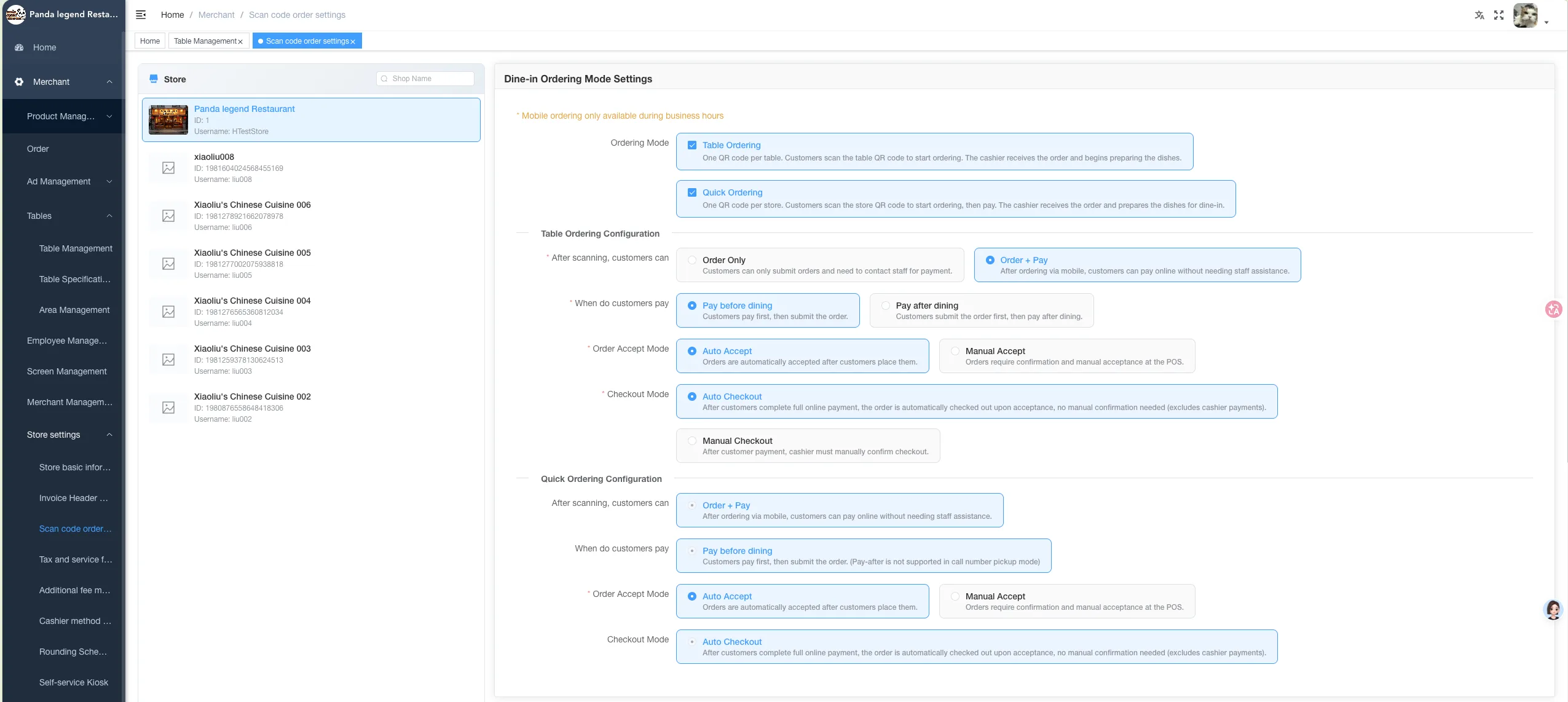
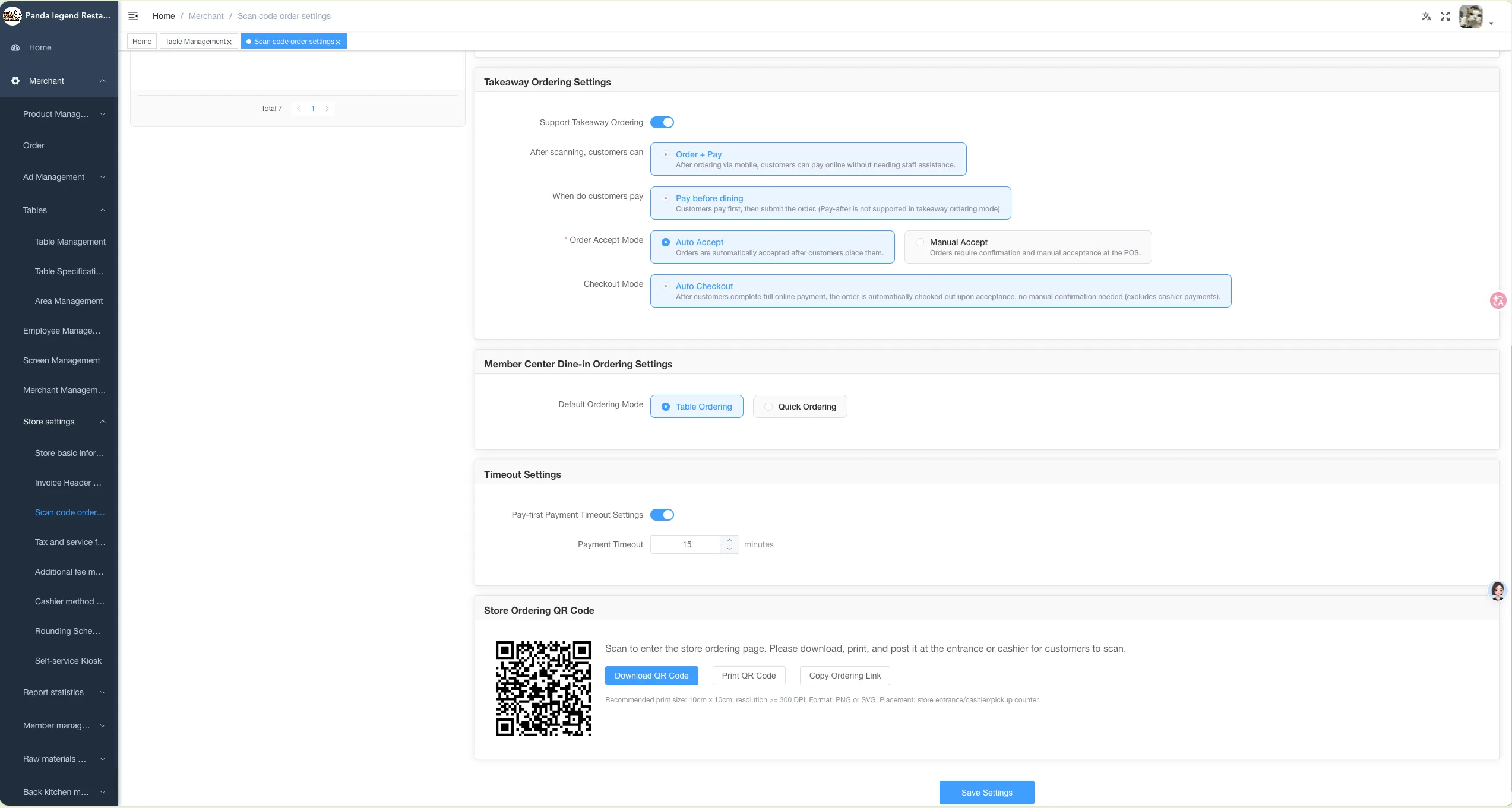
If takeout ordering is enabled:
- The Member Center supports takeout ordering
- Logic is consistent with quick ordering
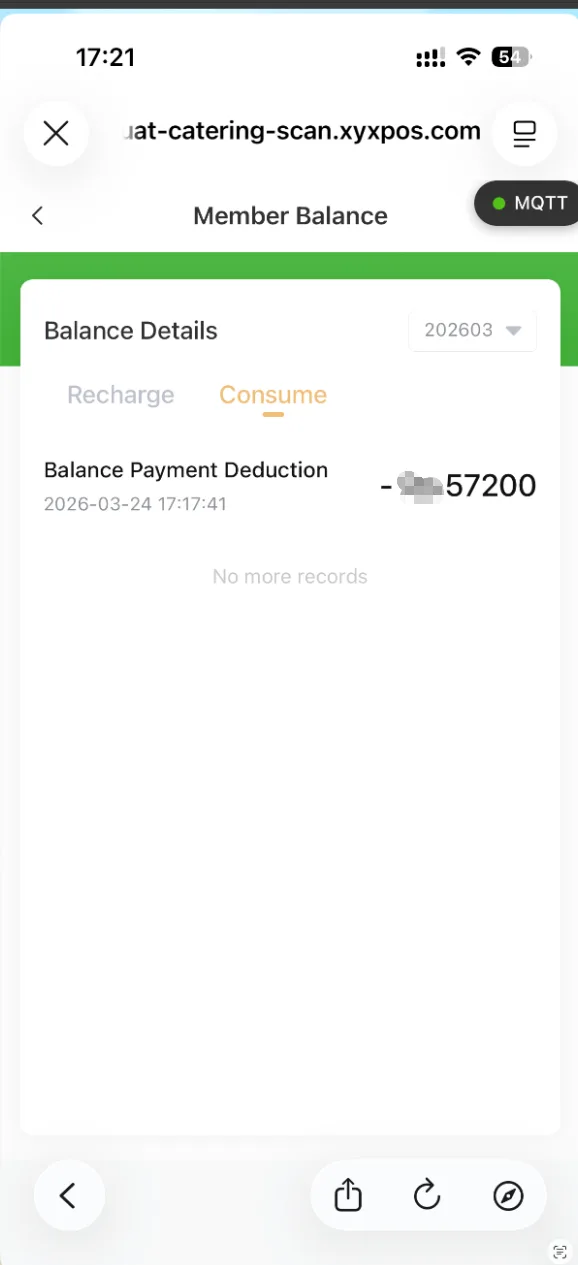
2.2.2 Stored Value and Balance
Enter the balance page through the "Member Prepaid" entry on the home page
Support Viewing:
- Current Balance
- Stored Value Record
- Consumption Record
Mobile self-service recharge is currently not supported
2.2.3 Settings
- Click on the avatar area on the home page to enter the settings page
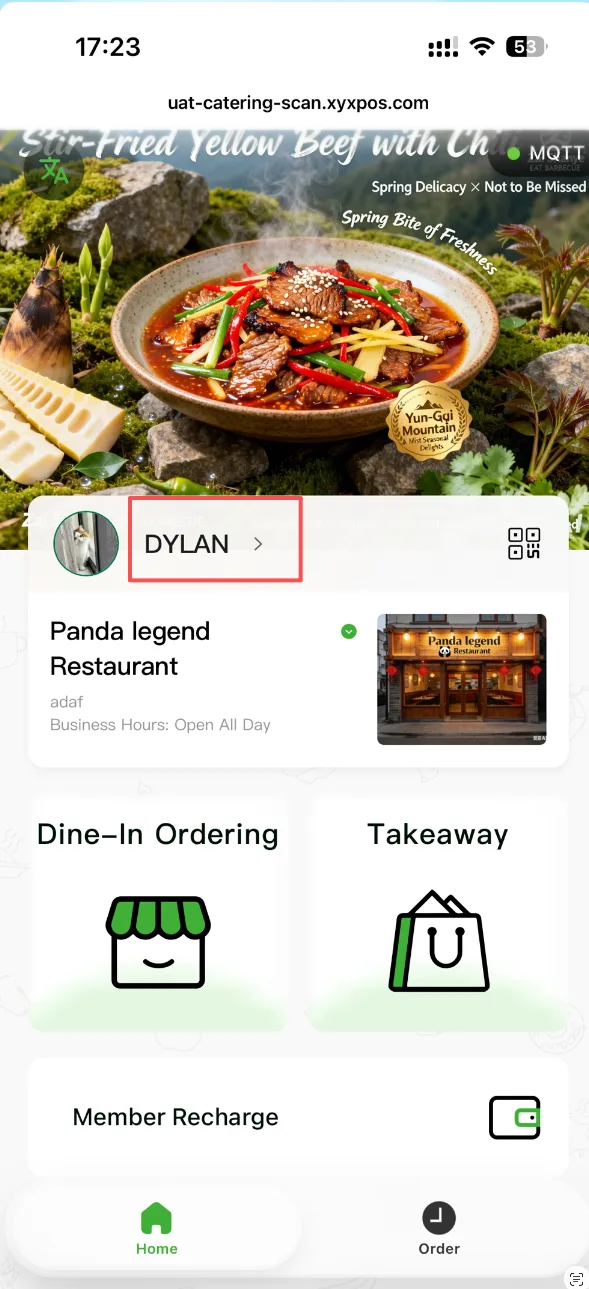
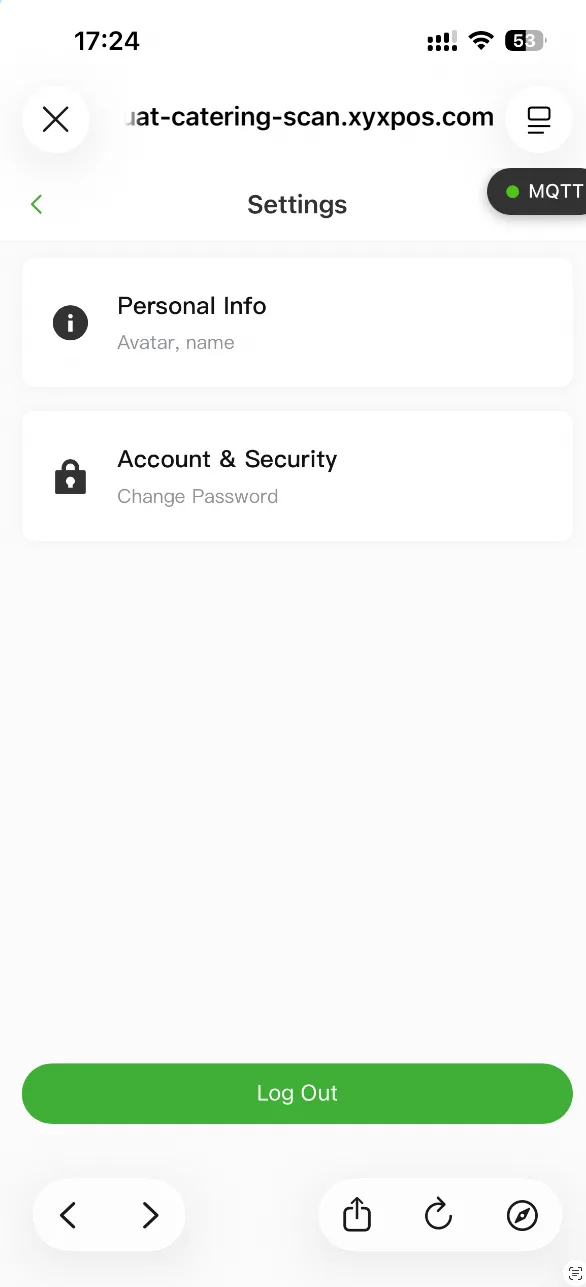
Support modification:
- Password
- Avatar
- Nickname
Supports logout
2.2.4 Member Code
- Click the QR code on the right side of the avatar to view the membership code
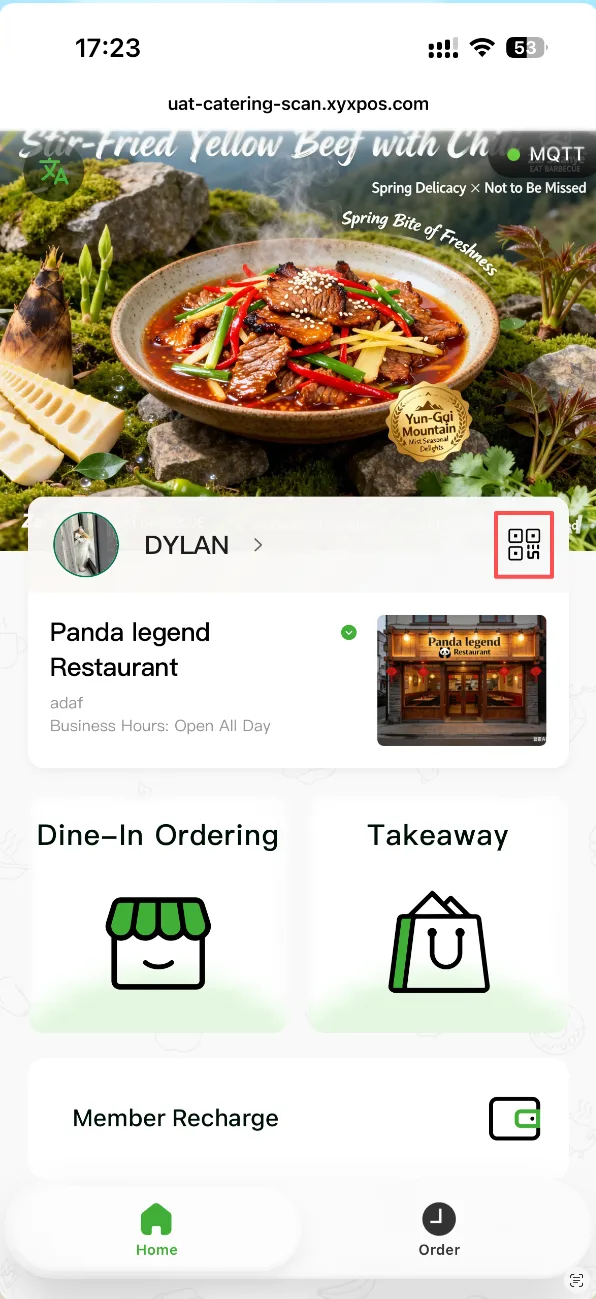
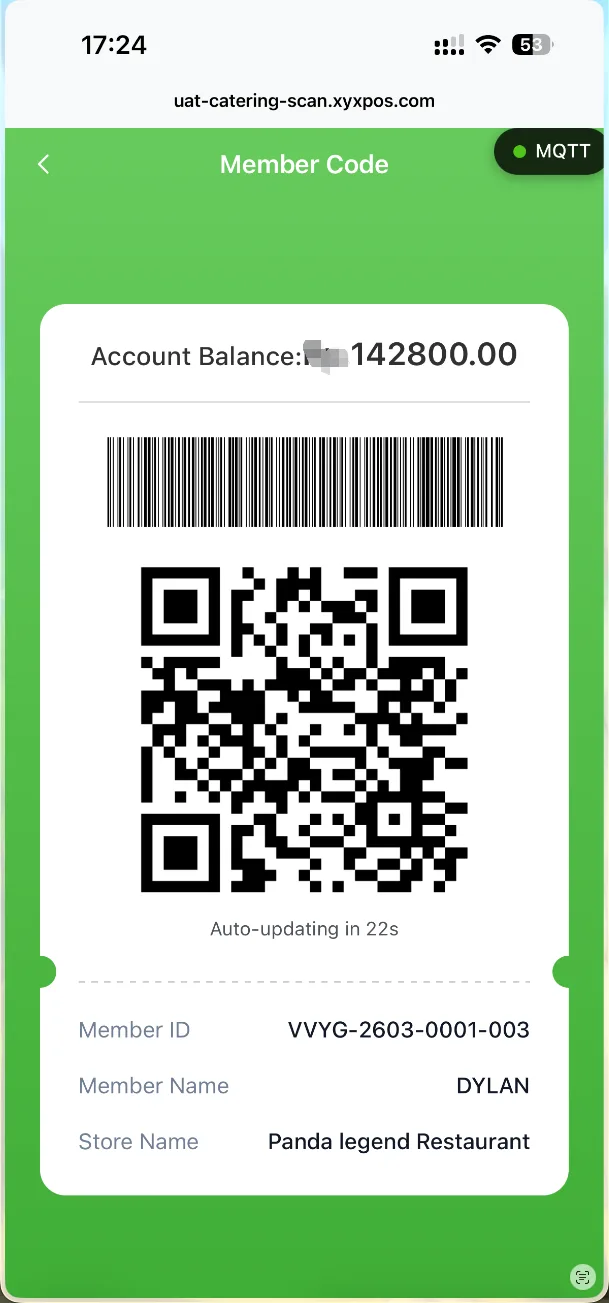
Usage Scenario:
- POS Login
- Self-service kiosk login and payment
Security Mechanism:
- AdoptDynamic QR Code
- Screenshot use is not supported
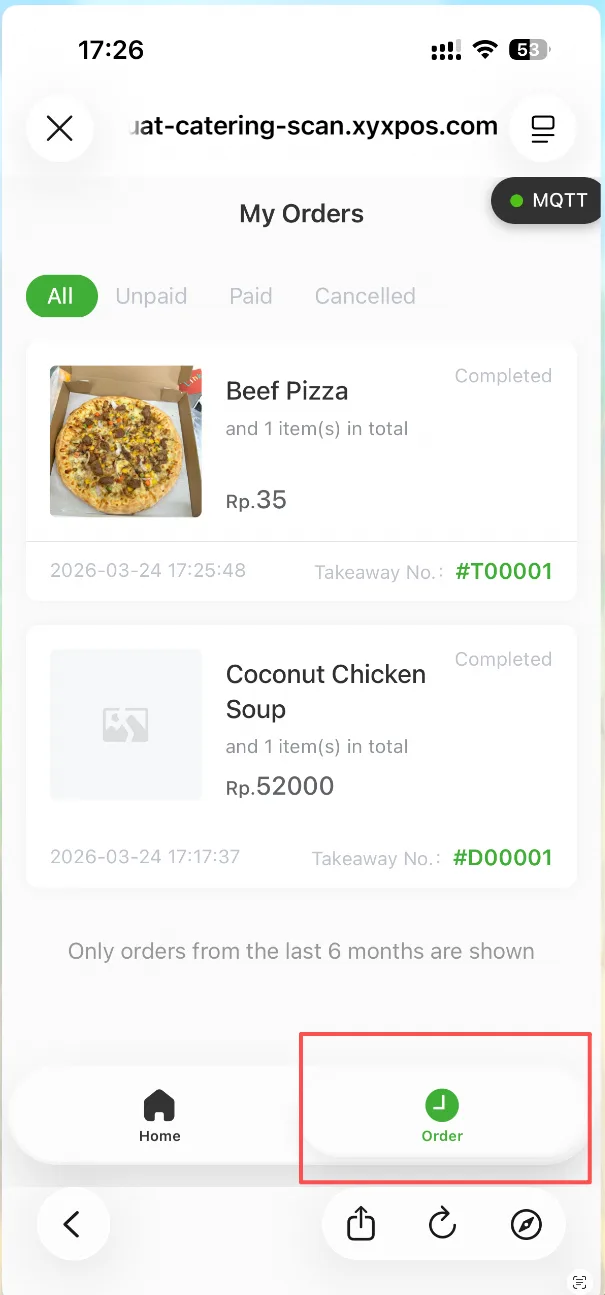
2.3 My Orders
- Display the consumption records of members at this store
- Only retain the orders from the last 6 months
2.4 Mobile Ordering and Online Payment
- The "Ordering + Payment" function needs to be enabled in the background
- Users can place orders and make payments on mobile devices
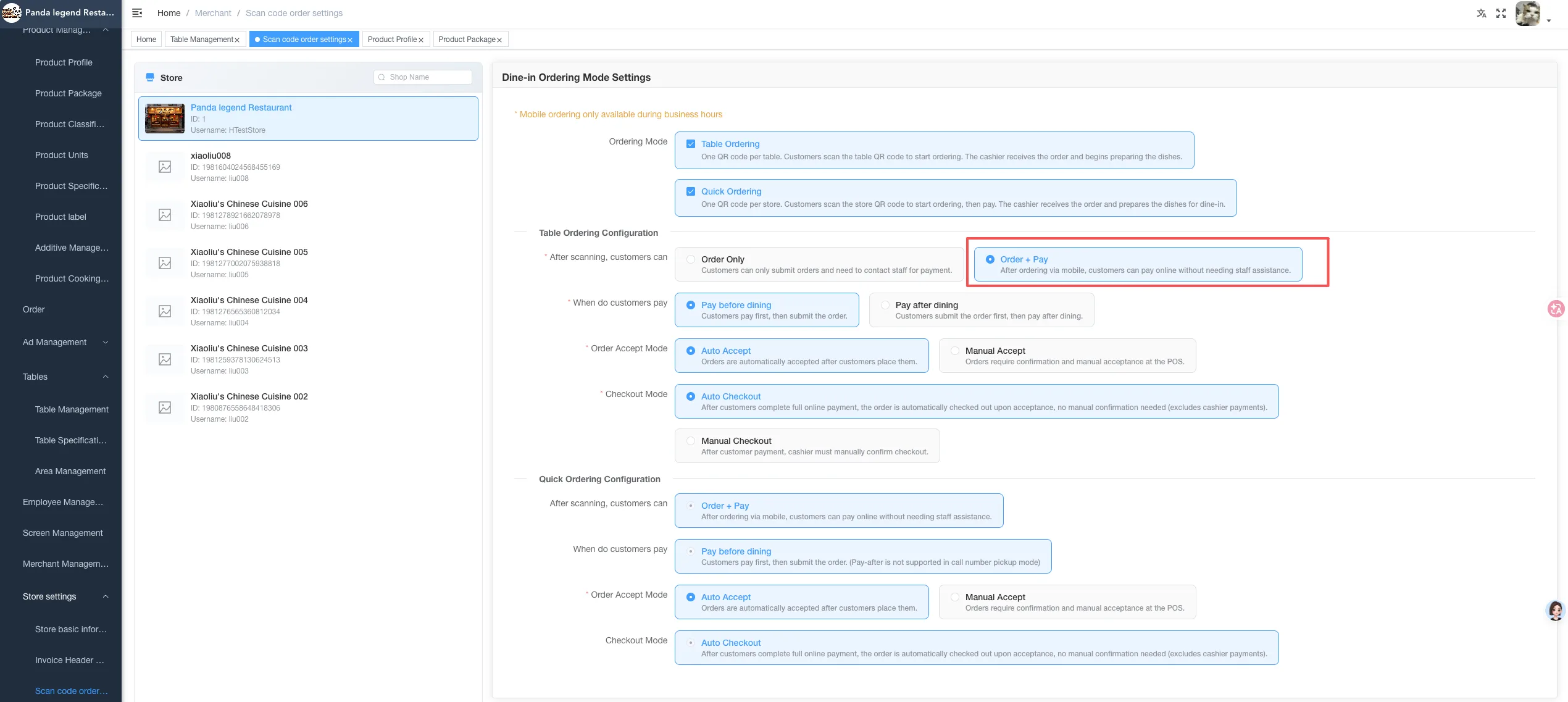
Payment methods supported:
- Member balance payment
- Front Desk Payment
- QRIS Payment (currently only available in the Indonesian market)
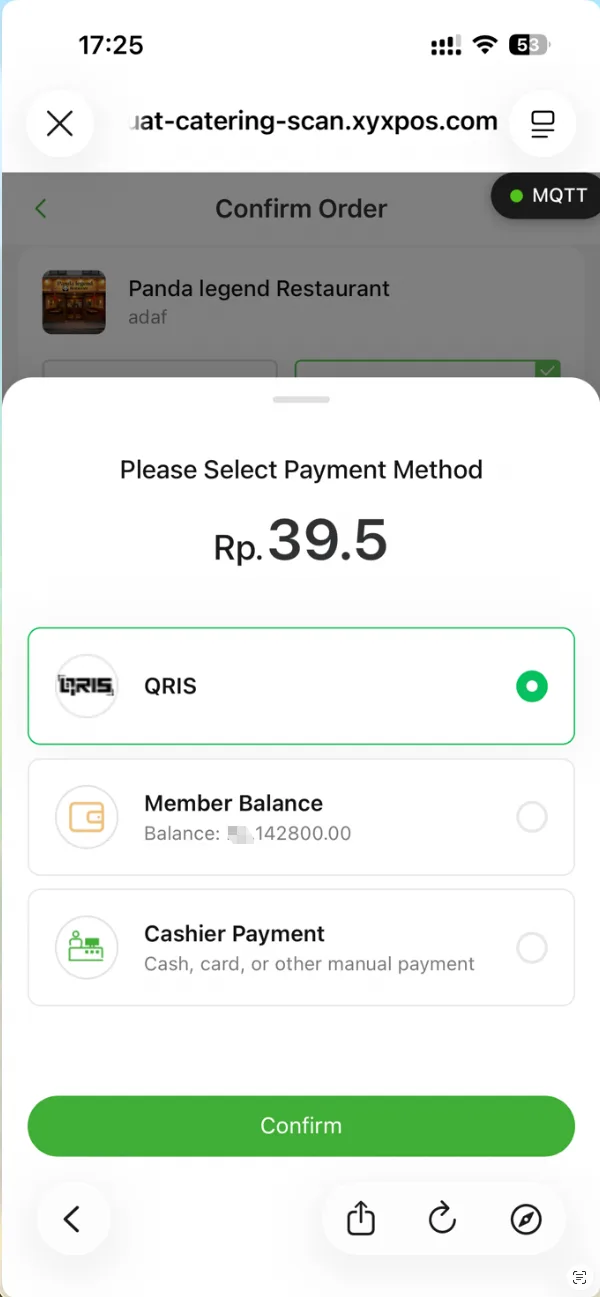
Instructions:
After selecting front desk payment, customers need to go to the POS to complete the payment
Cashiers can access through: and complete the collection
- Scan the order QR code to quickly locate the order
- Or find the order in the Order Center by the pick-up code
Precautions:
- When paying by mobile payment or self-service machine, the rounding rule will be automatically executed according to the background configuration
- It is recommended to configure the rounding rule in advance
Self-service KIOSK
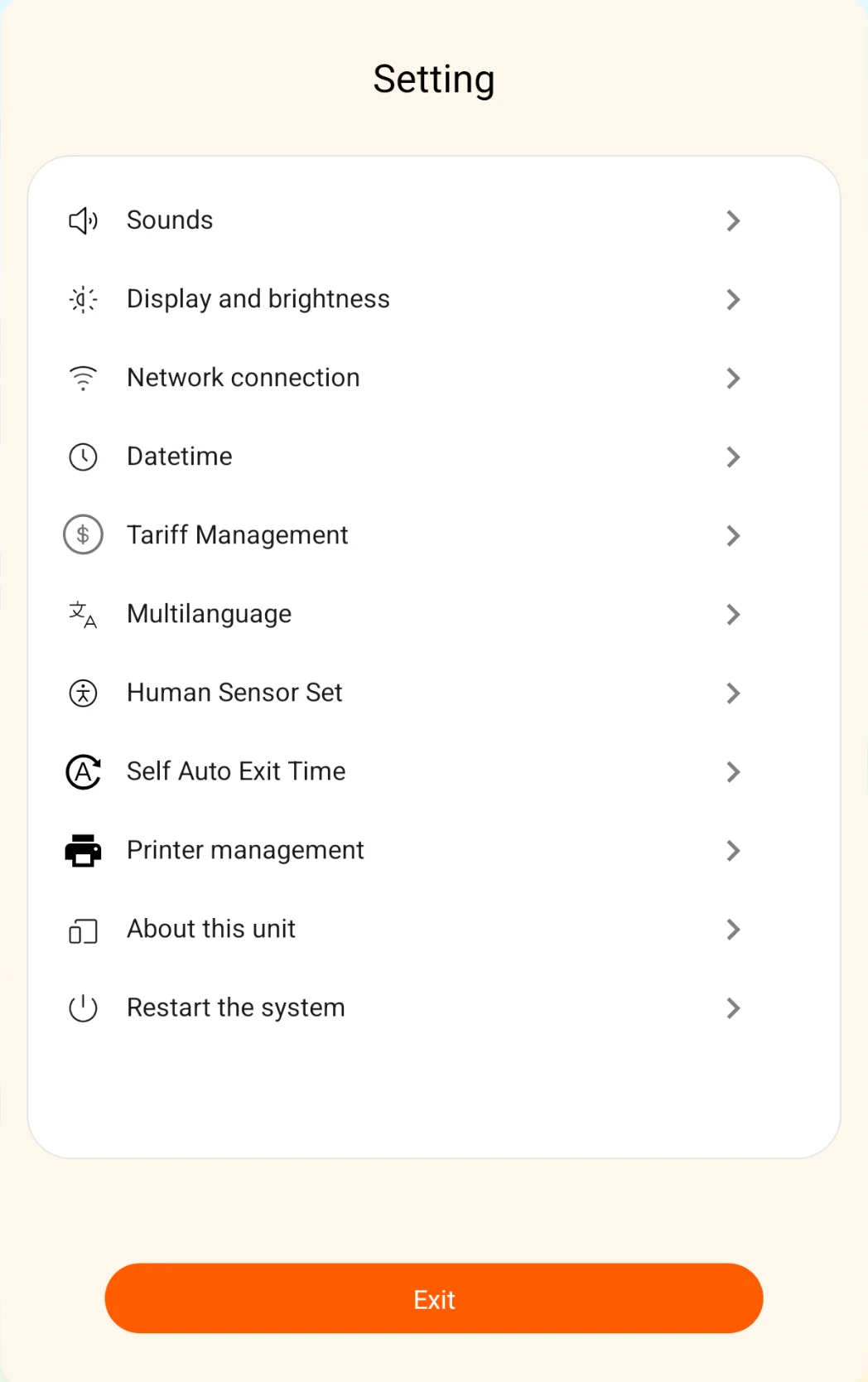
3.1 Device Configuration
Unactivated device (service provider not authorized or never connected to the Internet):
- Click on the bottom right corner to directly enter the settings interface
- Basic configurations such as network connection and language can be performed
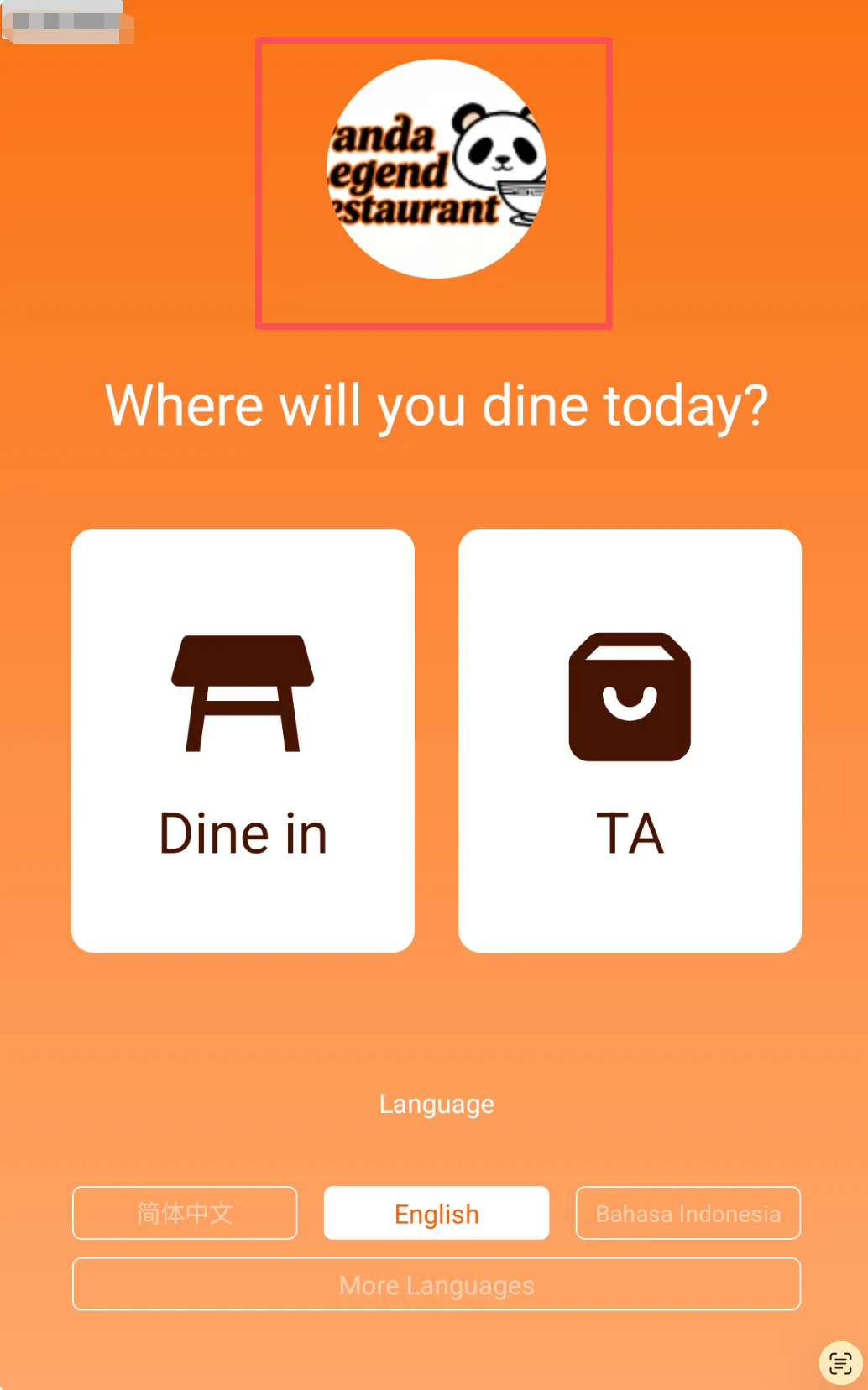
Activated Devices:
- On the dining method selection pageLong press the store logo
- Enter the store manager password to enter the settings interface
3.2 Customer Places an Order
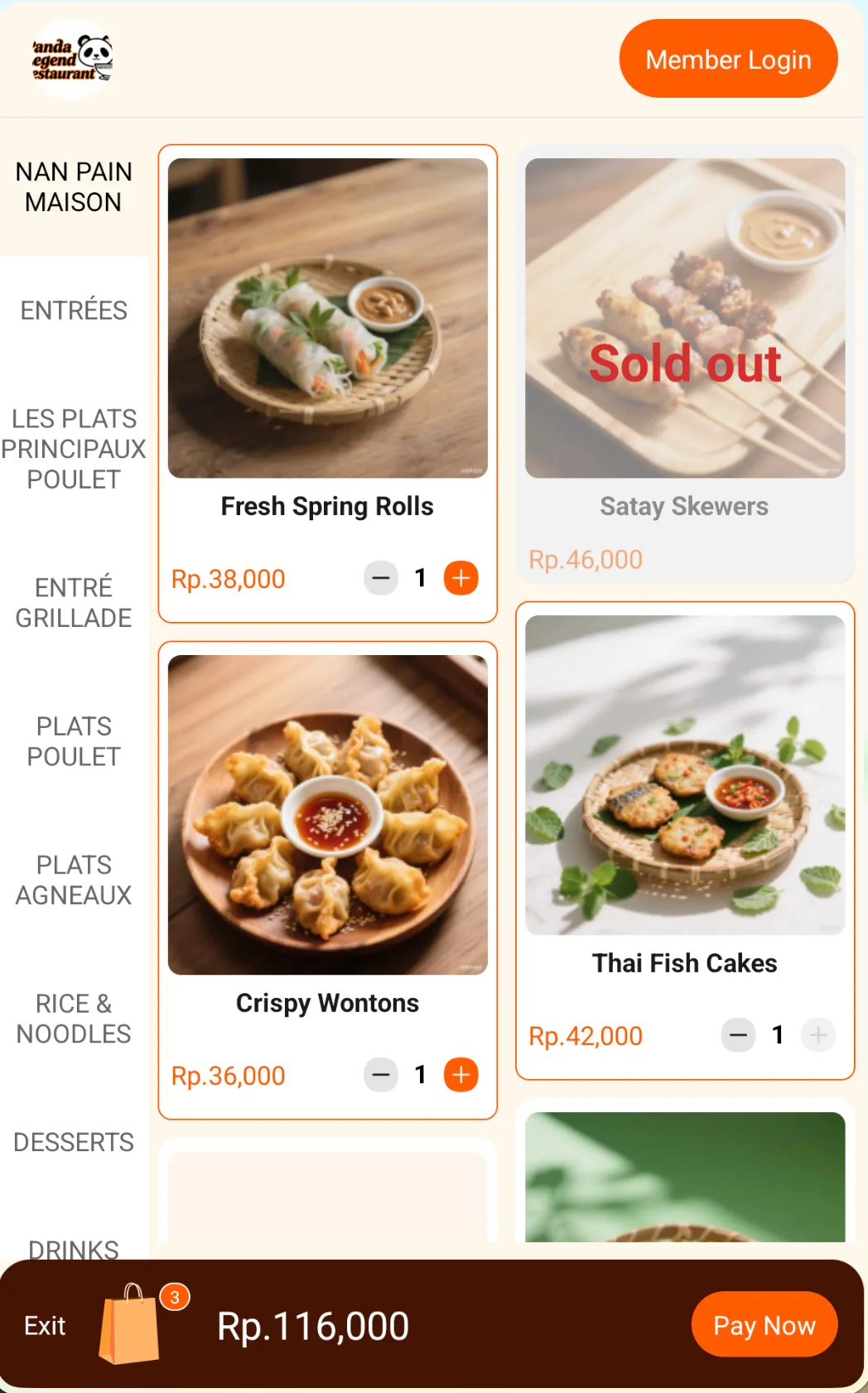
The ordering process is basically the same as that on the mobile app (select items → add to cart → checkout)
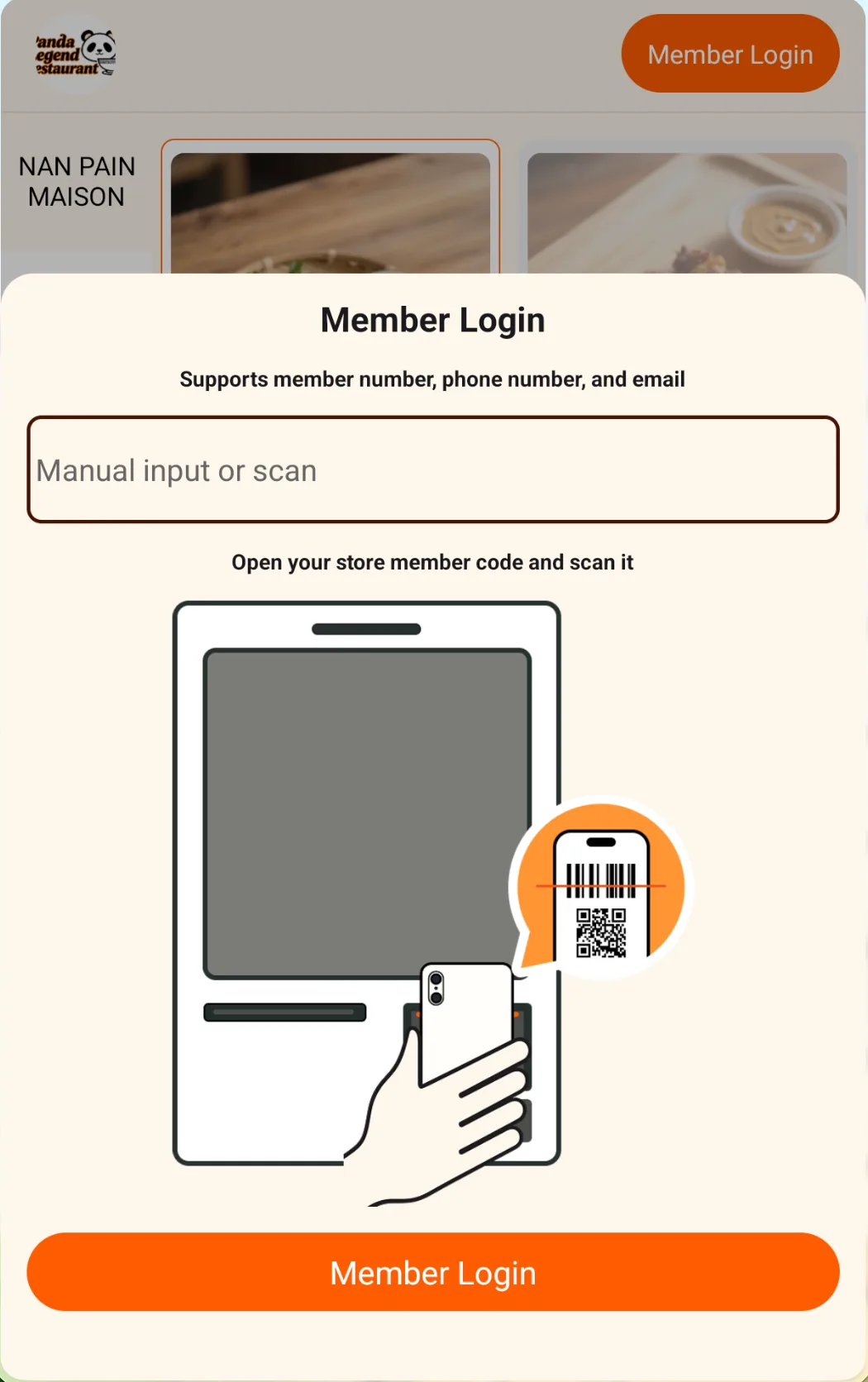
Supported member login methods:The login process does not require a password, reducing operational complexity while not compromising account security
- Mobile Number / Email / Member ID Input
- Scan the member QR code to log in
3.3 Customer Checkout
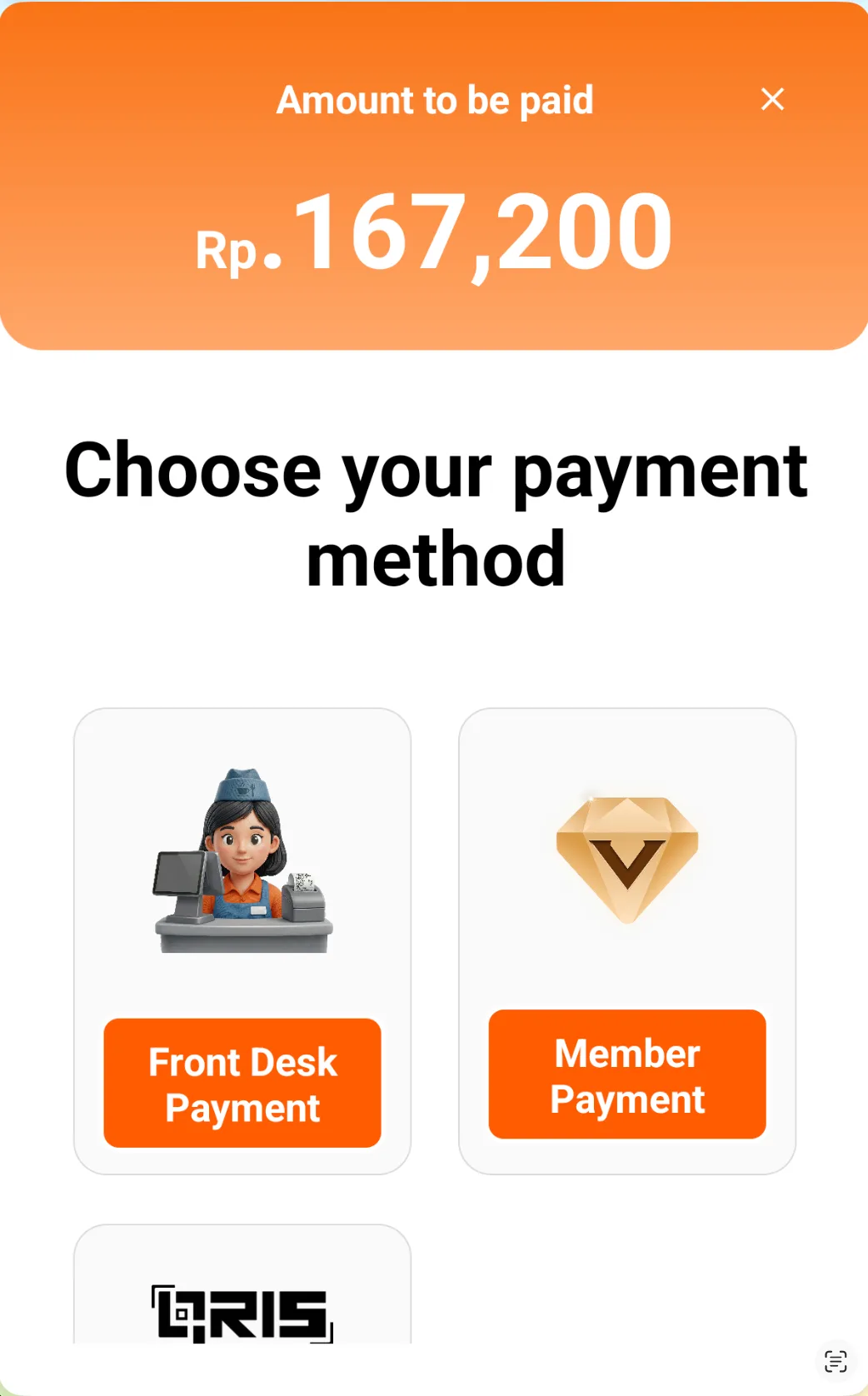
Payment methods supported:
- Member balance payment
- Front Desk Payment
- QRIS Payment (Indonesia only)
Instructions:
Front Desk Payment: Customer goes to POS to complete
Member balance payment requires identity verification:
- Enter Password
- or email verification
- or scan the member QR code to quickly verify and pay
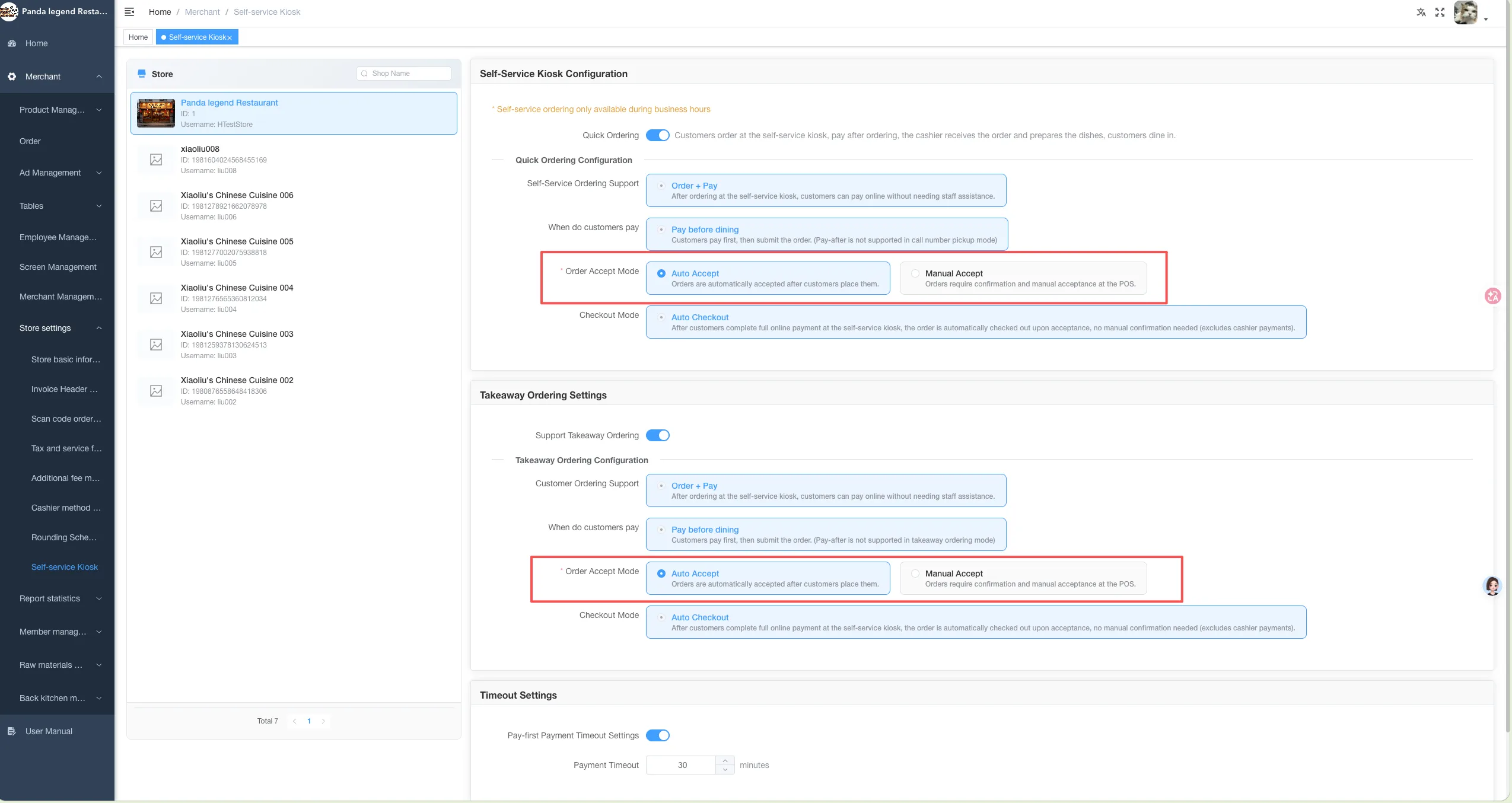
Order Processing:
- Supports automatic order acceptance or manual order acceptance (configurable in the background)
Management Backend
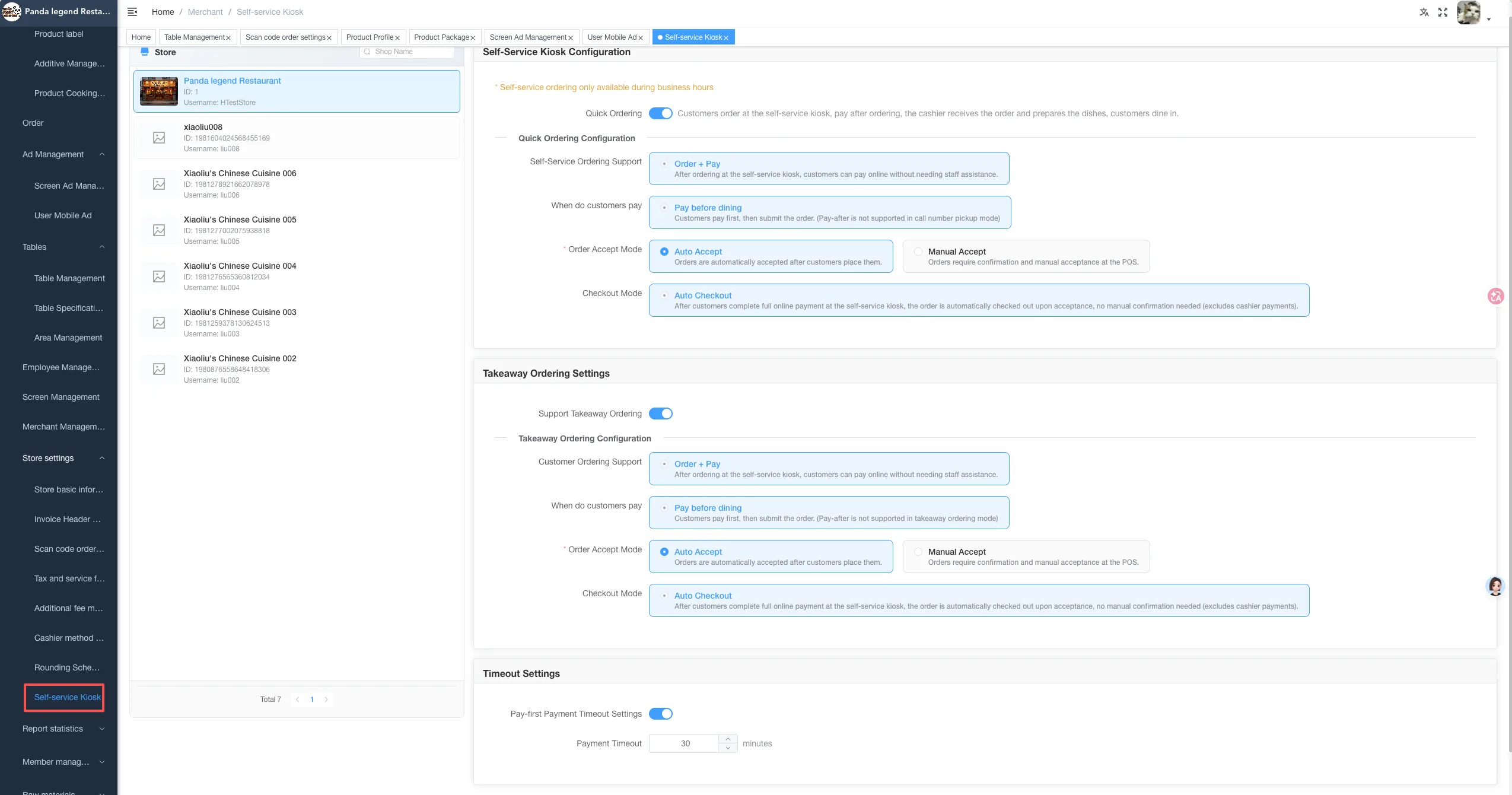
- New addition to QR code ordering configuration:Self-service kiosk ordering settings
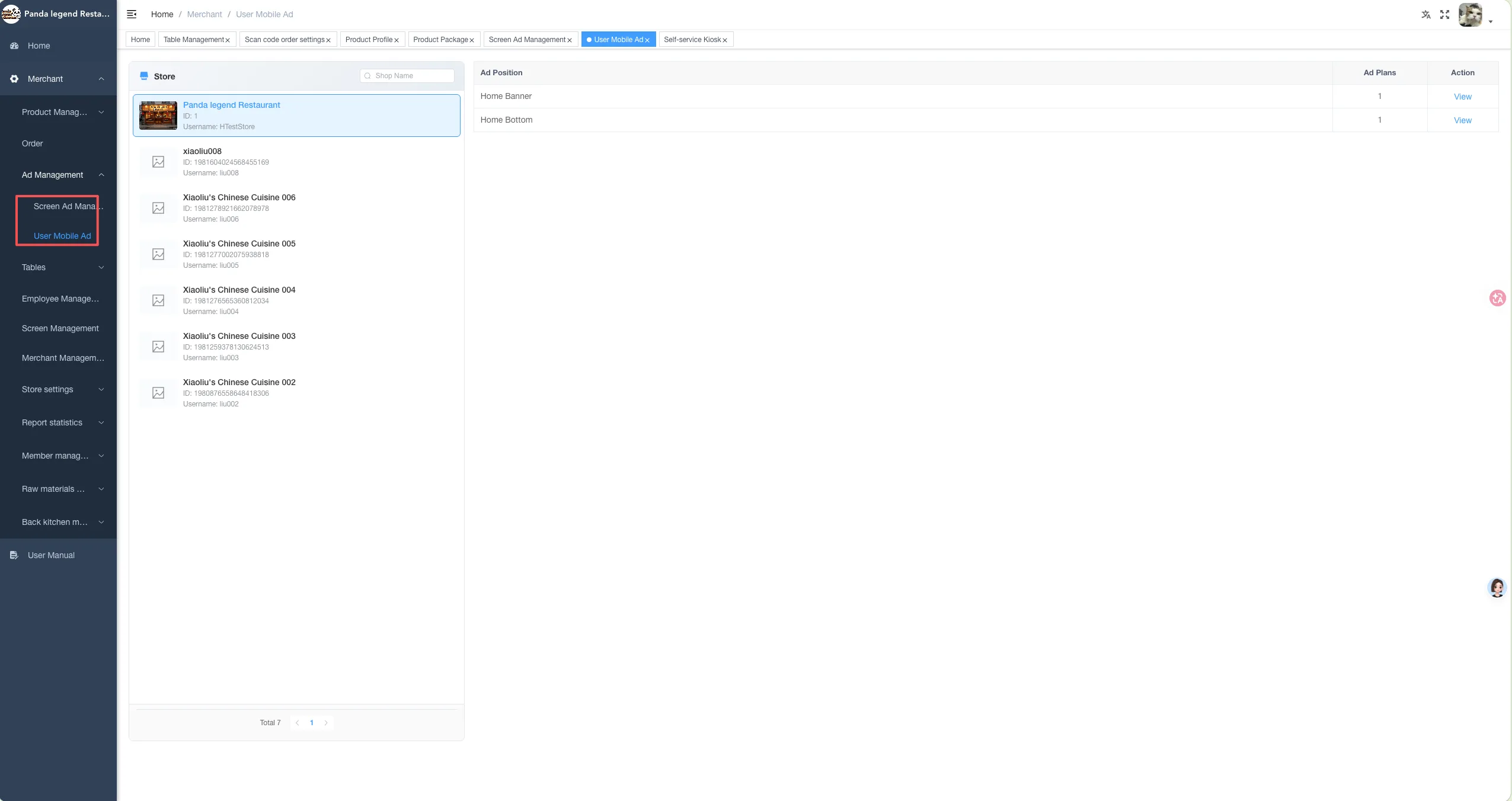
New "Advertising Management Module" added:
- Support Configuration:
Member Center Advertisement
Self-service kiosk advertisement
POS Secondary Screen Advertisement
Advertising Machine Content
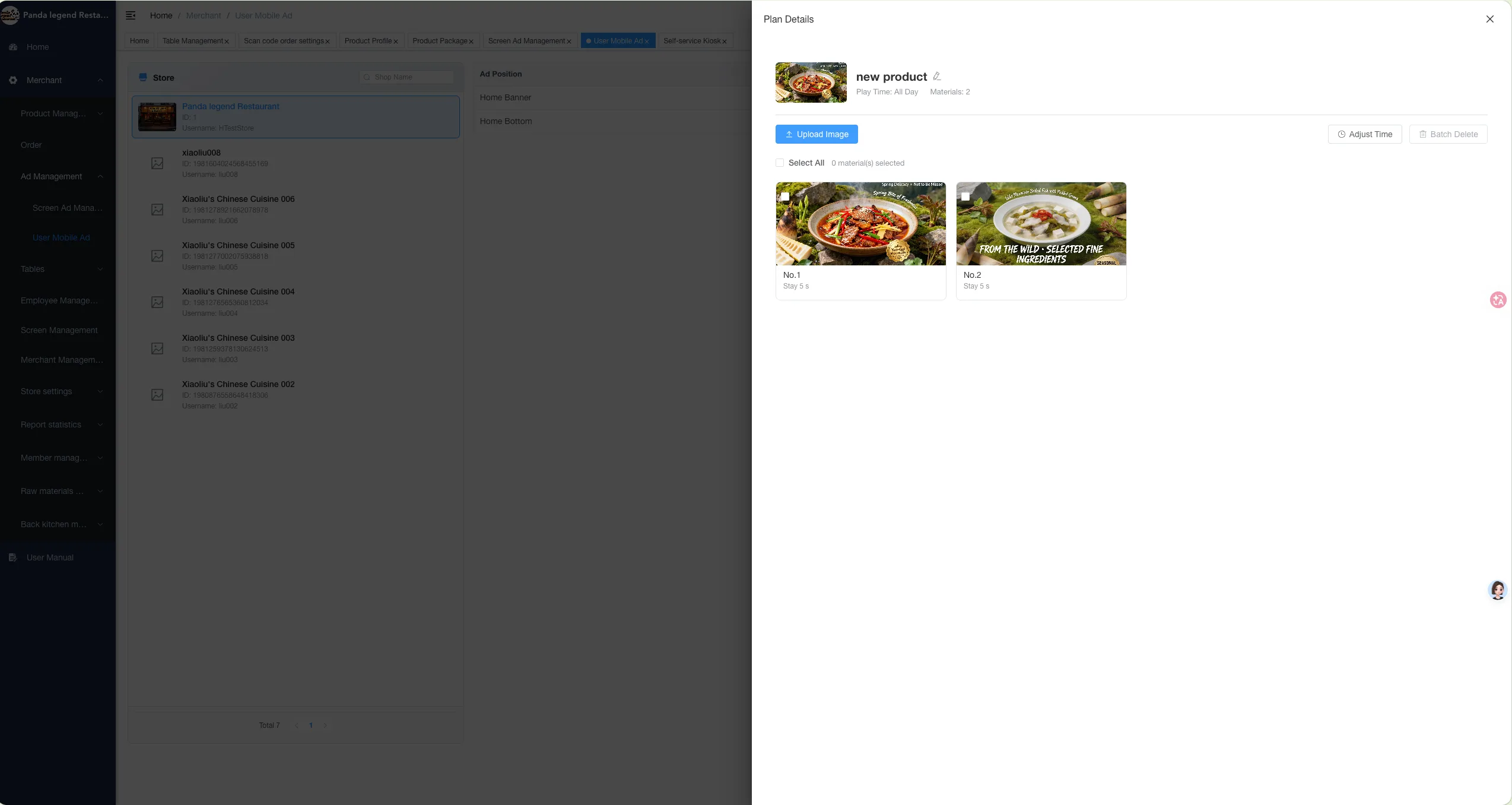
Support:
- Multi-ad Campaign Management
- Deliver by time range
Precautions:
In the new advertising management module:
- The advertising machine function is only applicable to devices or modules newly purchased after this update
- For historical devices, please contact the service provider to confirm whether they support upgrades and upgrade support.