
Appearance
2025-12-17 Version Upgrade Instructions
Optimization of Commodity and Order Structure
- We have carried out system-level optimization onthe product structure and order processing logic. In actual use, the order placement process will be smoother,with a significant improvement in order placement speed, especially during peak hours, where the experience will be more stable.
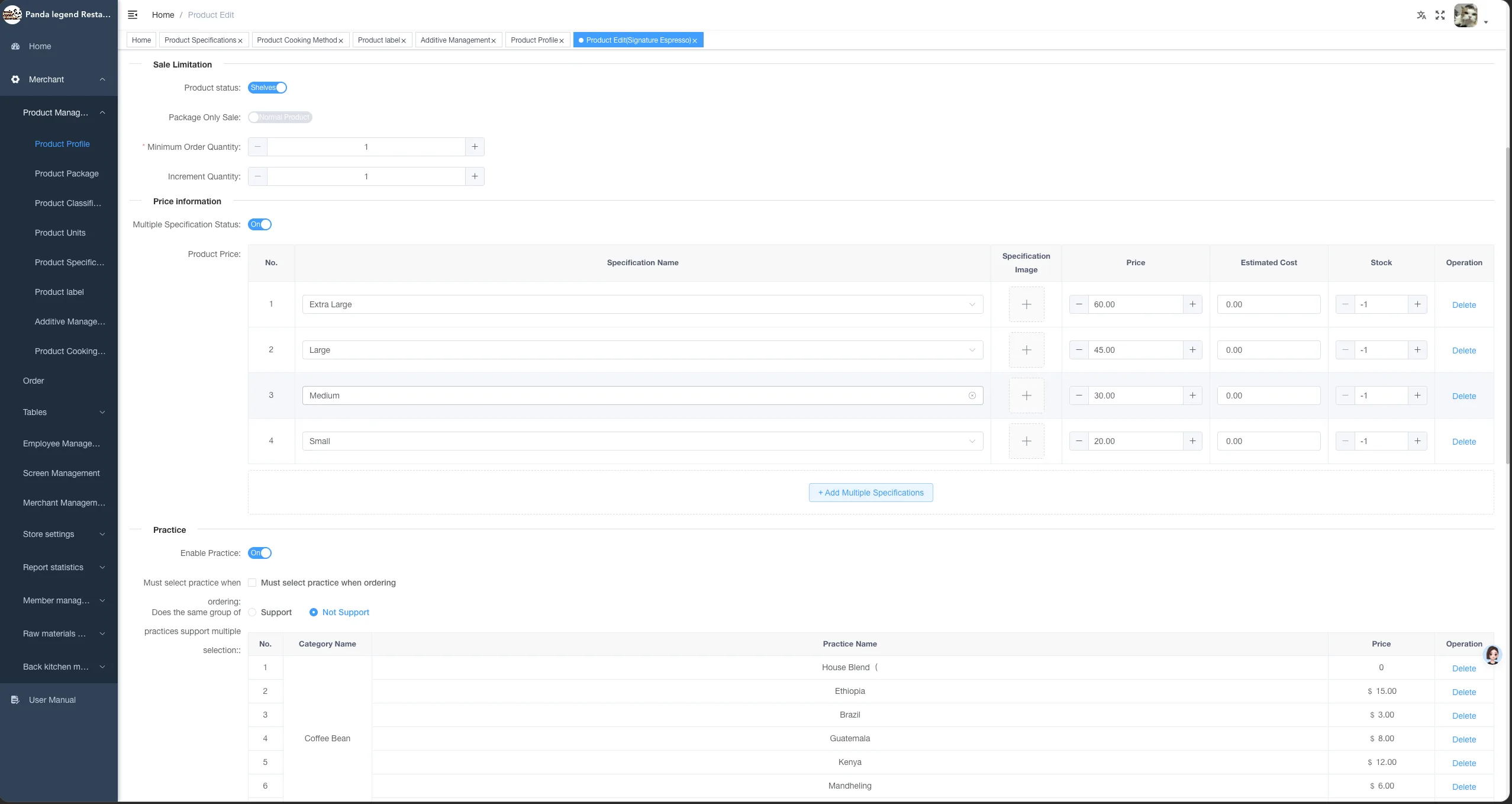
Upgrade of multi-specification function for products
Function Upgrade Instructions
Upgrade Background
The original product specification adopted a single specification model, which has the following problems in actual use:
- Specifications, practices, and ingredient addition are mixed in the same logic, resulting in complex configuration
- You need to create specification categories first, and then perform multi-dimensional combinations in the products
- Combination results need to have their prices set one by one
- When there are many specifications or sub-items, the number of combinations may reach hundreds or thousands, resulting in extremely high maintenance costs
Overview of the Upgrade Plan
This upgrade will split the original single specification mode into three independent dimensions:
- Specification
- Approach
- Add Material
By means of multi-dimensional combination, the product configuration process is significantly simplified.
Core Advantages After Upgrade
- Support Specification / Practice / AdditionIndependent Management
- Supports Batch Association of Products
- Supports Regularized Price Setting, eliminating the need for manual maintenance of a large number of combinations
- The product supports batch import, improving the efficiency of file creation
Function Description
Specification
Applicable Scenarios Specifications are used to describe the basic form or capacity of a product, for example:
- Portion size: Large / Small
- Container: Large Cup / Small Cup / Can / Bottle
- Size: 300ml / 450ml / 20cm / 30cm
Function Description
- Specifications do not need to create categories; simply create specific specification parameters directly.
- Supports batch associating specifications with products and pricing them separately
Approach
Applicable Scenarios The practice is used to describe the production method or taste preference of a product, for example:
- Temperature: Hot / Ice
- Sweetness: Sugar-Free / Half-Sugar / Full-Sugar
- Spiciness: Mild / Medium / Hot
Function Description
The approach supports creating categories (e.g., sweetness, spiciness, temperature, etc.)
Supports batch associating products by categorizing the entire practice
Supports flexible markup rules:
- No price increase
- Fixed Markup
- Add a markup based on the base price or specification price of the product
Add Material
Applicable Scenarios Add-ons are used to describe additional content that can be added to a product, for example:
- Toppings
- Seasoning
- Side Dish
Function Description
- Adding supports creating categories
- Supports batch associating entire categories of added materials with products
- Additional ingredients are individually pricedand sold by portion
Explanation The above parameter examples are for reference only. Stores can flexibly choose to configure them in specifications, practices, and additional ingredients based on actual business needs, and use them in combination with different price increase rules.
Usage Method
Create product categories (must be completed first)
Before creating a product, you need to complete the configuration of product categories first.
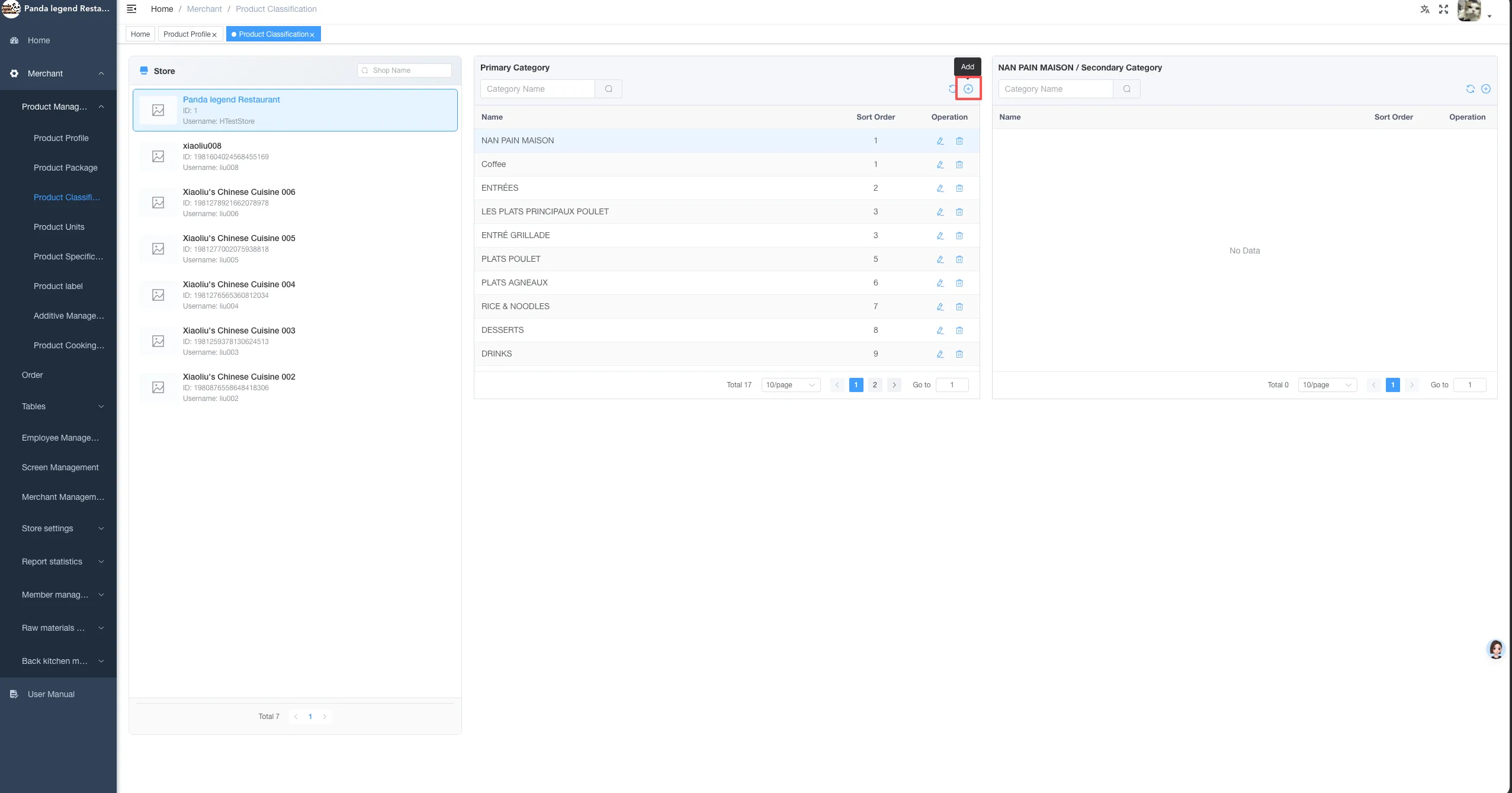
- Enter the [Product Category] page,
- Click the "+" button in the upper right corner of the classification list.
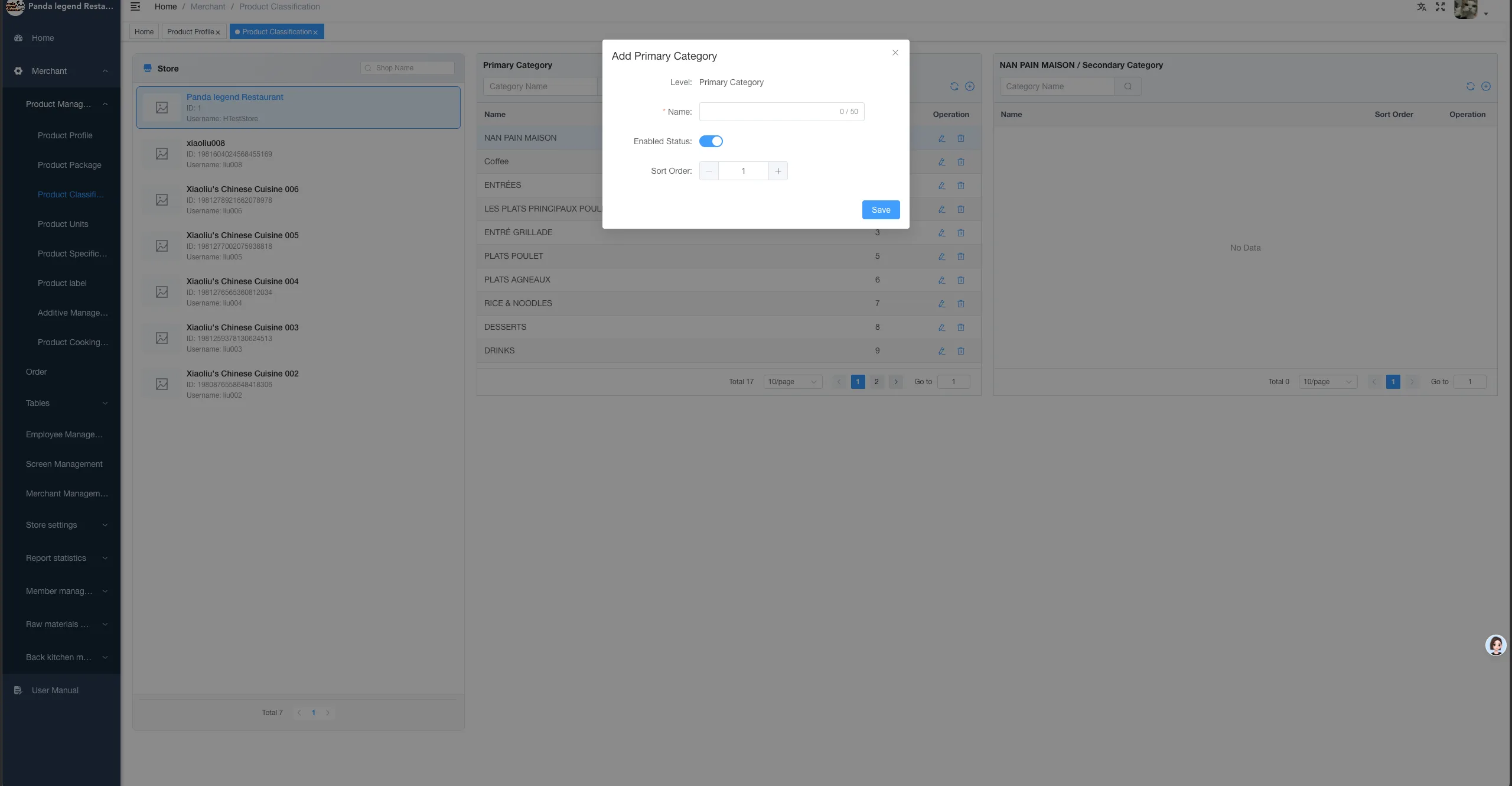
- Enter the category name in the pop-up window,
- Set the display order of categories,
- Click [Save] to complete the creation.
Create subcategories (if needed)
If subcategories need to be created under this category:
- Click on the created category on the left
- In the secondary classification card area on the right, click the "+" button in the upper right corner
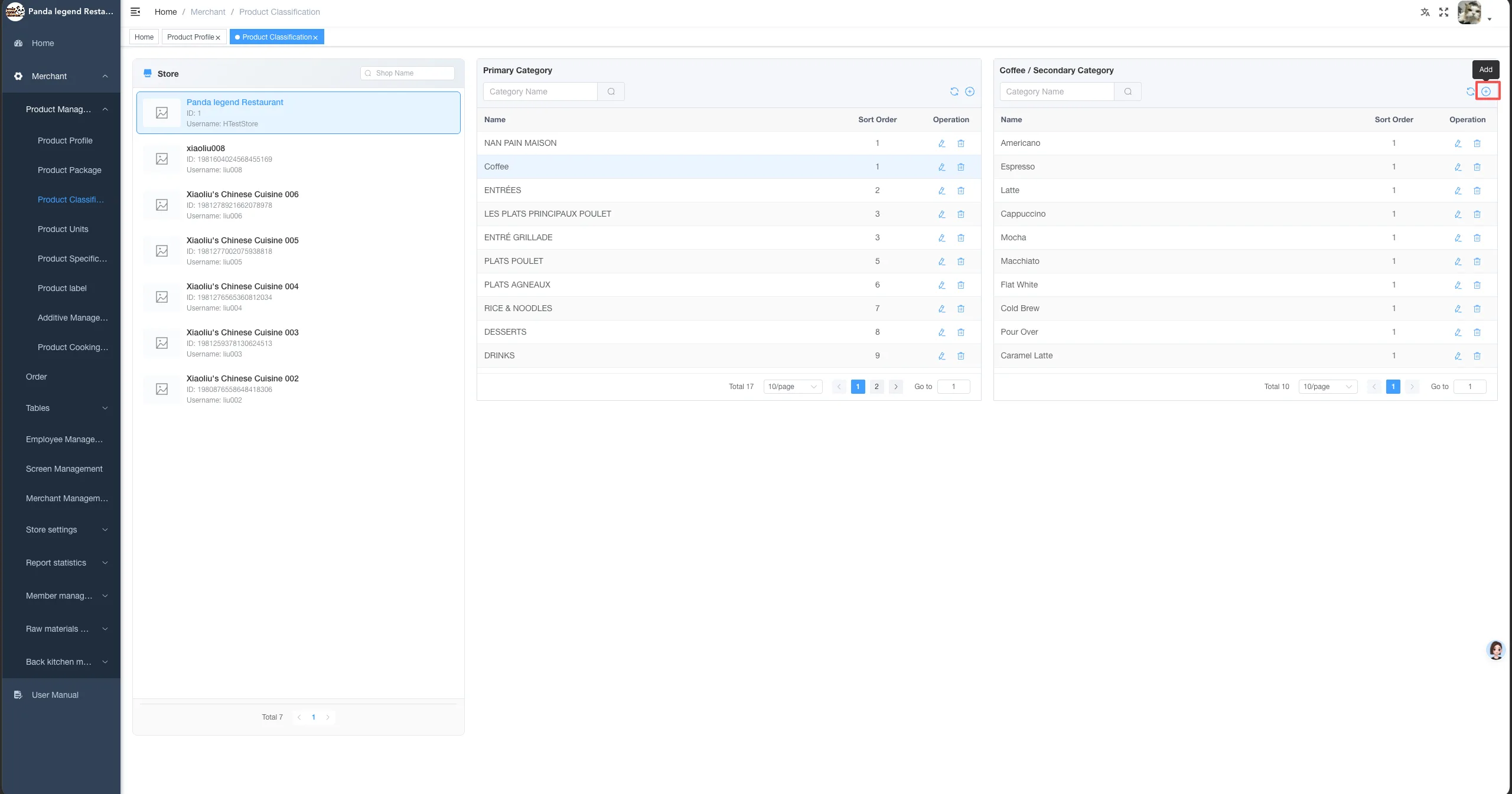
- Enter the subcategory name and set the display order in the same way
- Click Save to complete creation
After the product category is created, you can start creating products.
Create Product
Bulk import products (recommended)
- Click [Import] in the upper right corner of the product list
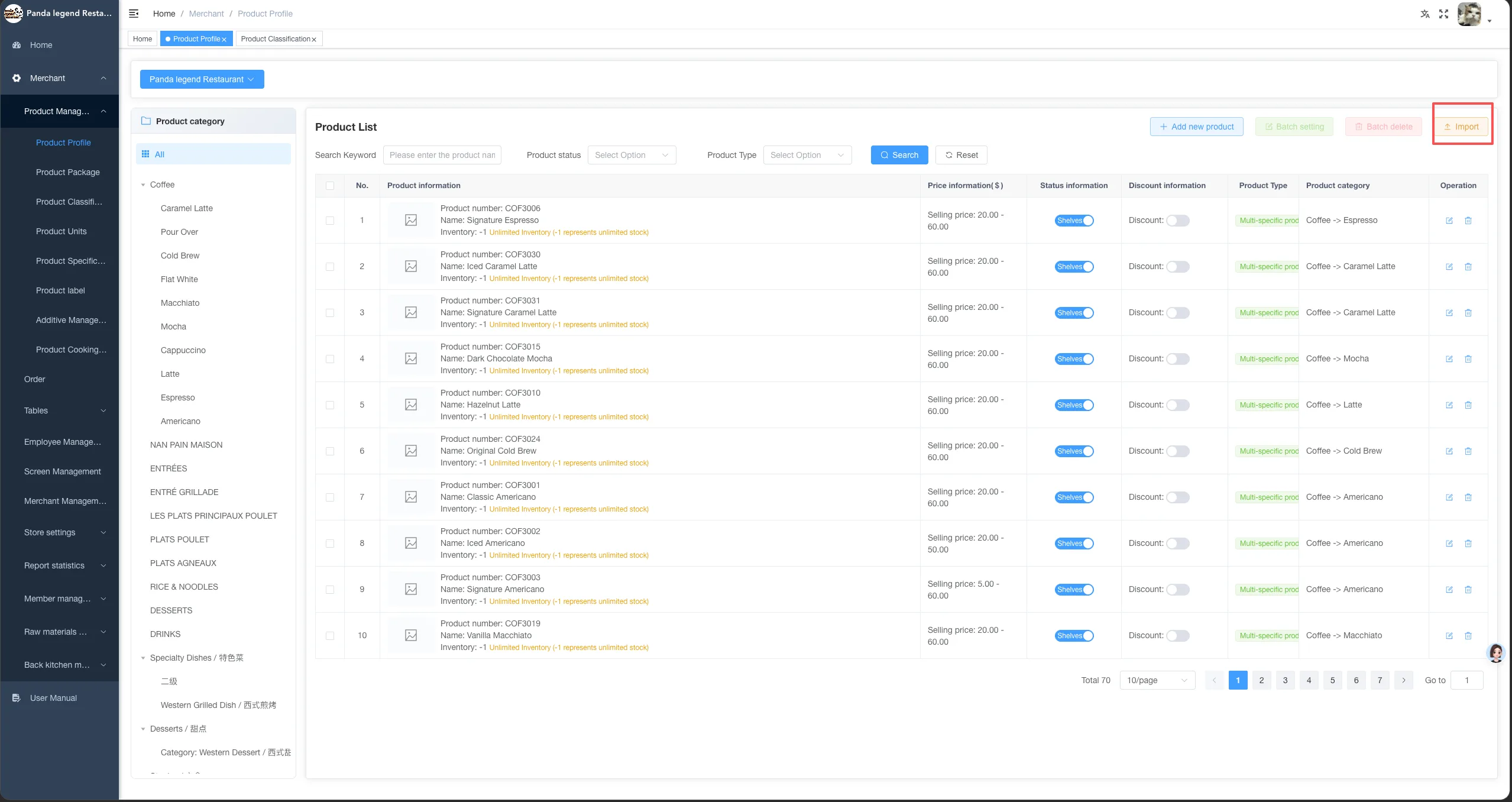
- Download and import the template in the pop-up window
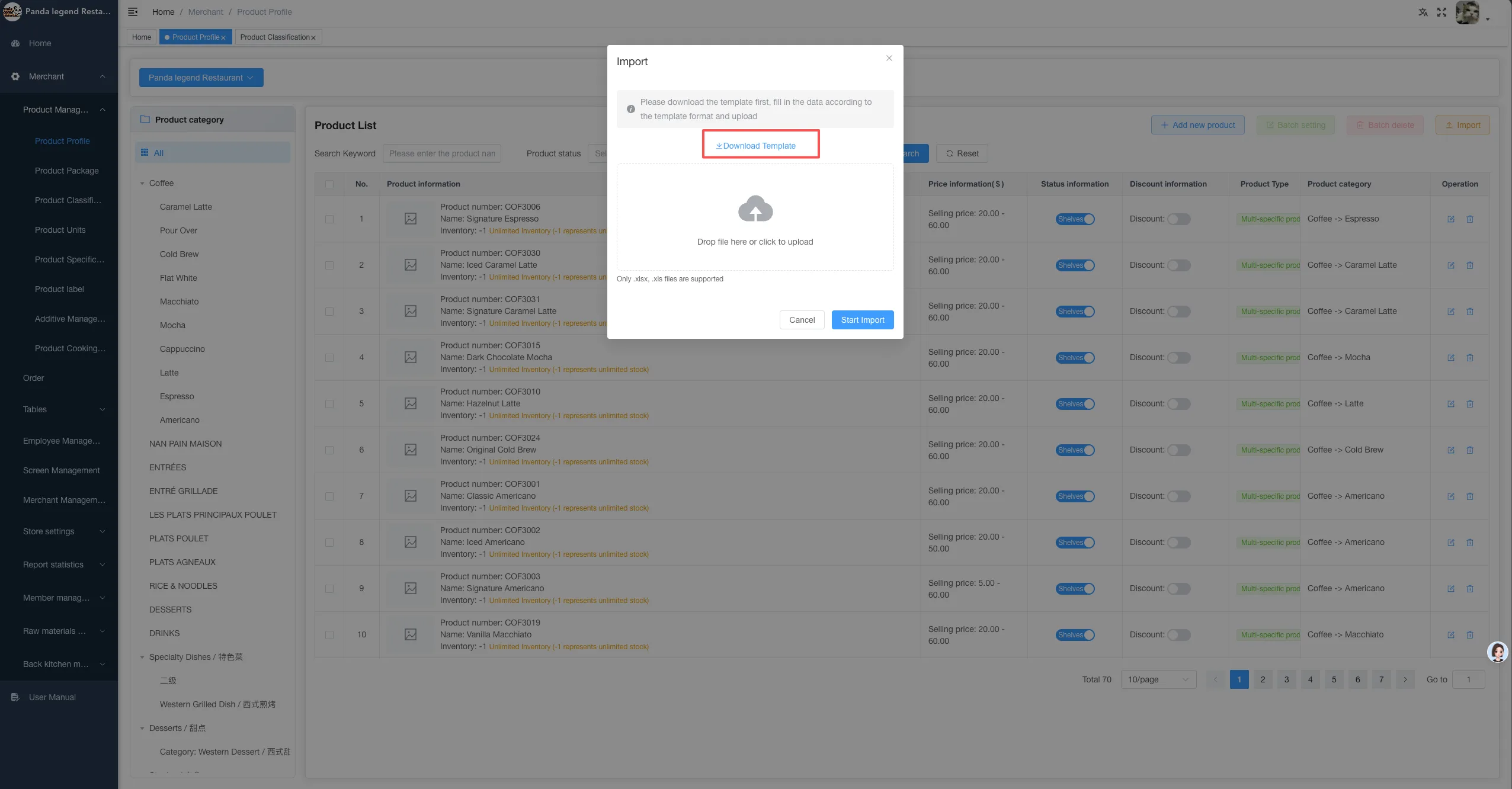
- Fill in product information according to the template
- Upload a file and click [Start Import]
- After the import is completed, the product will be in the "not listed" state by default
1.2 Manually Create a Product
- Supports creating products manually one by one
- Specifications, preparation methods, and additional ingredients in the product need to be created in advance in the corresponding module
- It is recommended to first create specifications / practices / additional ingredients, and then uniformly associate products in batches, which makes the operation more efficient
Create Specification
- Enter 【Product Management】 → 【Product Specifications】
- Click [Add Specification] in the top right corner and enter the specification name
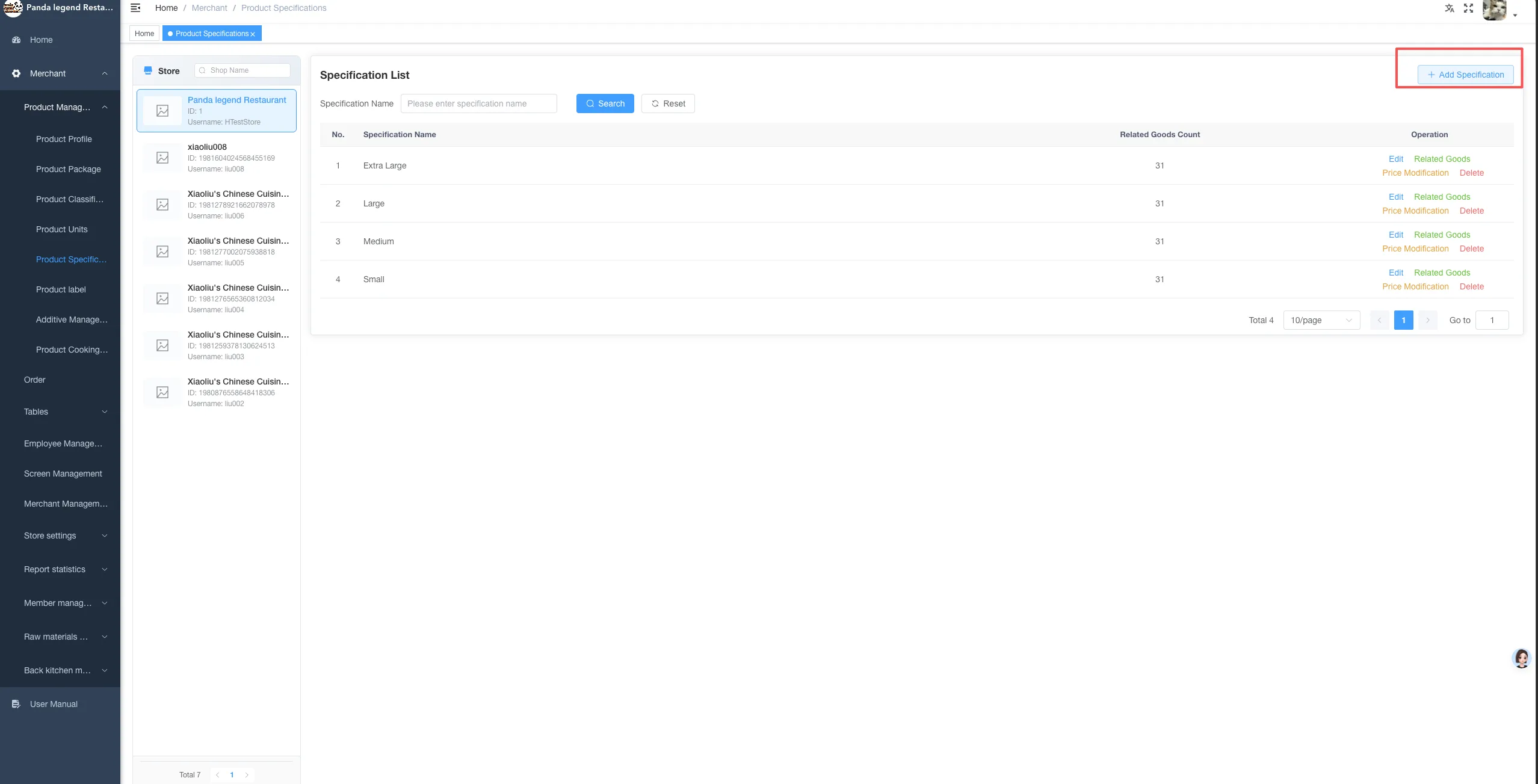
- After creation is completed, click [Associate Product] after the specification item
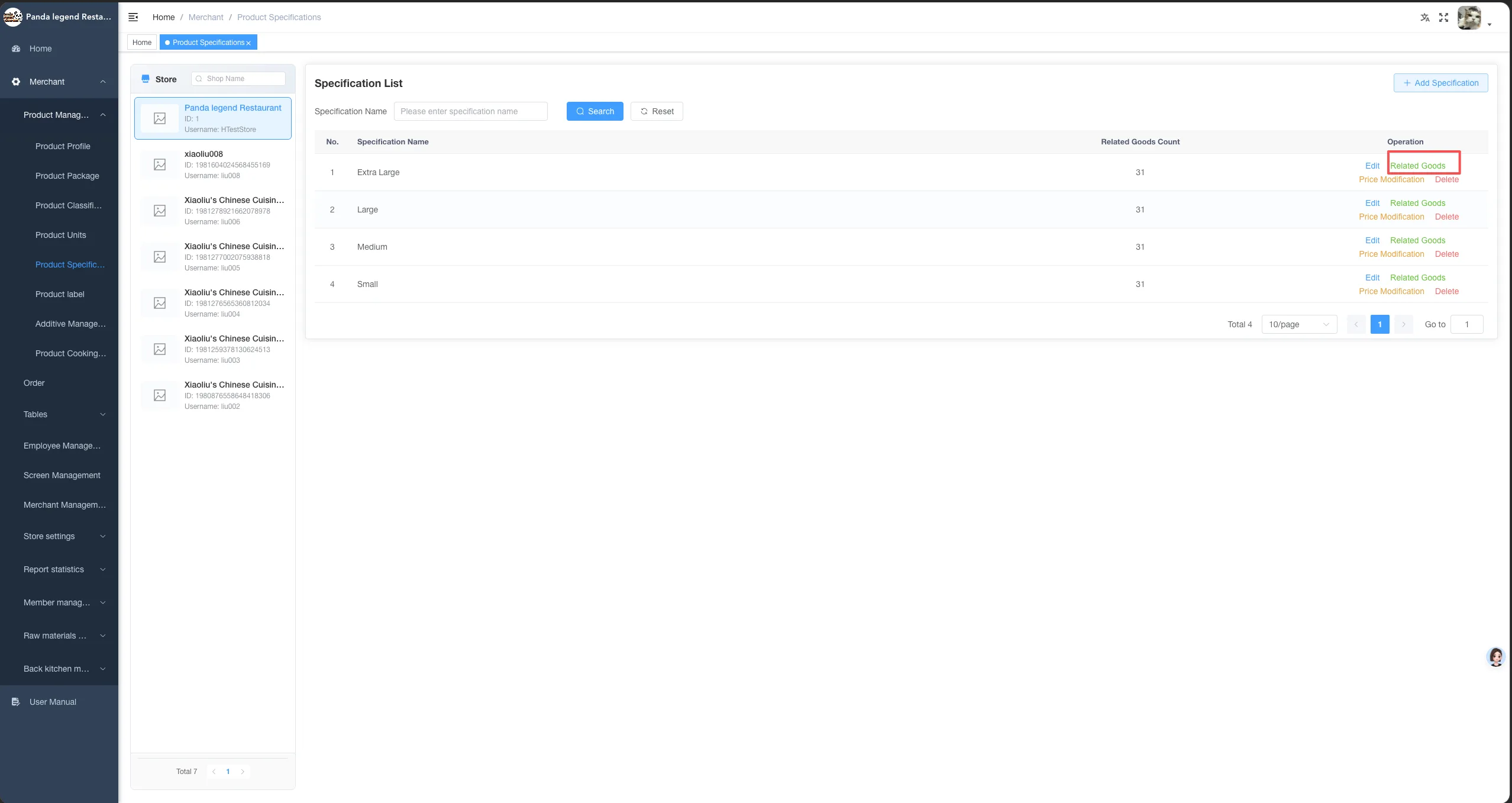
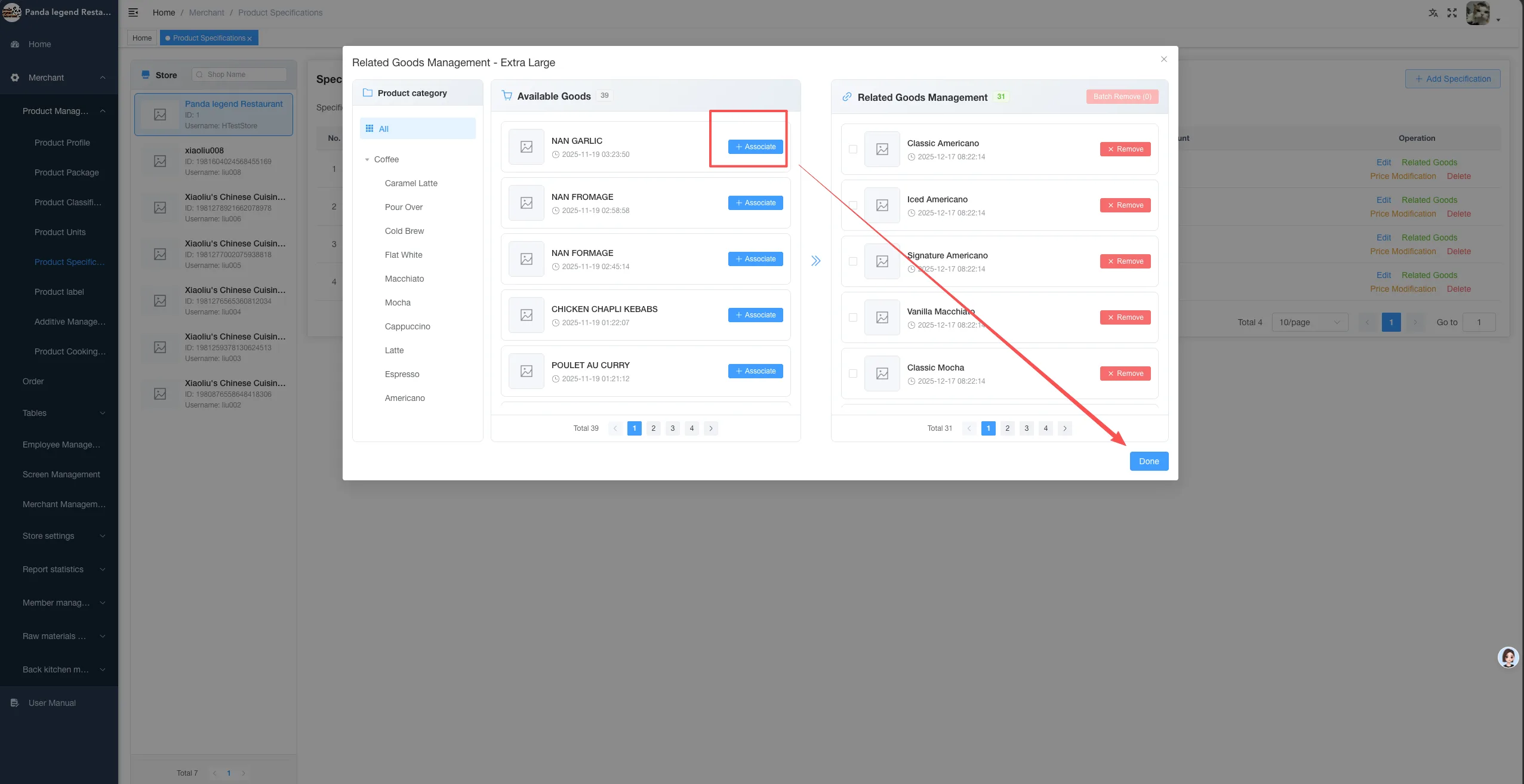
Associated Process:
- Select associable products by category
- Select a product and click [Associate]
- The product will be displayed in the "Related Product Management" area on the right
- Click [Finish]
- Set the price of the product corresponding to this specification in the pop-up window
- Confirm Save
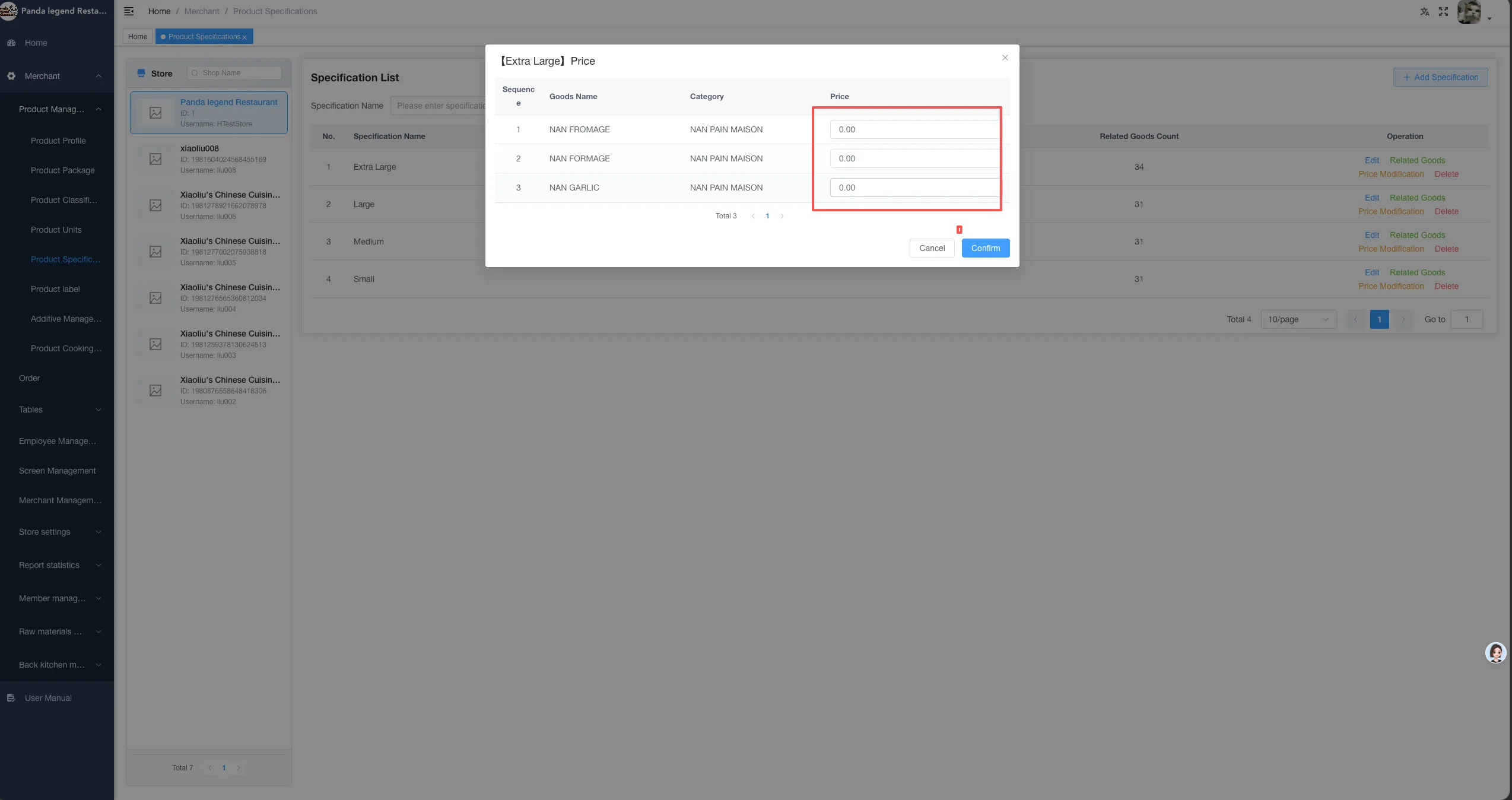
If subsequent price adjustments are needed, you can perform batch modifications through [Modify Price].
Creation Method
- Enter the [Product Practice] module
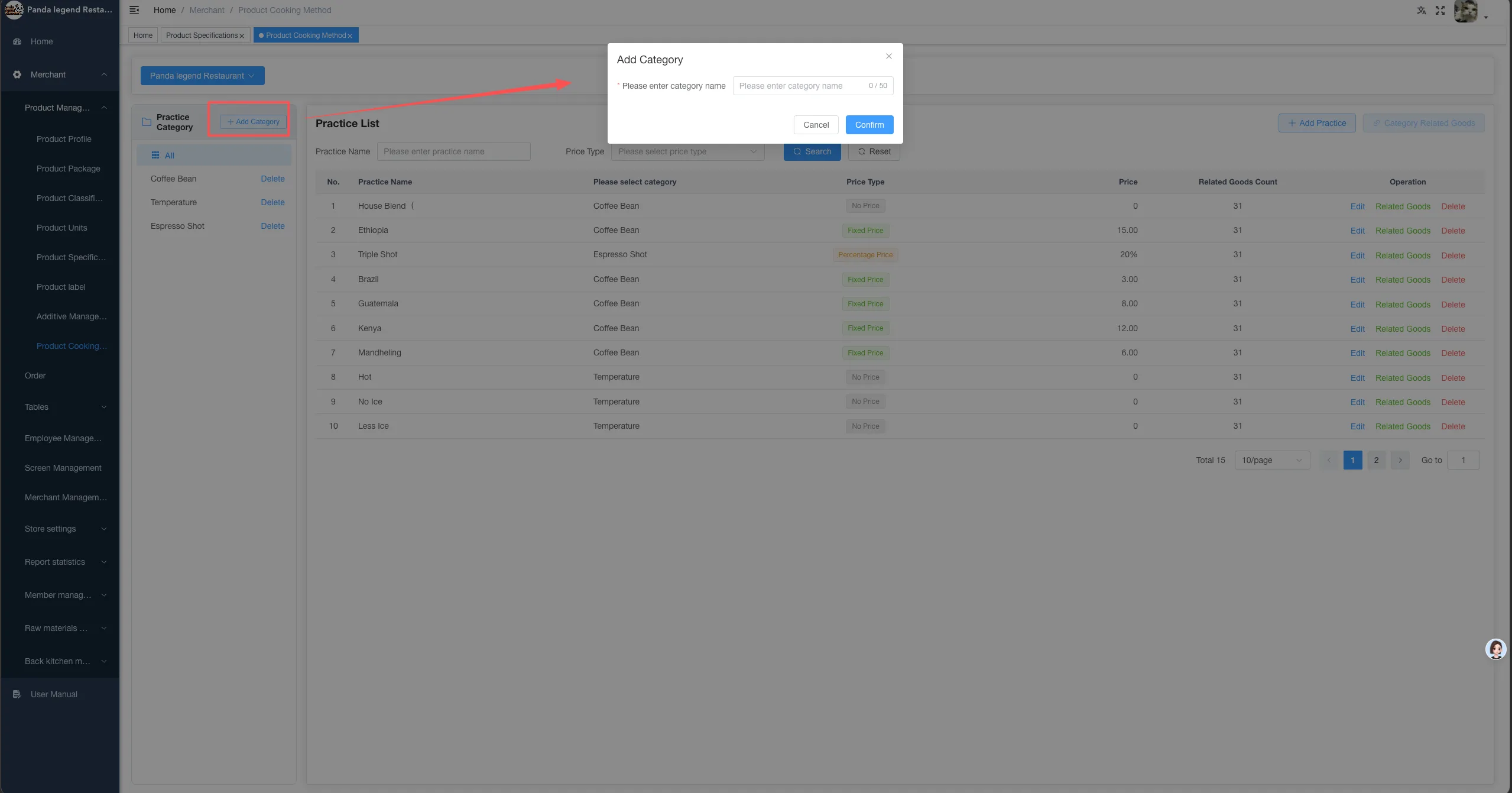
- Click [Add Category] to create a practice category (such as sweetness level, spiciness level, etc.)
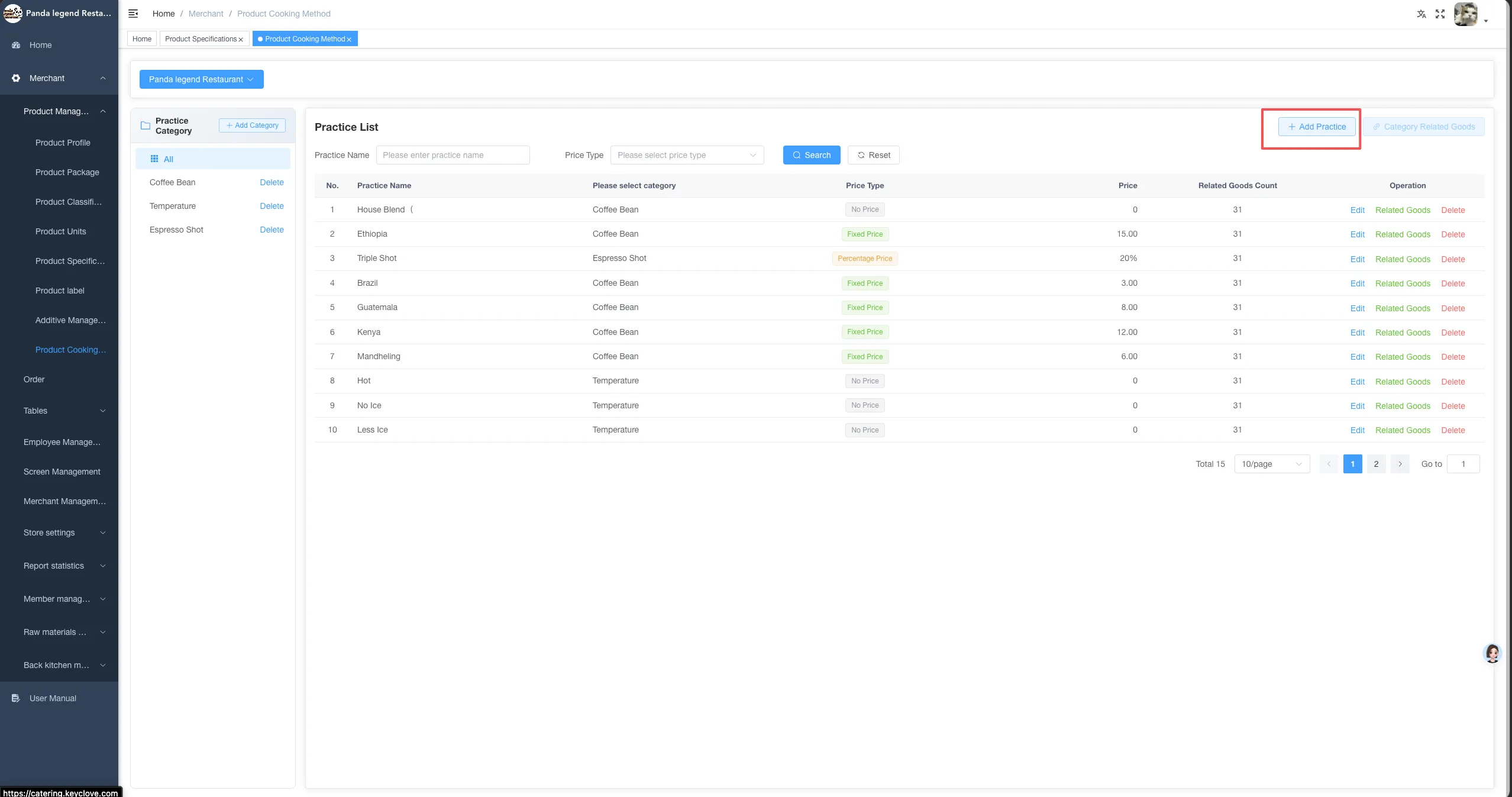
- Select a category, then click [Add New Practice] on the right
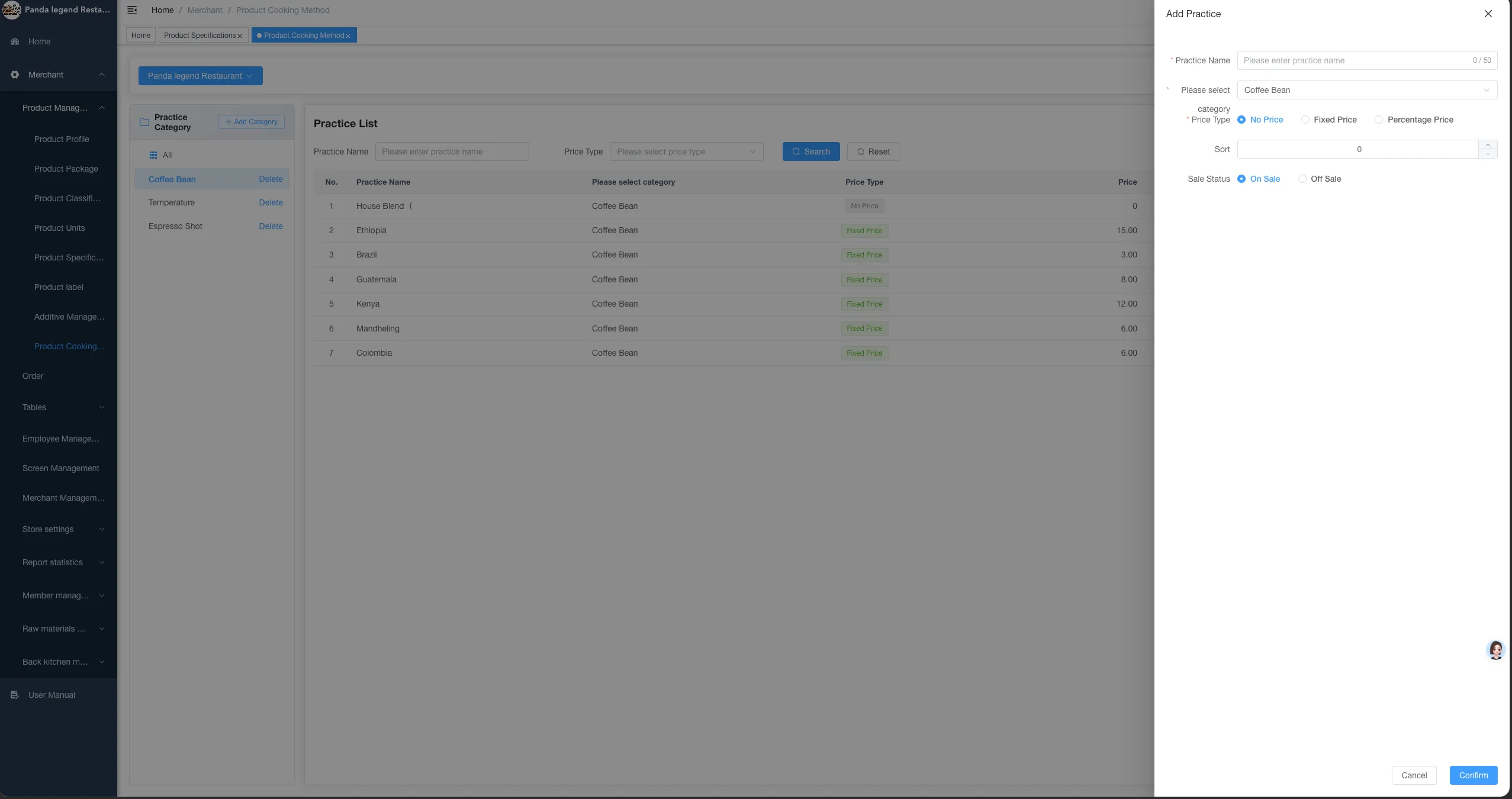
Fill in the content:
- Name of the Practice
- Markup Method
- Other related settings
- After saving, click on the [Associated Product] button following the practice item
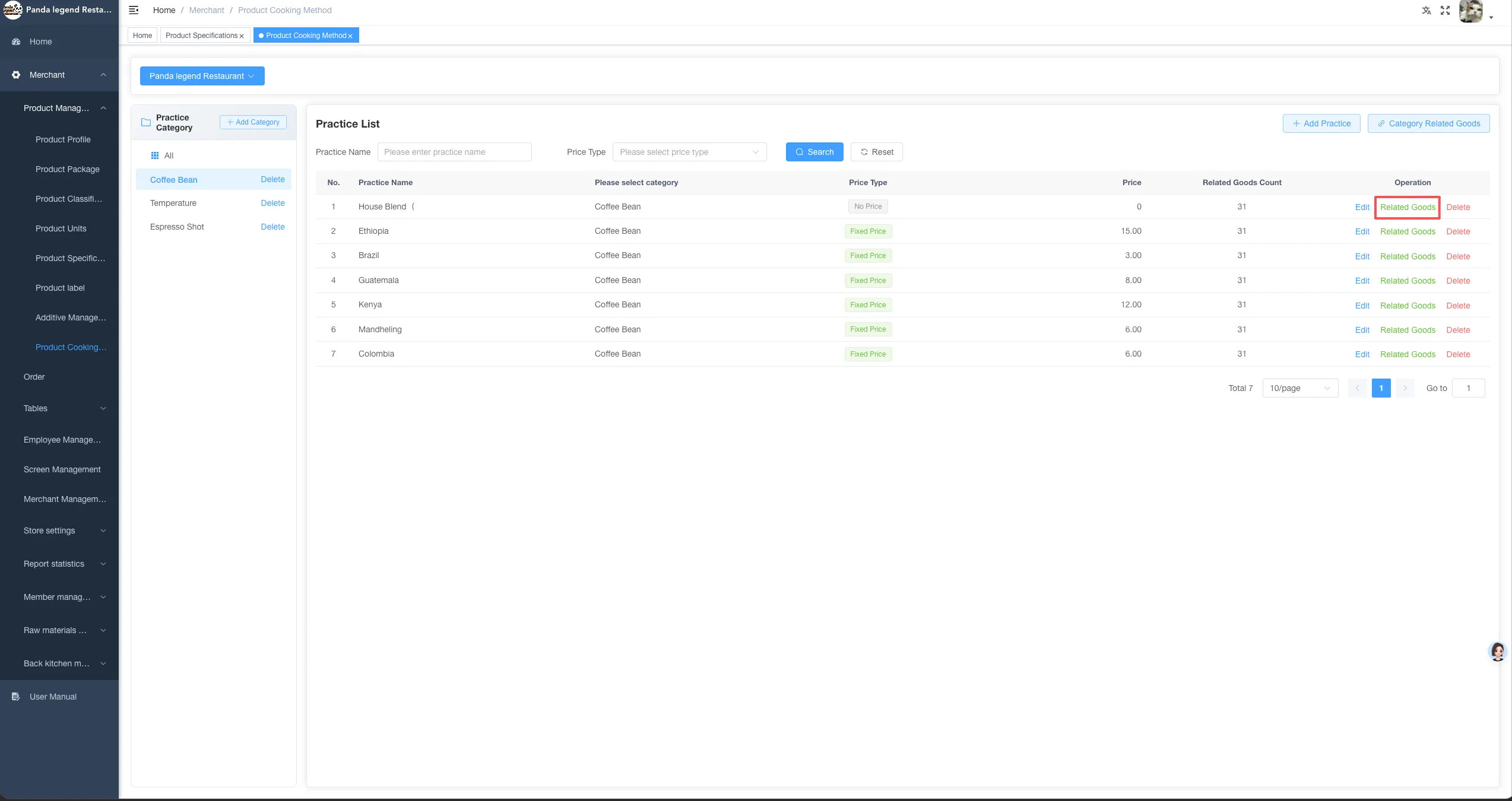
- Select a product and click [Associate]
- Click [Complete] after completion
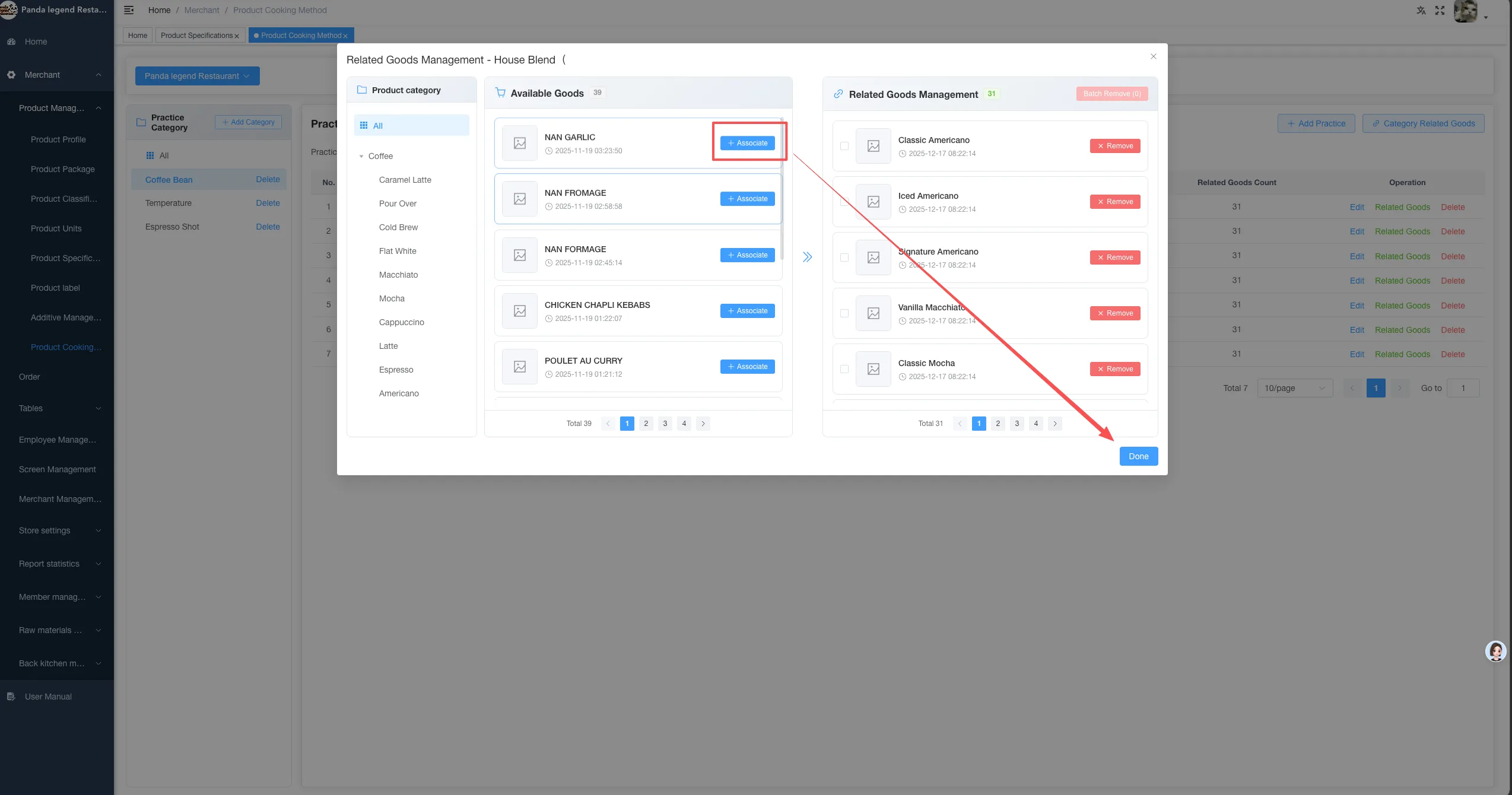
Click "Category-Associated Dishes" to support associating the entire category with the selected dishes
Create Feeding
- Enter the [Feeding Management] module
- Click [Add New Category] to create a feeding category
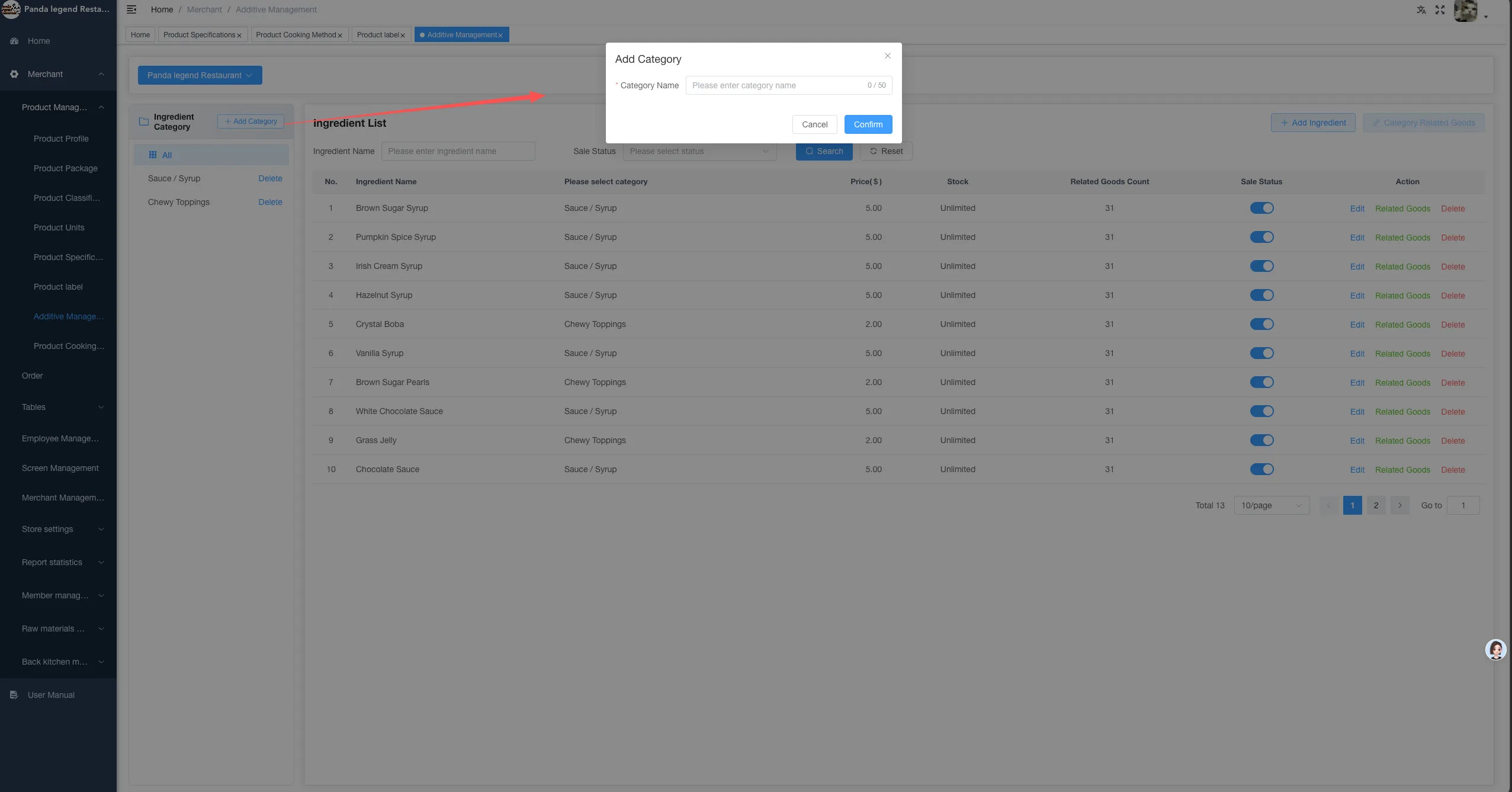
- Click [New Additive] under Classification
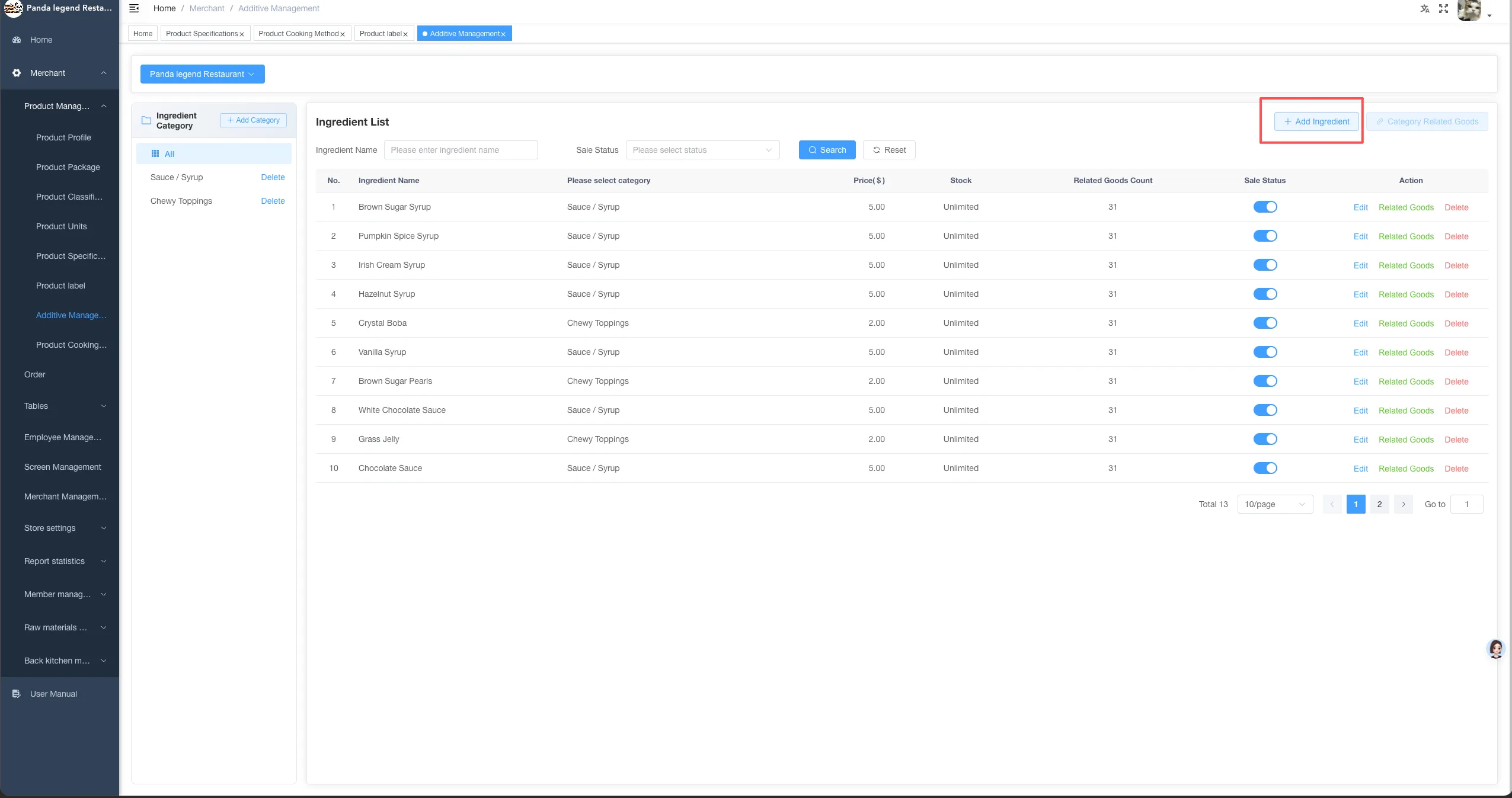
Fill in the content:
- Feeding Name
- Topping Price
- Other related settings
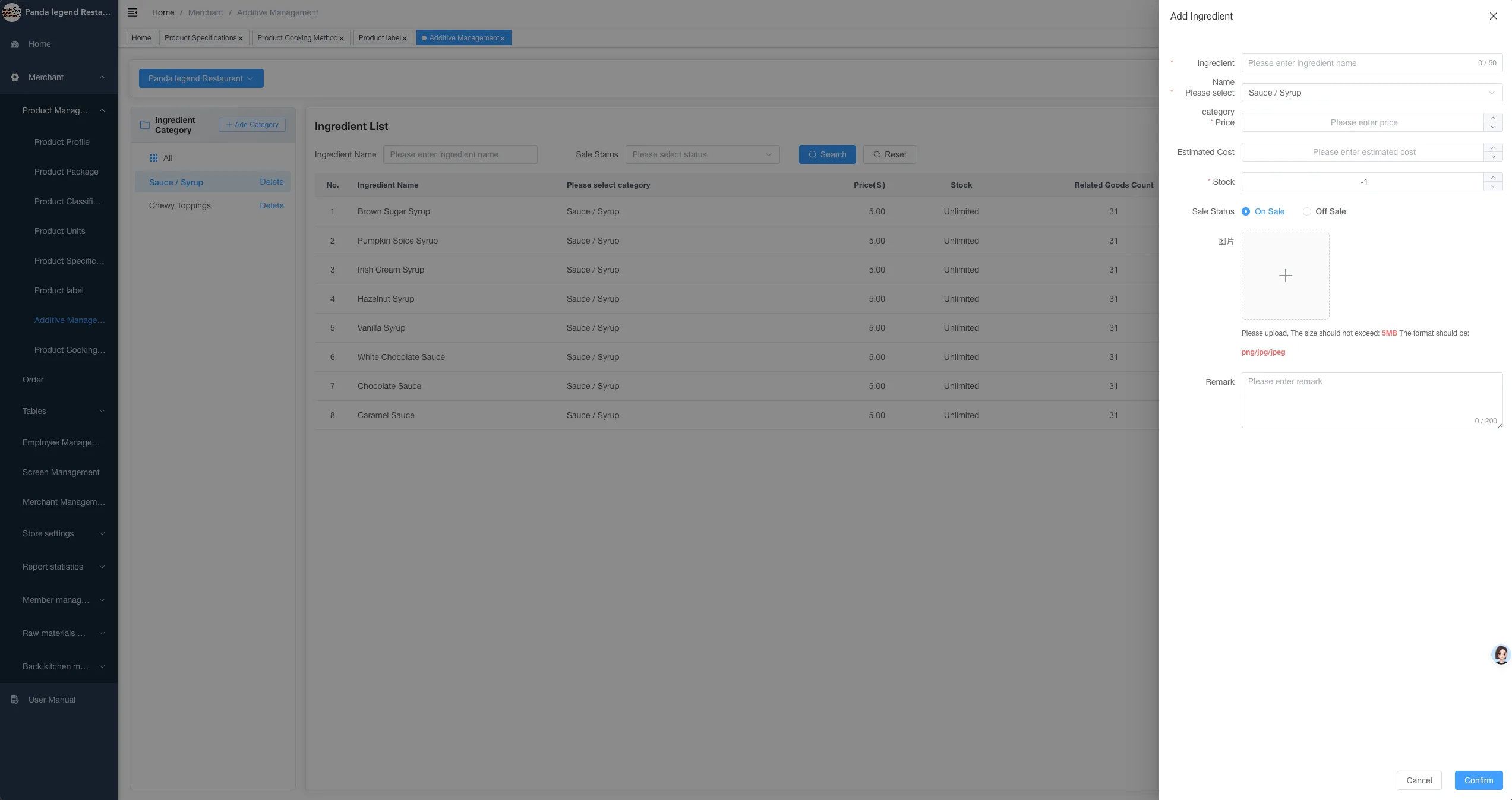
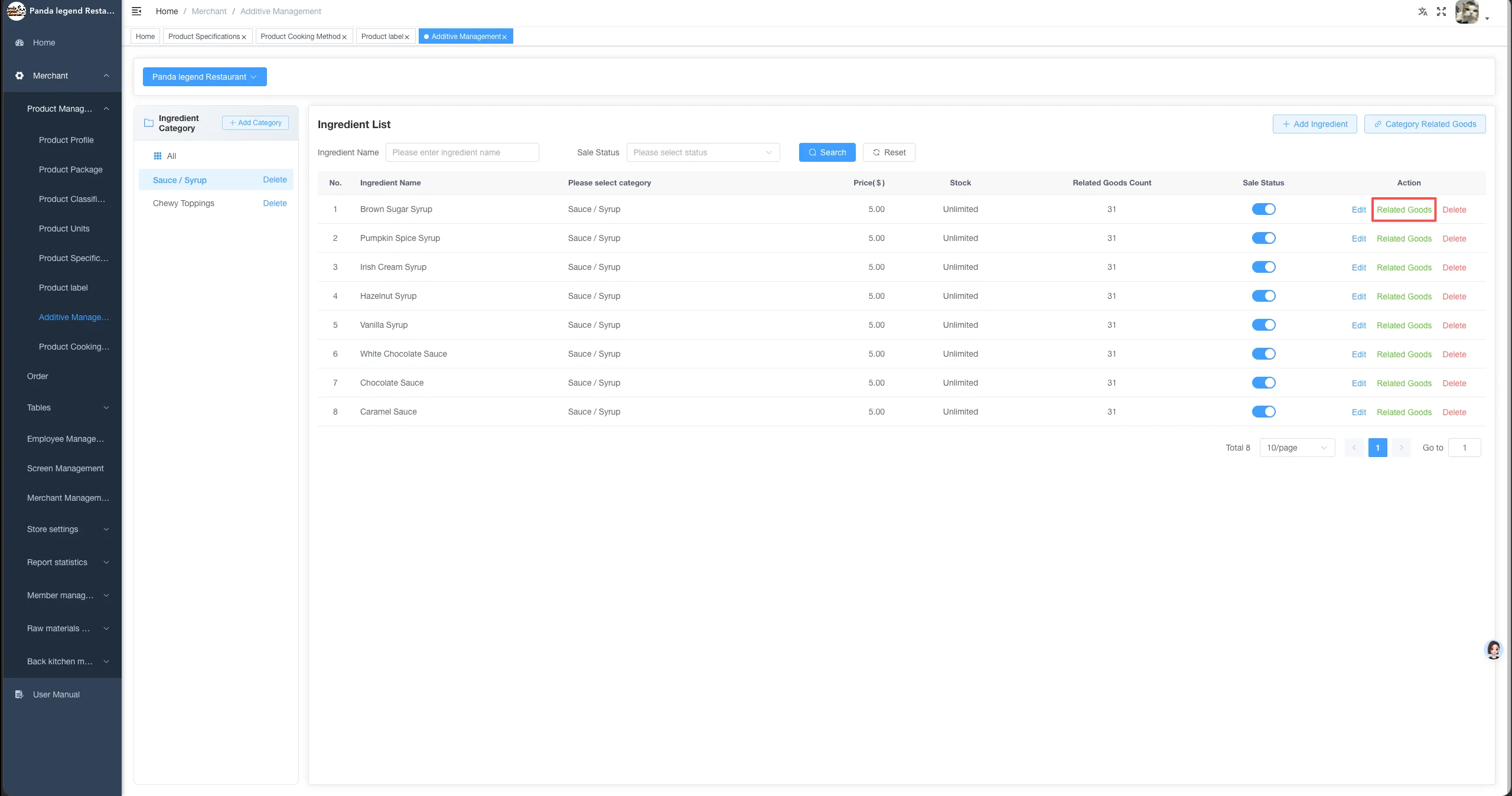
- After saving, click on the [Associated Product] button after the feeding item
- Select products and complete the association
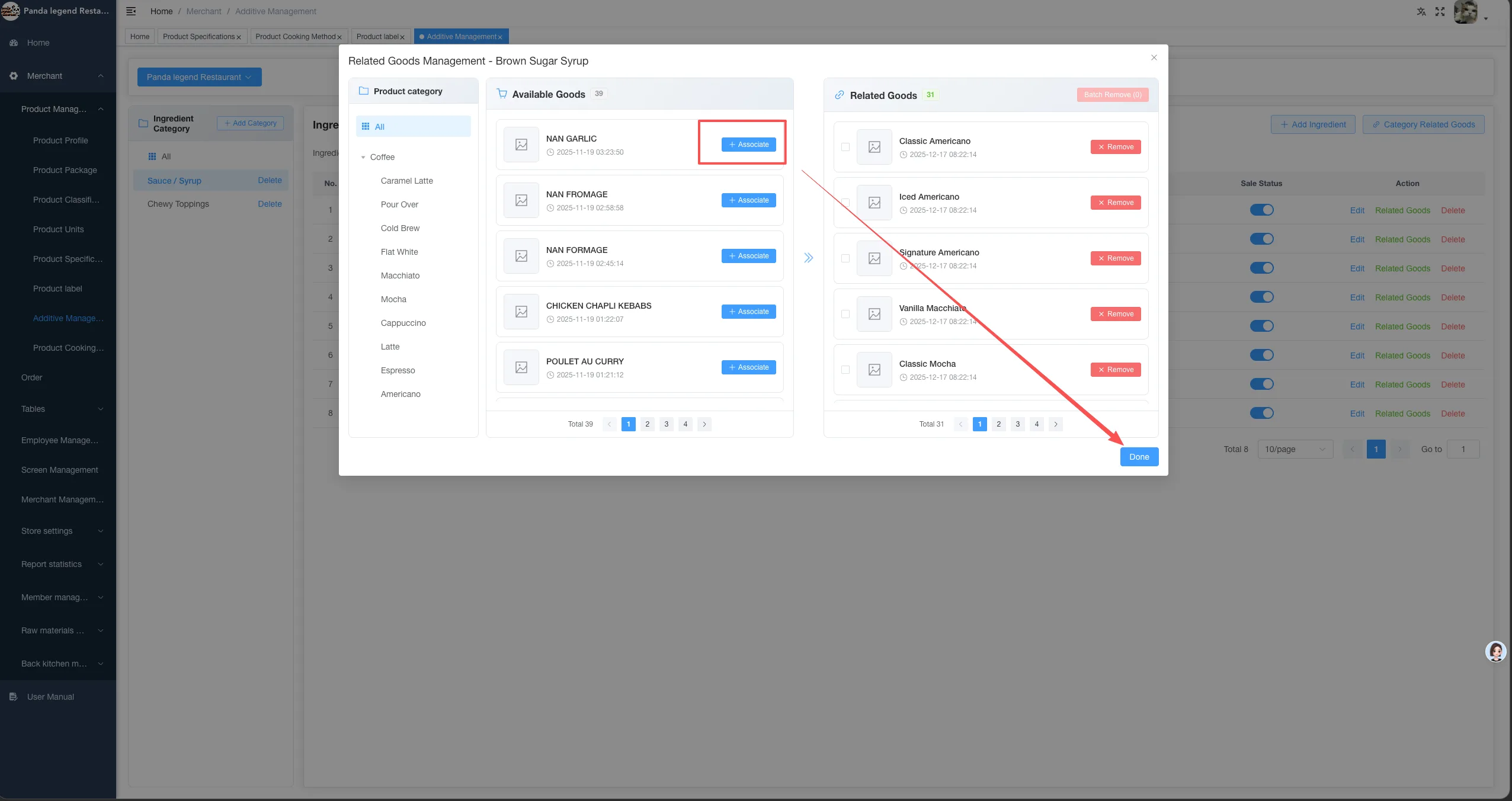
Click "Category-Associated Dishes" to support associating the entire category with the selected dishes
Product Listing
- Check the products to be listed in [Product Archive]
- Click [Batch Settings]
- Set "Whether to list" to On
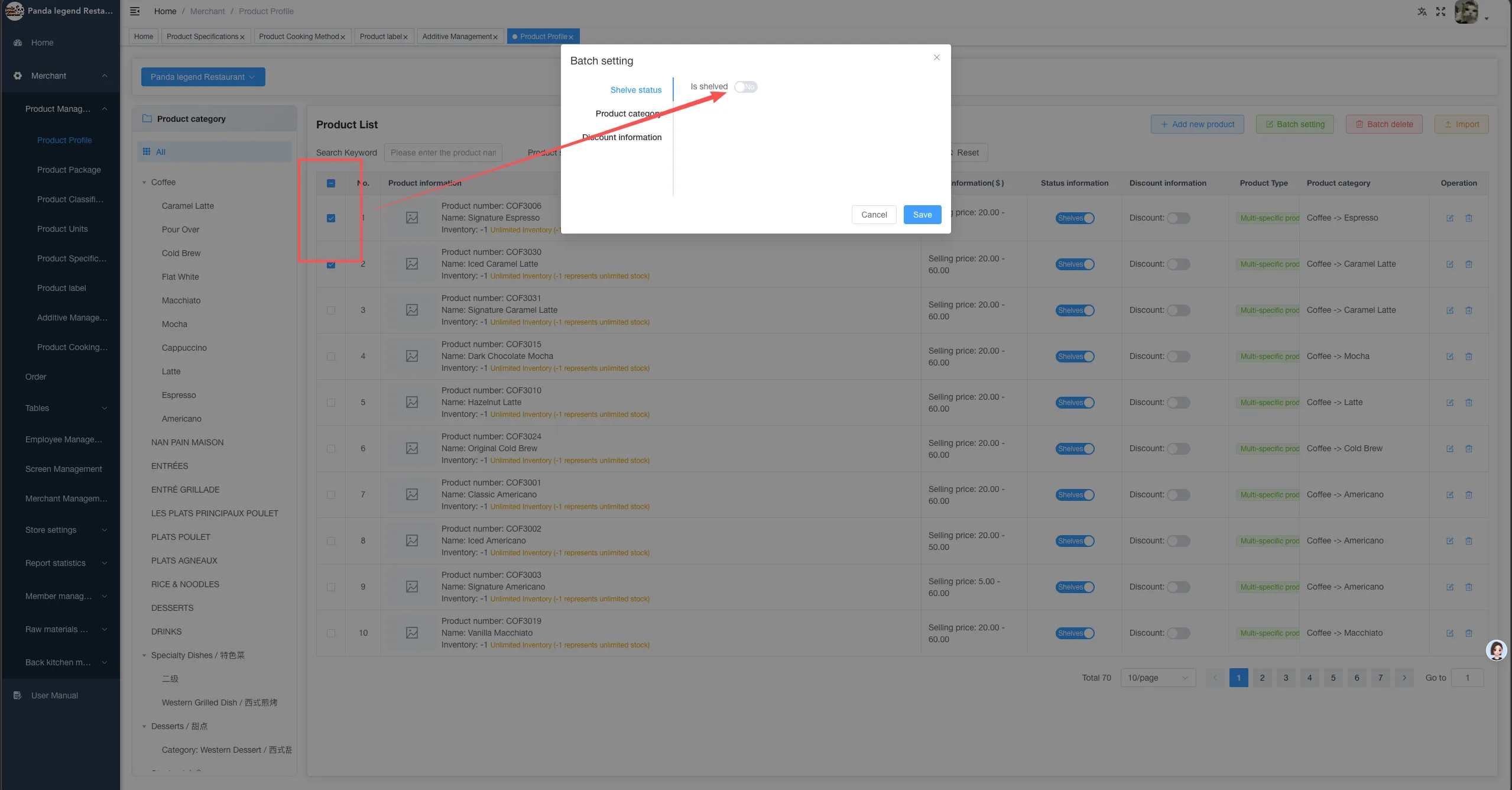
- Save settings and complete product listing
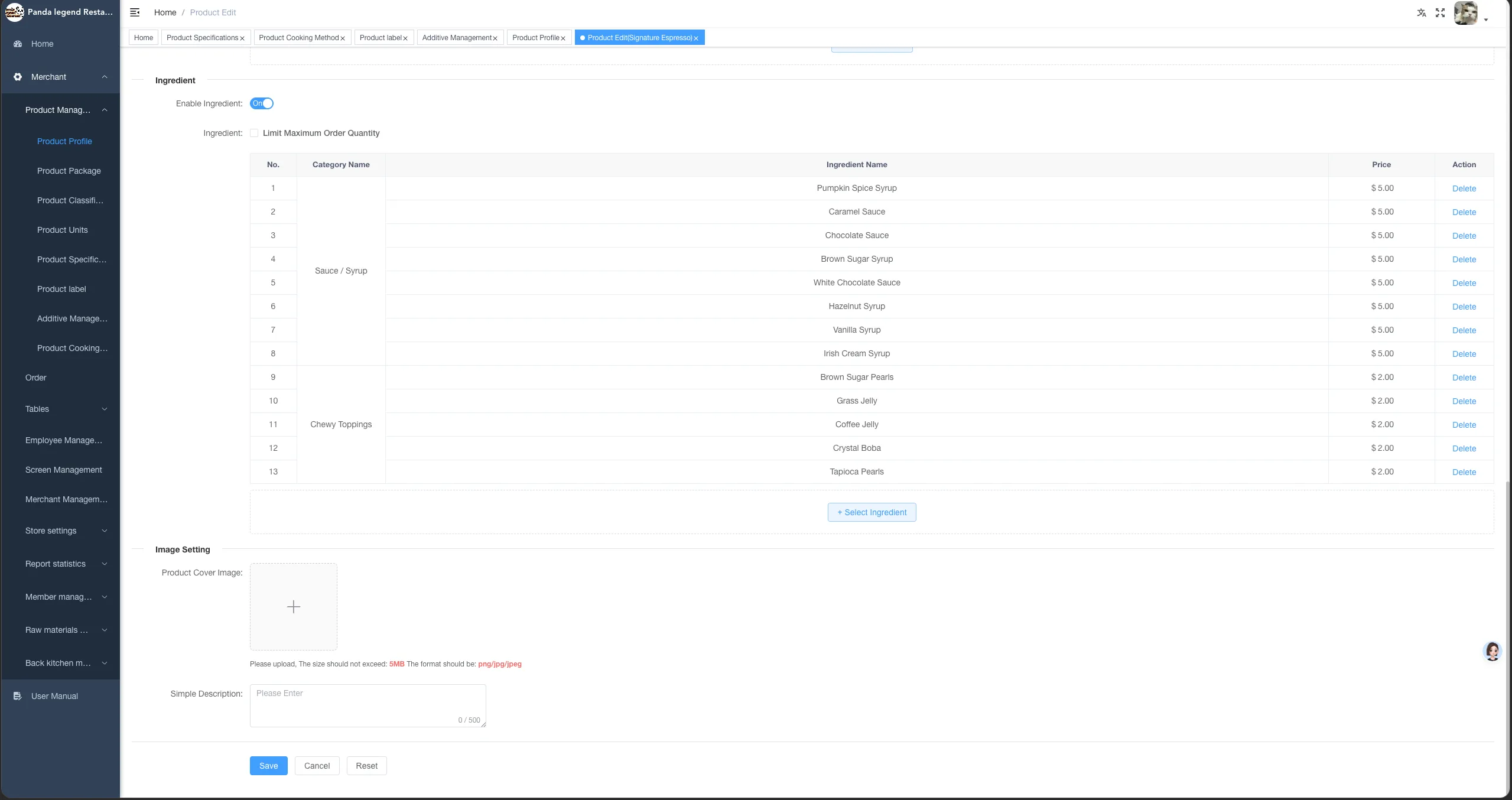
- When creating or managing products, it also supports setting specifications, preparation methods, and additional ingredients.
Supports offline mode
In the case of unstable or temporarily unavailable network environment, the system now supports offline mode, ensuring the normal operation of stores.
Instructions for Use:
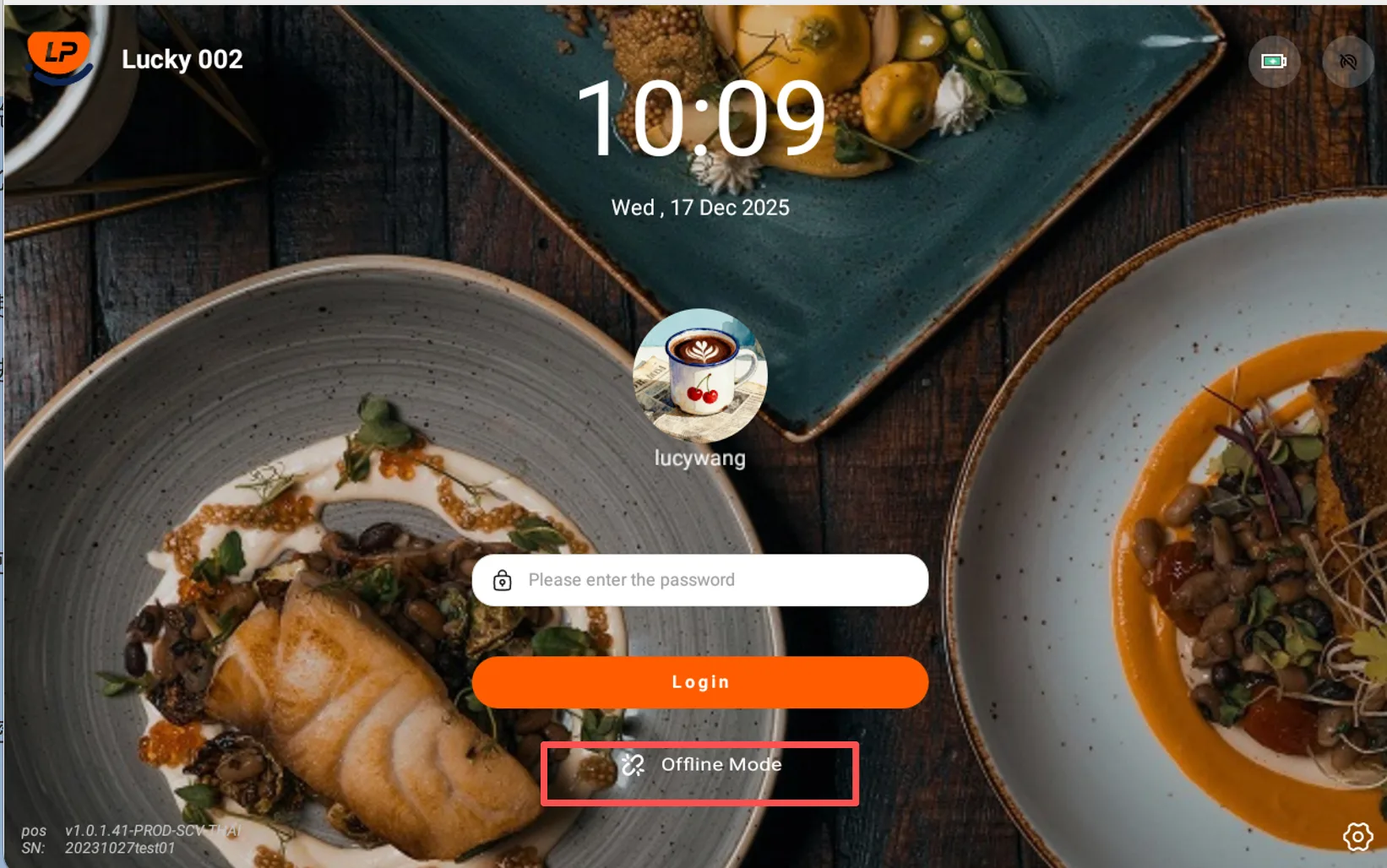
- When network conditions are poor, you can proactively choose to enter offline mode for use
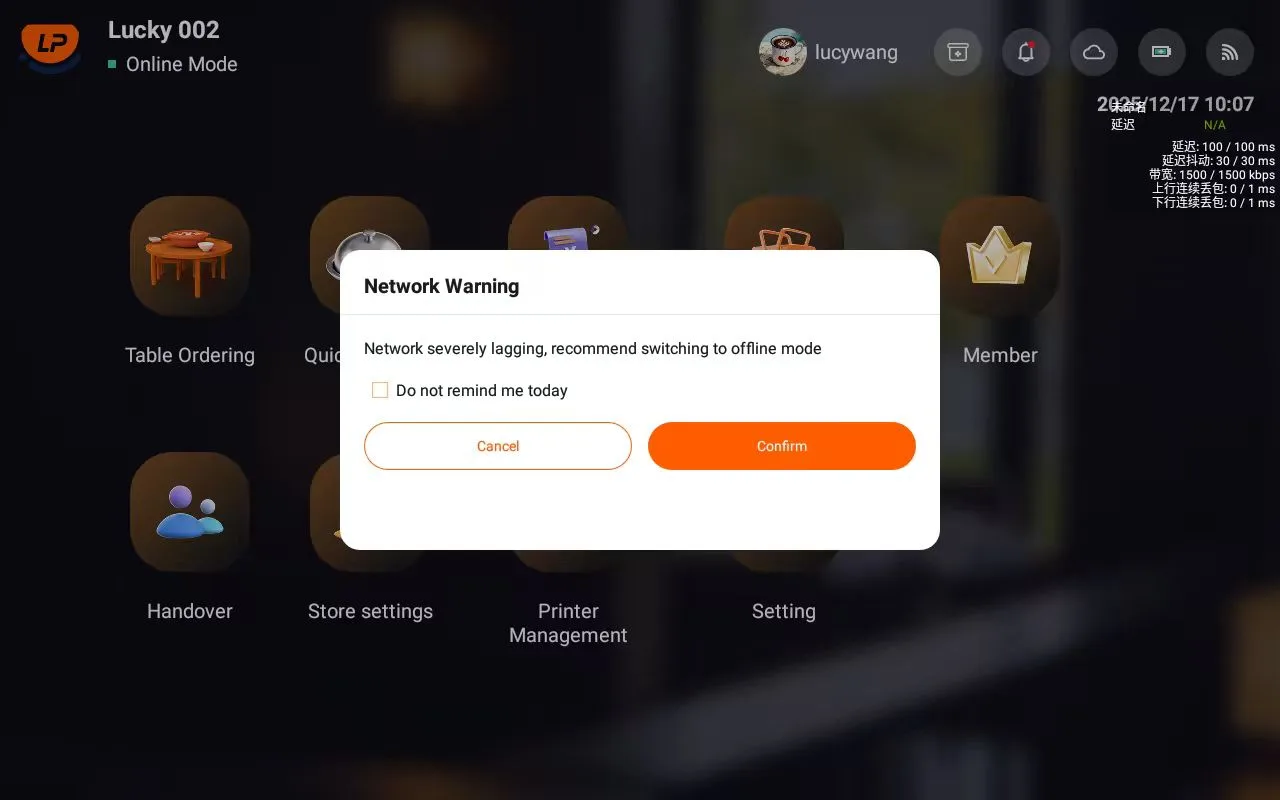
If a network anomaly occurs during use, the system will provide corresponding prompts
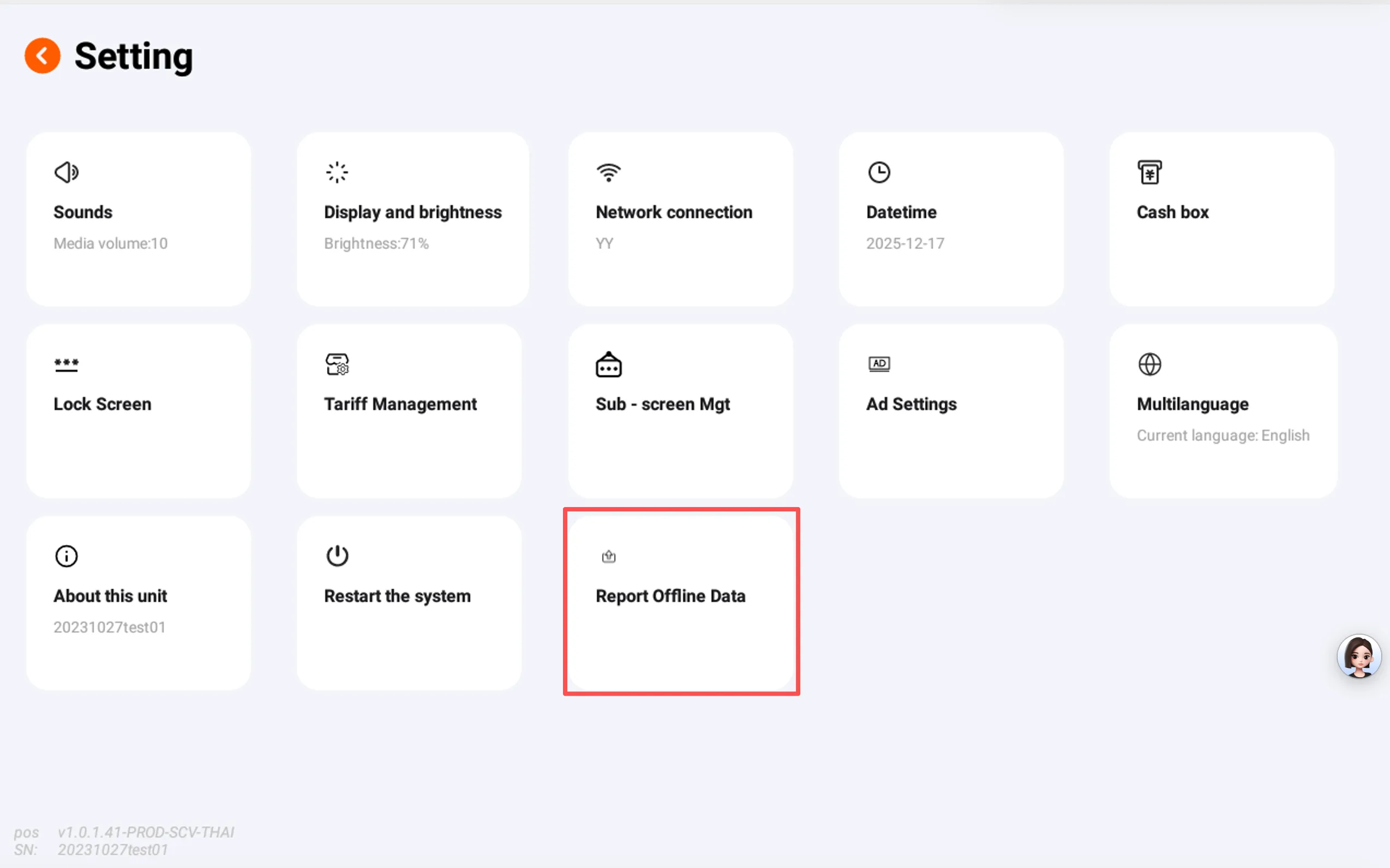
When switching back from offline mode to online mode, the system will prompt whether to perform data synchronization
- If synchronization is not performed immediately, it can be manually triggered later in [System Settings]
Precautions:
- Before using offline mode, you must have logged in to your account using online mode at least once,have obtained complete store basic data, andsuccessfully synchronized data at least once using online mode within 7 days
- Before exiting offline mode, ensure that all current bills have been fully settled
- In subsequent versions, entering offline mode will add store manager password verification
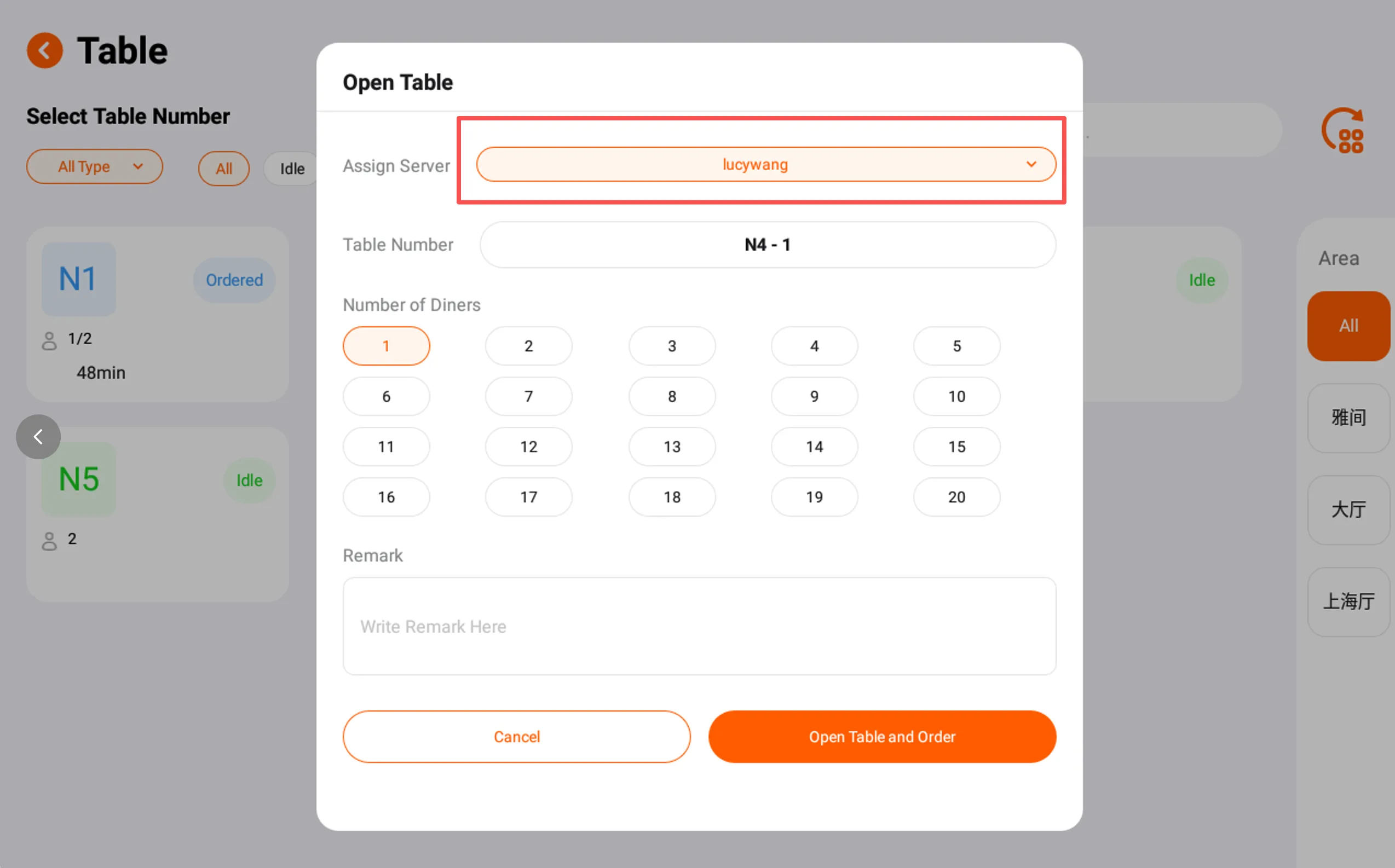
Opening a table supports associating service staff
When opening a table, you can choose to associate a service staff member, which is used to identify the person responsible for the service or billing of the order.
Corresponding Support:
- The order will be associated with the designated service staff
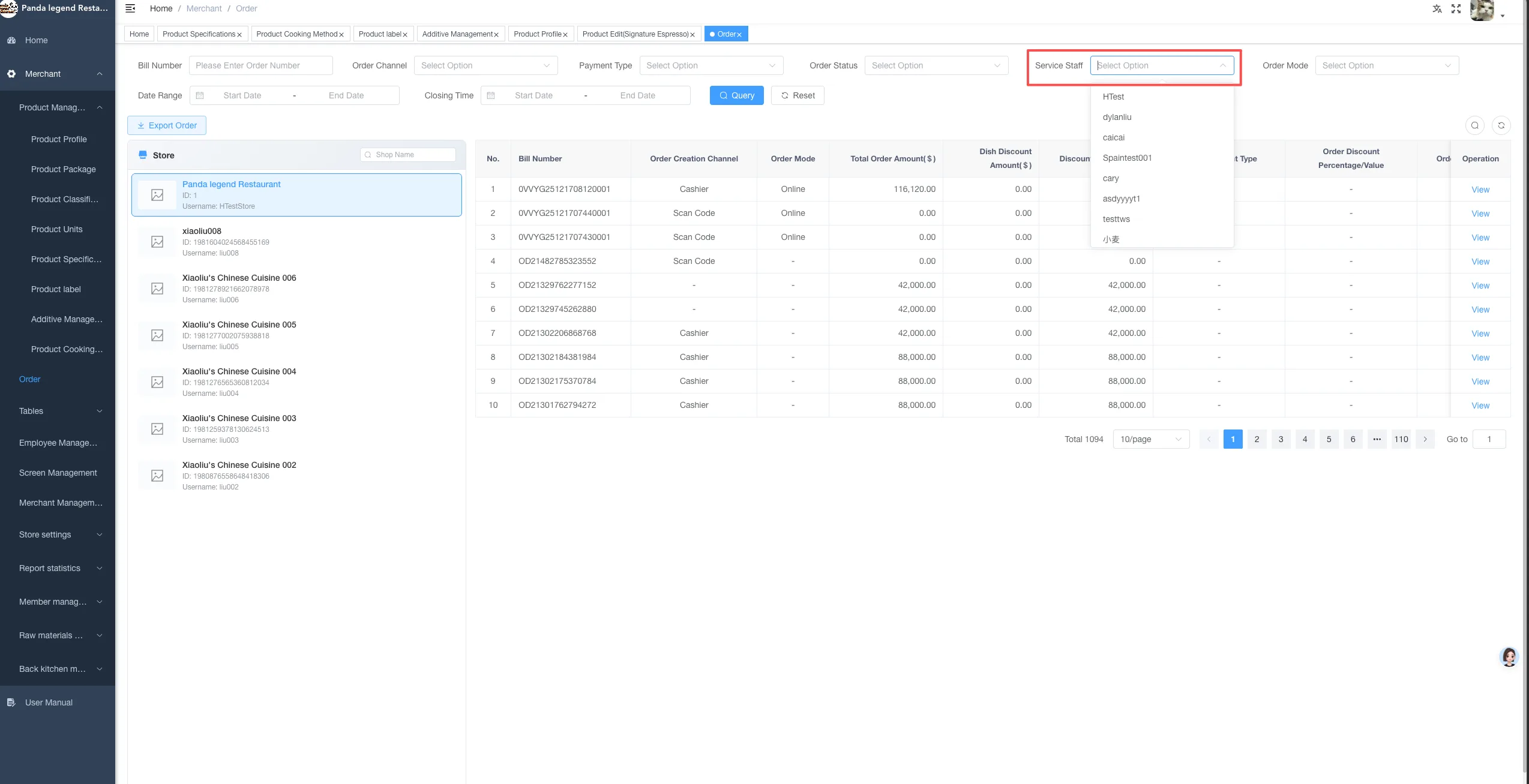
- In the Store Management Platform → Order Management, you can filter and view all associated orders by service staff dimension.
Revenue Report Data Optimization
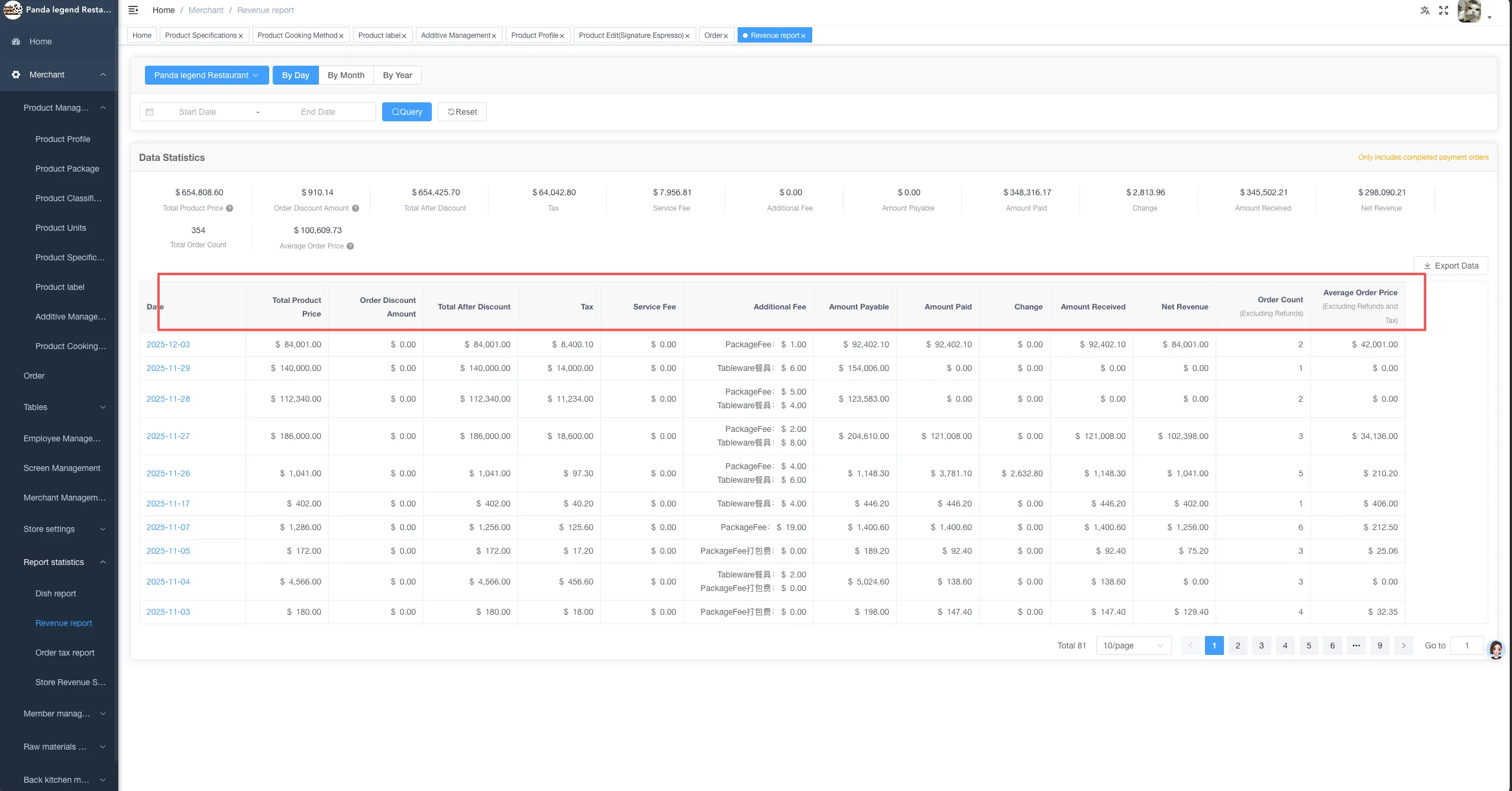
- Key statistical parameters such as discount amounthave been added to revenue-related reports to more comprehensively reflect actual operational data.
- Meanwhile, in response to the previously reported issues with dish data statistics, we will focus on fixing and optimizing them in the near future.
Supports label printers to print product labels
The system now supports connecting to label printersfor printing product labels, meeting the production and order collection needs of tea and light dining stores.
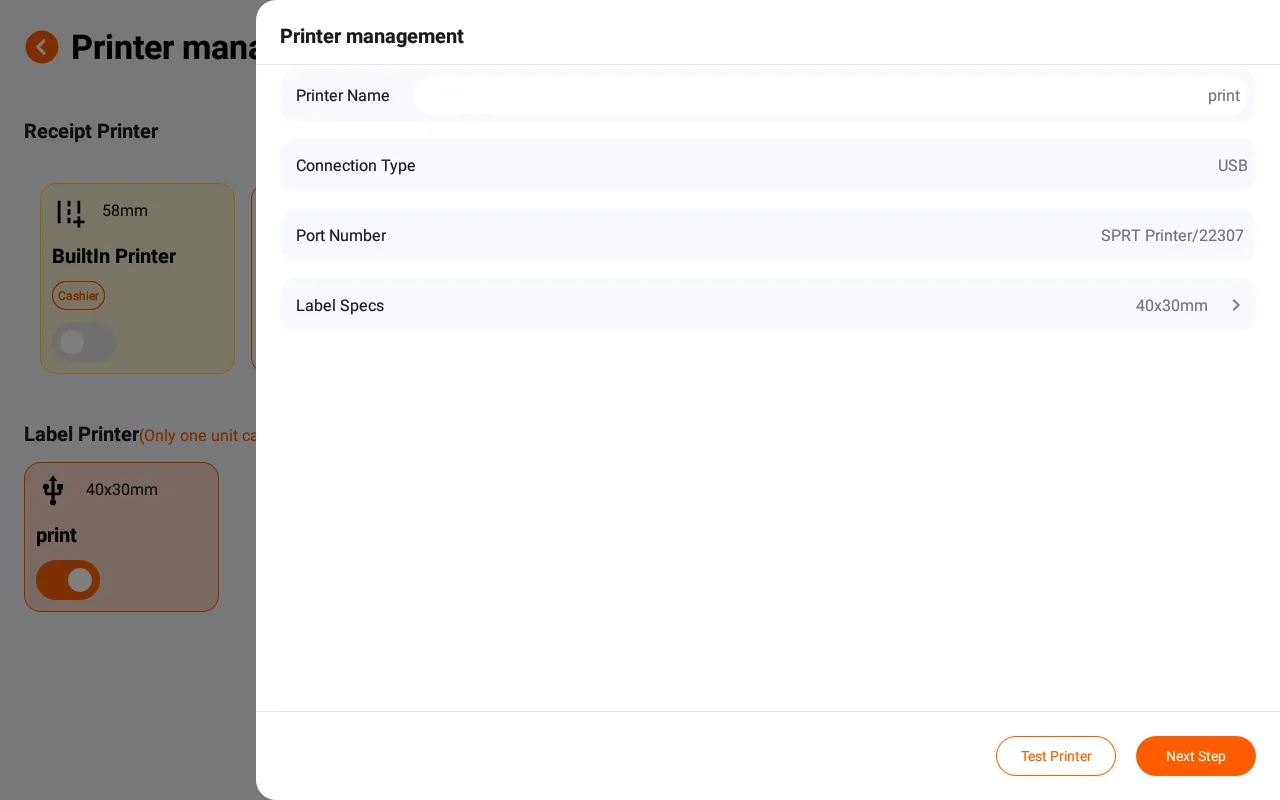
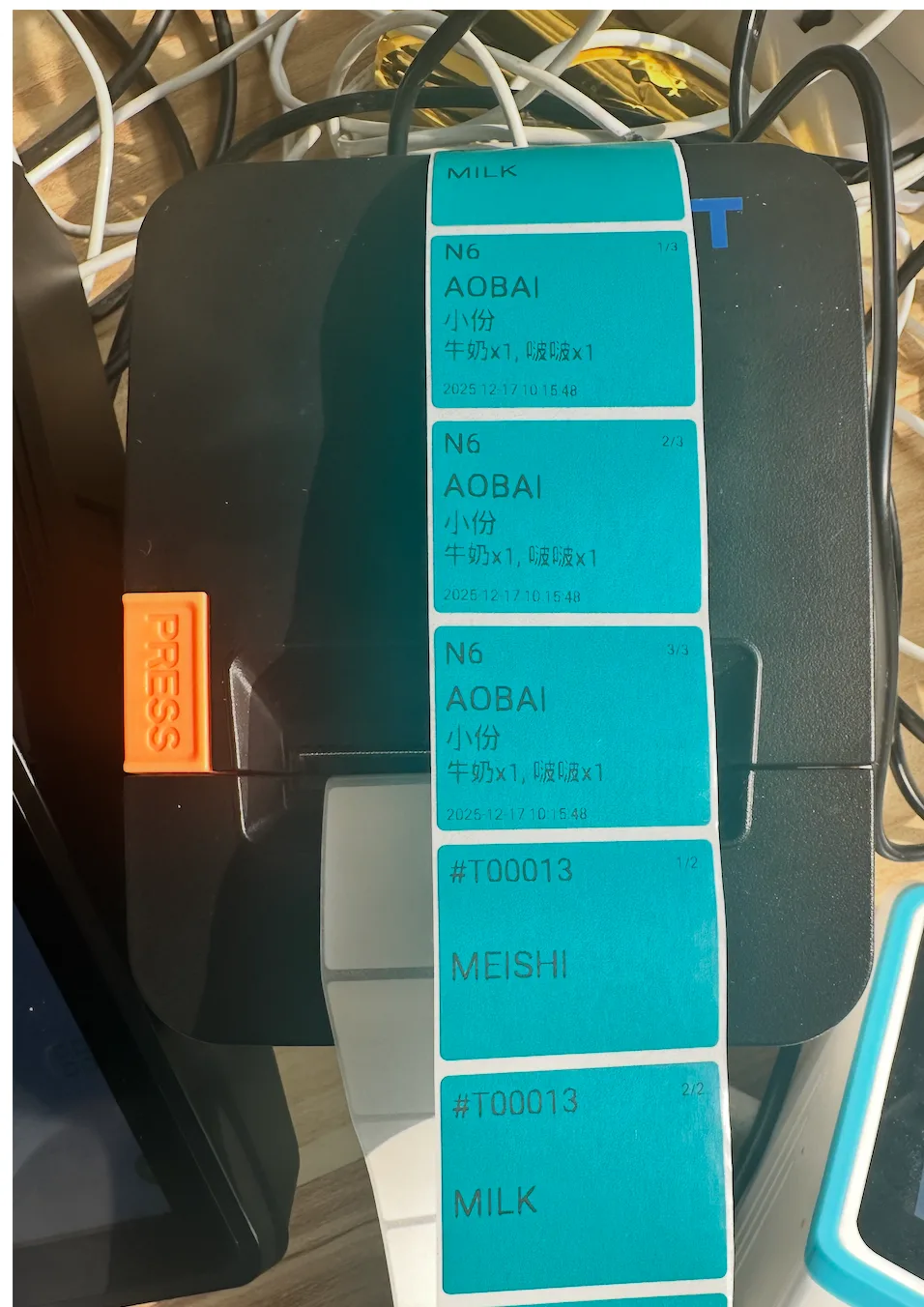
Usage Scenario Description (Taking Tea Drinks as an Example):
- When a store generates a new order, the system can automatically print the corresponding product label. The label can be affixed to the beverage cup, and the label content usually includes:
- Product Name
- Production information such as specifications, temperature, sweetness, ingredients, etc.
- Single Identification Retrieval
- Production staff can quickly and accurately complete production based on labels
- Single-order customers can also clearly identify their drinks through cup stickers, reducing cases of mispicking and missing items.
This feature can effectively improve cup output efficiency, production accuracy, and overall operational efficiency during peak hours.
Current Support Status:
Currently supports label printers from partner brand SPRT.
To support label printers from other brands, the following must be provided:
- The official SDK of this brand
- corresponding printer prototype, for adaptation and testing