
Appearance
2026-01-07 Version Upgrade Instructions
POS terminal supports split payment
The Split Order Function has been added to the POS Checkout Page, which supports splitting the dishes in the same order into multiple sub-orders for separate checkout and printing of receipts.
Operation Process:
- On the checkout page, click "Split Order" in the action bar to enter the split order page
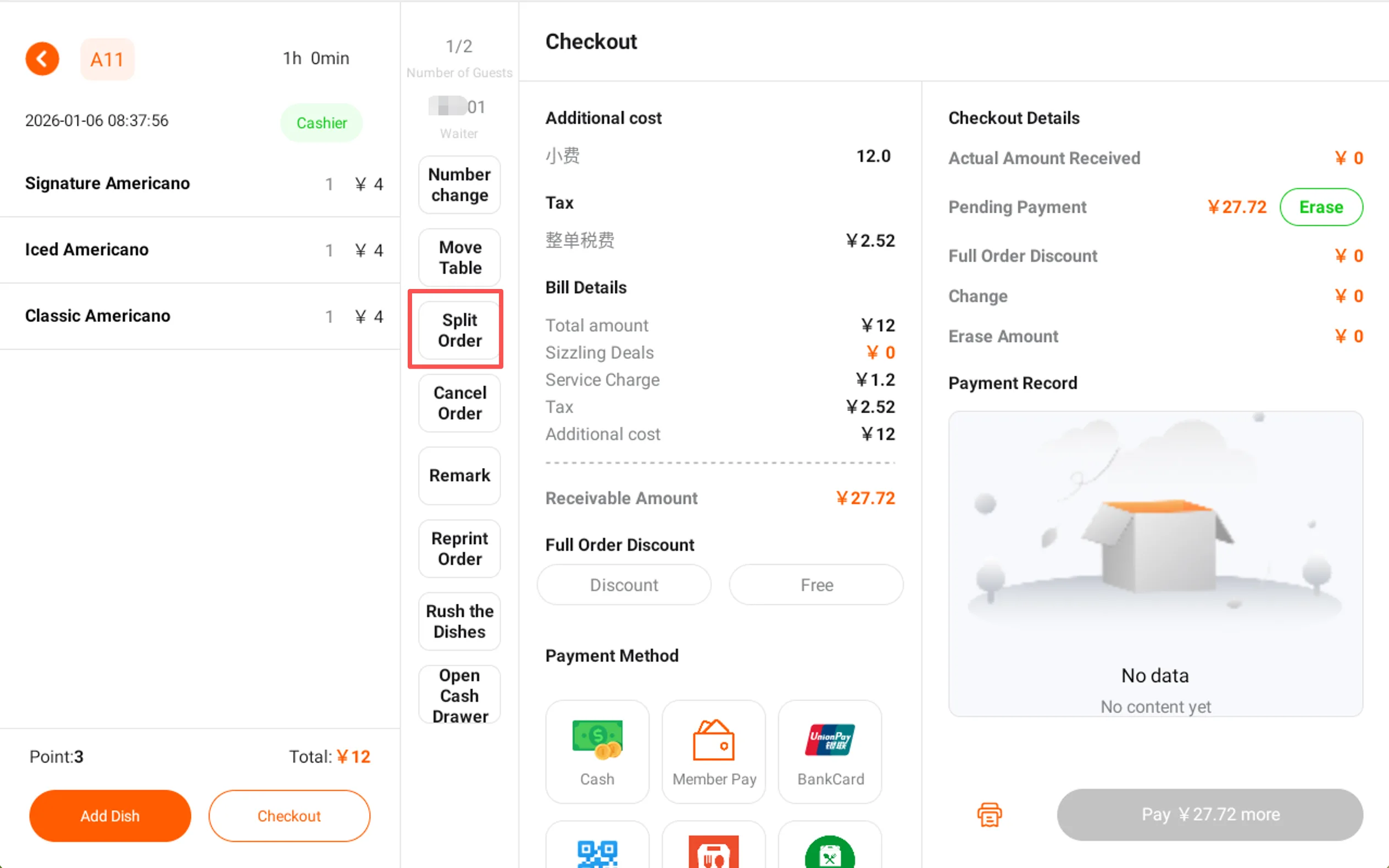
- Check the dishes to be split in Order No. 1(the quantity indicates the number to be split out)
- Click the "New Order" card to create Order No. 2, and move the selected dishes to Order No. 2
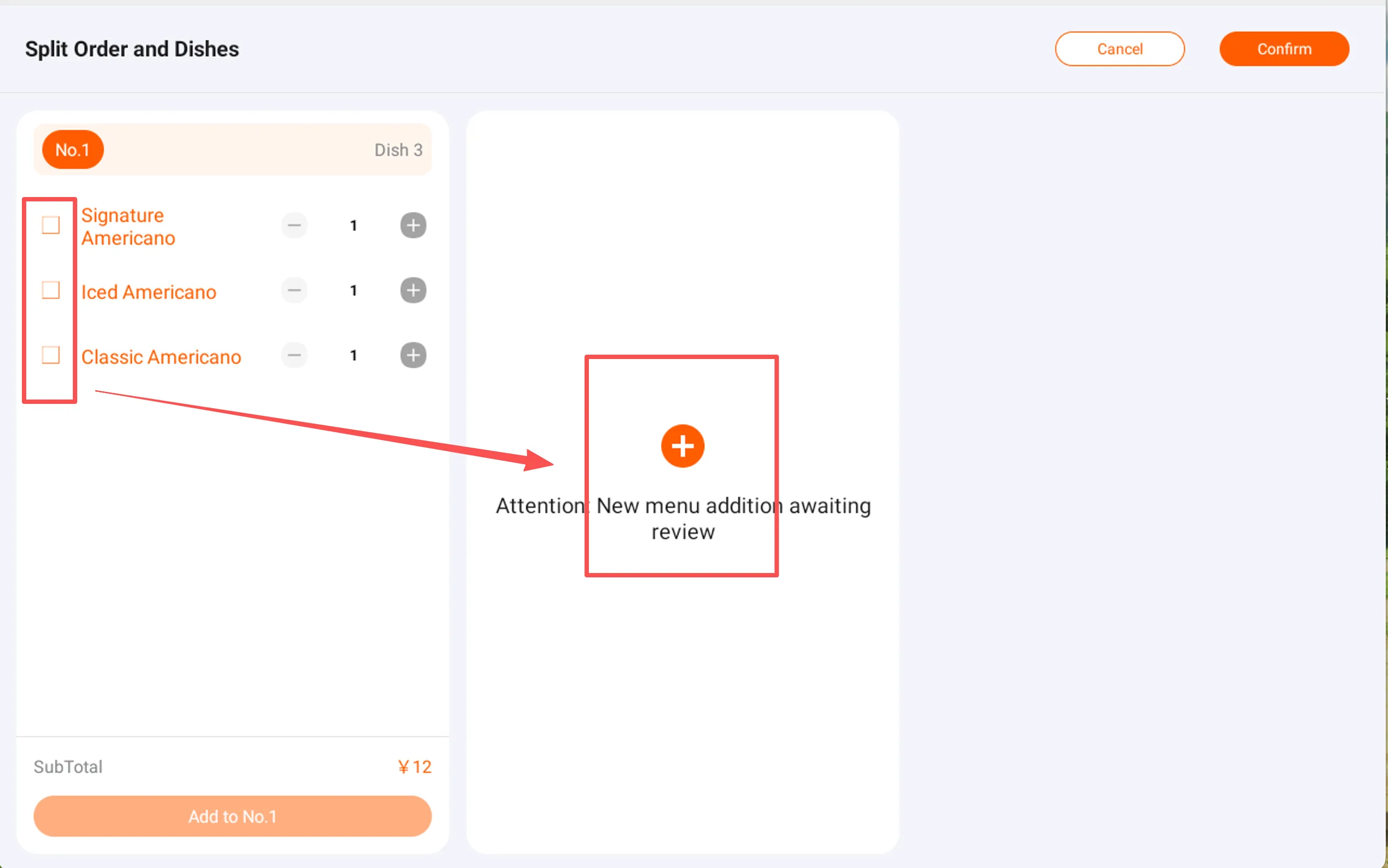
- By repeating the above operations, you can continue to create Order No. 3 and Order No. 4 based on Order No. 1 and Order No. 2.
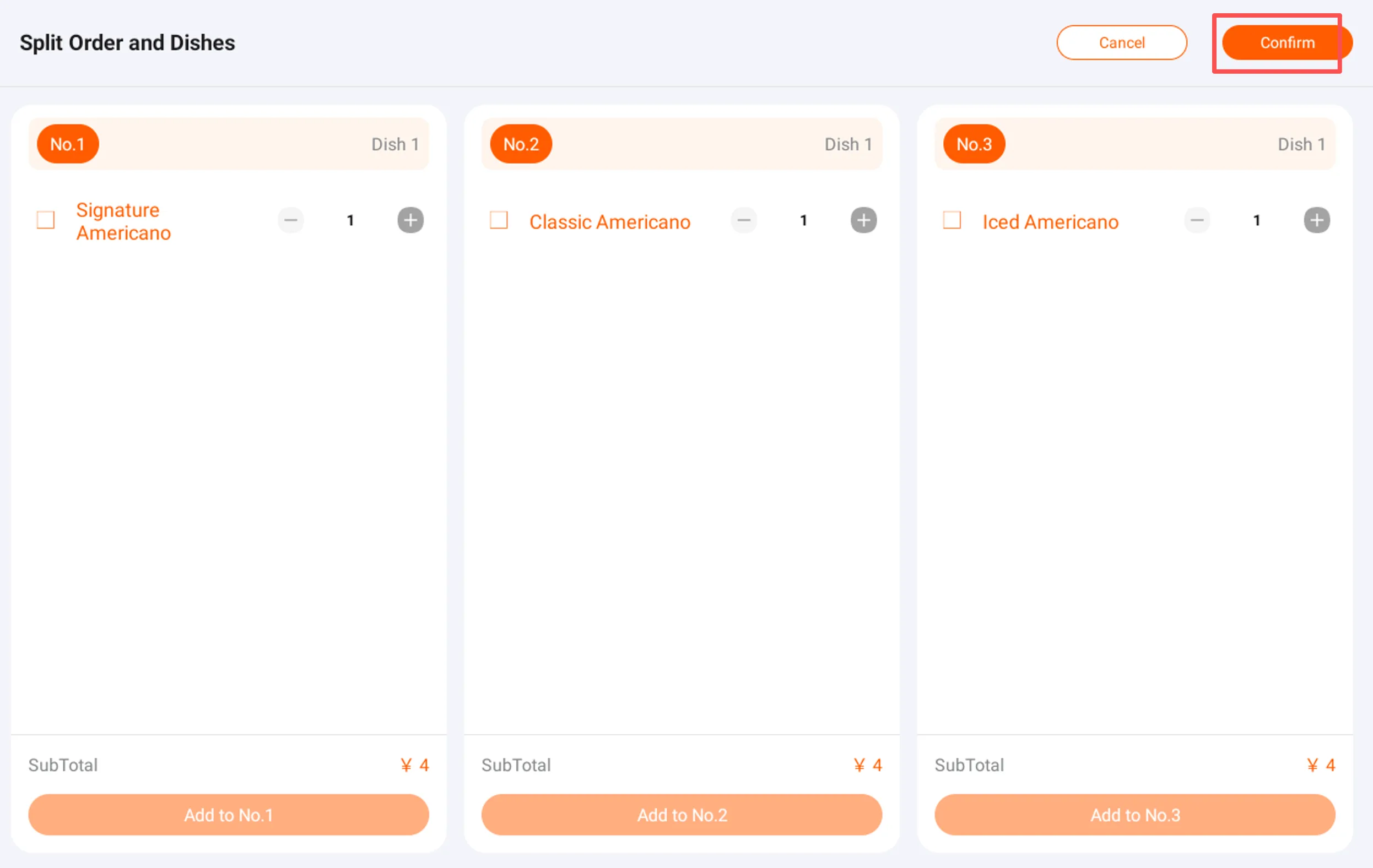
- After the dish splitting is completed, click "Confirm" to complete the order splitting
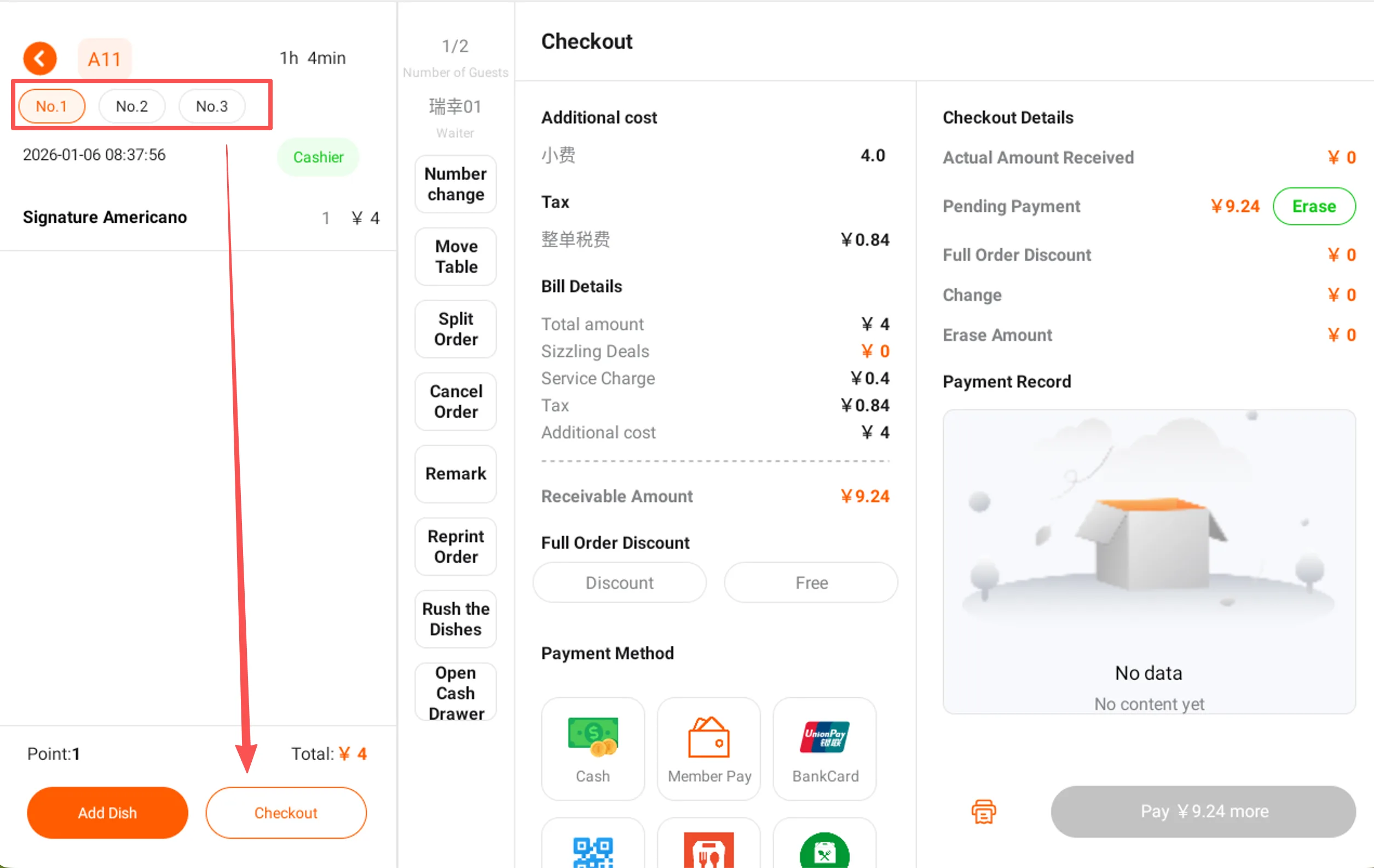
- Return to the checkout page, where you can select orders such as Order 1, Order 2, etc. for checkout and print receipts respectively
POS terminal checkout supports the operation of rounding down to the nearest integer
Rounding downrefers to the practice of eliminating or adjusting the fractional part of the customer's payable amount during POS checkout, making the final payment amount more concise and facilitating payment and change-giving.
Rounding down only applies to the actual amount paid by the customer, does not affect calculation rules such as taxes, and affects the revenue amount of the dishes in this order.
Management platform configures the rounding-off scheme
In the store management backend → Store Settings, enter the rounding-off scheme configuration
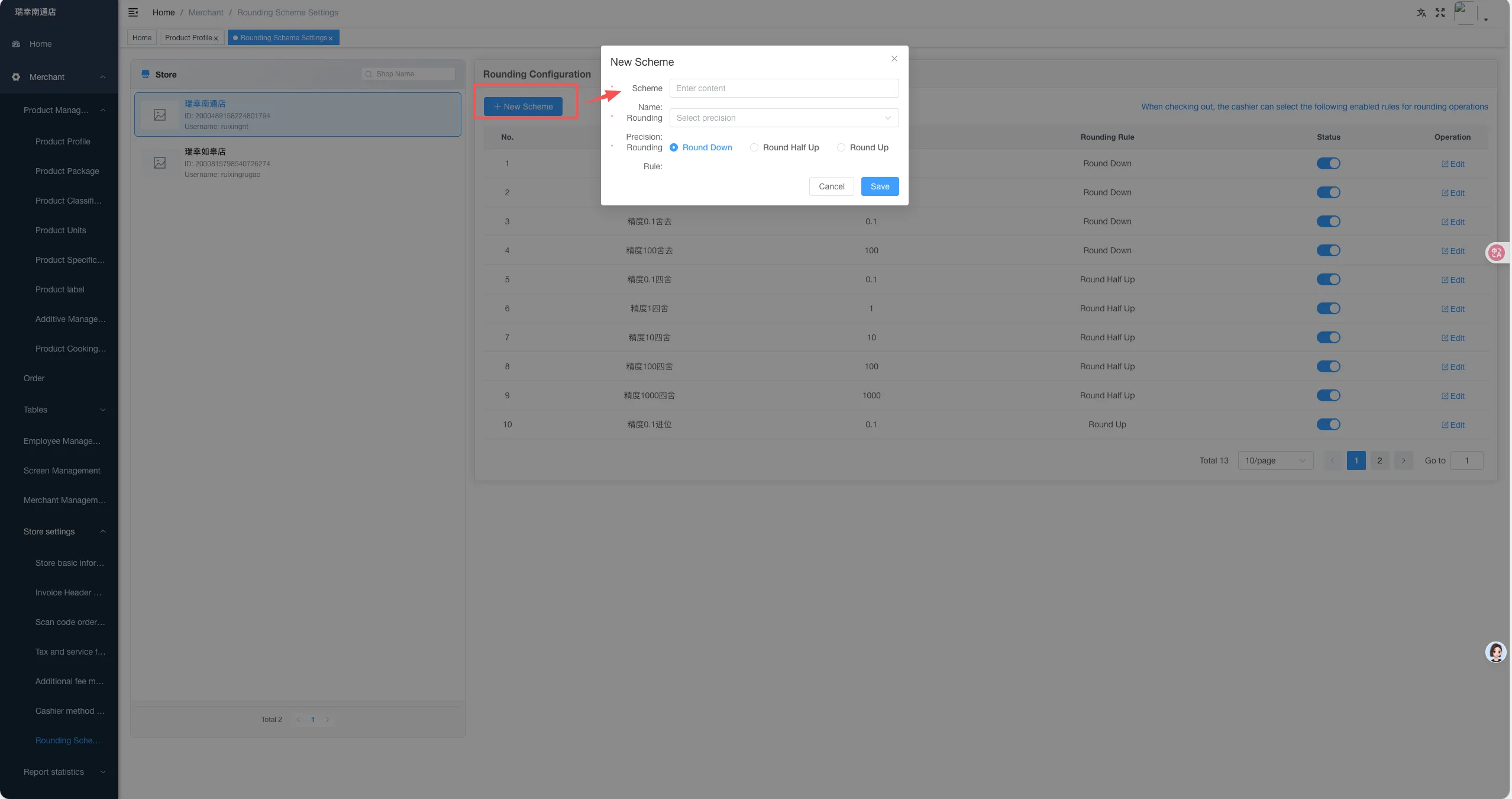
Click "New Plan" to create a rounding-off plan:
- Solution Name: Used for POS Terminal Identification and Selection
- Rounding Precision: Supports 0.01 to 10000
represents rounding to 2 decimal places, 1 decimal place, or 1, 2, 3 places before the decimal point, etc., respectively
- Rounding Rule:
Unconditionally discard
rounding
Unconditional carry
Explanation of Rounding Rules
The system supports the following three rounding rules, which are used to control how amounts are handled at a specified rounding precision:
- Unconditional truncation Regardless of the value after the decimal point, directly truncate the part beyond the rounding precision. For example:
Original Amount: 12.3456
Rounding Precision: 0.01
Result Amount:12.34
- Round Perform rounding based on the value of the next digit after the zero-truncation precision. For example:
Original Amount: 12.3456
Rounding Precision: 0.01
Result Amount:12.35
- Unconditional carry Regardless of the value after the decimal point, as long as there is a part exceeding the rounding precision, it is directly rounded up. For example:
Original Amount: 12.3412
Rounding Precision: 0.01
Result Amount:12.35
Supports creating multiple rounding-off schemes to meet the usage needs of different stores or different time periods
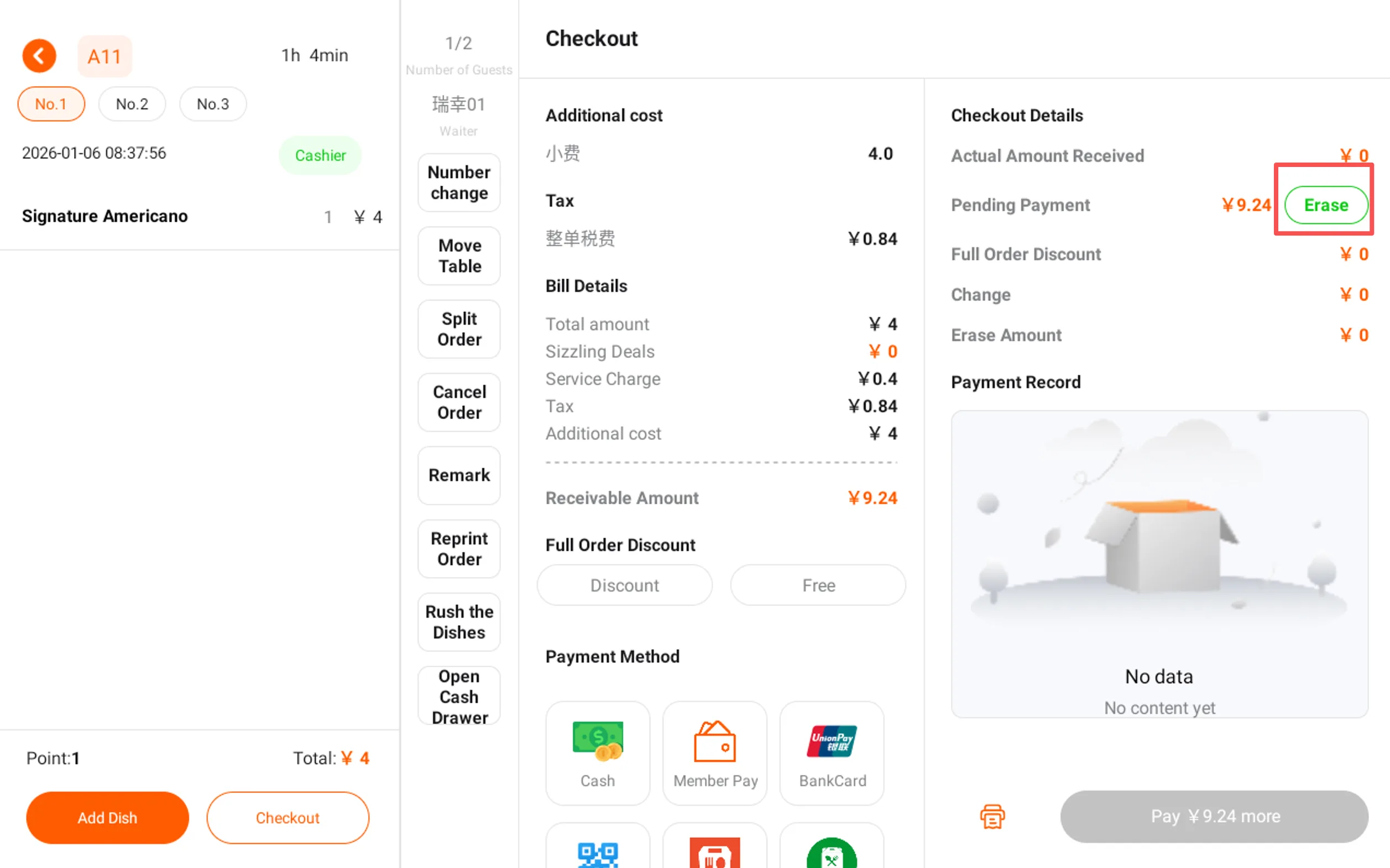
Perform rounding down when checking out at the POS terminal
- On the checkout page, click the "Round Down" button after the amount to be paid
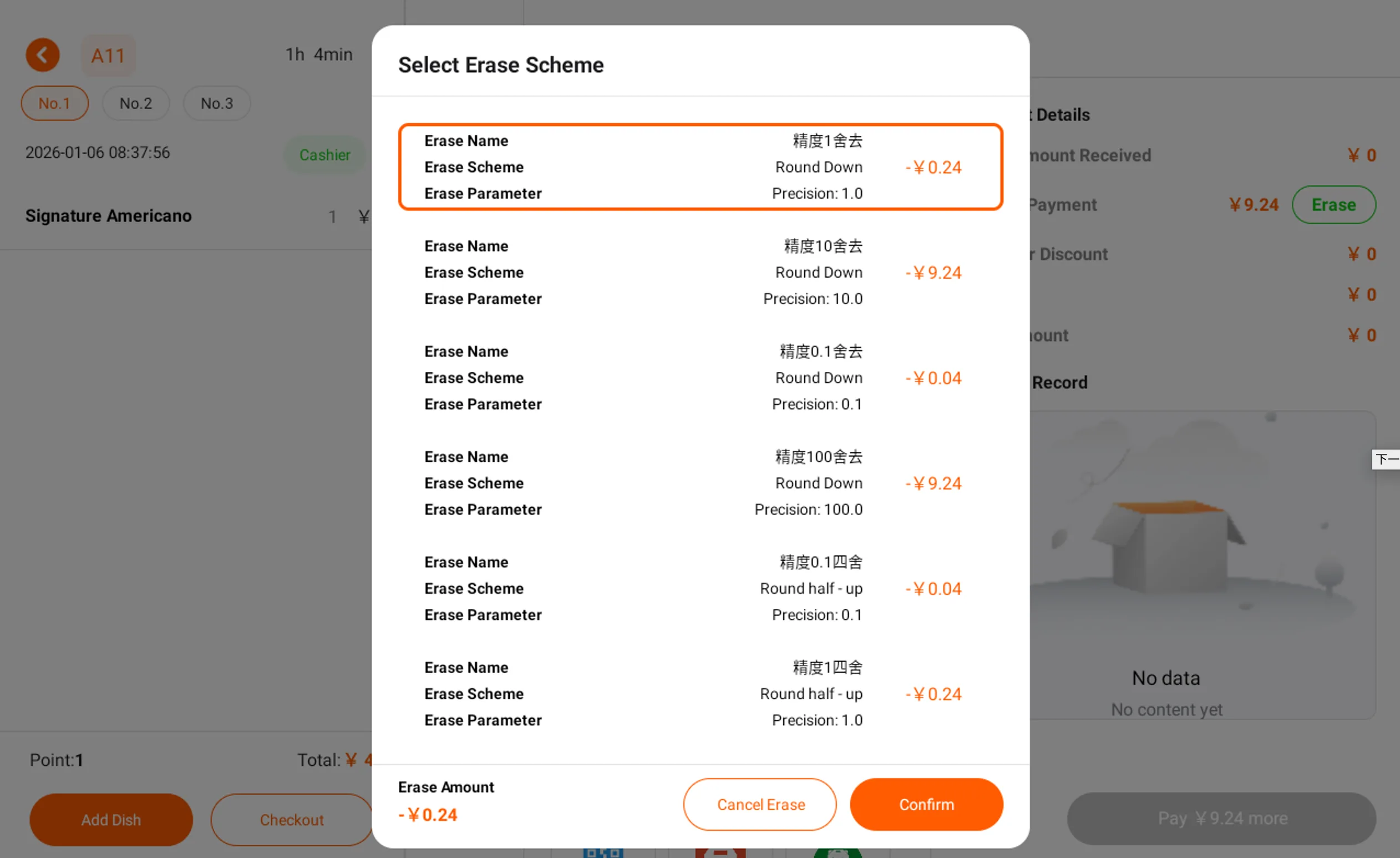
- Select the corresponding rounding-off scheme in the pop-up window and confirm
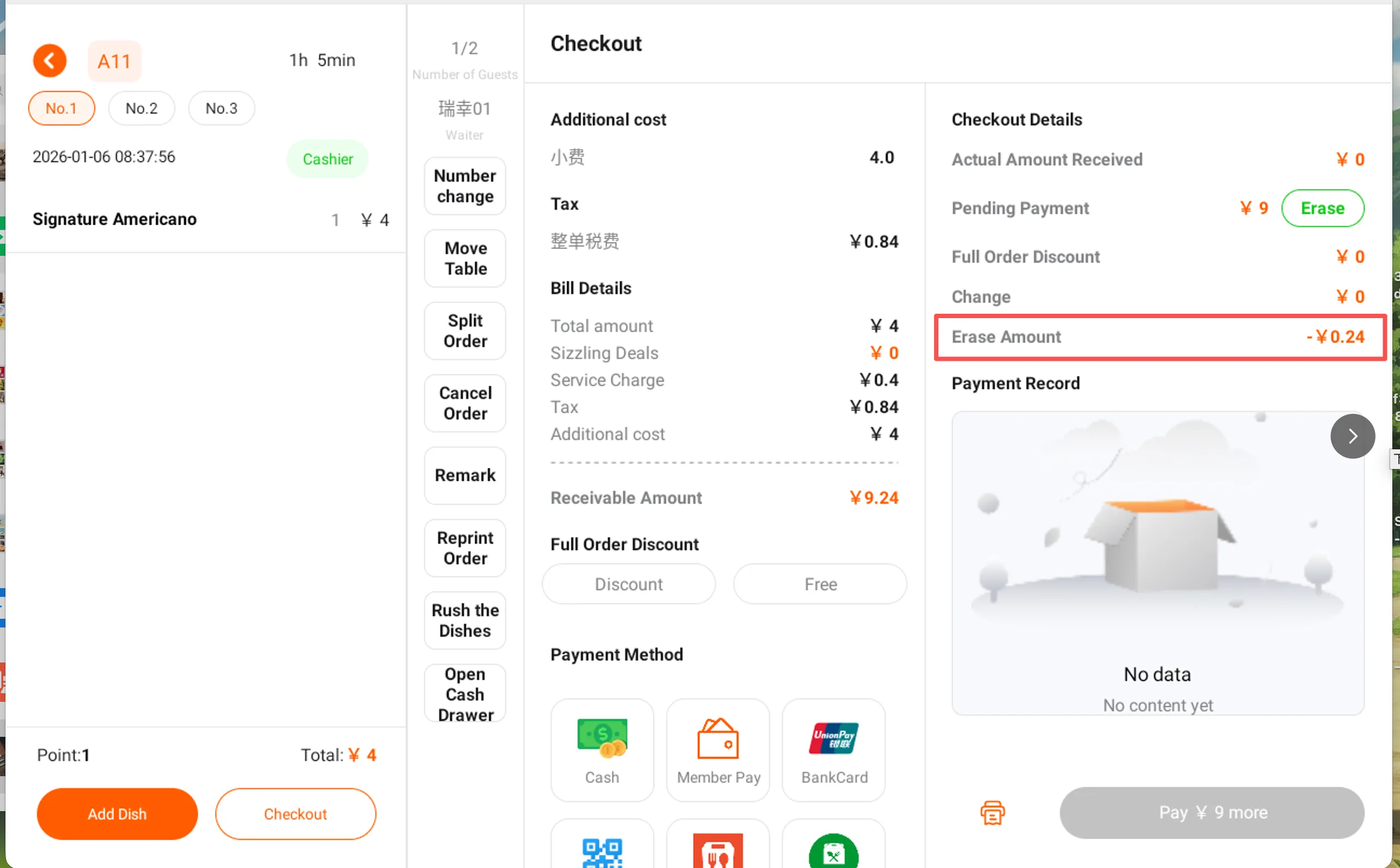
- The page will display in real time the rounded-down amountandthe latest amount to be paid
Confirmation of Inventory Increase Processing for Dish Return / Order Cancellation / Order Return
The dish itself has inventory management logic, and operations such as returning dishes, canceling orders, and refunding orders will directly affect the accuracy of inventory.
To improve the reliability of inventory data, the system has added inventory processing confirmation:
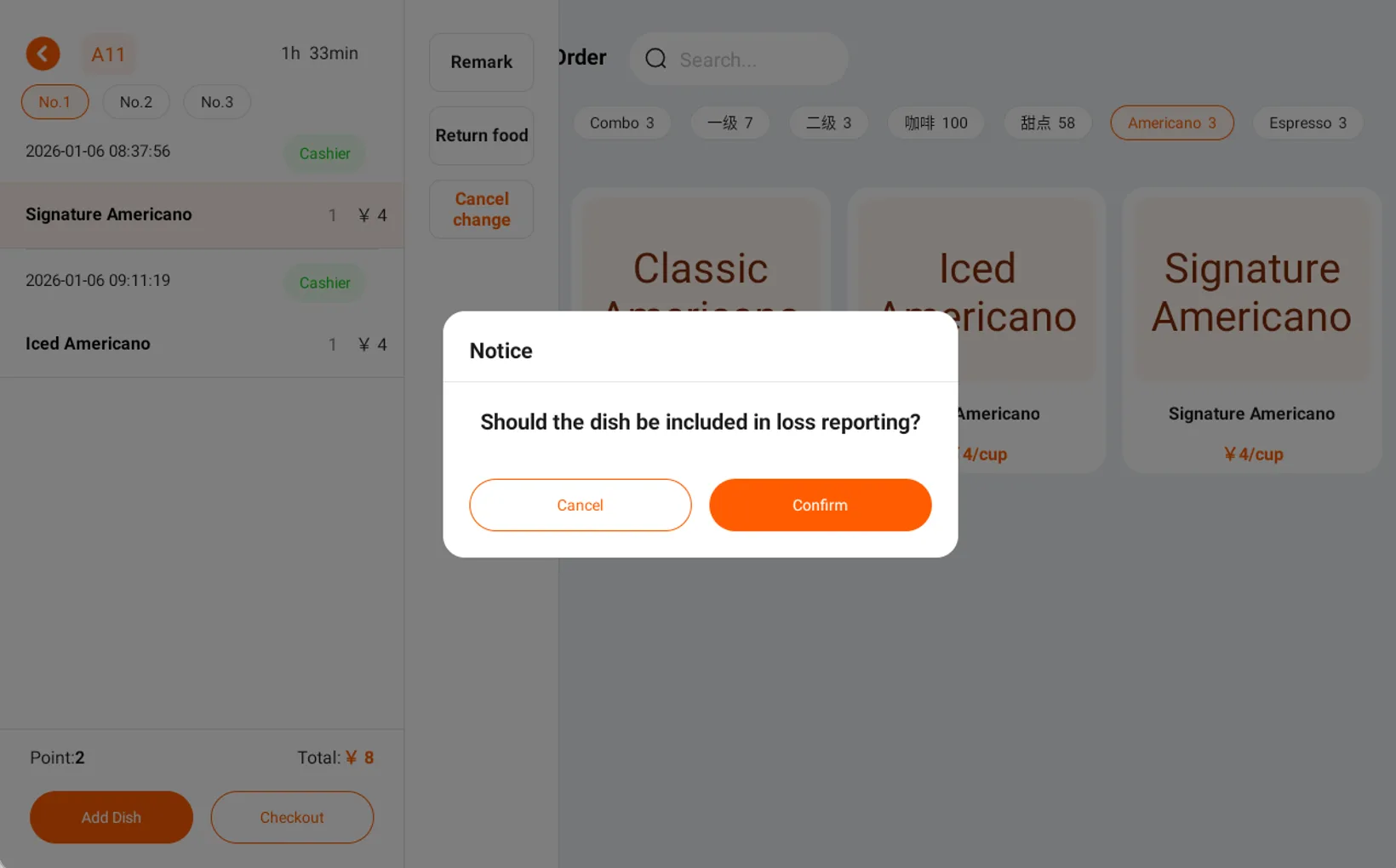
Pop-up window to confirm whether the dish is scrapped during operation
- Select Scrapping: Inventory Remains in Deducted Status
- Not Scrapped: The dish can continue to be sold, and the corresponding inventory will automatically be restored
This optimization can effectively avoid inventory anomalies and improve the accuracy of store inventory management.
Supports confirmation of change amount during checkout
For cash payment scenarios, the checkout process has added a change confirmation mechanism.
Optimization Background:
- Previously, the system directly calculated and recorded the change based on the actual payment amount and the amount payable
- During the actual cashiering process, situations such as being unable to make change, giving too little change, giving too much change, or not giving change at all often occur
New Process Description:
- When the paid amount is greater than the payable amount, the "Change Confirmation" button is displayed in the lower right corner of the page
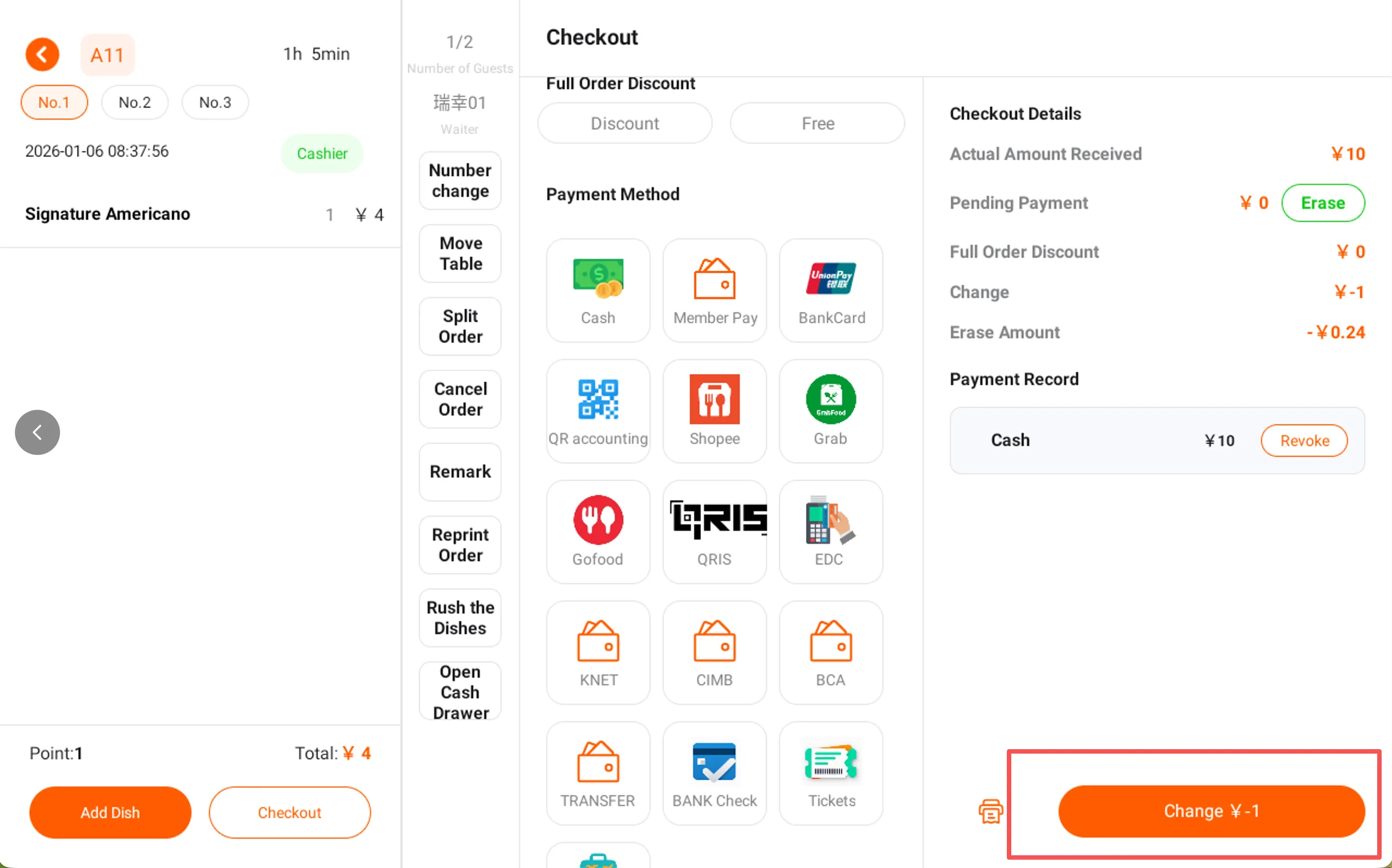
- After clicking, the system will default to displaying the amount of change due
- Cashiers can manually adjust the change amount based on the actual situation
- Complete checkout after confirmation
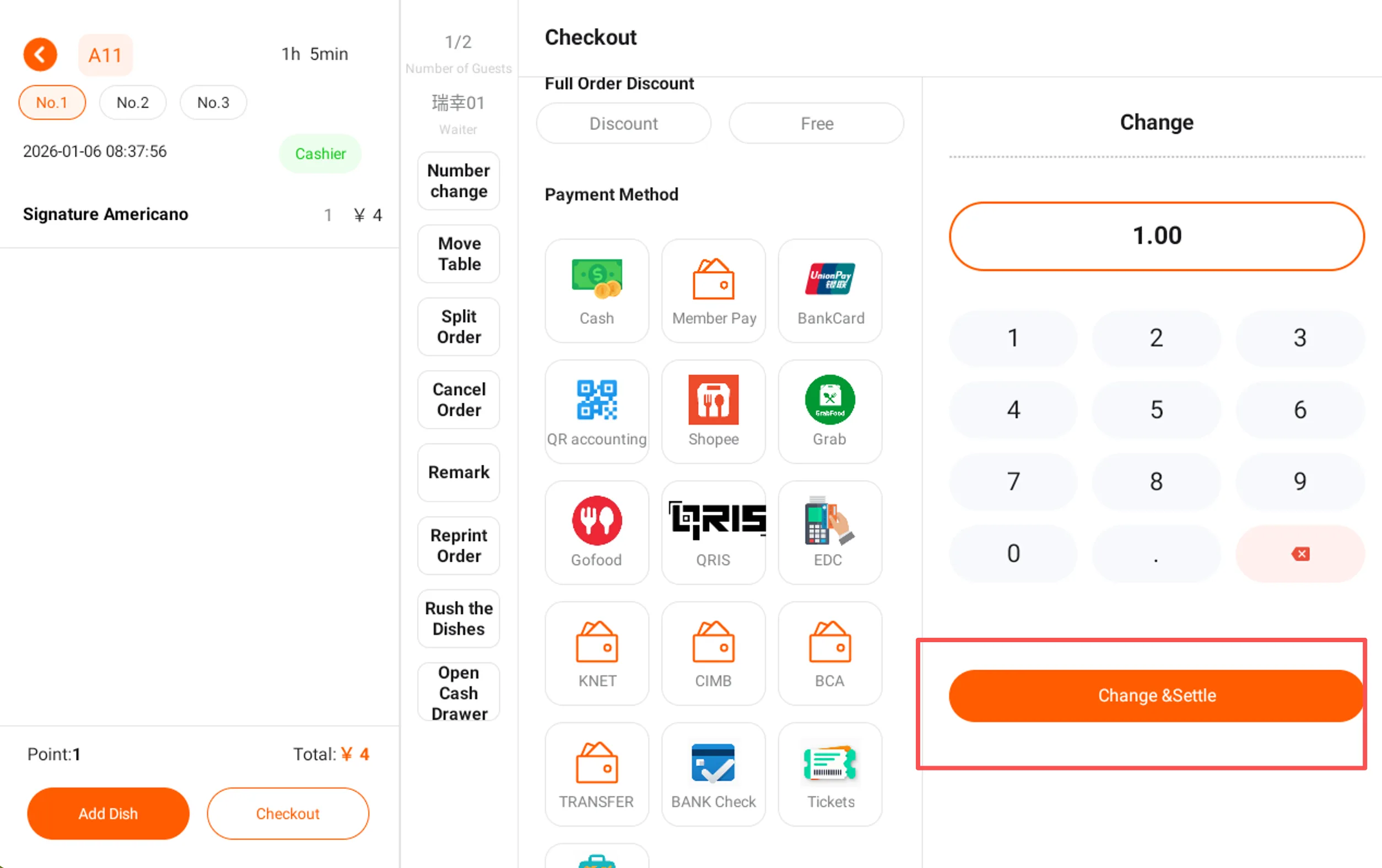
This feature can effectively enhance the authenticity of change records and the accuracy of revenue reports.
Instructions: To enhance cashier security and data accuracy, this version will clearly prompt the remaining amount to be paid during the checkout process, and the order cannot be closed until payment is completed. With the cooperation of functions such as full order discount, free order, rounding down, and change giving, cashiers can operate flexibly according to the actual situation, avoiding the issue of abnormal payment amounts in completed orders, thereby further ensuring the accuracy of revenue data and providing more reliable data support for store operations.
Optimization of POS Network Fluctuation Prompt
For the usage scenarios of some stores where the network is long-term unstable and frequently fluctuates, the logic for prompting the POS network status has been optimized:
- When the system detects that the network is continuously poor or frequently interrupted, it will proactively prompt that you can switch to offline modefor use
- Optimize network anomaly alert strategy, reduce the frequency of duplicate alerts, and avoid frequent pop-ups interfering with cashier operations when the network is poor for a long time
This optimization enhances the overall user experience in weak network environments while ensuring risk warnings.
Agents support selecting time zones when creating merchants
When an agent creates a merchant on the management platform, a new time zone selectionconfiguration item is added:
- When creating a merchant, you need to select the time zone where the corresponding store is located
- The POS terminal will automatically set the system time logic according to the configured time zone
- Effectively avoid the problem of deviations in order time and report time caused by incorrect time zone configuration