
Appearance
About LuckyPOS Smart Edition
Smart Edition is a new generation of the LuckyPOS restaurant management system, with a new POS and back-office interface. This page explains the main changes from Professional Edition and how to identify the edition your store uses.
Smart Edition introduction video
Pickup calling and seating waitlist
Pickup calling demo
See how the counter POS, kitchen display and pickup screen work together to let guests know when their orders are ready.
Watch on YouTubeSeating waitlist demo
Follow guests as they take a number, watch the waitlist display, get called and are seated when a table opens.
Watch on YouTubeWhat has improved from Professional Edition?
| Area | Main improvements in Smart Edition |
|---|---|
| System architecture | A new backend architecture provides the foundation for Smart Edition operations and feature expansion. |
| Access control | More detailed back-office permissions and button-level POS permissions let you assign access by staff role. |
| POS interaction | Clearer transaction details and complete operation records make reviews and tracing easier. |
| Reporting | Choose order time, checkout time or business date to match your reporting and reconciliation needs. |
| Local network | The primary POS, secondary terminals, KDS and self-service kiosks work together over the store network. Local operations using downloaded data can continue during an internet outage. Watch demo |
| Kitchen workflow | KDS covers preparation, cooking and serving, with each stage assigned to the relevant staff roles. Watch demo |
| AI store assistant | Ask about basic store performance, including sales, orders, dish sales and set-meal sales. Watch demo |
For local operation, keep the primary POS powered on and signed in to the POS system, with all devices on the same store network. Customer phone QR ordering still requires the primary POS to be connected to the internet.
How do I identify Smart Edition?
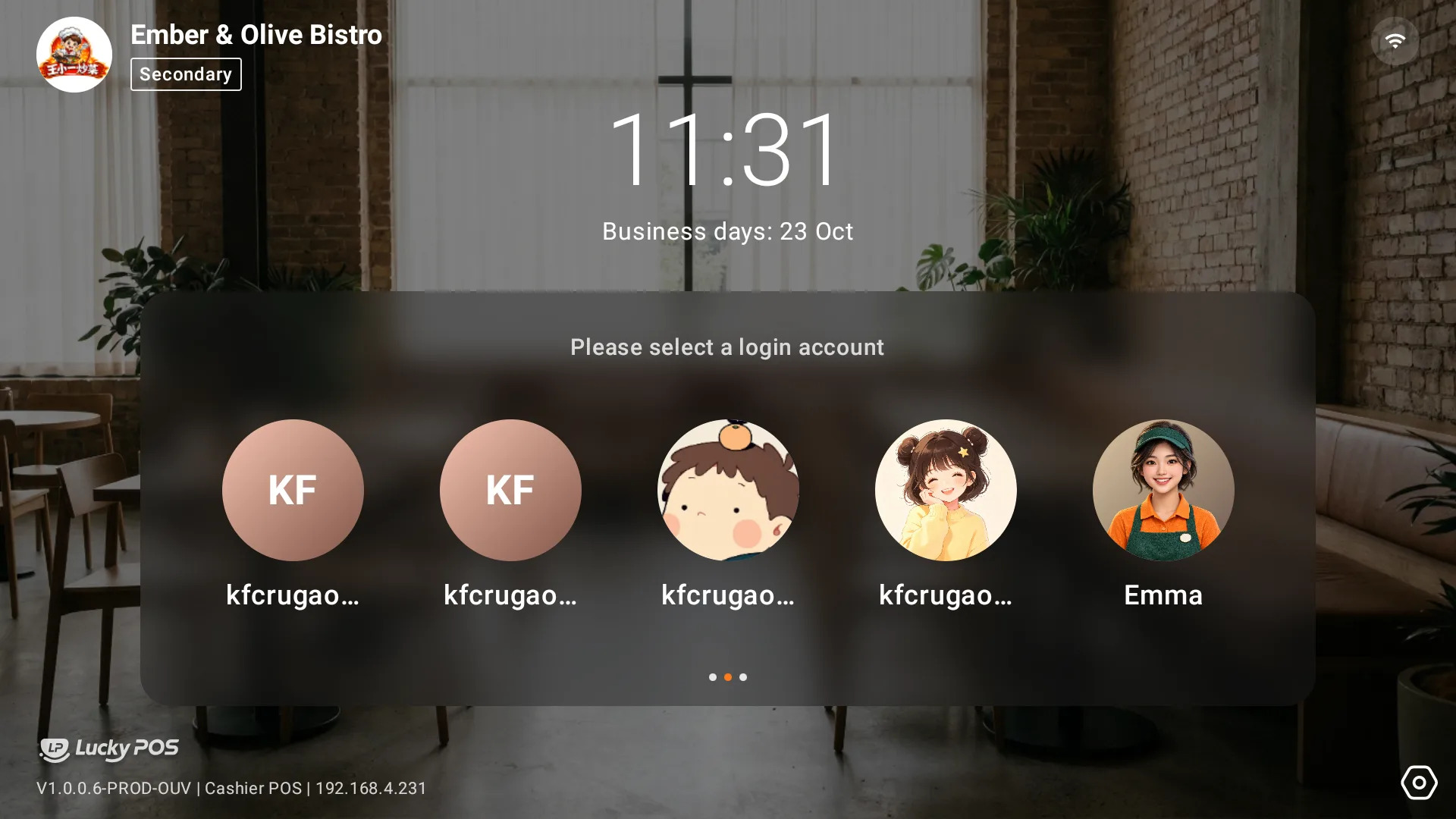
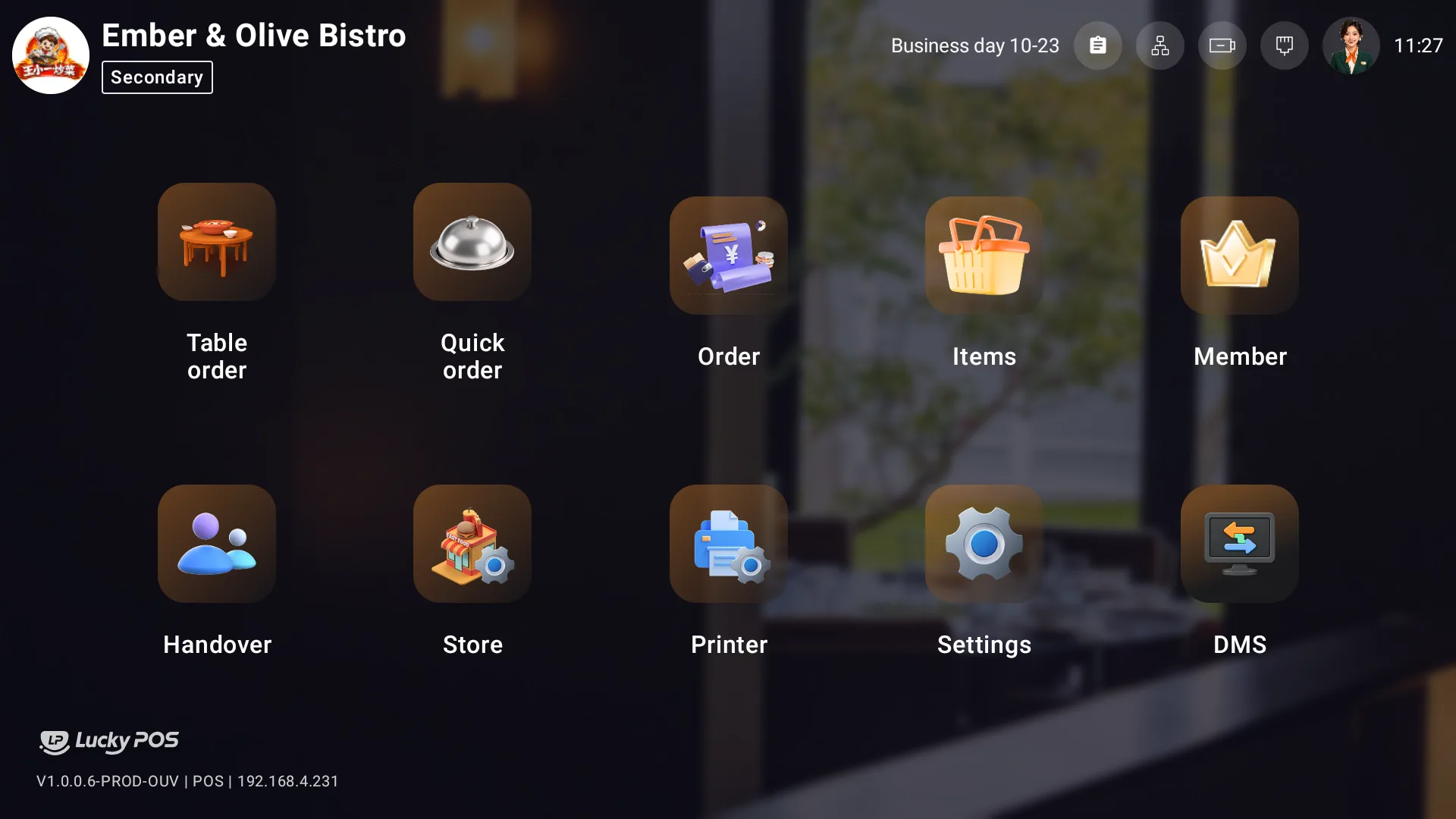
Check the POS sign-in or home screen
Look at the bottom-left corner of the POS sign-in or home screen. The LuckyPOS logo shown below identifies Smart Edition. Store names, background images and staff avatars may differ; check the logo in that corner.
Check the back-office interface and assistant
The Smart Edition back office has a different interface from Professional Edition and includes an AI store assistant, labelled AI Assistant. It answers questions about sales, orders and dish sales. A back office with this store performance assistant is Smart Edition.
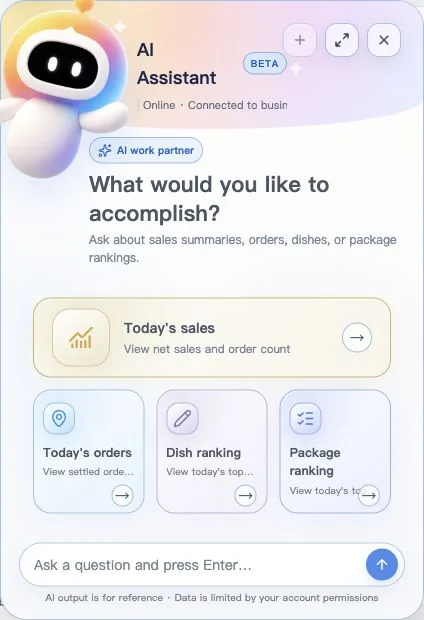
Check the assistant inside the back office. The help centre navigation bar also has an Ask AI control for documentation questions; it does not identify the edition used by your store.
If you are still unsure, send your service provider a screenshot of the POS or back-office interface to confirm.
Use the guide for your edition
For Smart Edition, continue with the Quick Setup Guide, Video Guide or User Manual. For Professional Edition, select Professional in the edition menu at the top of the page.
The help centre edition menu changes which documentation you read. It does not change the system used by your store.